
List and Table View
Switch between List and Table view, sort and group tasks by assignee or priority, and manage completed tasks using toolbar options in awork
In this article, you'll learn how to use List and Table view in awork to manage your tasks efficiently. You'll learn how to switch between views, customize columns, group and sort tasks, and apply various actions to your tasks.
You can choose between List and Table view anywhere in awork, for example in projects and views.
Switch between List and Table view
In the toolbar above the task list, you'll find the Liste and Tabelle view options. Click the view you want to switch between List view and the detailed Table view.
Group and sort tasks
Adjust sorting
Use the sort icon in the toolbar to change the order of the tasks. The tooltip "Sortieren nach" shows you the available sorting options: Aufgabenstatus, Bearbeiter, Erstellt von, Erstellung, Fällig, Geplanter Aufwand, Key, Name, Prio, Start-Datum, Statustyp, Tätigkeit.
Change grouping
Click the group icon in the top-right toolbar. A dropdown menu opens with the heading "Gruppieren nach". Here, you can choose from several options: Bearbeiter, Erstellt von, Liste, Prio, Statustyp, Tätigkeit, Tageweise/Wochenweise/Monatsweise.
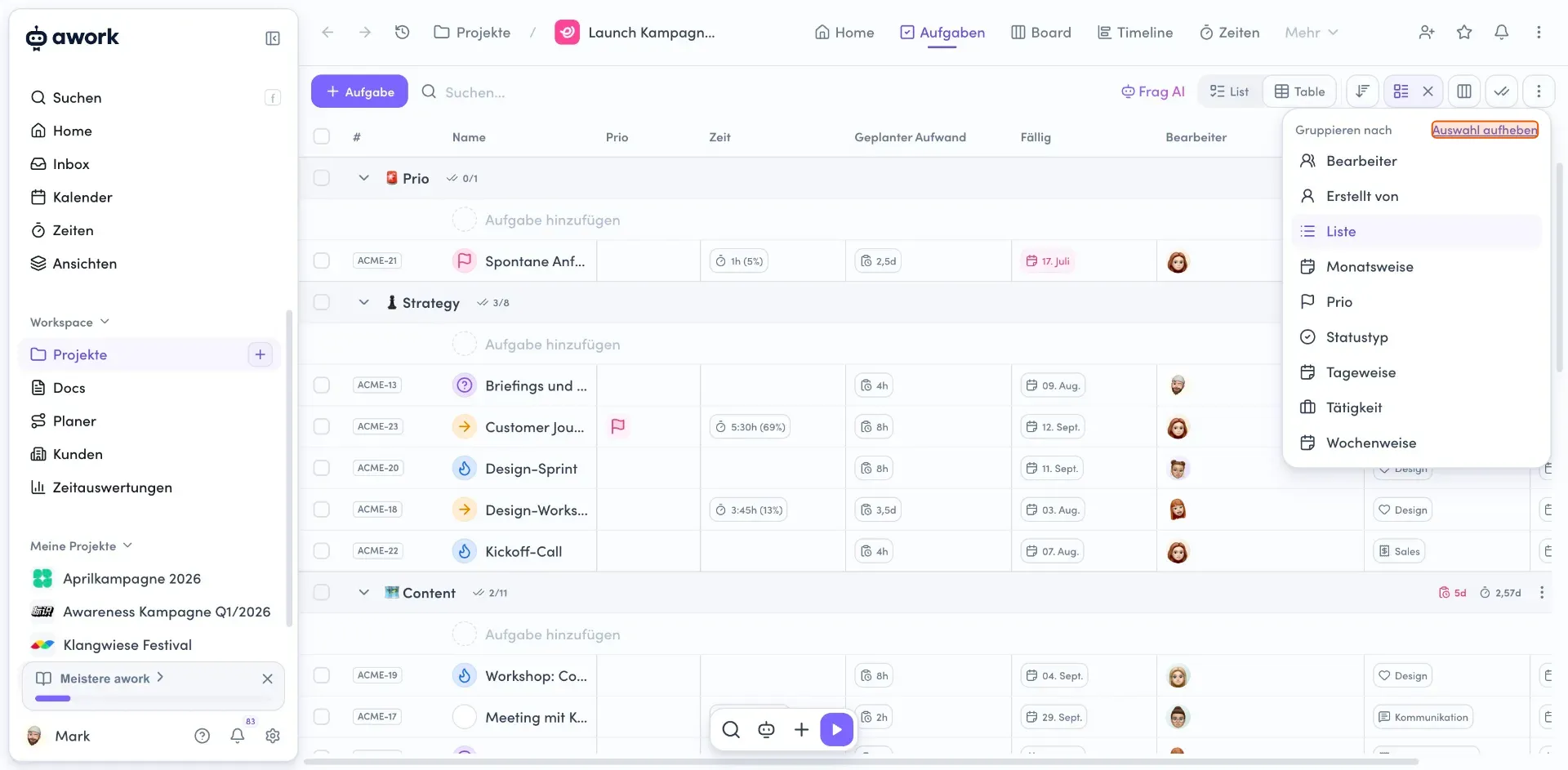
Click Auswahl aufheben to clear the sorting or grouping.
The standard task lists also count as a grouping. If you remove this grouping, you'll see the individual tasks without lists, sorted chronologically by task key.
Show or hide completed tasks
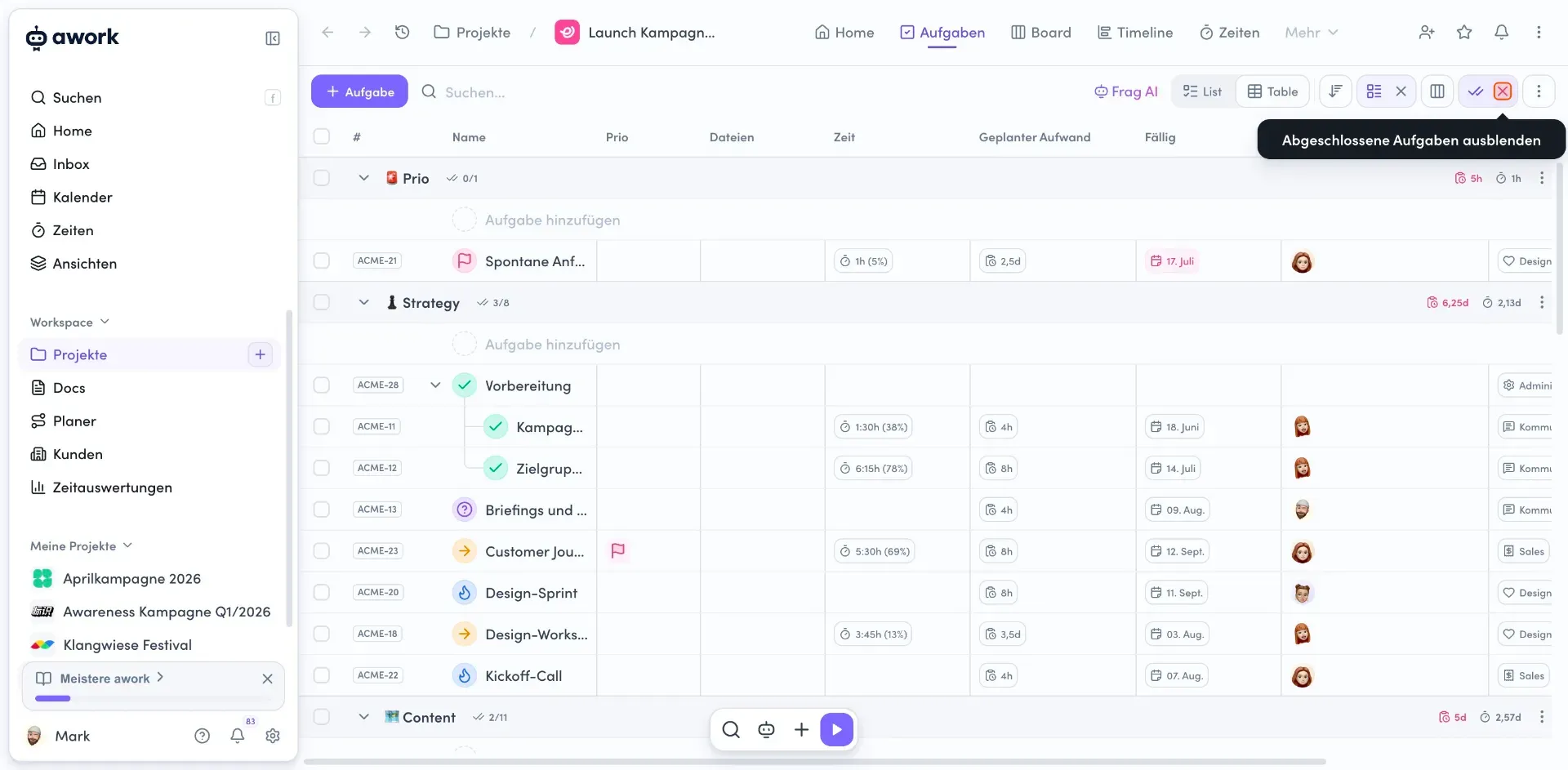
Click the double checkmark icon in the toolbar to show or hide completed tasks. You can choose between two options:
- Kürzlich abgeschlossene Aufgaben anzeigen (completed in the last 30 days)
- and Alle anzeigen
Manage task lists
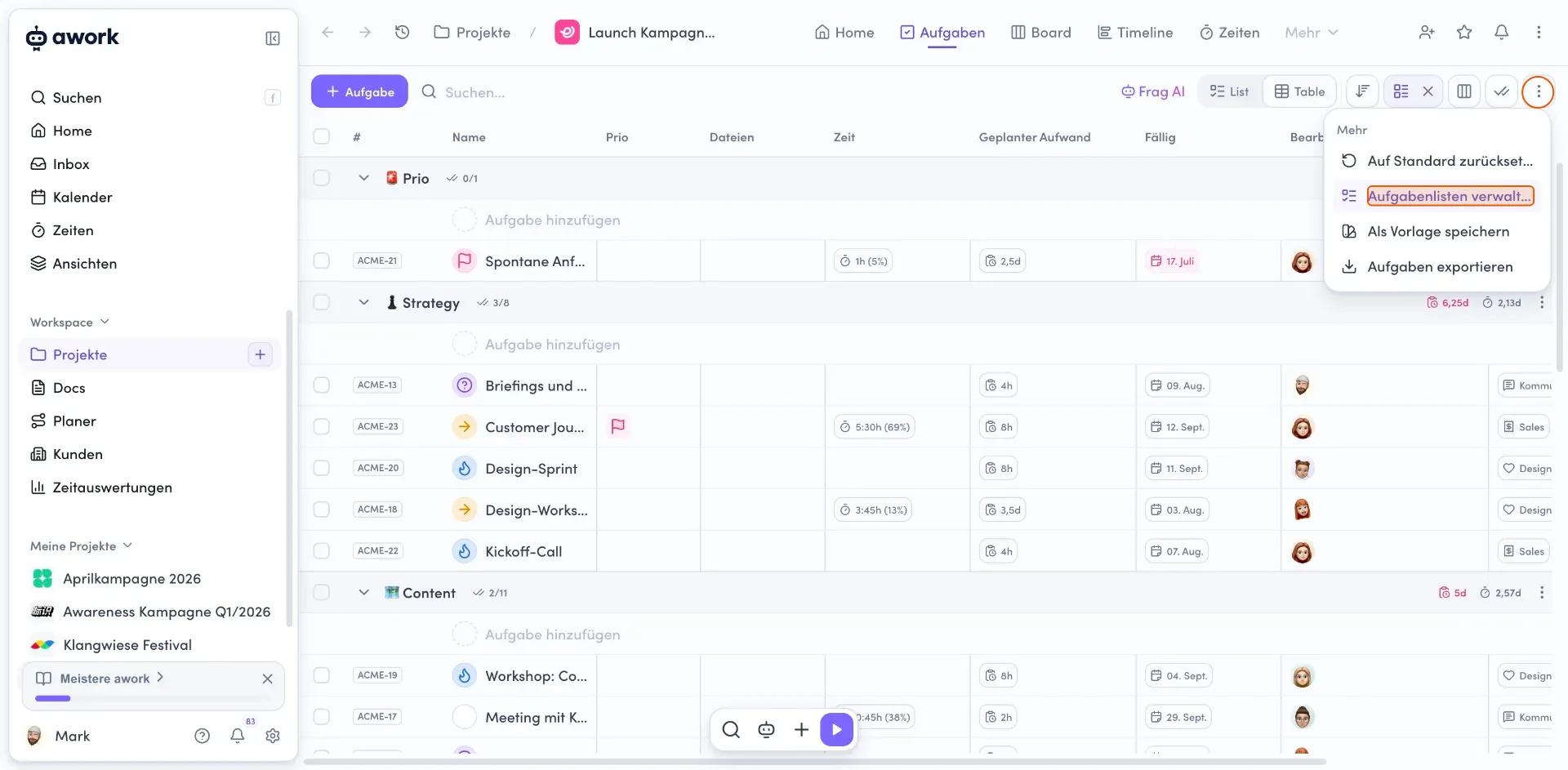
Click the action menu in the top-right corner and select Aufgabenlisten verwalten. A modal window opens, listing all the task lists in the project.
- Reorder task lists
In the management window, you can change the order of the lists using drag and drop. Drag a list by the handle icon on the left and drop it in the position you want. - Perform actions on lists
Click the three-dot menu to the right of a list to see more options: archive or delete the task list. Close the window using the Schließen button or the X icon.
Organize tasks
Each task now appears in its own clearly defined row.
Move individual tasks
Use the Griff zum Verschieben (the six-dot icon on the left in the task column) to grab and move tasks.
Drag and drop a task row to another position in the list. A colored line shows you where it will be inserted.
The move handle (the six dots) is only shown when no sorting option is selected and no custom grouping is active.
Create new tasks
Add a task
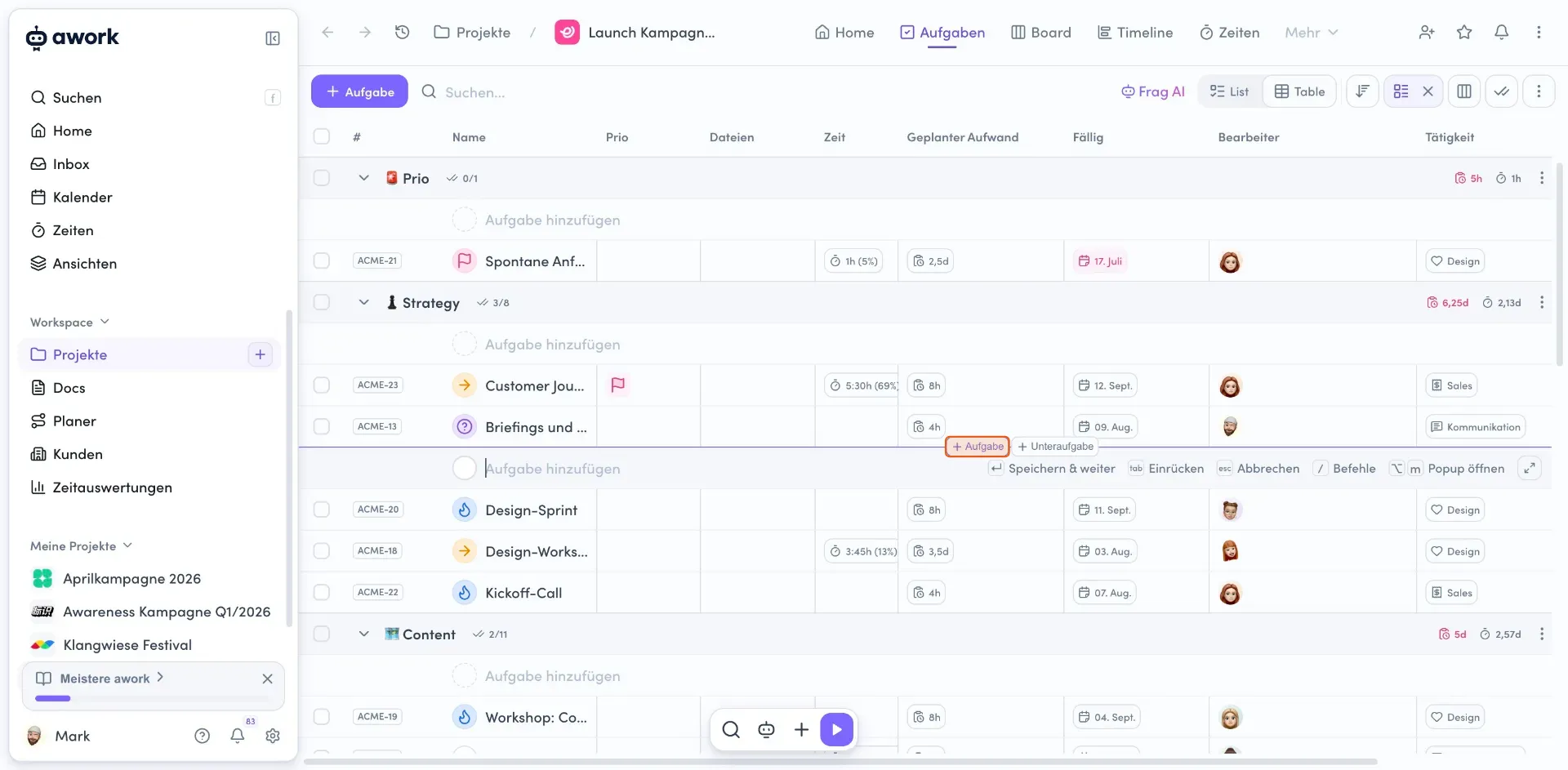
In a task list, click the Aufgabe hinzufügen row or the + Aufgabe button between tasks.
Add a subtask
Click + Unteraufgabe to create a nested task under an existing task, or drag an existing task to the right using the handle on the left to nest it under another task.
Edit entire hierarchies
When you select a parent task, its subtasks are automatically included.
Actions for task lists
Expand and collapse subtasks
Open a task list's action menu and select Unteraufgaben ausklappen or Unteraufgaben einklappen to show or hide all subtasks.
More list actions
The task list's action menu gives you access to more options:
- Archivieren: Archive the list
- Neue Aufgabenvorlage: Create a template
- Aufgabenliste duplizieren: Copy the list
- Zu Projekt verschieben: Move the list to another project
- Link kopieren: Copy a direct link to the list
- Verbergen für externe User:
- Aufgaben löschen: Delete all tasks in the list
- Aufgabenliste löschen: Remove the entire list
Edit planned effort
Click a task list's planned effort value to edit the planned effort for the entire list.
Edit multiple tasks
- Select tasks
Click the checkbox on the left edge of a task row to select it. You can select multiple tasks one after another. - Perform bulk actions
When tasks are selected, an action bar appears at the bottom of the screen. It shows the number of selected tasks, for example "2 ausgewählt", and offers various actions in the action menu (the three horizontal dots):
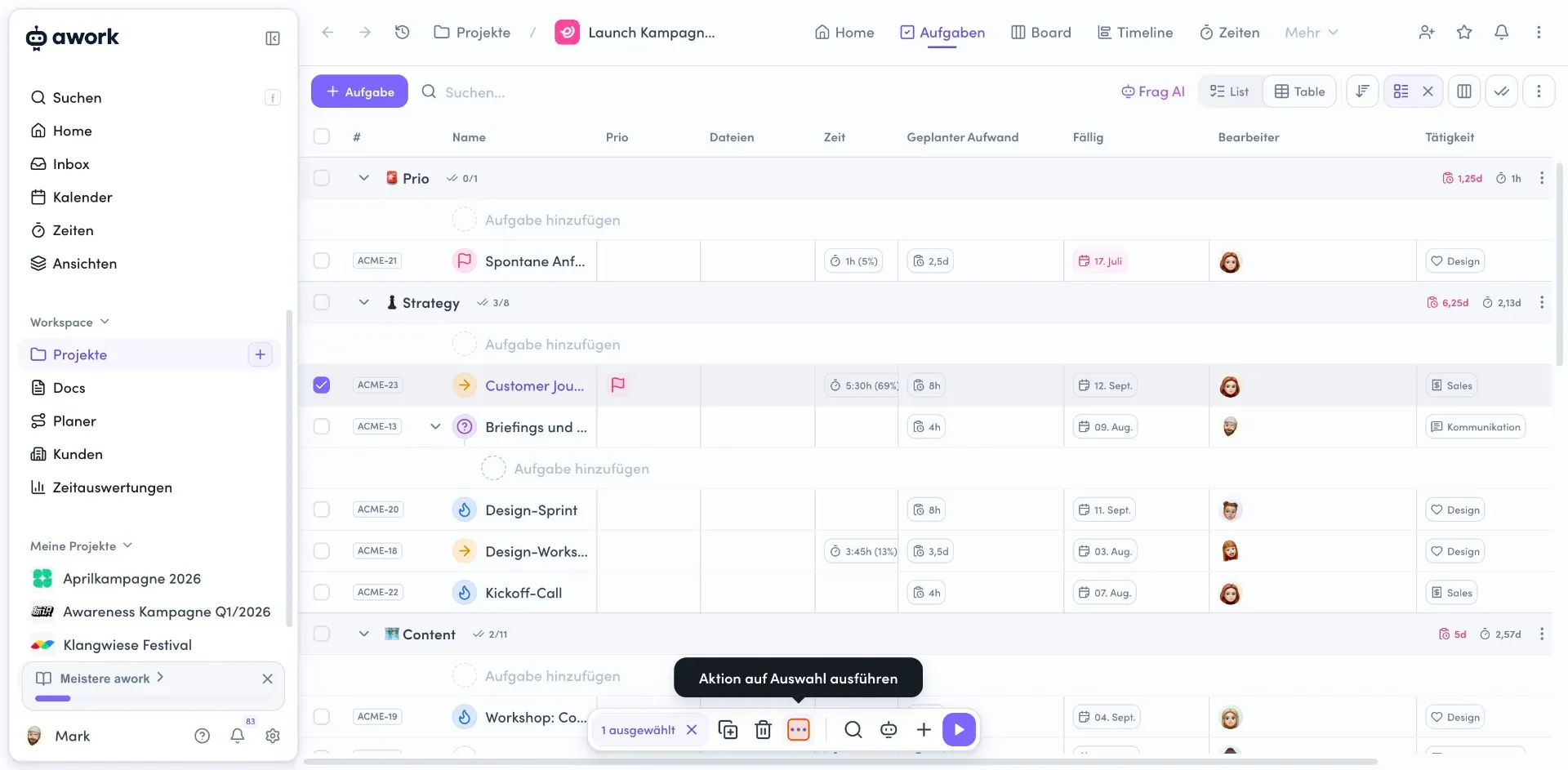
- Tags hinzufügen
- Aufgaben duplizieren
- Aufgabenliste ändern
- Projekt ändern
- Fälligkeit ändern
- Verschieben
- Prio setzen
- Status ändern
- Bearbeiter setzen/entfernen
- Tätigkeit ändern
- Unter Aufgabe verschieben
- Aufgaben löschen
Table view
You can switch any list to Table view. You can choose which columns appear in the table, their order, and their width.
awork remembers your configuration for each list, so you can set it up differently for each project.
Configure columns in Table view
Choose which columns to display
Click the columns icon in the toolbar to open the columns dropdown menu. Here, you'll see a list of all available columns. Click the checkbox next to a column to show or hide it.
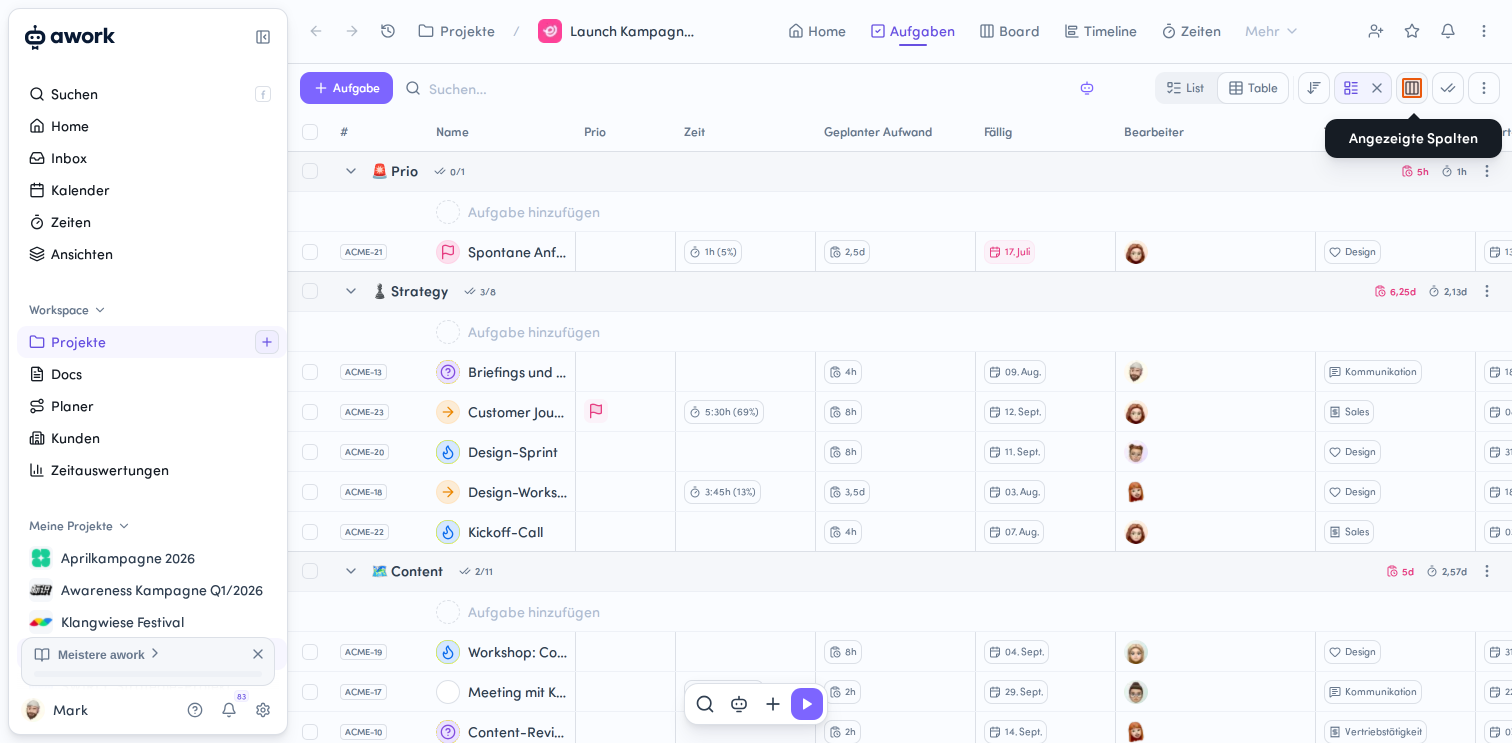
The Liste column is hidden by default. You can enable it here. It shows the main list first, followed by up to two more lists. Any additional lists are grouped under "+N". Hover over "+N" to see all list names.
Adjust column width
Drag the vertical divider between two column headings to change a column's width. The tooltip "Größe ändern" confirms this action.
Reorder columns
Drag and drop a column to a new position. The tooltip "Zum Neuordnen ziehen und ablegen" indicates that the column is being moved.
Sort columns in ascending or descending order
Click the up or down arrow next to a column heading to sort that column in ascending or descending order.
 Powered by happysupport.ai