
The Main Menu
Navigate between Home, Inbox, Calendar, Projects, Docs, and other key areas using the main sidebar menu, and collapse the sidebar to maximize content space
In this article, you'll learn how to use the main menu in awork and navigate between the different areas of the app. You'll get to know the sidebar layout and learn how to quickly access all the key features.

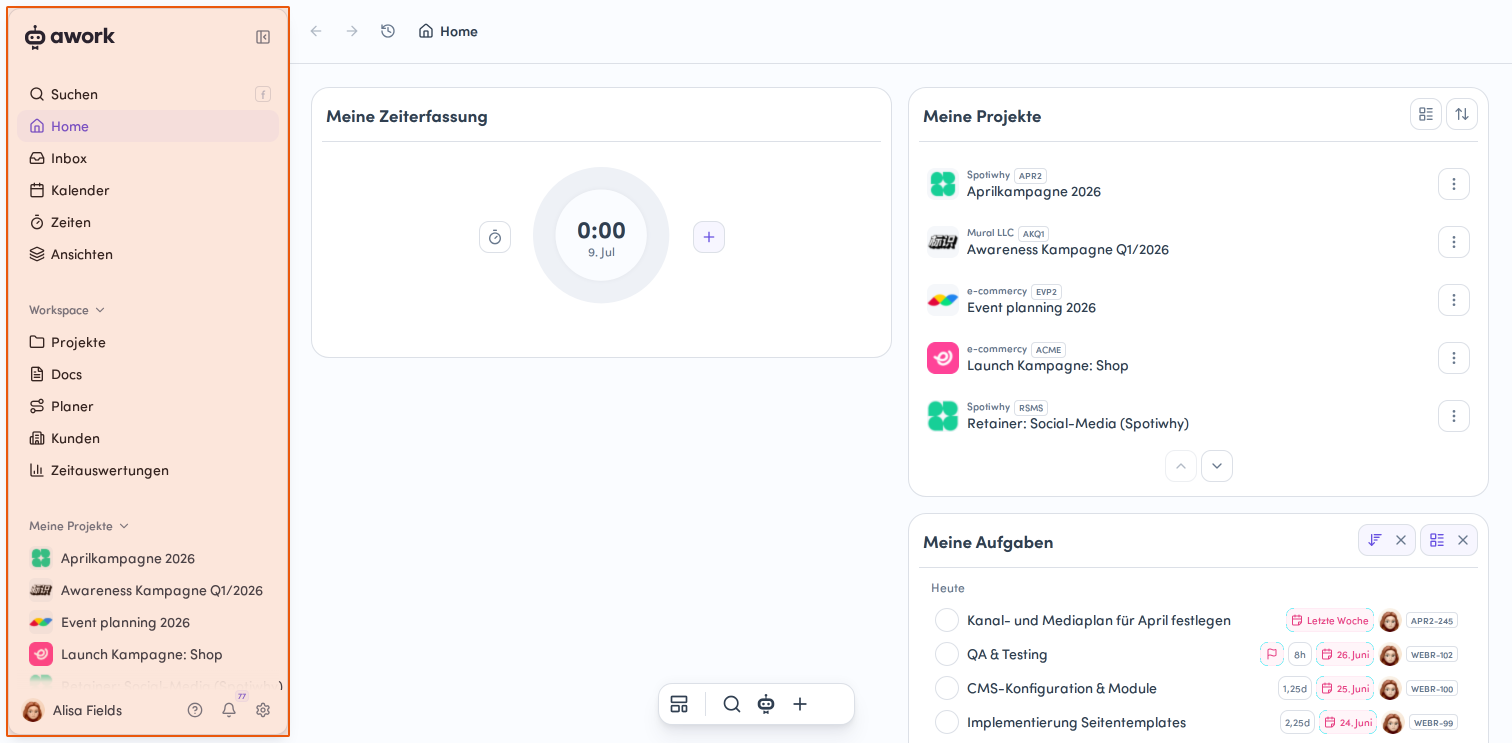
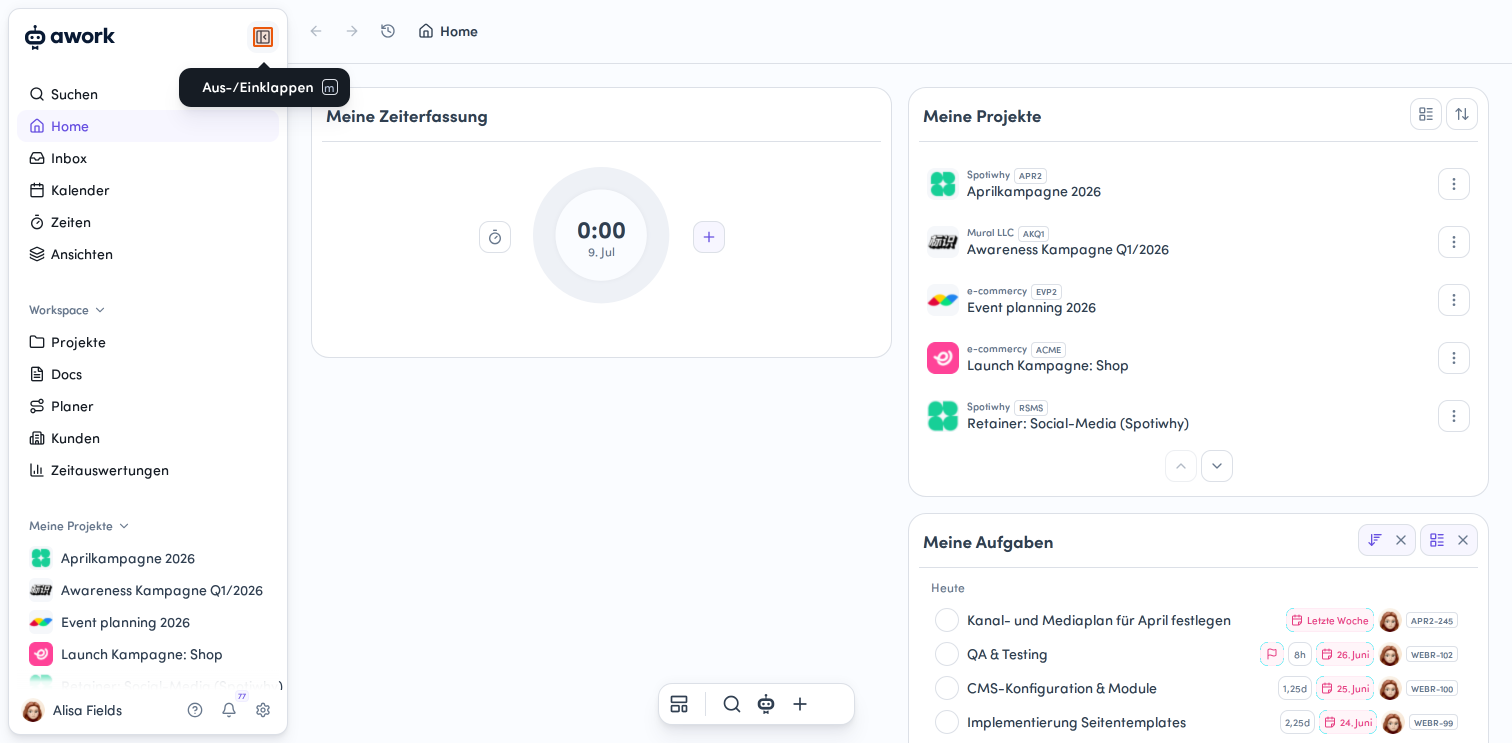
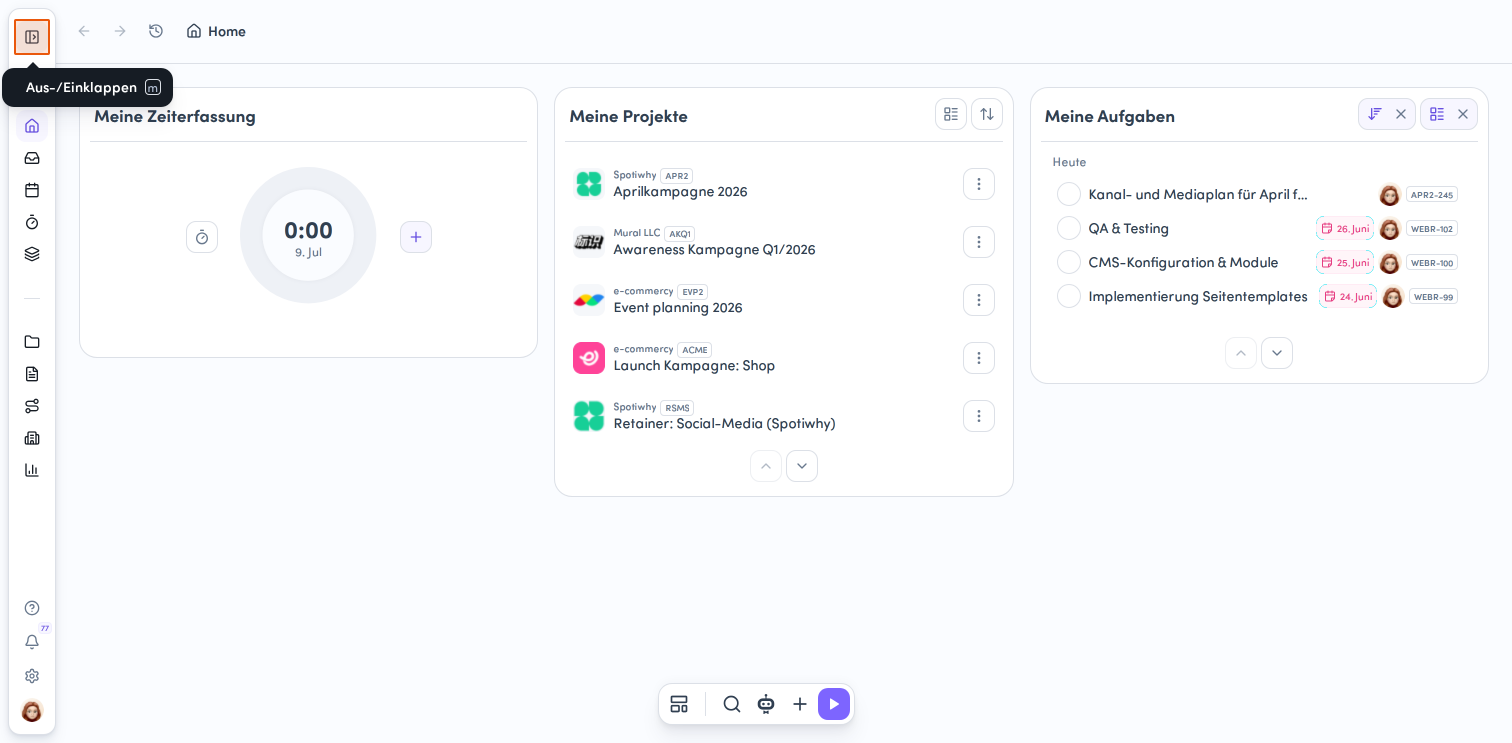
Expand and collapse the sidebar
Minimize or expand the sidebar
To make more room for the main content, you can collapse or expand the left sidebar. To do this, click the small button icon at the top right of the sidebar, next to the awork logo. A tooltip labeled "Aus-/Einklappen" tells you what the button does.
Use the main navigation
The main menu contains all the key navigation items, so you can quickly switch between the different areas of awork. It's divided into 3 sections:
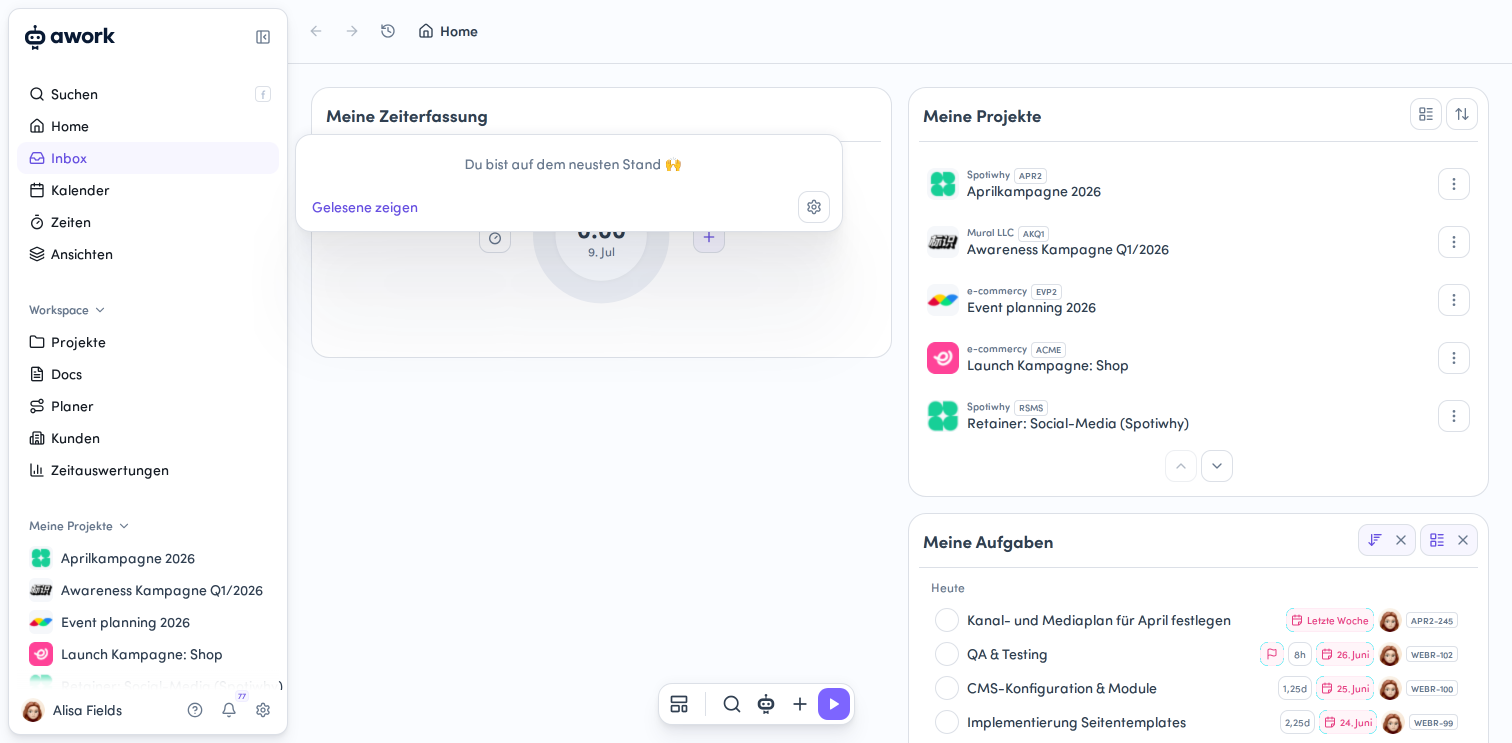
- Persönliche Inhalte (Home, Inbox, Kalender, Zeiten and Ansichten)
- the Workspace level (Projekte, Docs, Planer, Kunden and Zeitauswertungen)
- Quick access to projects (Favoriten, Geteilte Projekte, Meine Projekte).
The selected menu item is highlighted with a light purple background.
Personal content
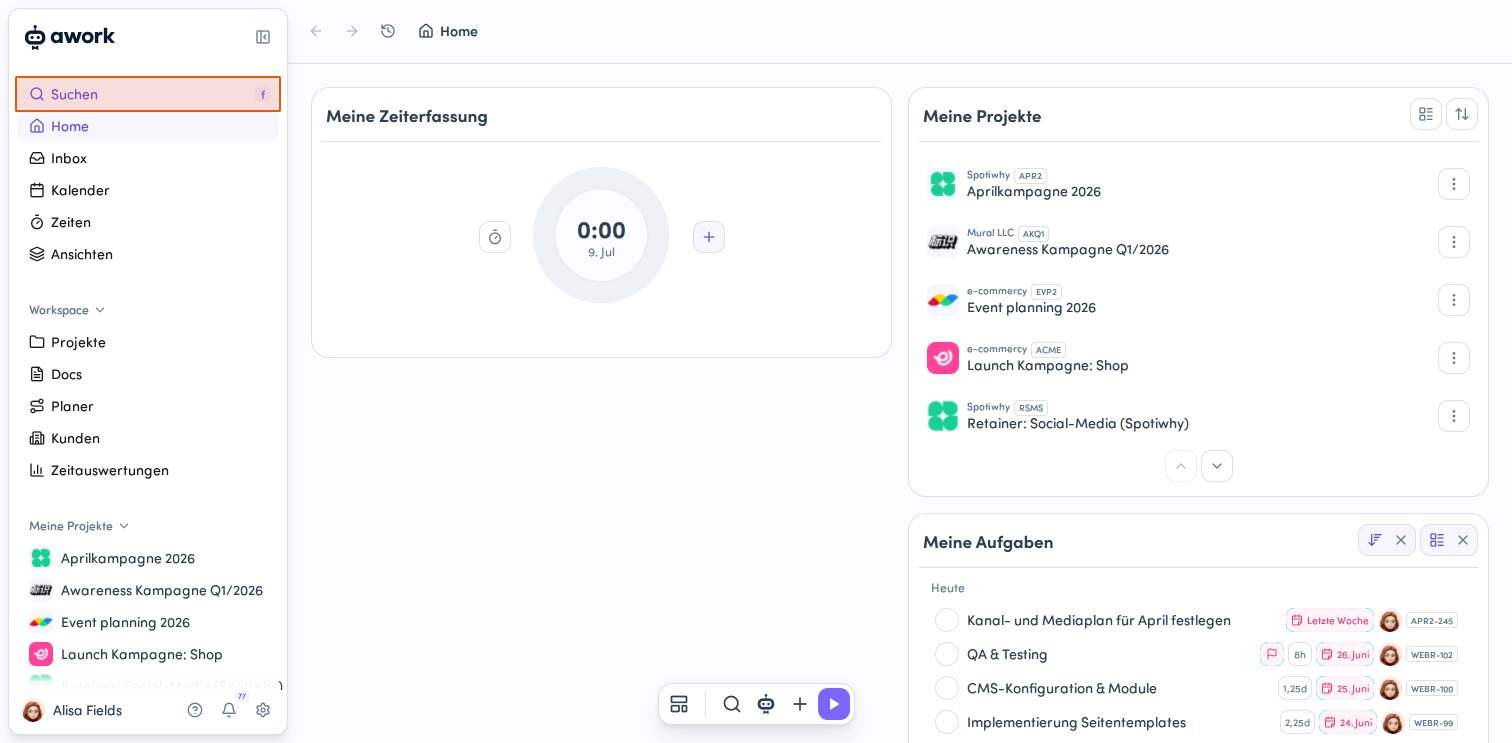
- Open search
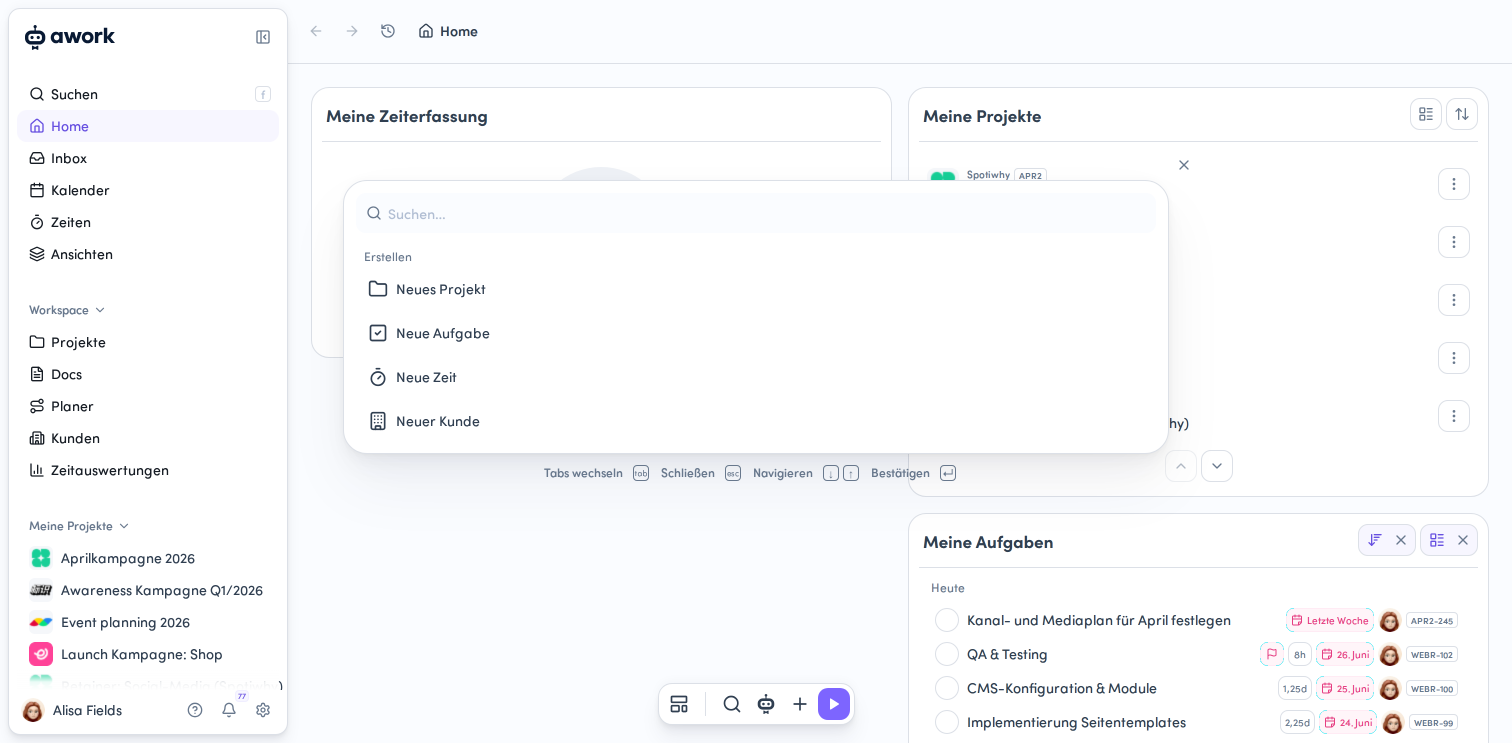
Click Suchen at the top of the sidebar to open the search feature. An overlay appears with a search field and shortcuts to frequently used actions such as "Neues Projekt", "Neue Aufgabe", "Neue Zeit" and "Neuer Kunde".
-
Go to Home
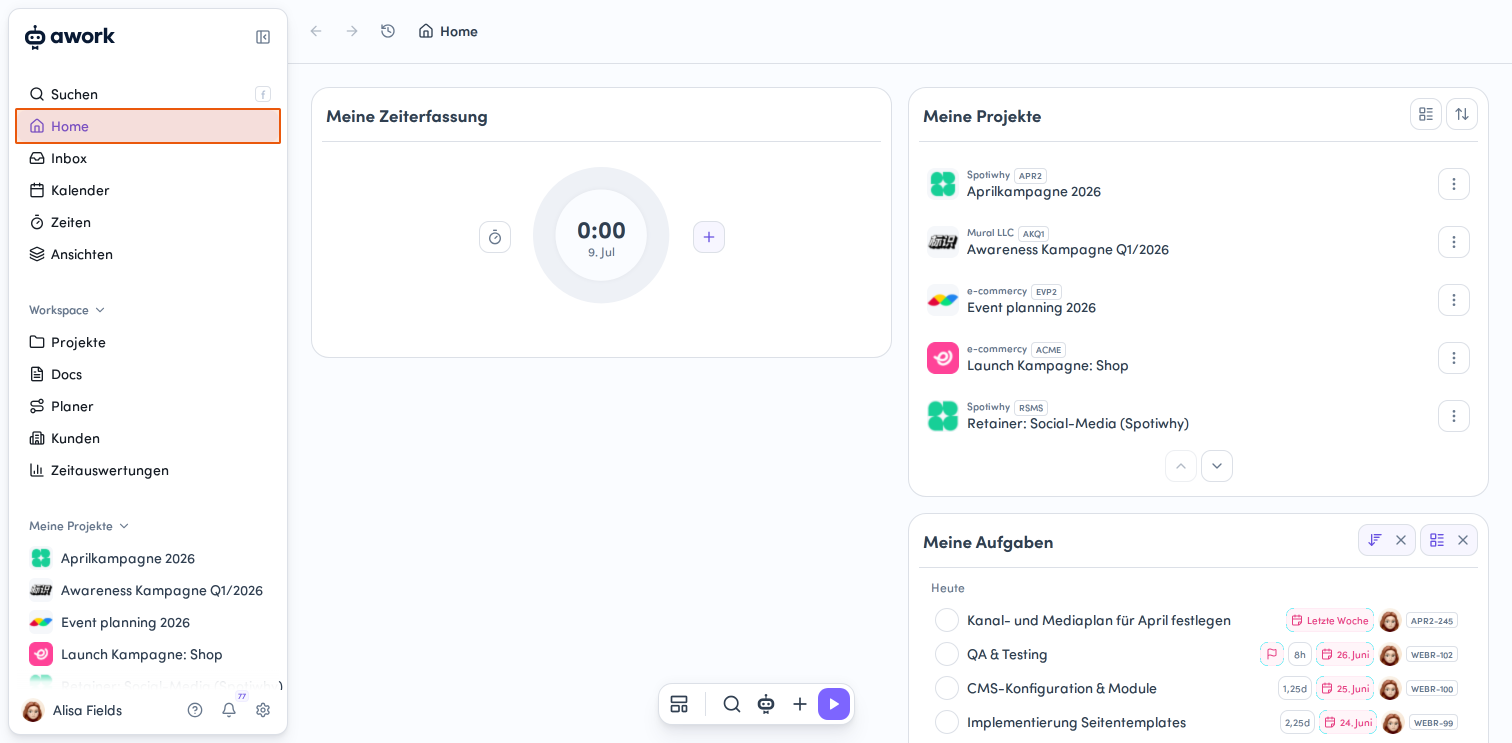
Click Home in the sidebar to go to the home page. Here you'll find your dashboard. -
Open the calendar
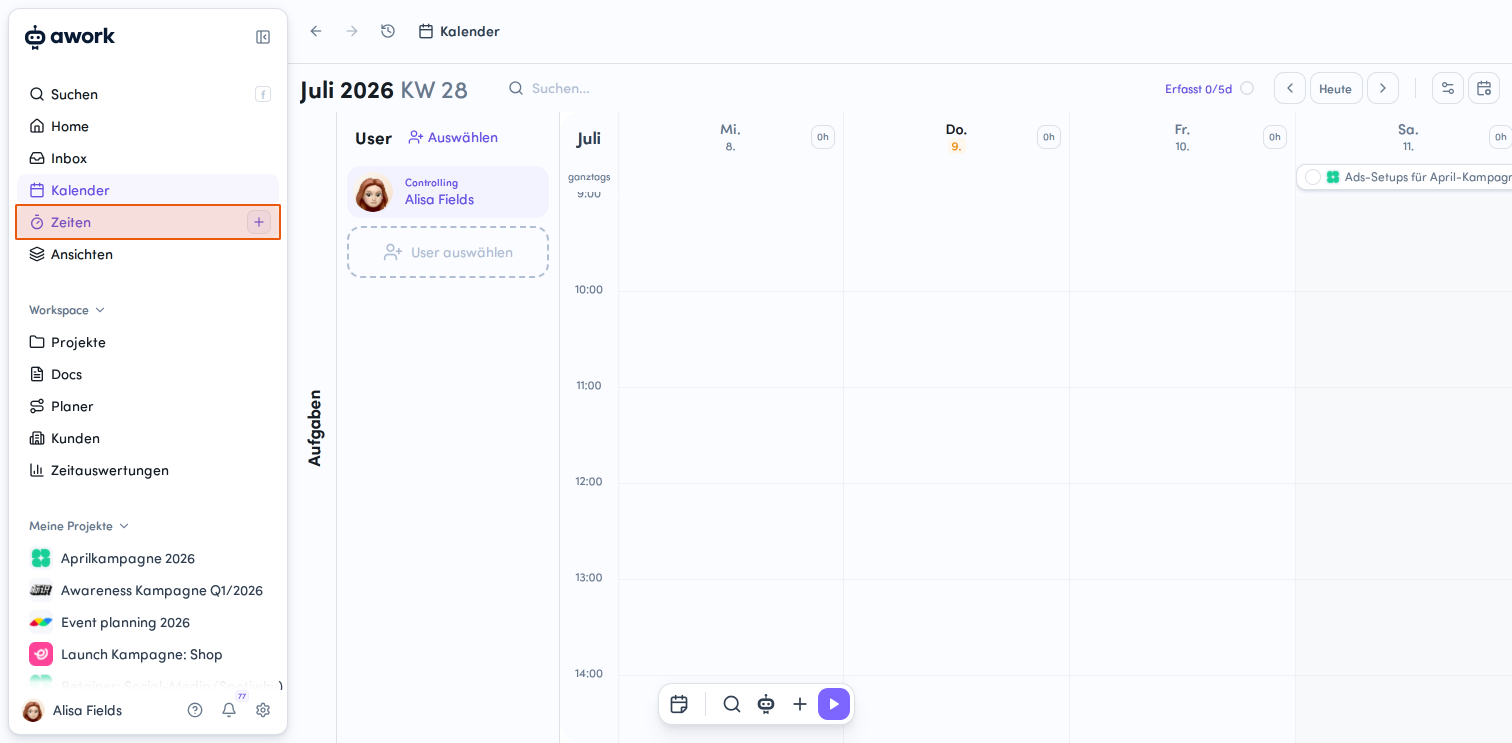
Click Kalender to switch to the calendar view. Here you can see a weekly or daily overview of your appointments and tasks in a time grid. -
Go to times
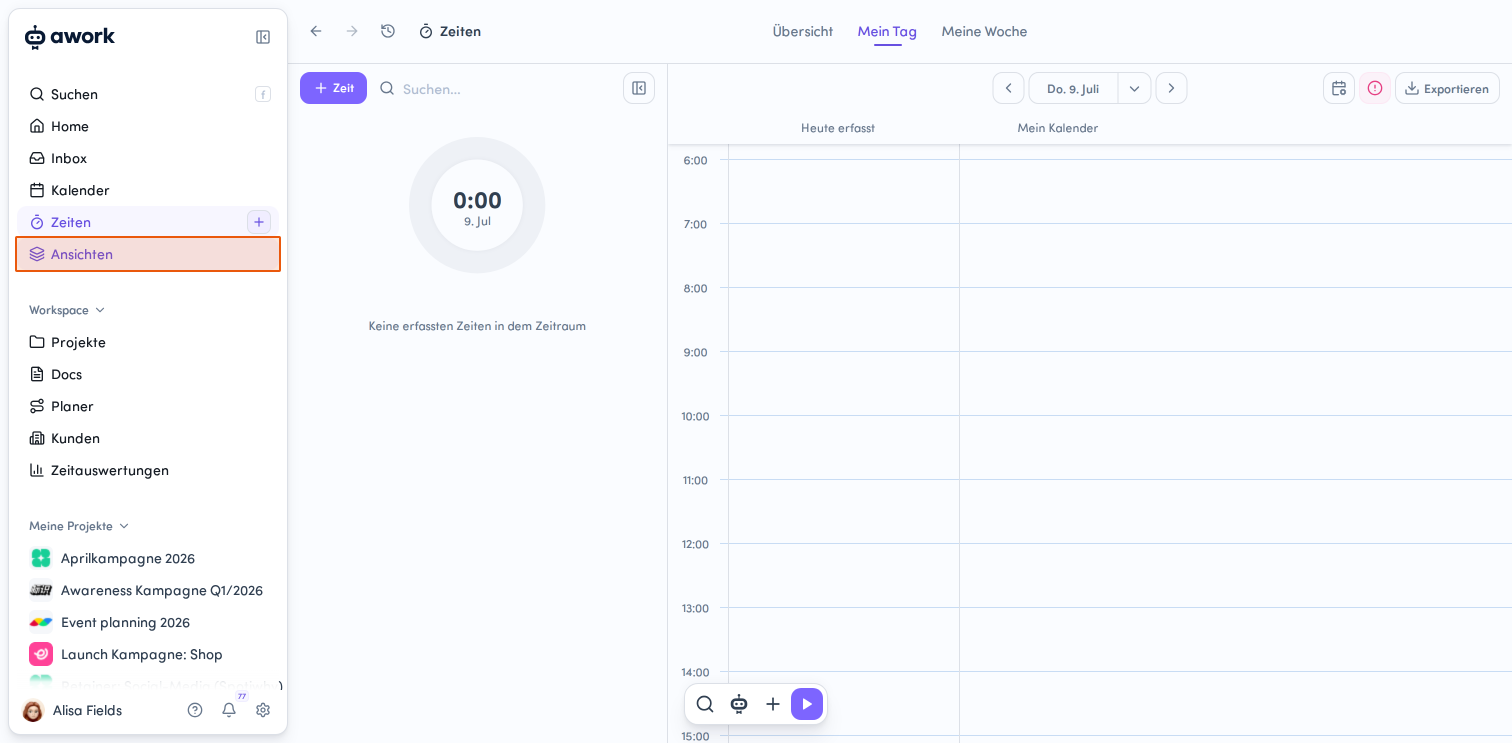
Click Zeiten to open the time tracking overview. This view includes tabs such as "Übersicht", "Mein Tag" and "Meine Woche", as well as a daily calendar view of your tracked time. -
Open views
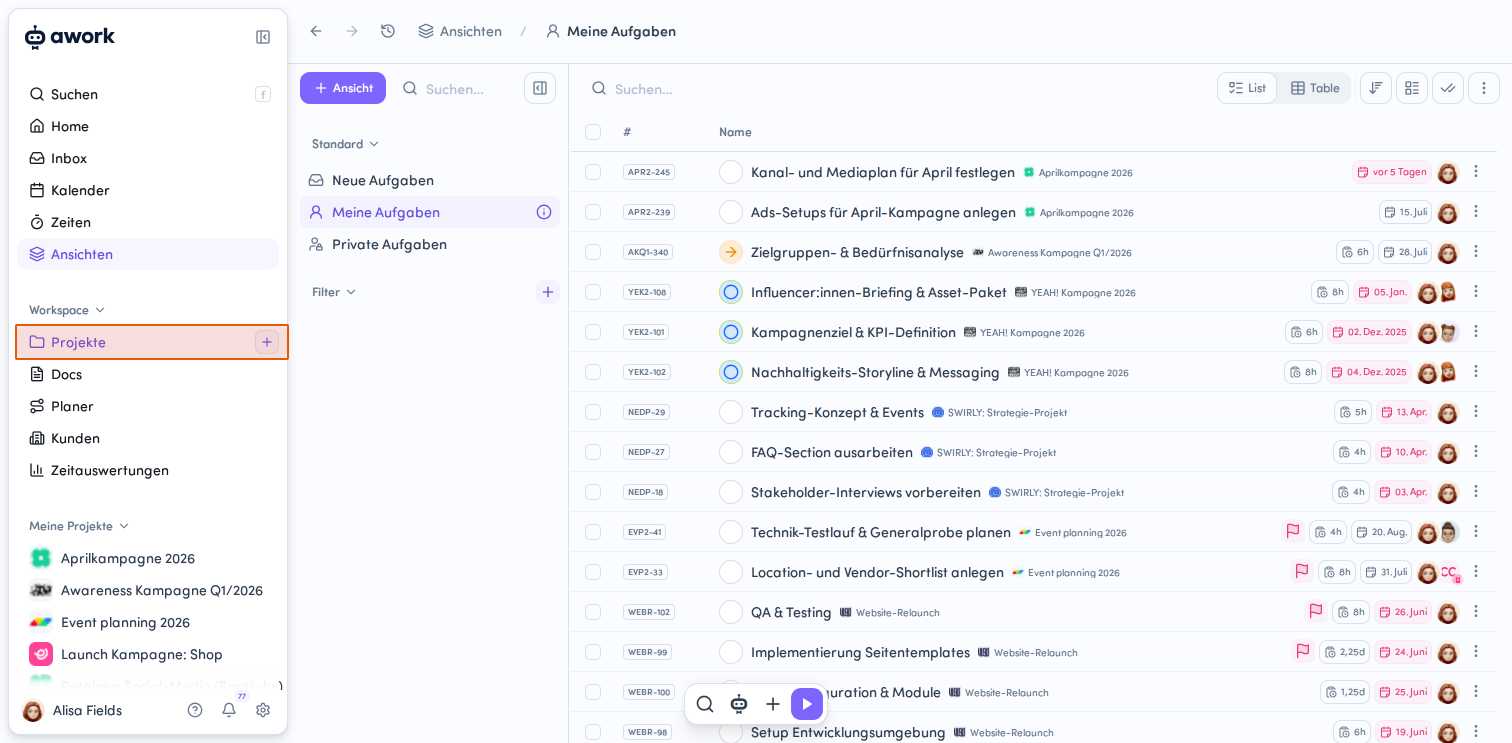
Click Ansichten to go to your saved task views. Here you can manage different filtered views of your tasks and create new ones.
The workspace level
-
Go to projects
Click Projekte in the workspace section to open the project overview. Choose between the list and timeline views. -
Open Docs
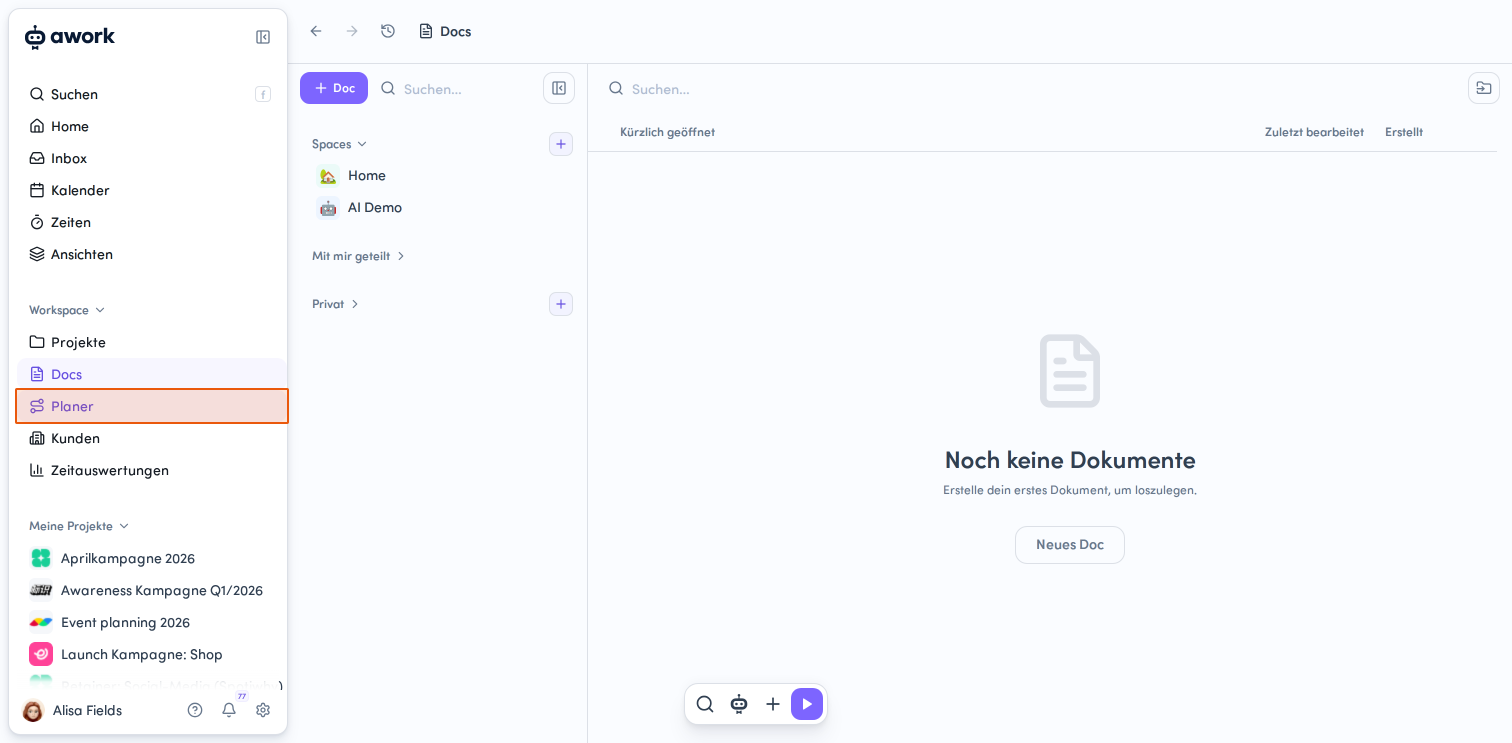
Here you can create documents, organize them in spaces and share them with others. -
Go to the planner
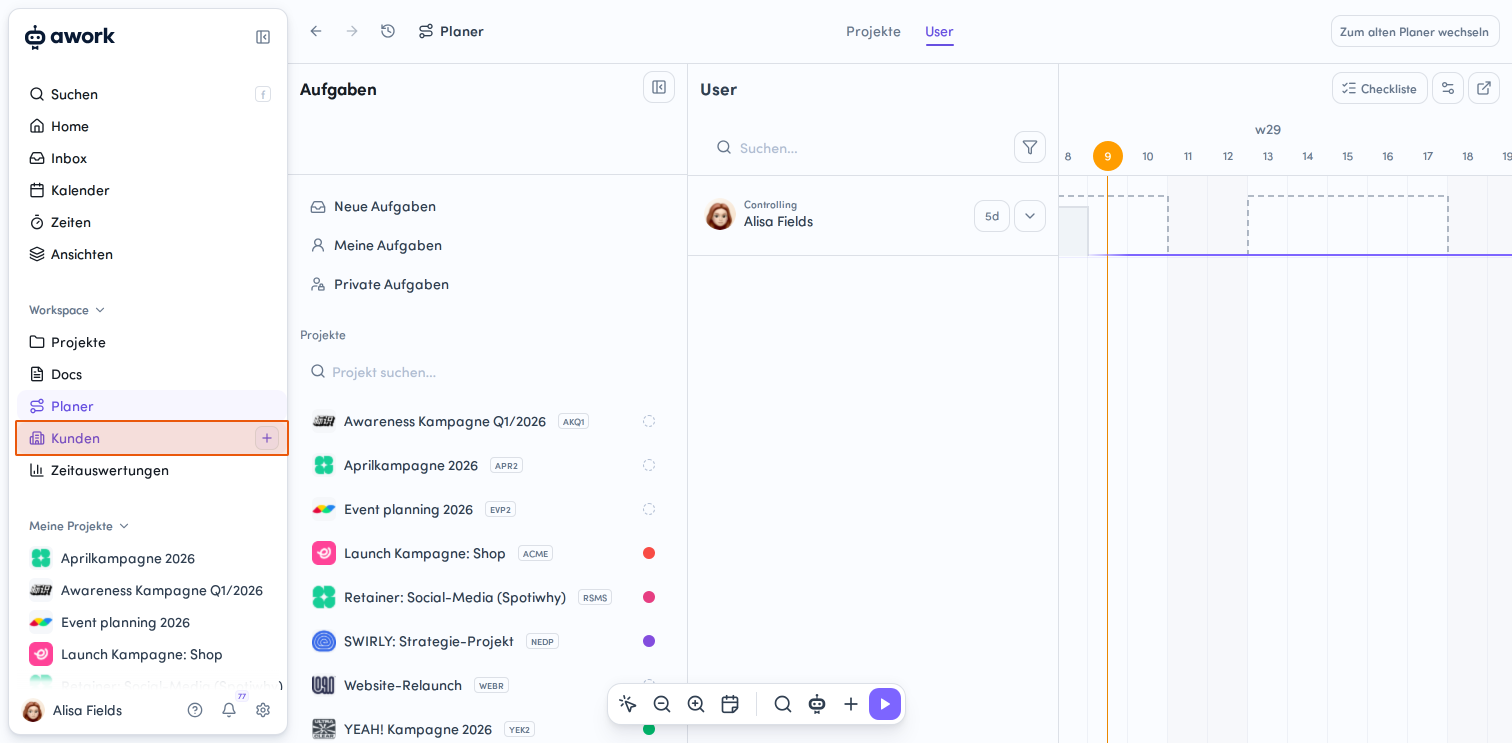
Click Planer to open the resource planning view. -
Manage customers
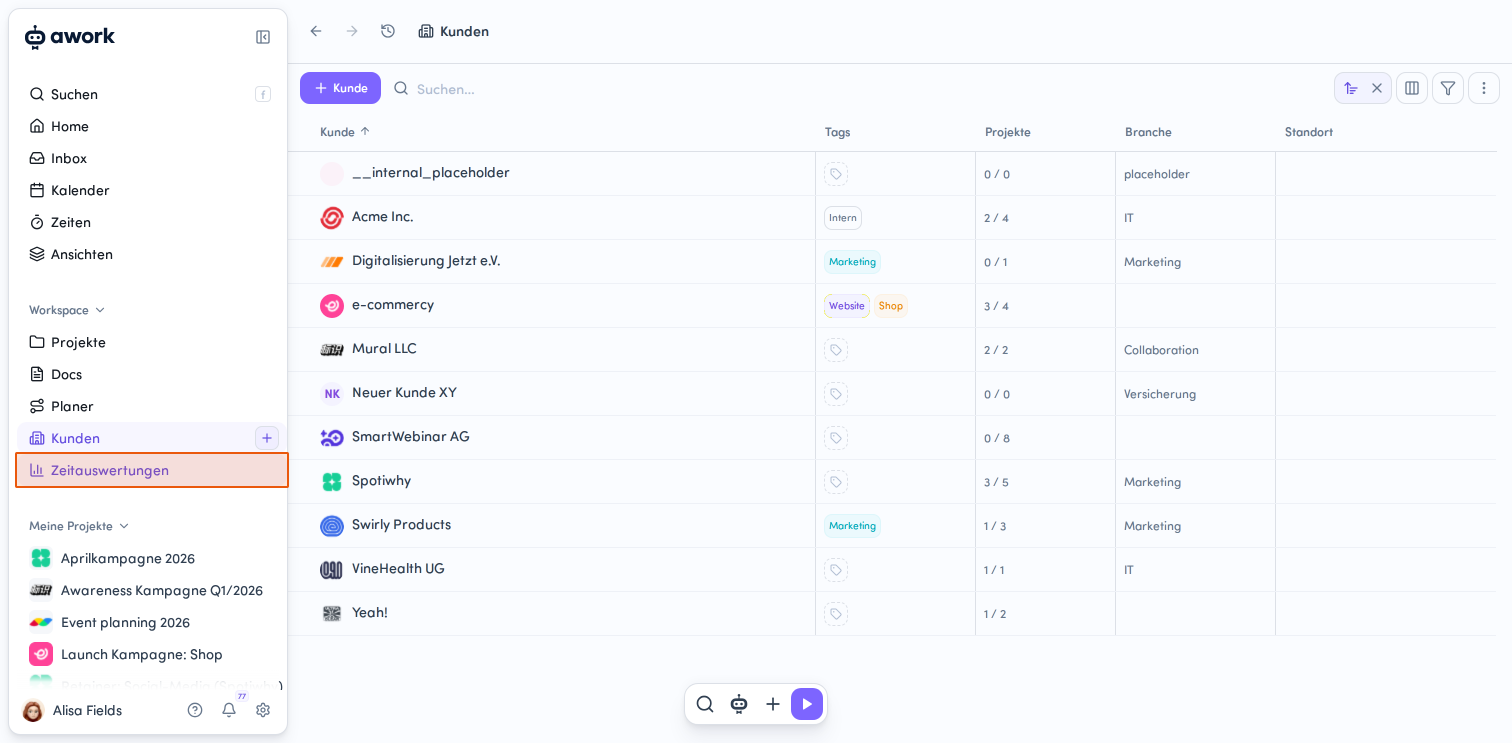
Click Kunden to open customer management. Here you can see an overview of all customers, including their tags, projects, industry and location. -
Open time reports
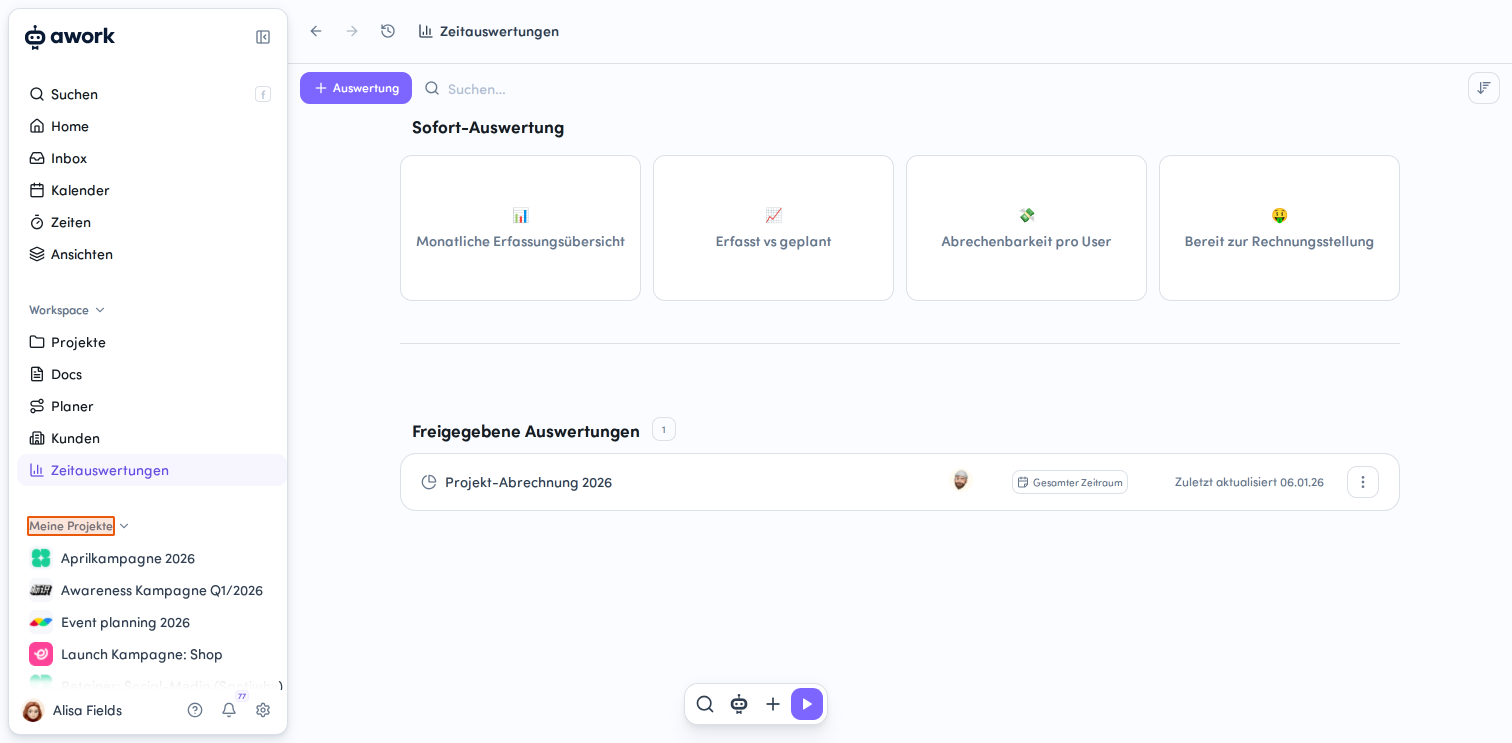
Click Zeitauswertungen to go to reports and analytics. Here you'll find ready-made reports such as "Monatliche Erfassungsübersicht", "Erfasst vs geplant", "Abrechenbarkeit pro User" and "Bereit zur Rechnungsstellung", as well as shared reports. You can also create new reports.
Quick access to projects
At the bottom of the sidebar, you'll find the projects section. It's divided into Favoriten, Externe Projekte and Meine Projekte.
Use the dropdown arrow to expand or collapse each list.
You can customize which sections appear in the menu in your account settings.
Search projects directly
Favoriten and Meine Projekte each have their own Suche. When you hover over either menu item, a magnifying glass icon appears. Click it to open a search field where you can enter a project title.
The search shows up to 20 active projects that match your search term. In the search results under Favoriten, you can mark projects as favorites directly.
 Powered by happysupport.ai