
OLED mode
Enable OLED mode with high contrast in awork's display settings to optimize readability on OLED screens with increased contrast levels.
In this article, you'll learn how to enable OLED mode (High Contrast) in awork. This setting optimizes the display for OLED screens and provides increased contrast for better readability.

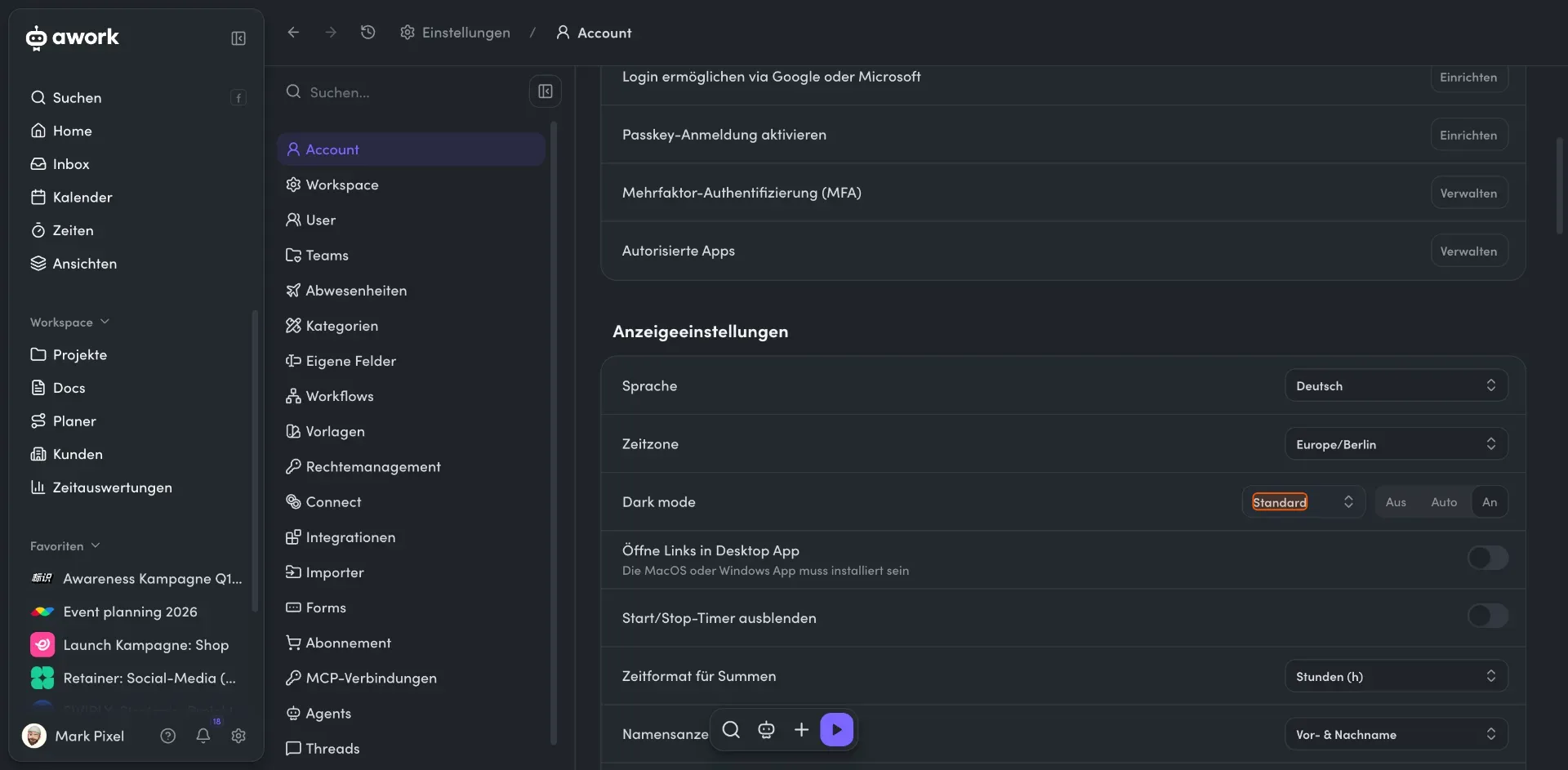
Configure Dark Mode with High Contrast
-
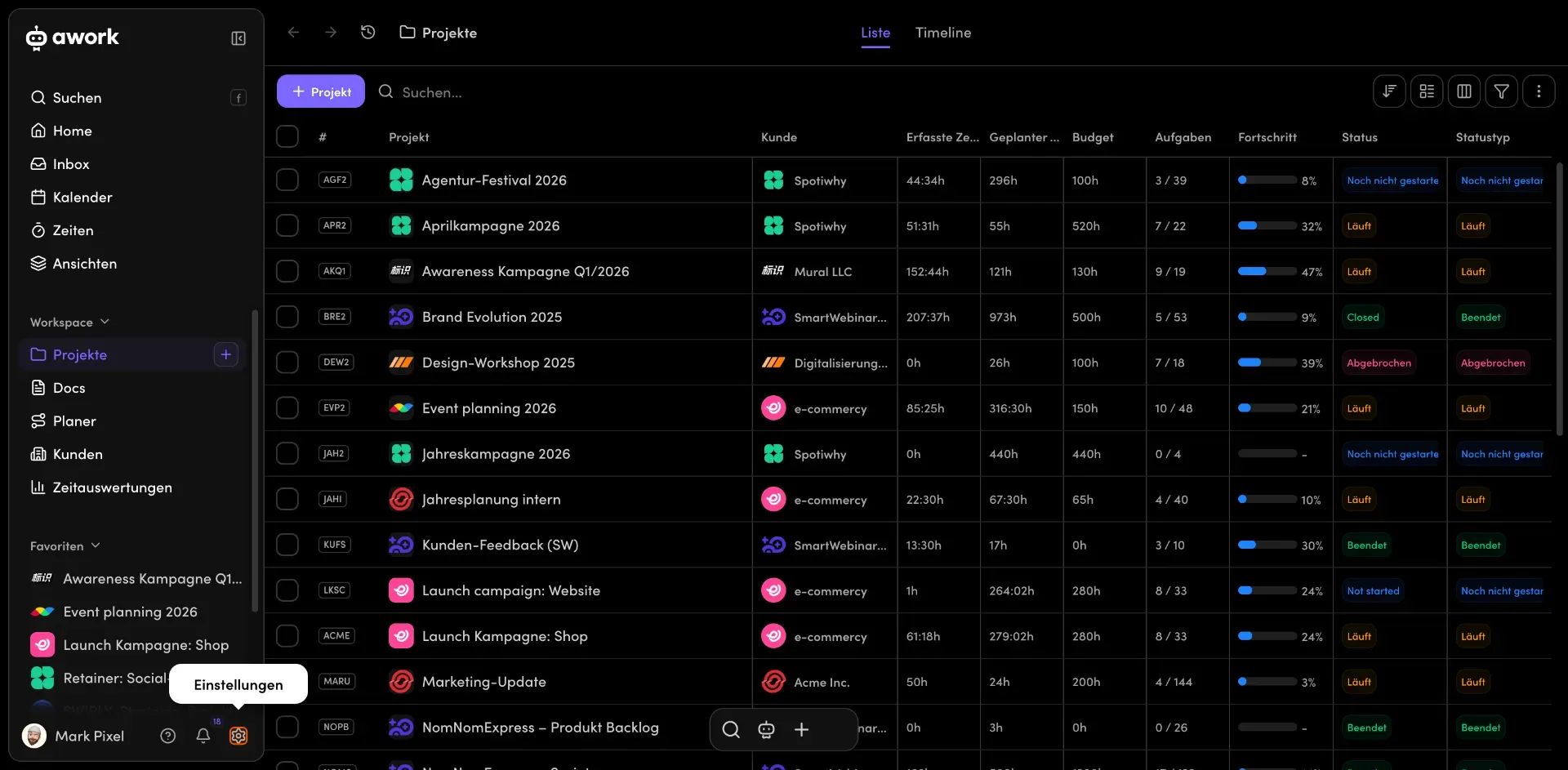
Open Settings
Click on the gear icon in the bottom left corner of the awork interface. You'll find it in the footer of the left navigation bar, right next to your profile name. -
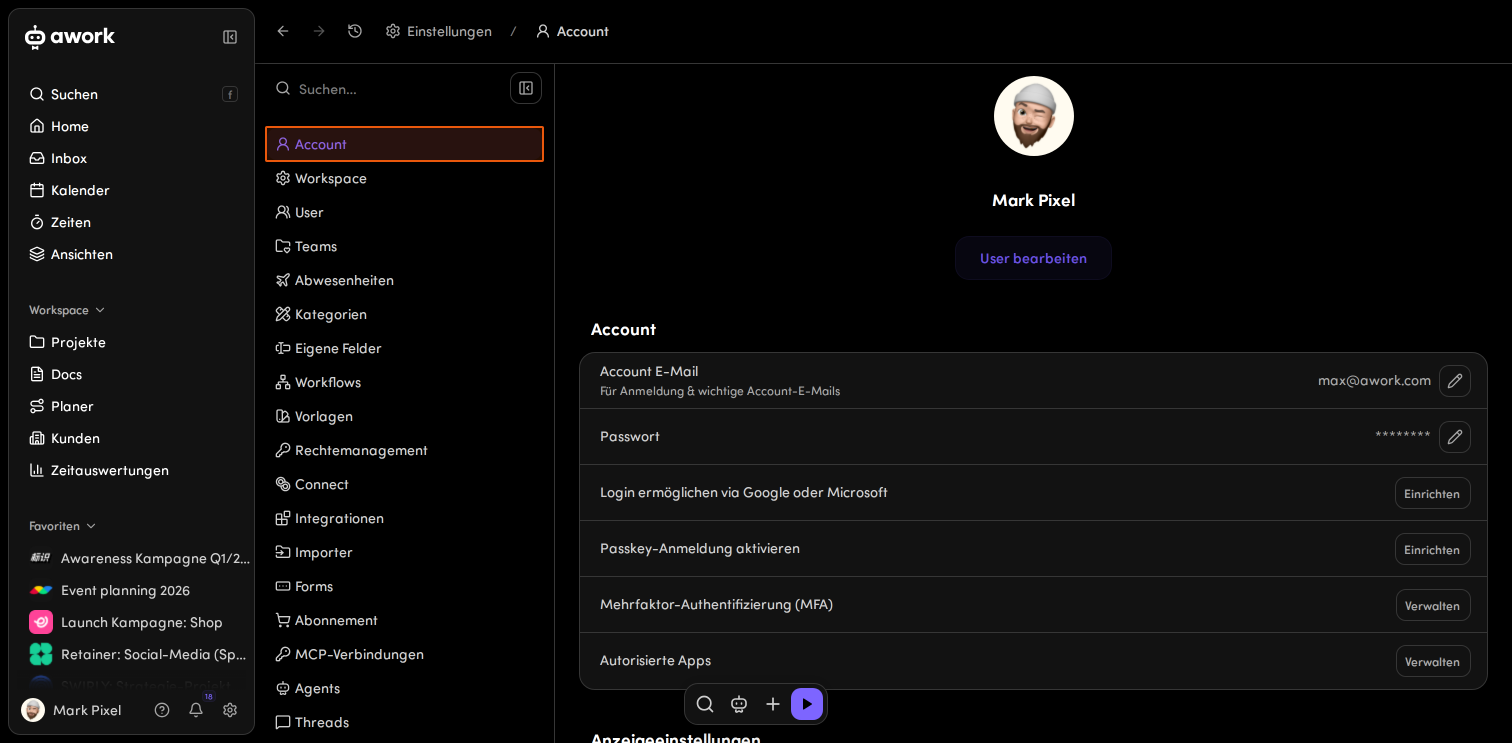
Select the Account section
In the settings navigation, choose the Account menu item. It's located directly below the search field in the settings sidebar. -
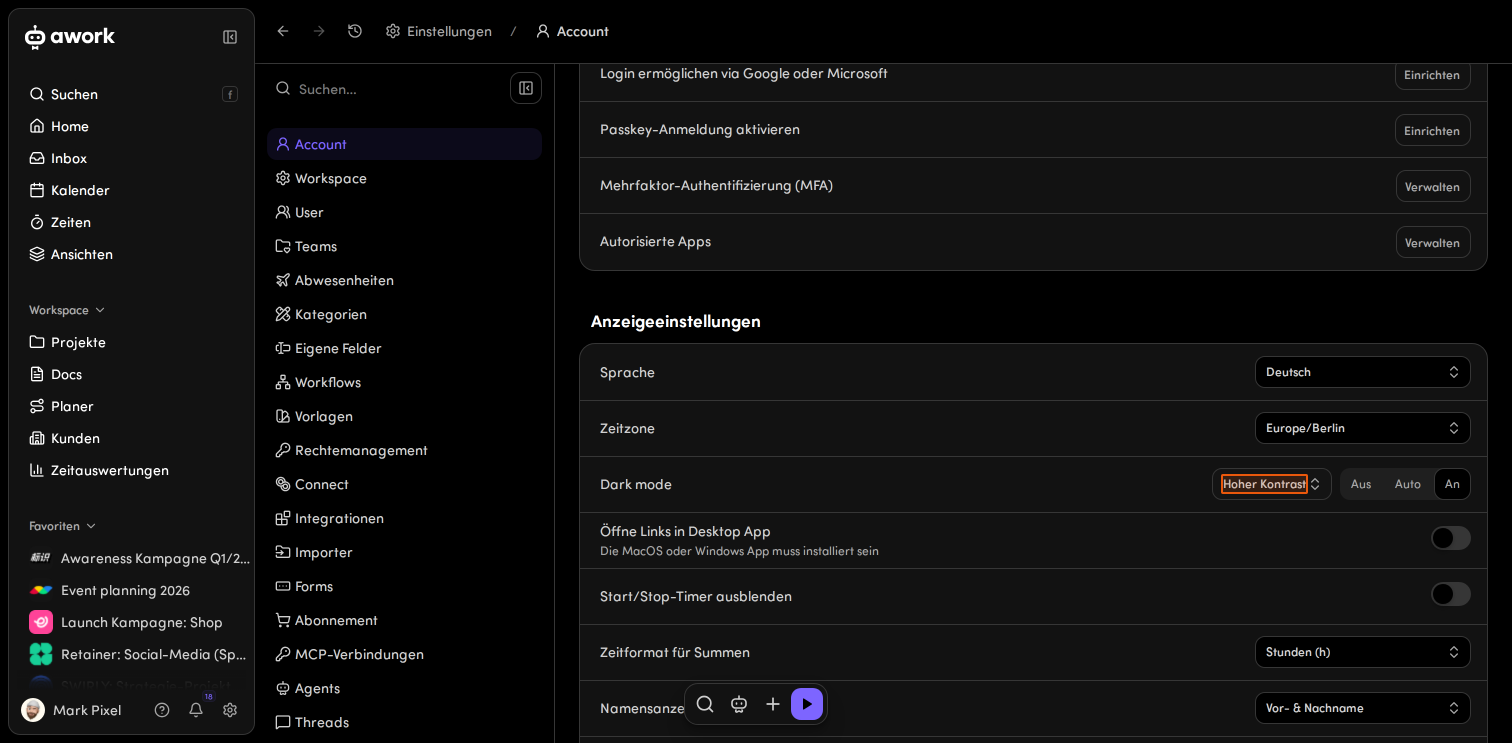
Open Theme variant
Scroll down in the Account section to the Display settings area. Click on the dropdown field for the theme variant in the Dark mode row. -
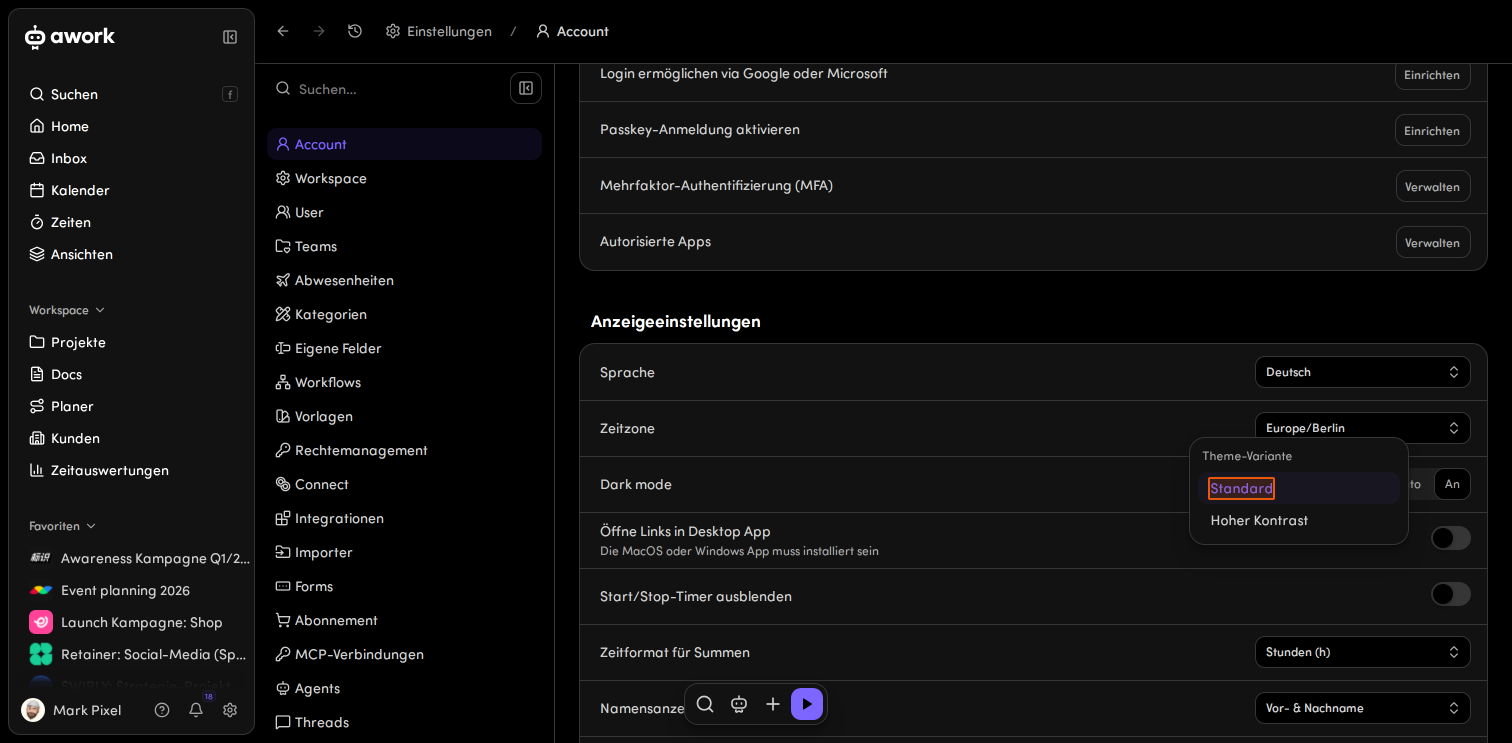
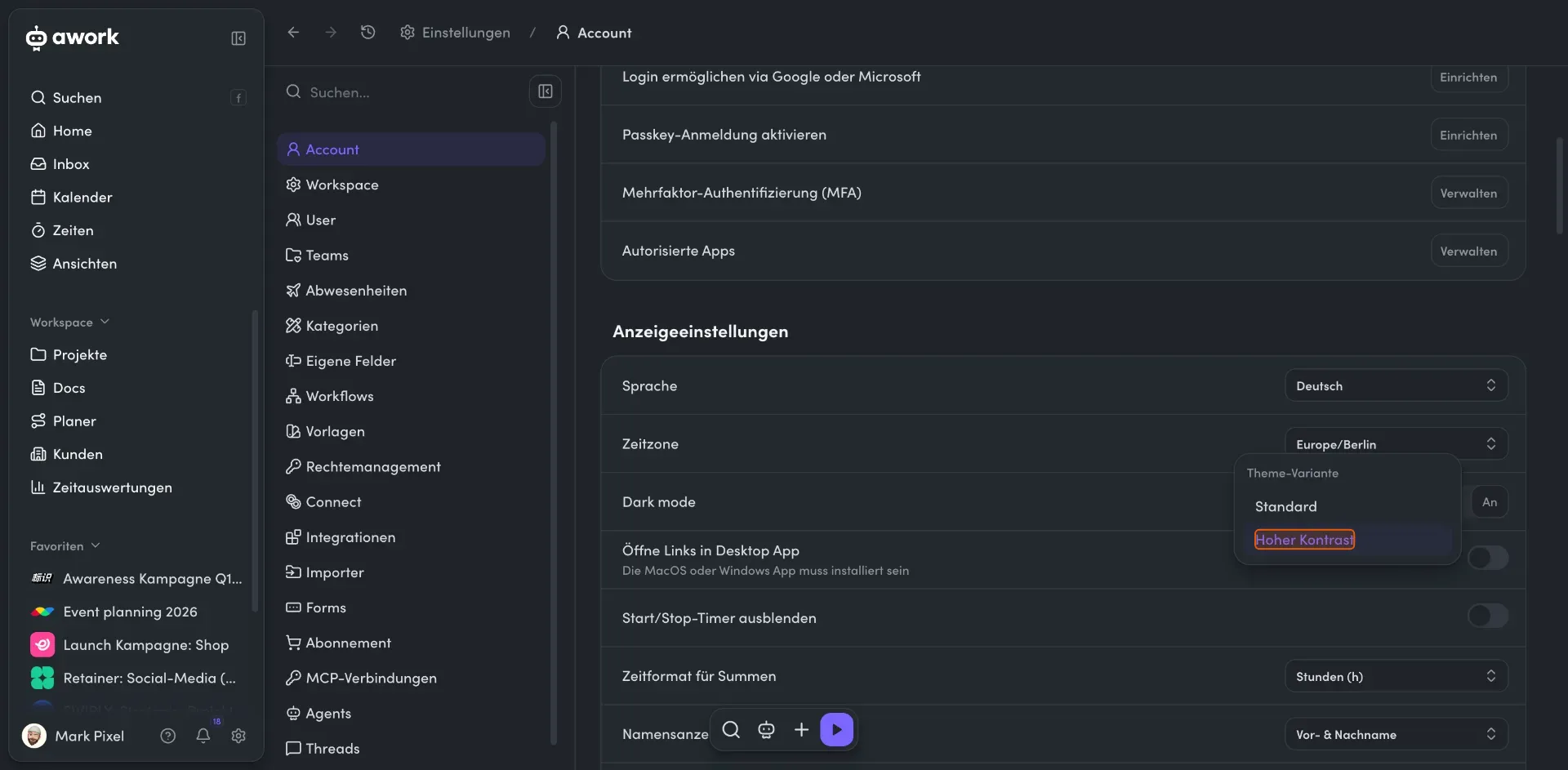
Select High Contrast
In the dropdown menu that opens, choose the High Contrast option instead of Standard. This setting activates the OLED-optimized mode with increased contrast.
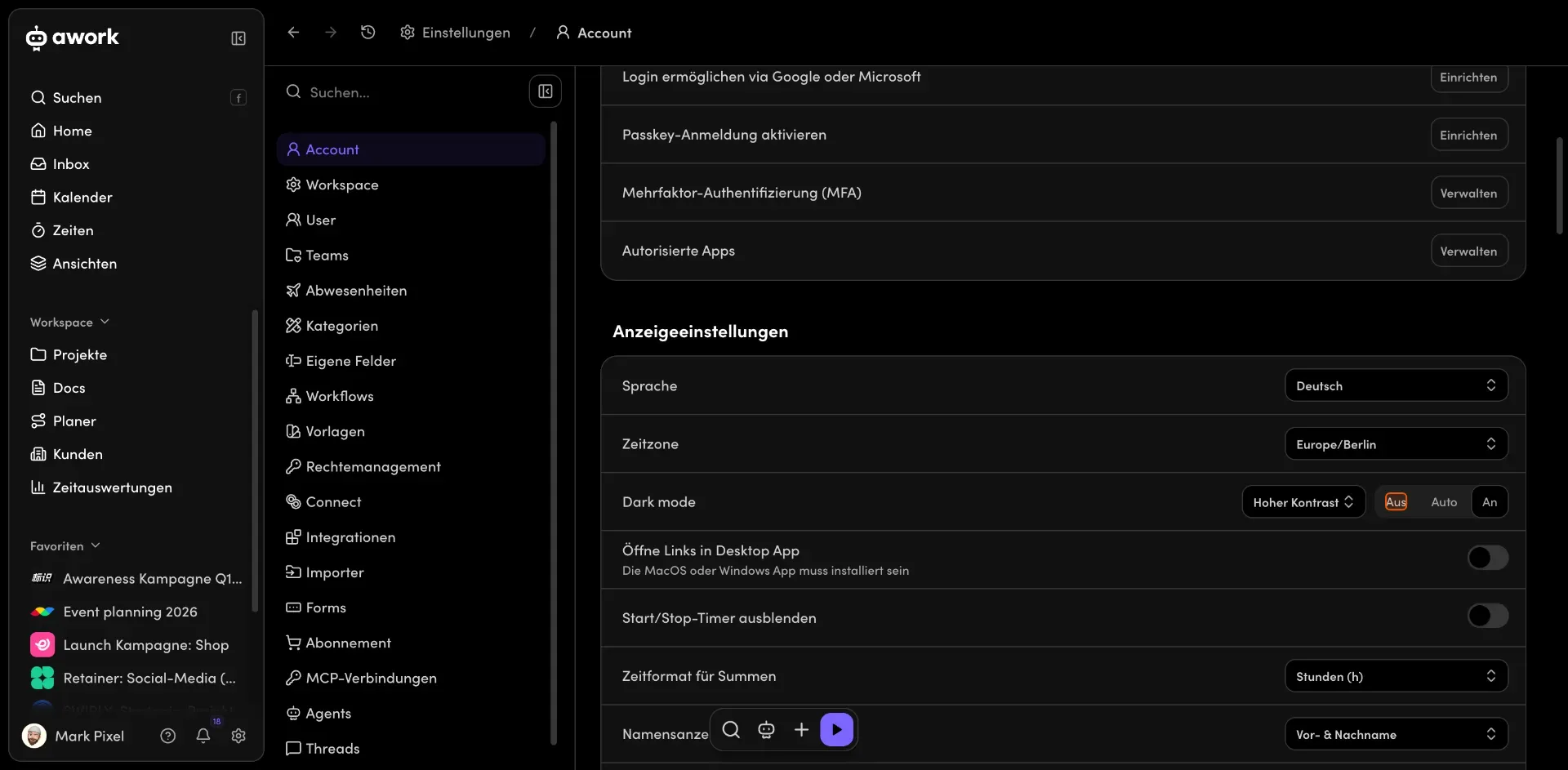
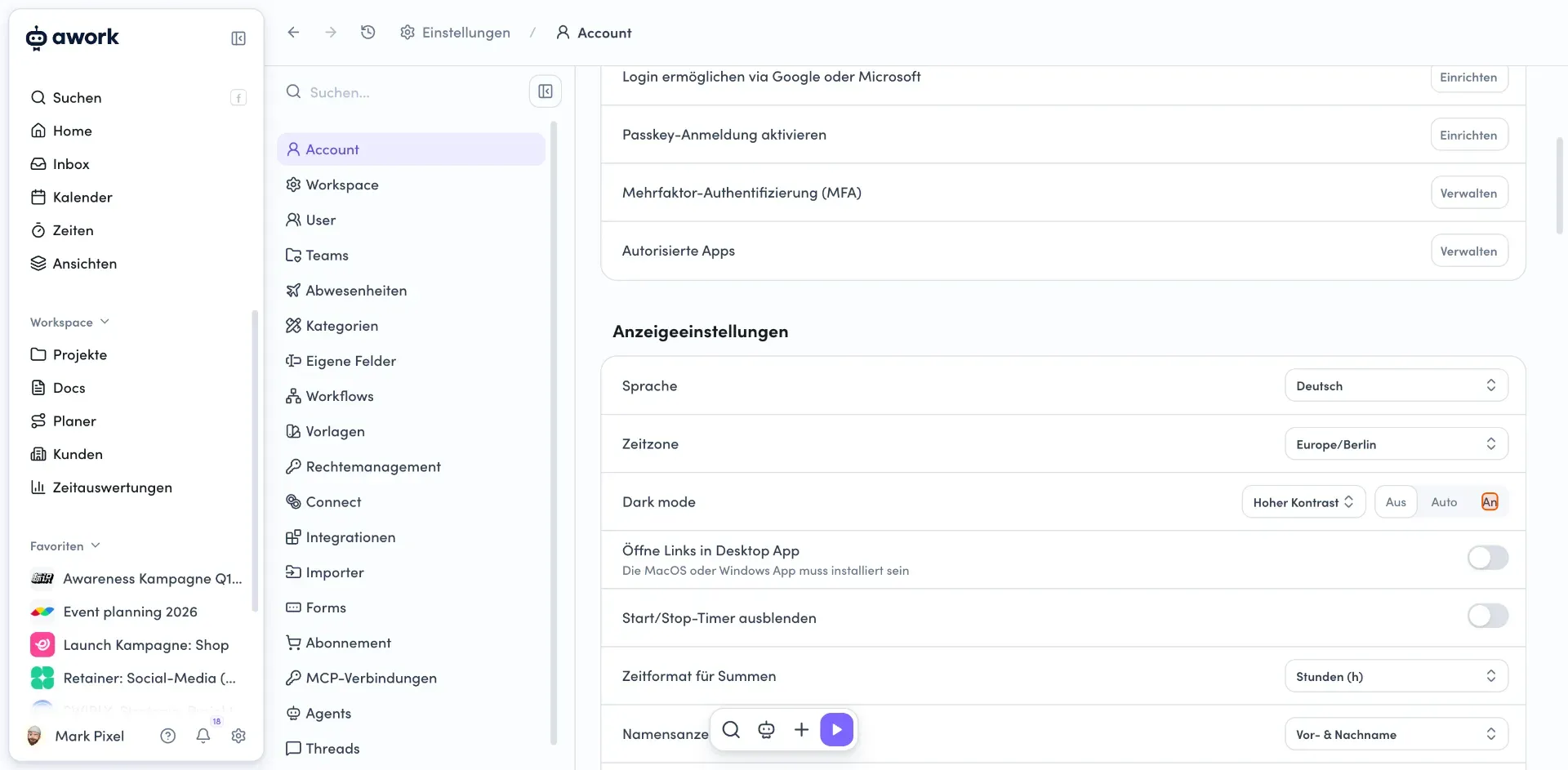
OLED mode with high contrast is now configured. The changes are applied immediately, and the user interface displays the optimized contrast.
 Powered by happysupport.ai