
Manage tags centrally
Manage project, task, customer, and user tags centrally in one place to edit names and colors, merge duplicates, and bulk delete tags across your workspace
Manage all project, task, customer, and user tags in one central place: edit, replace, delete, and search for them.

Main benefits and use cases
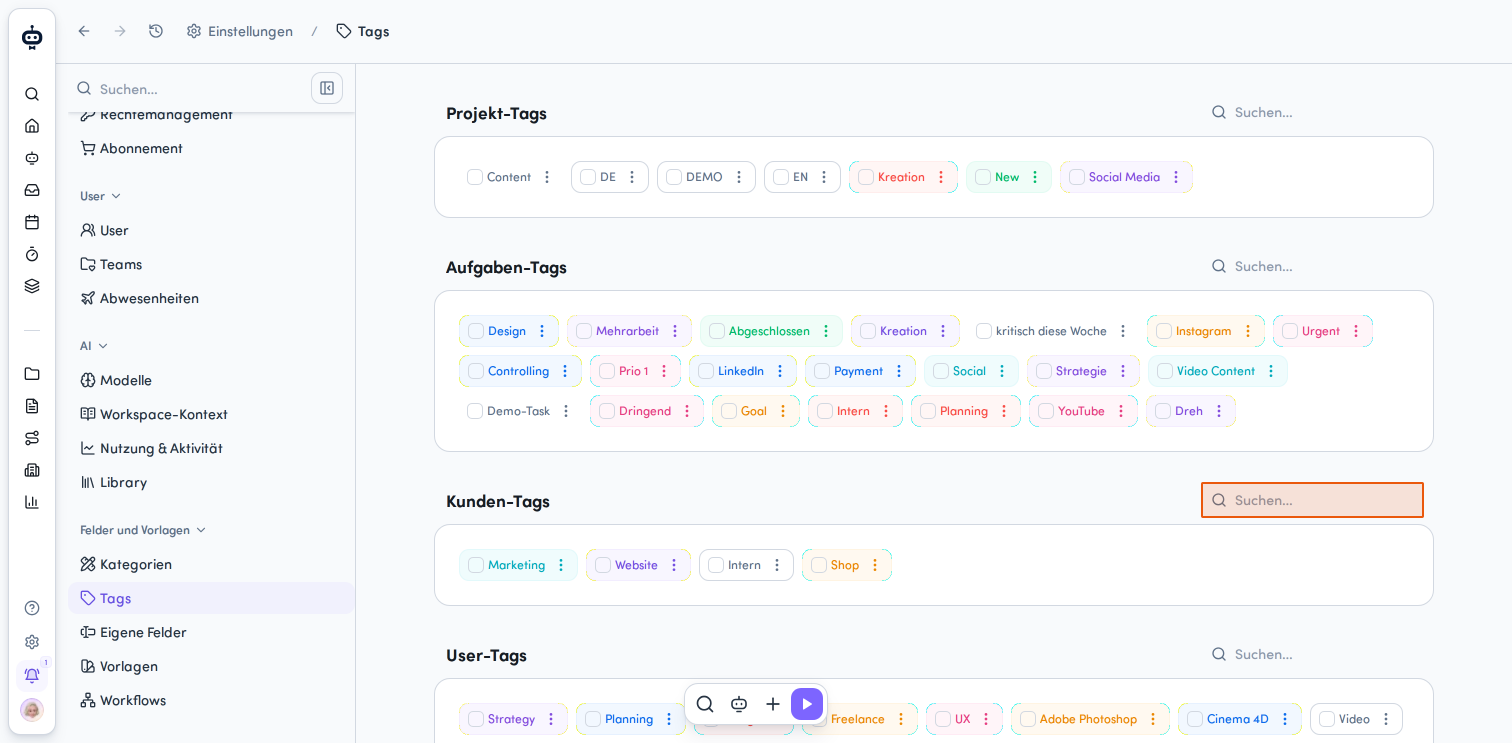
- Manage all tags centrally: View all tags used in your workspace in one place, grouped by Projekt-Tags, Aufgaben-Tags, Kunden-Tags, and User-Tags.
- Merge duplicate tags: Replace one tag with another. The change applies to all instances of the tag at once.
- Change multiple tags at once: Select multiple tags within a section to change their color or delete them.
Tag management reflects actual usage. A tag is only shown if at least one project, task, customer, or user uses it.
If a tag is used in multiple sections, it appears in each of them and is managed separately in each section.
Access permissions for tag management
For a user to see tag management in the settings, both of the following requirements must be met:
-
Workspace-Einstellungen permissions are enabled
-
The user has editing permissions (Verwalten) for at least one of the four sections:
| Section | Required permission |
|---|---|
| Projekt-Tags | Projektdetails: Verwalten |
| Aufgaben-Tags | Projektaufgaben: Verwalten |
| Kunden-Tags | Kunden: Verwalten |
| User-Tags | User-Details: Verwalten |
The access check also applies to the direct URL /settings/tags. Opening tag management directly using a link does not bypass permissions.
Open tag management in the settings
-
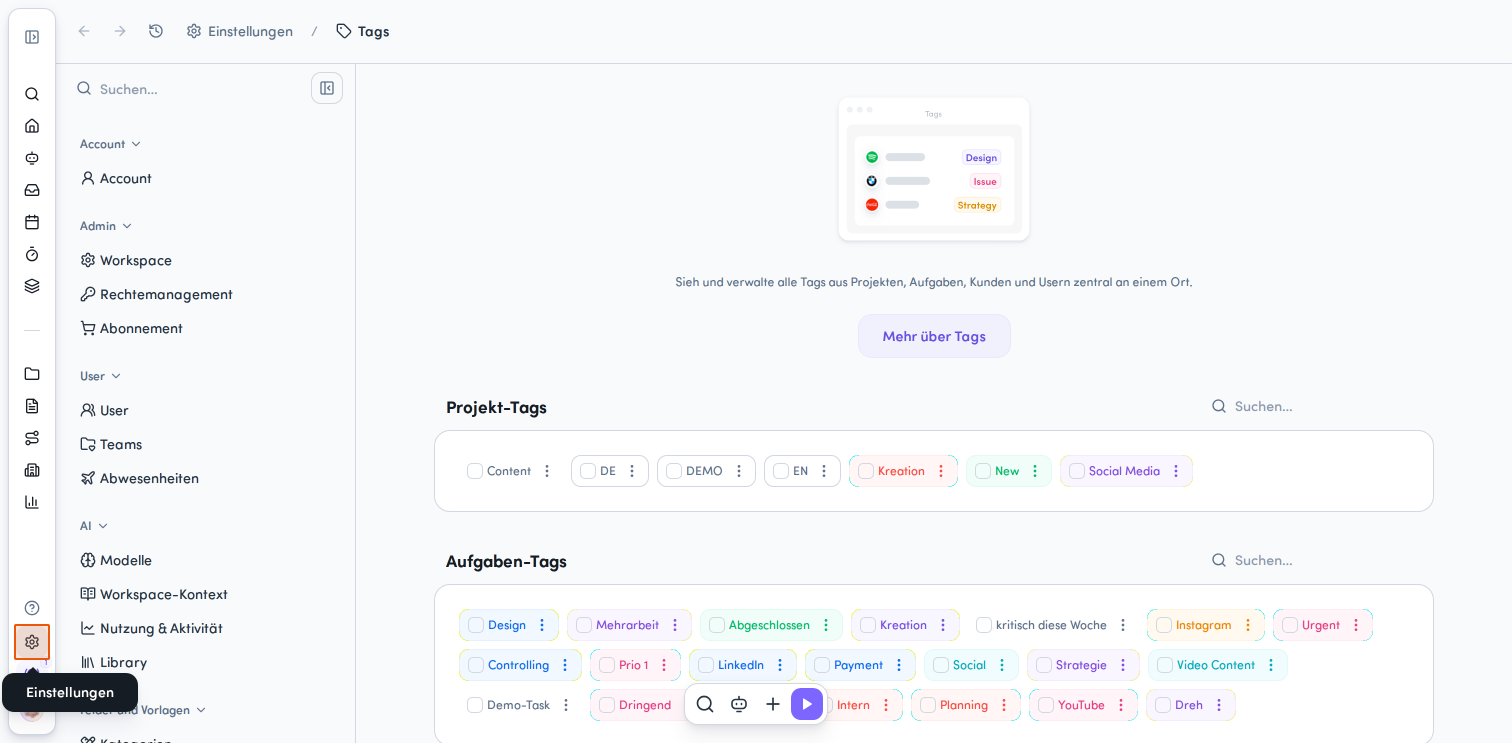
Go to Einstellungen (the gear icon at the bottom left of the main menu)
-
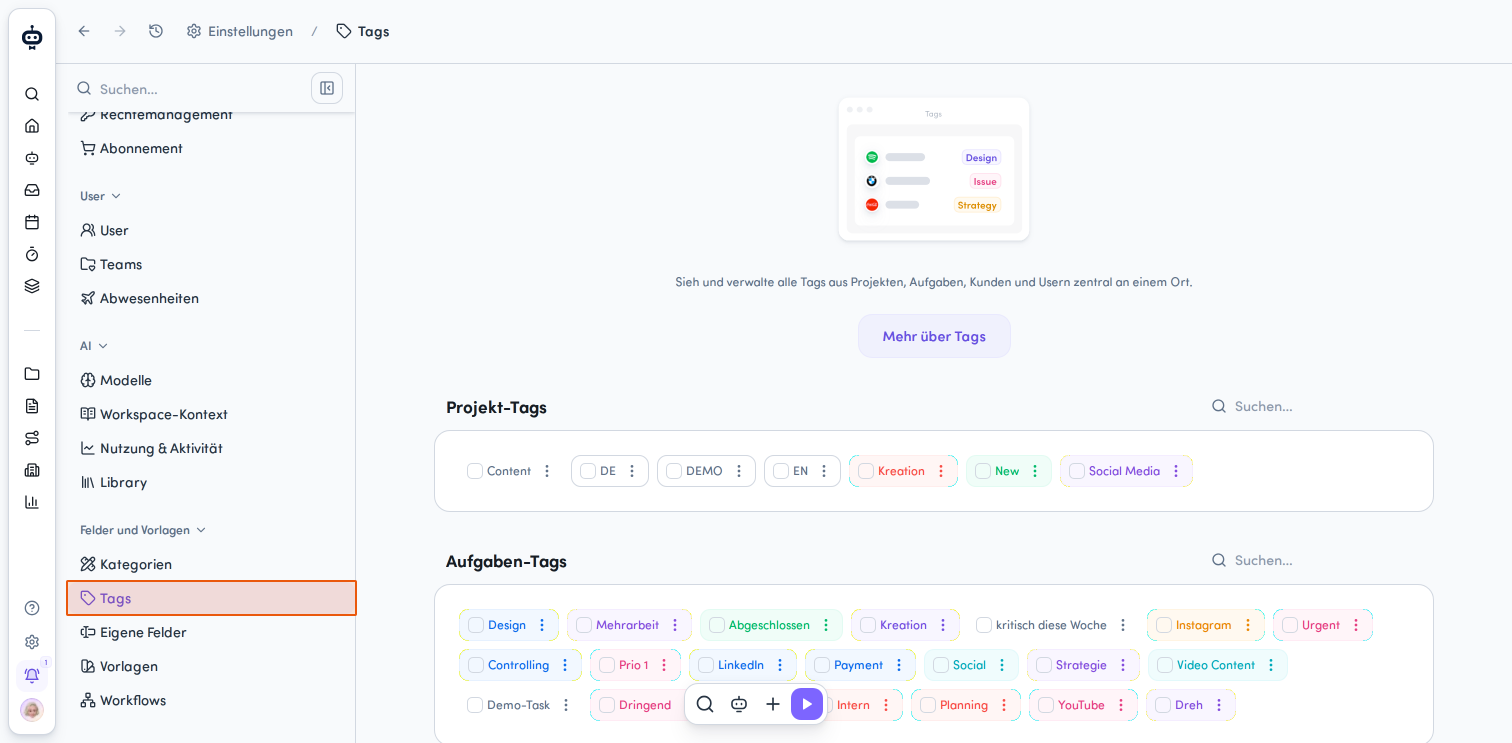
Select Tags in the Felder und Vorlagen section
An overview opens with the sections Projekt-Tags, Aufgaben-Tags, Kunden-Tags, and User-Tags.
A section is only shown if you have the required Verwalten permission for it.
Edit tags
-
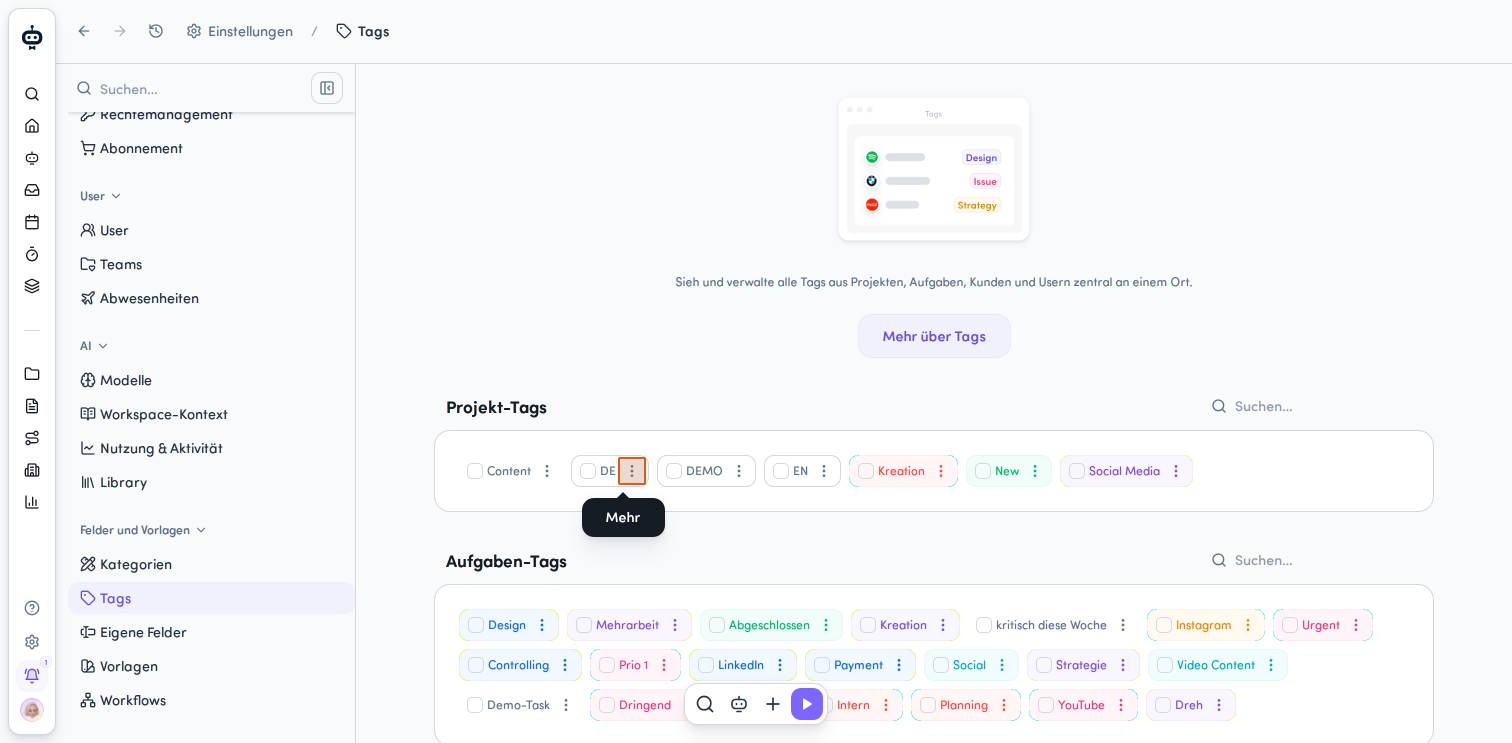
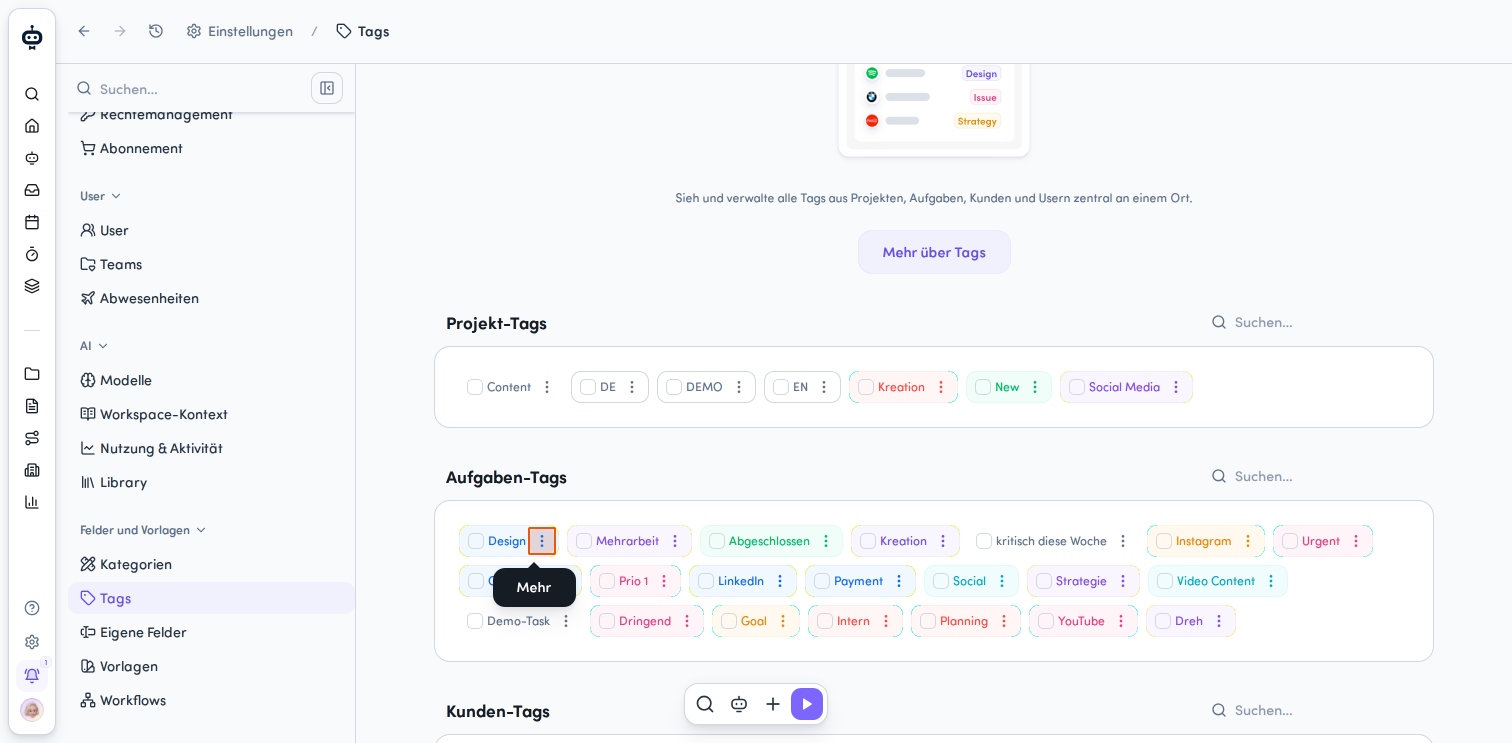
Open the Aktionsmenü for the tag you want to edit
-
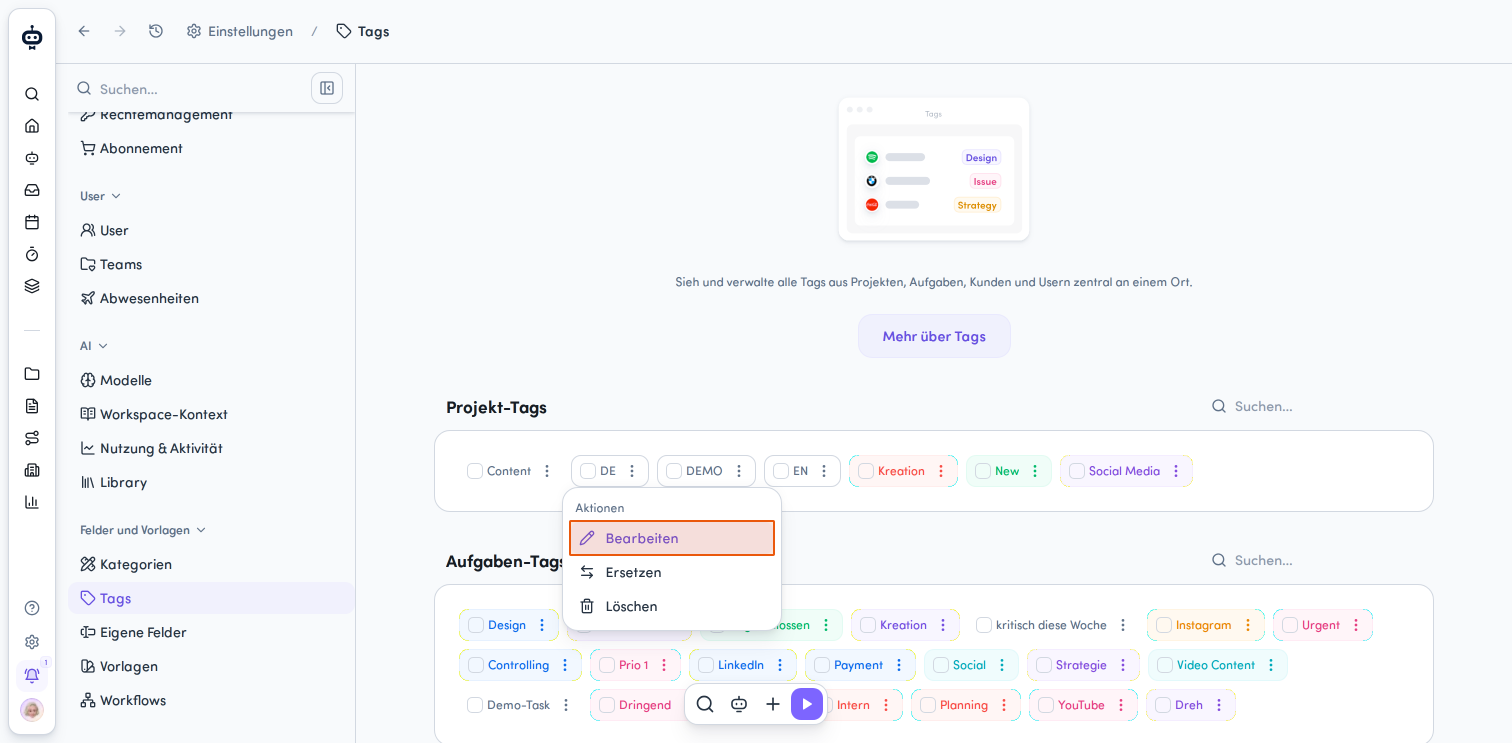
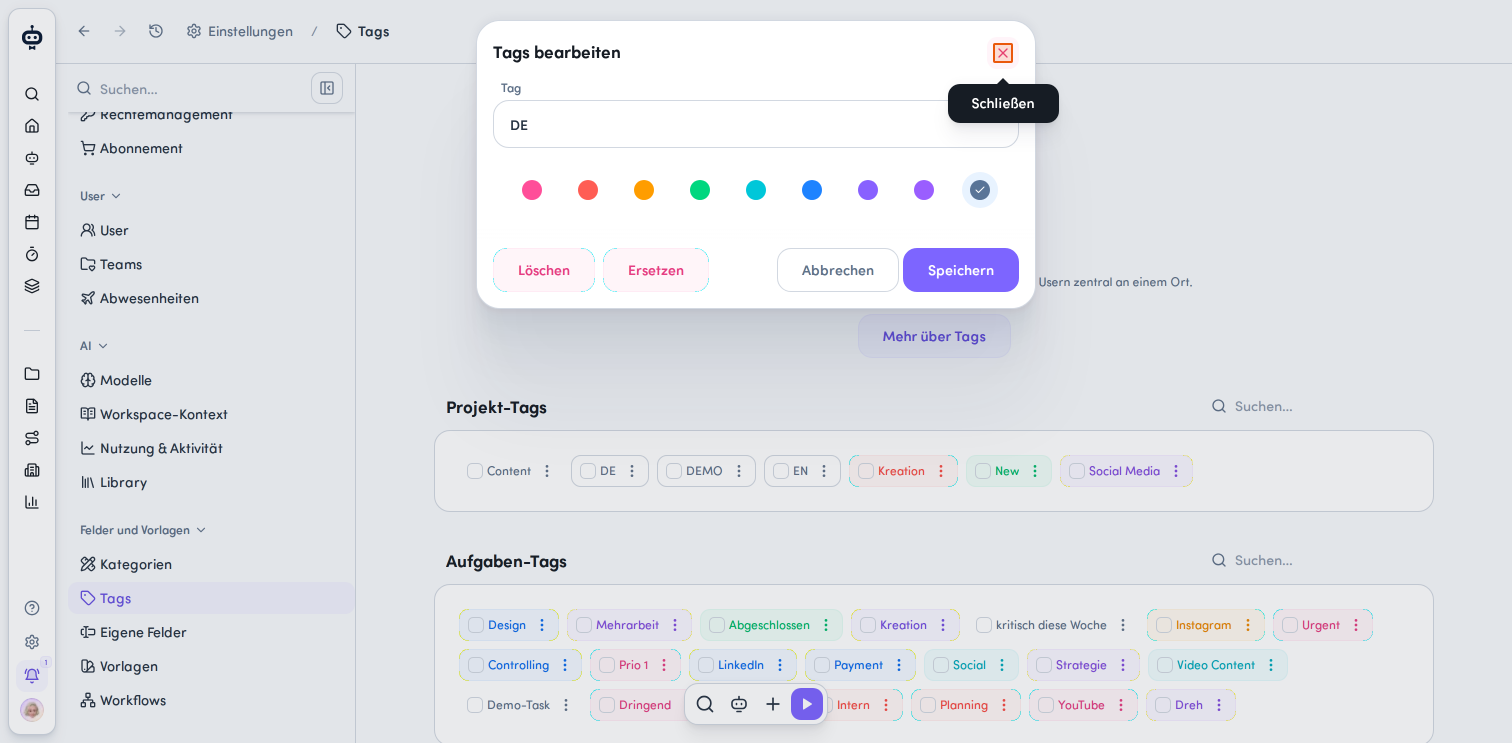
Select Bearbeiten
-
In the Tags bearbeiten dialog, change the tag name and/or color
-
Click Speichern
Changing a tag's name or color updates it everywhere the tag is used.
Replace tags
Replacing a tag does not rename it. Instead, all entities using Tag A are assigned the existing Tag B.
-
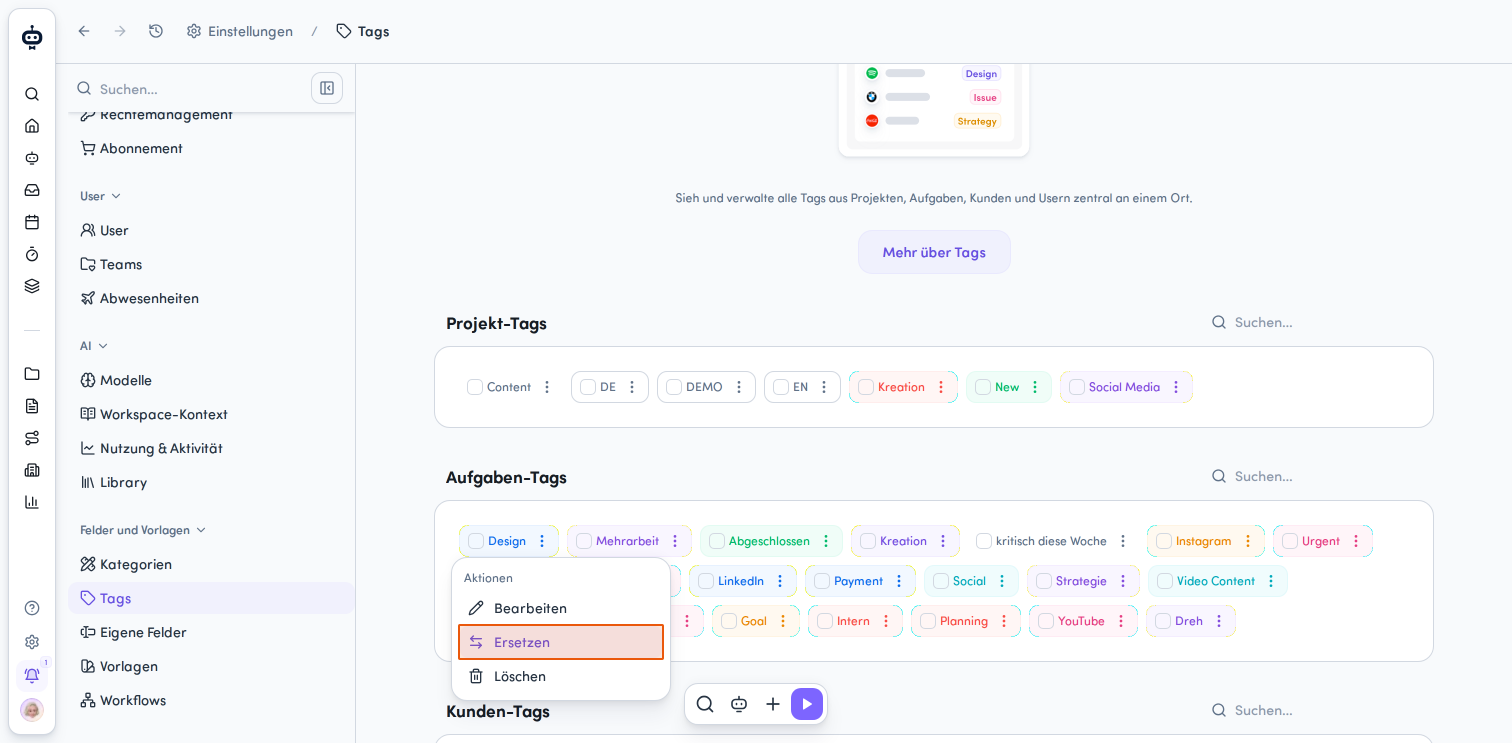
Open the Aktionsmenü for the tag you want to replace
-
Select Ersetzen
-
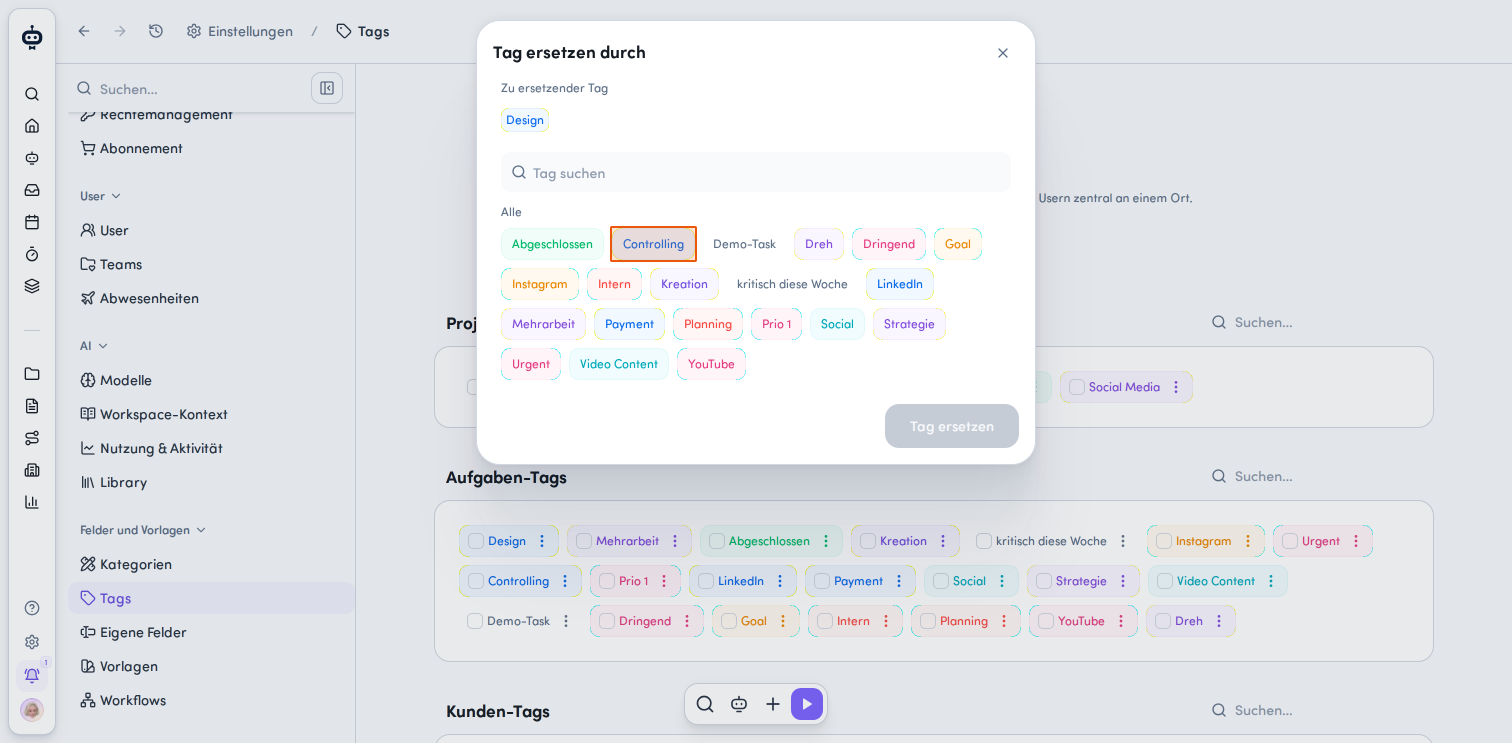
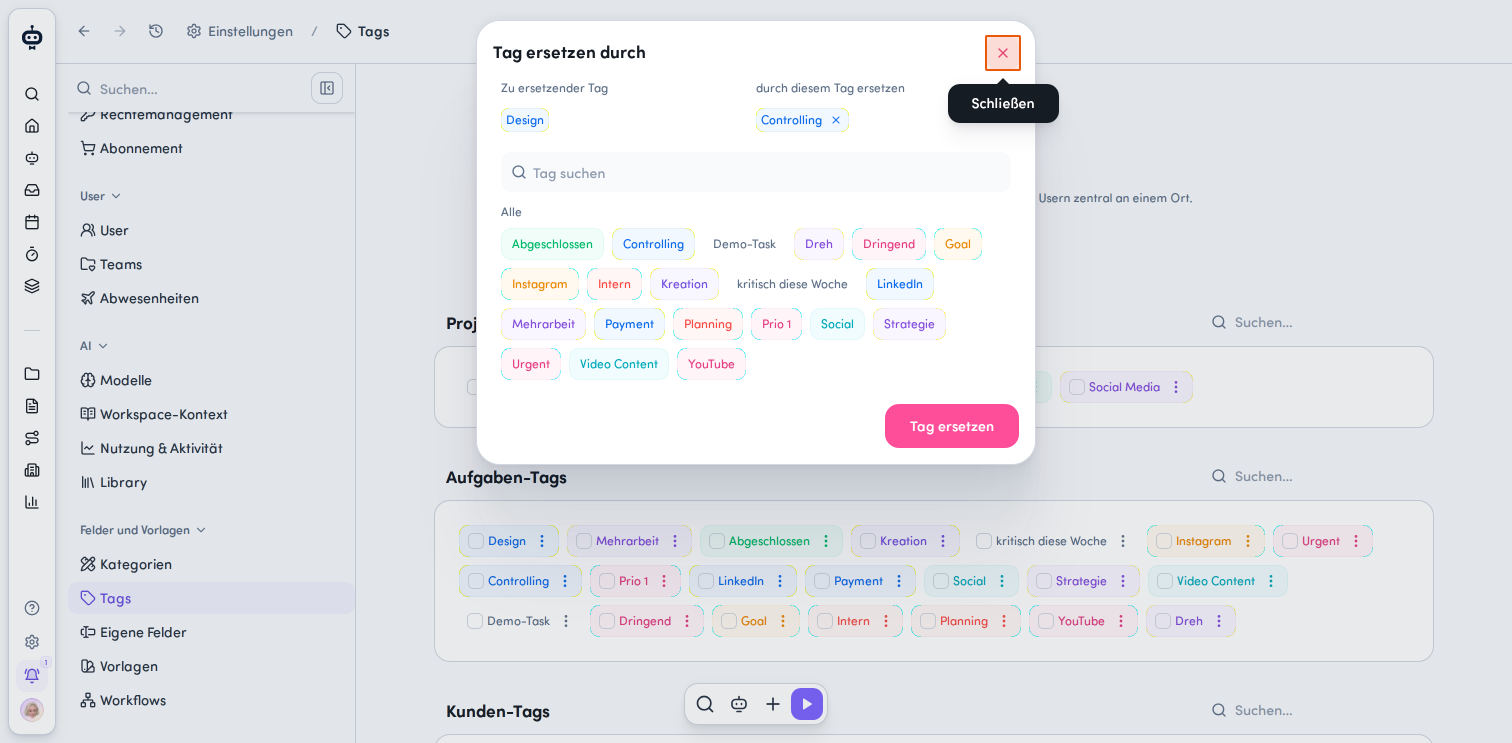
In the Tag ersetzen durch dialog, check which tag will be replaced
-
Select a replacement from the available tags. You can search for the replacement tag using Tag suchen.
-
Click Tag ersetzen to confirm
The original tag is no longer used and no longer appears in the list.
Important: Replacing a tag does not rename it. The existing tag is replaced with another tag that already exists.
Delete tags
-
Open the Aktionsmenü for the tag you want to delete
-
Select Löschen
-
The number of affected items is shown. (Note: Tags may also be used in private projects or tasks. The actual number of affected items may be higher.)
-
Click Löschen to confirm
Deletion cannot be undone. The tag is removed from all entities that use it.
Search for tags
Each section has its own search field:
-
Click the Suchen… field
-
Enter the tag's name or part of its name
The search filters the tags in that section.
Manage multiple tags at once
- Start selection mode by clicking a tag's checkbox
- A floating action bar appears at the bottom of the screen for the selected tags
- Click the 3 waagerechten Punkte
- Two actions are available for multiple selected tags:
- Farbe ändern
- Löschen
Important: Your selection is always limited to one section. For example, you can't select project tags and task tags at the same time.
Known limitations
-
You can't create tags here: New tags are still created where they're used, on projects, tasks, customers, or users. To learn how to add and use tags, see the article Using tags in awork.
-
There is no global tag list: A tag that isn't used by any entity won't appear in tag management.
-
You can't manage tags across sections: Tags with the same name in different sections remain separate entries.
FAQ
Can I create new tags in tag management?
No. Tags are still created directly on the project, task, customer, or user where they'll be used.
What happens when I replace a tag?
All entities using the original tag are assigned the selected existing replacement tag. The original tag is no longer used afterward.
Can I edit tags from different sections together?
No. Your selection is limited to one section. Tags with the same name in different sections are also managed separately.
Why can't I see the customer or user section?
You need the Verwalten permission for each section. Read or edit permissions aren't enough. Ask an admin to check your permissions.
Why isn't a tag showing even though I know it's being used?
The tag may be used in a section you don't have access to. Also, check the tag's spelling.
 Powered by happysupport.ai