
Your User Profile
Access your user profile from the main menu to manage account settings, switch workspaces, change language, toggle dark mode, and log out of awork.
In this article, you'll learn how to access your user profile in awork and what options are available to you there. You'll discover how to open your account settings, switch workspaces, change the language, and use additional profile options.
Opening Your User Profile
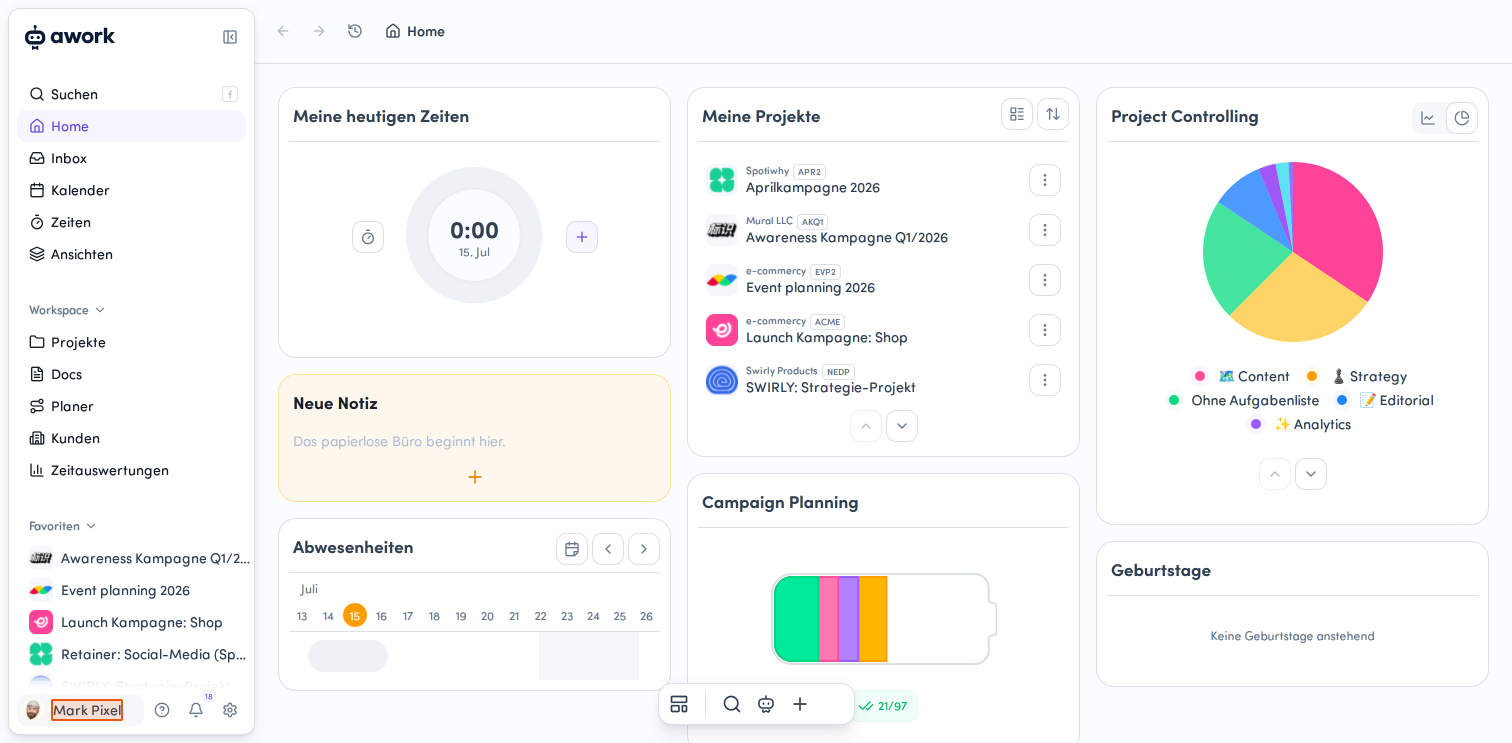
Click on your profile area
In the main menu at the bottom left, you'll find your profile area with your profile picture/avatar and name. Click on it to open your user profile.
Available Options
After opening the profile menu, you'll see various options:
Account Settings
- Open your personal account settings
Workspace Selection
- Switch between multiple workspaces
- The workspace you're currently in is displayed in the profile menu
- Click on it to open the workspace selection window
Language
- Change the display language
- Your current language setting is indicated by a flag symbol
- Click on "Language" to switch and select your preferred language. You can choose between German and English. The currently selected language is marked with a colored border
Dark Mode
- Toggle between light and dark design
Recommend awork
- Access to the referral program with rewards
- Click on Recommend awork to open the referral program and select your preferred reward
About awork
- Get information about your current version and workspace
- Click on About awork to display information about your current workspace, including:
- Workspace name and URL
- Workspace ID
- Release title and version
- Legal notice and privacy policy
Log Out
- Log out of awork
Additional Profile Options
-
About awork
Click on About awork to display information about your current workspace, including:- Workspace name and URL
- Workspace ID
- Release and version
- Legal notice and privacy policy
Last updated  Powered by happysupport.ai
Powered by happysupport.ai© 2026 HappySupport. All rights reserved.