
Floating Action Bar
Access search, AI assistant, quick actions, timer, and context-specific tools from your Floating Action Bar at the bottom of your screen across all awork views
The Floating Action Bar is your go-to hub for quick actions in awork. This handy floating action bar sits at the bottom of your screen. It adapts to whatever you're working on and gives you the relevant tools you need in every view to get things done efficiently.
The Floating Action Bar bundles search, awork AI, quick actions, and timer plus context-specific actions.
Open Search
Click the magnifying glass icon in the action bar to start the search function.
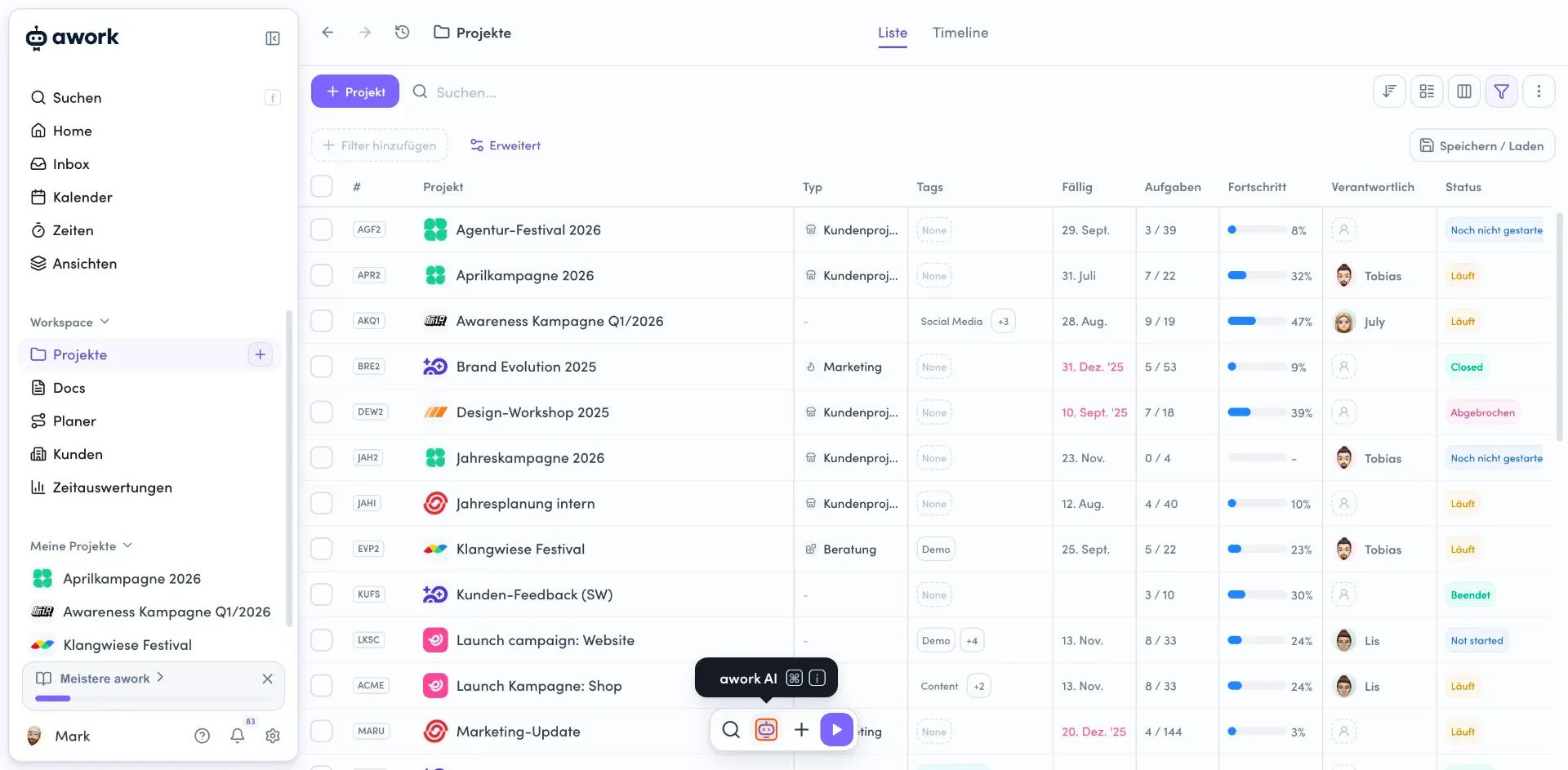
Start awork AI Assistant
Click the bot icon (tooltip: "awork AI") in the action bar to launch the AI assistant from any view.
Create New Items
Click the plus symbol in the action bar. A creation panel opens with these options:
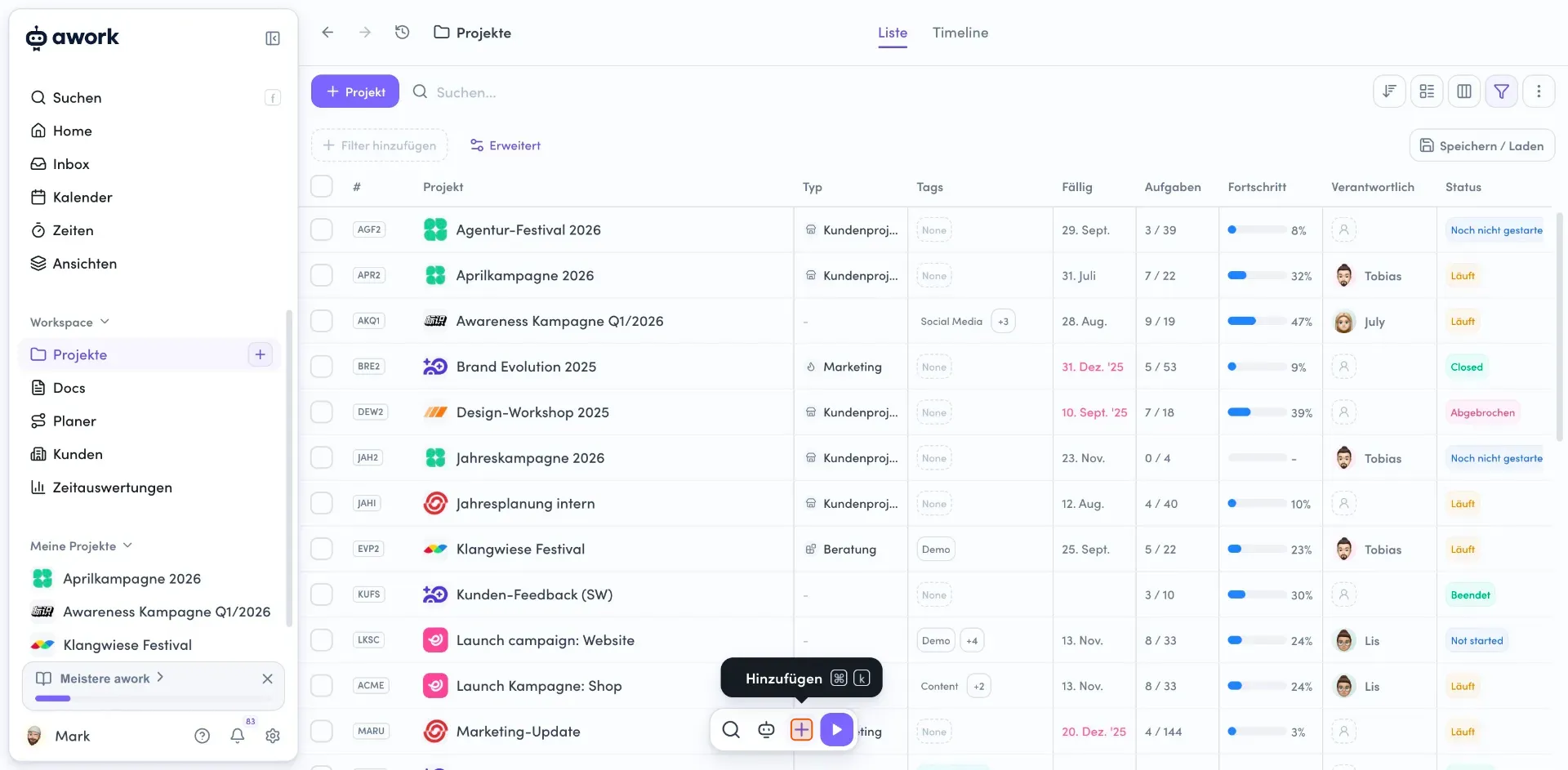
- New Project - Create a new project
- New Task - Create a new task
- New Time - Log a time entry
- New Customer - Add a new customer
Start the Timer
Click the purple play button (tooltip: "Start timer") in the Floating Action Bar to start your timer. A selection window opens where you can search for time entries, projects, or tasks.
In the open modal, you'll see three tabs: Recent, Project, and Task. "Recent" shows entries you've used lately. Select the item you want and the timer starts.
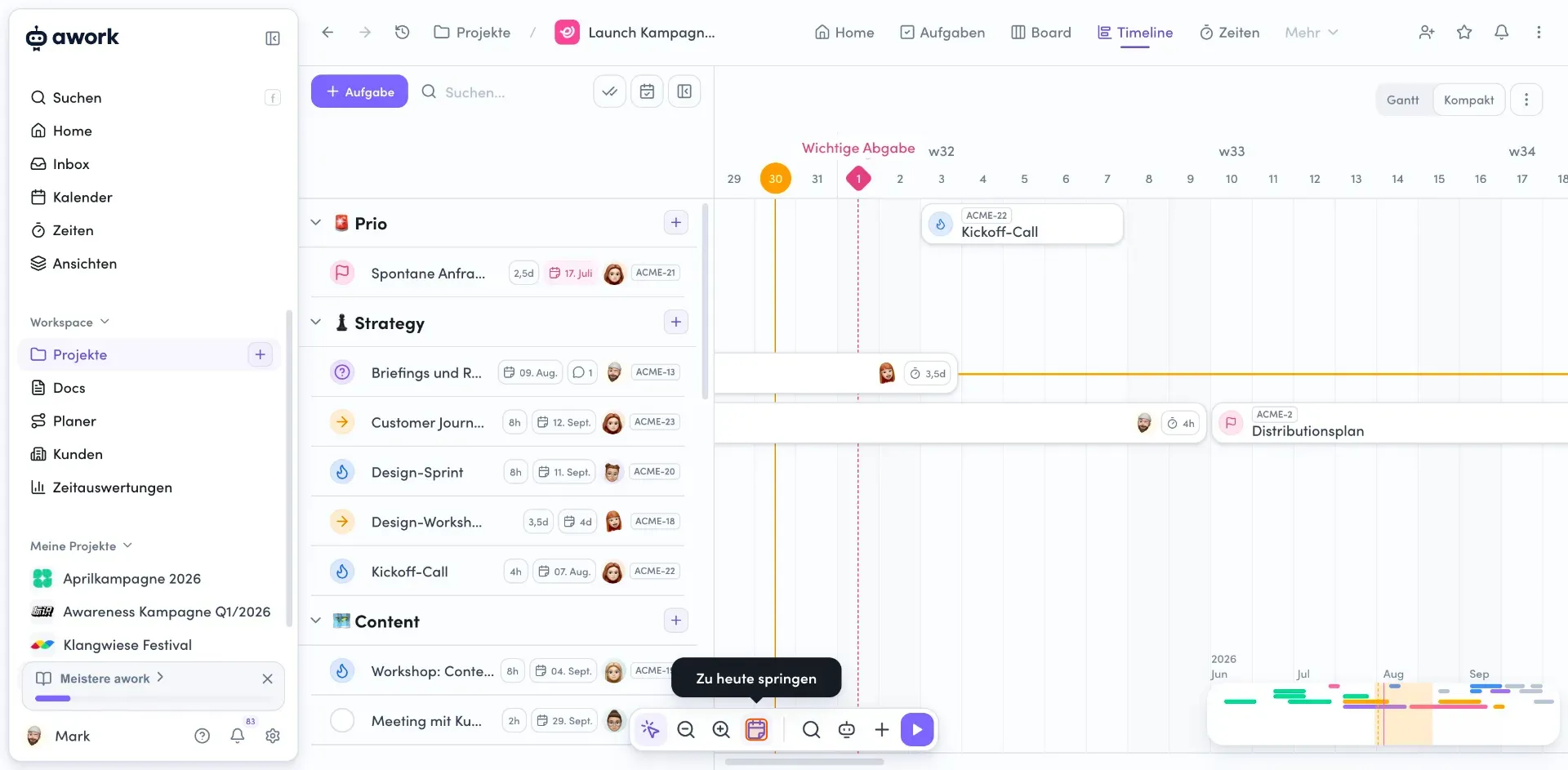
The Floating Action Bar in Timeline View
-
Multiple Selection - Select multiple items in the timeline to run actions on your selection: Autofix, Edit with AI, Move, Change Status, Add/Remove Assignees, Delete.
-
Zoom In or Out on the Timeline
- Click the magnifying glass with plus (tooltip: "Zoom in") to enlarge the timeline view
- Click the magnifying glass with minus (tooltip: "Zoom out") to zoom out and see a larger time span
- Jump to Today
Click the calendar icon with the tooltip "Jump to today" to automatically center the timeline on today's date.
 Powered by happysupport.ai