
Your Personal Inbox
Access your personal inbox from the left sidebar to view notifications, comments, and mentions grouped by project
Your inbox in awork is your central hub for notifications and updates. In this article, you'll learn how to quickly access your personal inbox and where to find the associated notification settings.
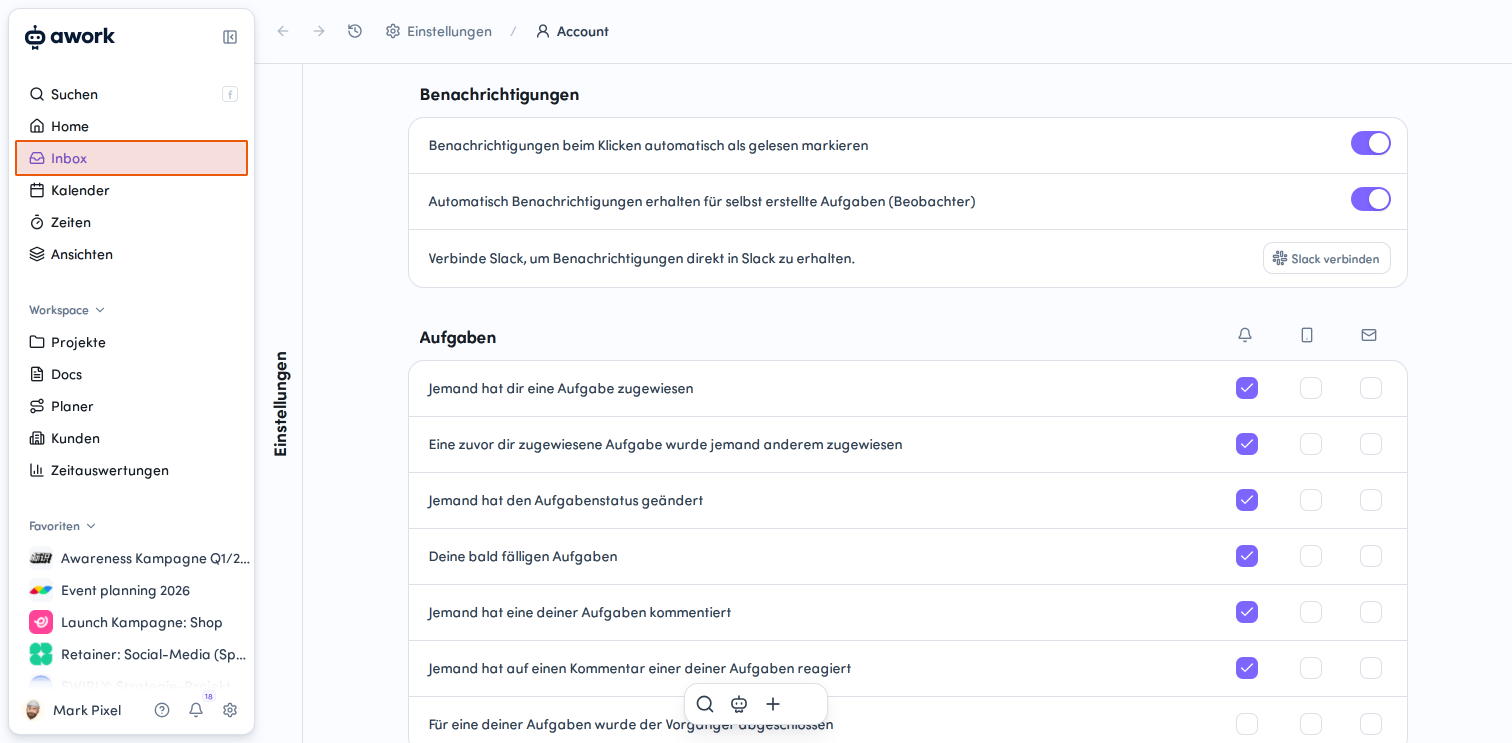
Opening Your Inbox
- Navigate to your inbox via the main menu
Click on Inbox in the left sidebar. You'll find this option at the top of the sidebar, right below Home and above Calendar. The inbox icon shows a small folder symbol next to the text.
- Access your notification settings
To adjust your notification settings, click on the small settings icon with a bell symbol at the top of your inbox. A tooltip showing "Notification settings" will confirm that you've found the right button.
Comments and Mentions
The following notifications appear in your inbox:
- new comments on tasks and projects that you follow
- mentions in comments
- new reactions (for example, emoji reactions) to comments
New comment notifications are automatically grouped by project. The project with the newest unread notification appears first.
Notification Groups
Notifications are grouped automatically
Comments, mentions, and reactions on the same task, project, or document are automatically grouped once there are more than two notifications for the same item.
Notification counter in groups
You can identify a group by the counter at the top left, which shows the number of notifications it contains.
Opening and closing notification groups
Hover your mouse over the counter on the left, then click the arrow button pointing to the right to expand or collapse a group.
Marking Comments as Read
When you click the checkmark to the right of a comment, you can mark it as read. It will then be moved to your list of read notifications.
Automatically mark as read
In your account settings, you can enable the following option: automatically mark notifications as read when clicked.
Note: The clicked comment will only be hidden after you reload the page.
Marking an entire group as read
When a group is collapsed, the mark all as read button shows a double checkmark symbol. When you click it, all notifications within the group are marked as read at the same time.
The read status of comment notifications
A purple dot appears to the left of new comment notifications. This indicates whether you've already clicked on the notification.
Once you click it, the blue dot disappears. This way you can work through notifications without them being hidden immediately.
Viewing read comment notifications
Click on Read notifications at the bottom left in the comment popup of your inbox. Here you can see previously read comment notifications in chronological order.
Navigation
Comments are highlighted
When you open a notification about a task or project comment, the view automatically scrolls to that comment. It's briefly highlighted and then the highlighting disappears.
This works for both unseen comments and comments already marked as read.
Opening items in a new tab
Hold CMD (Mac) or CTRL (Windows) and click on a notification or comment to open the associated page in a new tab in the background.
Notification popup stays open
After clicking on a notification, the notification popup remains open. Close the popup by clicking outside of it.
Tip: This lets you work through multiple notifications one after another without having to reopen the popup each time.
FAQ
When are notifications grouped?
Notifications are grouped when there are more than two comments, mentions, or reactions for the same task, project, or document.
Can I mark an entire group as read?
Yes. When the group is collapsed, the mark as read button with the double checkmark marks all contained notifications as read at the same time.
Can I view read comment notifications again?
Yes. Click on Inbox in the main menu and then on Read notifications at the bottom left. There you'll find your most recently read comment notifications in chronological order.
Does the notification popup stay open after I click on it?
Yes. Both notification popups remain open until you click outside of the popup.
Can I open notifications in a new tab?
Yes. Hold CMD (Mac) or CTRL (Windows) and click on a notification or comment to open the page in a new tab in the background.
 Powered by happysupport.ai