
Share local files
Connect your Mac or Windows PC to awork and share local folders with your AI agent to read, edit, and manage files directly without uploading them one at a time
Access folders on your Mac or Windows PC in AI chats, and save new or edited files directly to them.
You need the awork desktop app, which requires at least macOS 14 or Windows 11 (64-bit).

Benefits and use cases
With local file access, an awork AI agent can work directly with folders on your computer. You no longer need to upload files one at a time. Instead, you share a folder and choose what the agent can do with it.
For example, this lets you:
-
Use existing files: Let the agent read folders containing quotes, reports, or notes
-
Save results directly: New or edited files are saved directly to the shared folder on your computer
-
Work with multiple files at once: Let the agent rename, sort, or move files
-
Run tasks locally: On Mac, the agent can also run commands in the shared folder
How local file access works
You connect your Mac or Windows PC to awork, then share individual folders. You choose an access level for each folder.
The agent can only work with folders that you've shared and enabled in the relevant chat.
What access levels are available?
You can choose from three access levels:
-
Kann ansehen: The agent can list files and folders and open files
-
Kann bearbeiten: The agent can also create and update files
-
Vollzugriff: The agent gets additional permissions to manage files and folders. You also need to confirm this access directly on your computer
New folders always start with the Lesen access level.
What can the agent do with Vollzugriff?
The available features vary by operating system:
On Mac
-
The agent can run commands, such as scripts or Git commands
-
Commands are restricted to the shared folder
-
Commands don't have network access
-
Each command is stopped after 120 seconds
On Windows
-
The agent can create folders
-
It can move, rename, and delete files and folders
-
It doesn't run scripts or commands
Set up local file access
Requirements
To use this feature, you need:
-
An awork AI plan
-
At least the general AI permission AI & Agents verwenden - ohne Teilen
-
The awork desktop app on macOS 14 or later, or on Windows 11 version 24H2 or later (64-bit)
Connect your computer and share a folder
-
Open the AI chat with the awork agent in the desktop app.
-
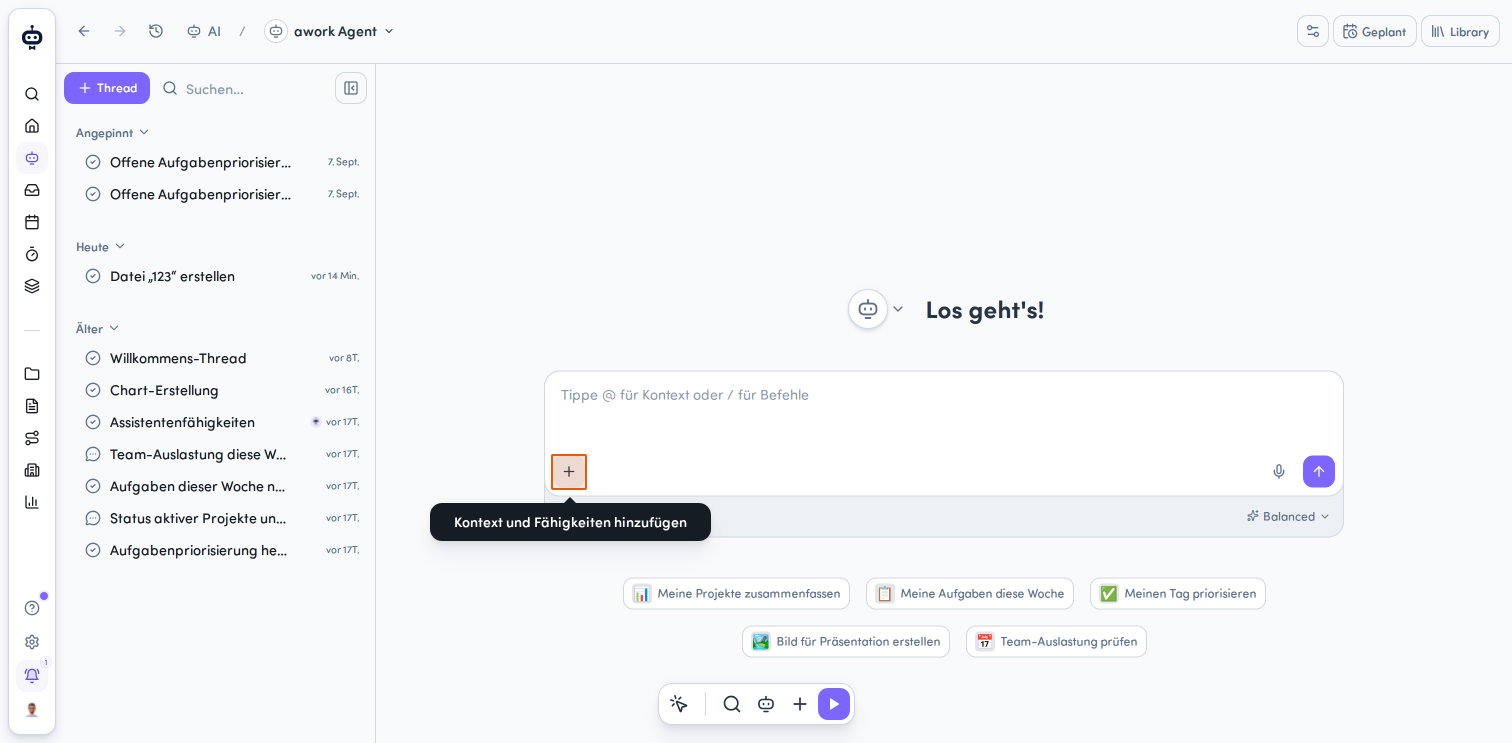
Click the Plus-Schaltfläche in the bottom-left corner. The Kontext & Fähigkeiten menu opens.
-
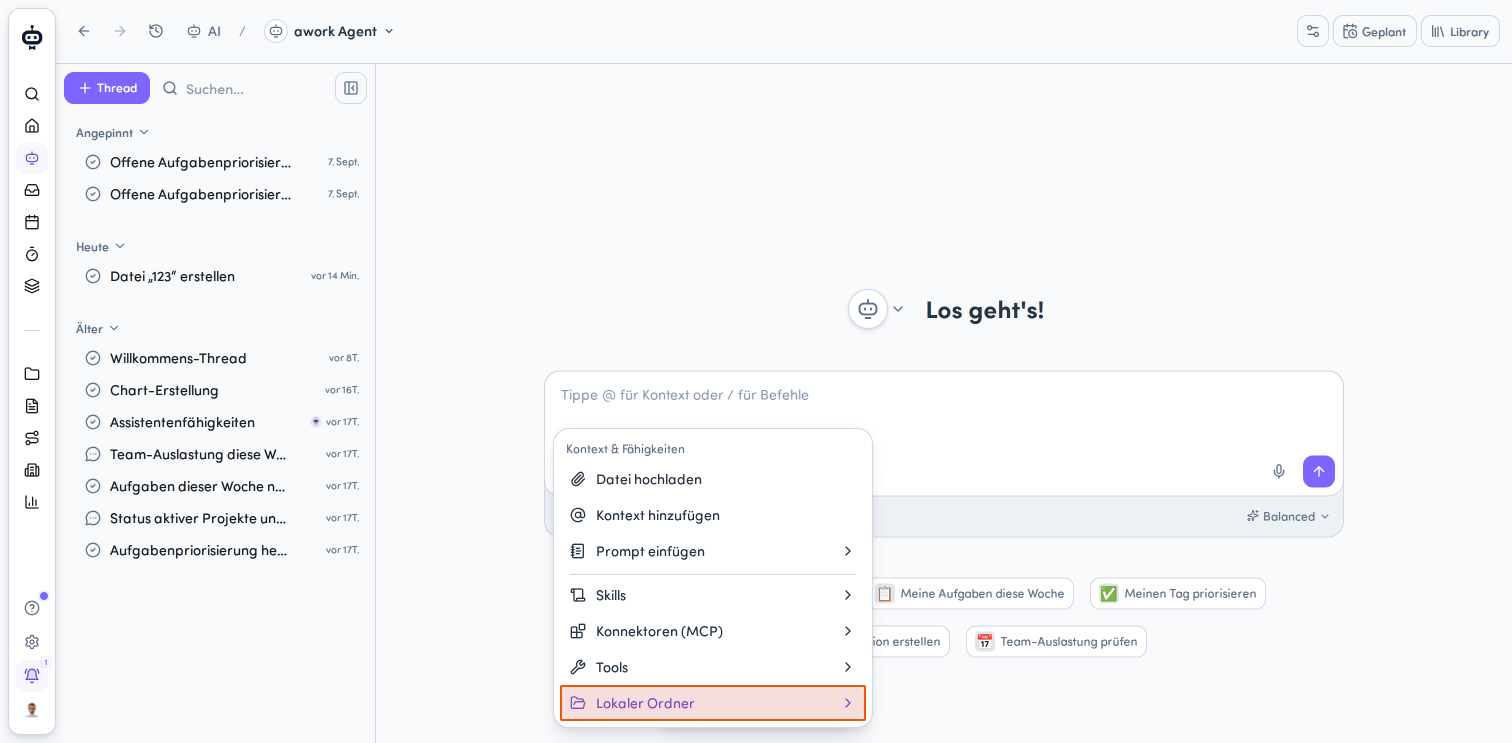
Select Lokaler Ordner, then click + Hinzufügen in the submenu.
-
In the awork File Access für Ordnerzugriff hinzufügen window, select Diesen Computer verbinden.
-
Confirm the connection.
-
The awork File Access window opens. Select Ordner hinzufügen.
-
Select the folder on your computer that you want to share.
-
Go back to the AI chat. The agent can now use the folder you added in this chat.
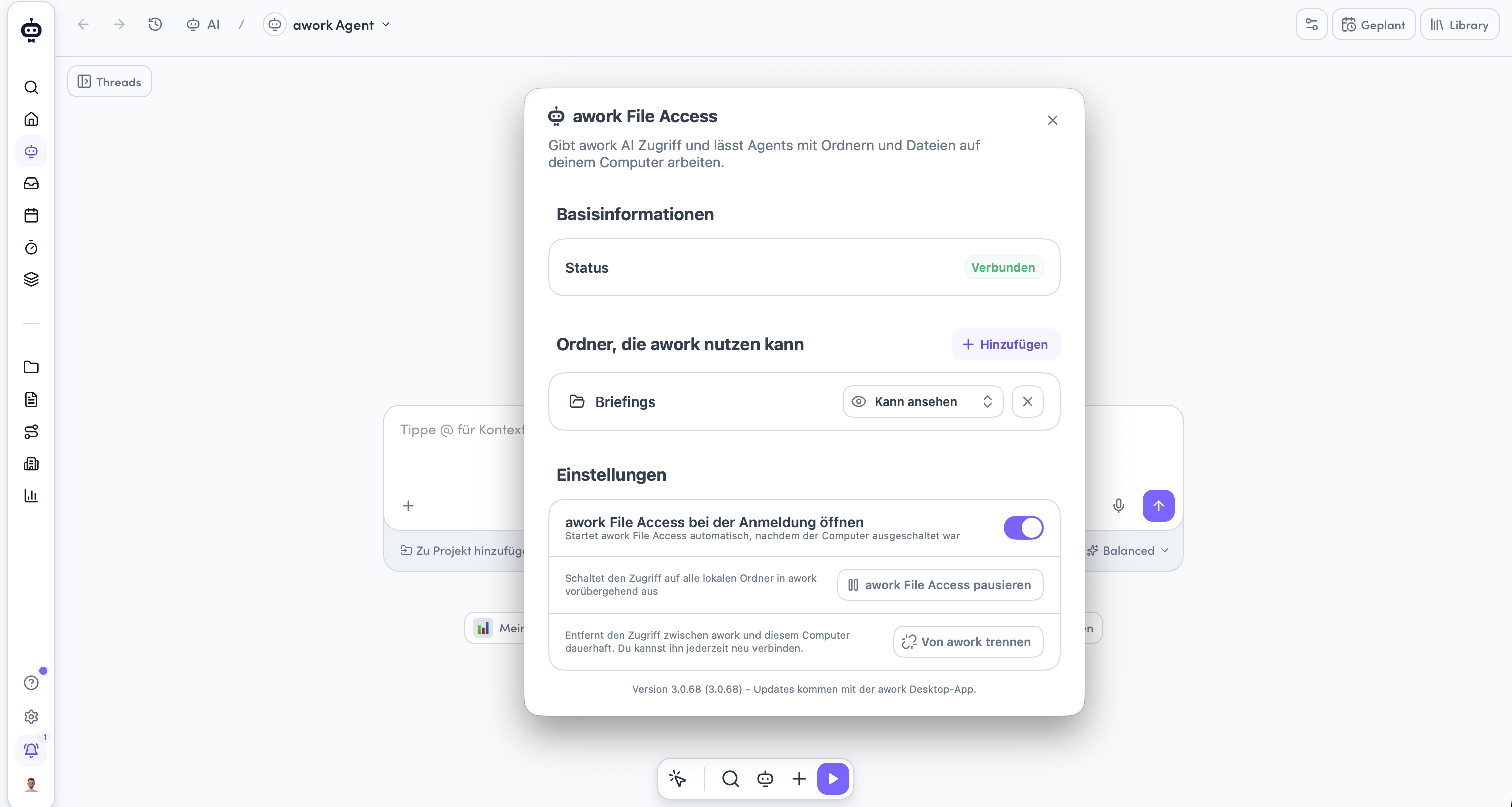
Note: If you're using awork in a browser, the dialog offers to App öffnen. This opens the desktop app so you can continue the connection there. If you haven't installed the desktop app yet, the dialog also includes a download link.
Enable folders in new chats
By default, new chats use the folders you last selected for a new chat. You can see which folders are active in the Kontext & Fähigkeiten menu by clicking + > Lokaler Ordner. The menu also shows how many folders are currently enabled.
Click + Hinzufügen to share access to more local folders. A pop-up opens. Click awork File Access öffnen. In the Ordner, die awork nutzen section, you can add more folders, remove folders, and set permissions.
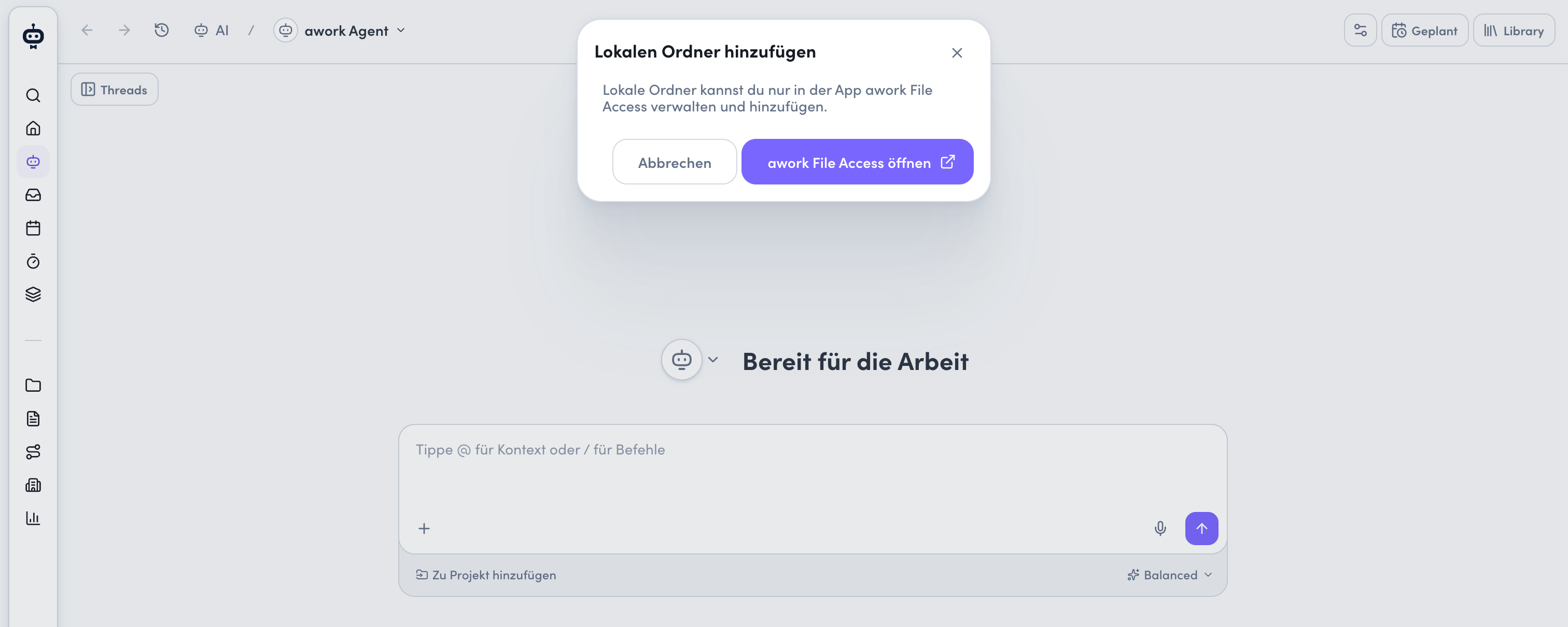
You can only manage and add local folders through awork File Access.
Disable access to a folder
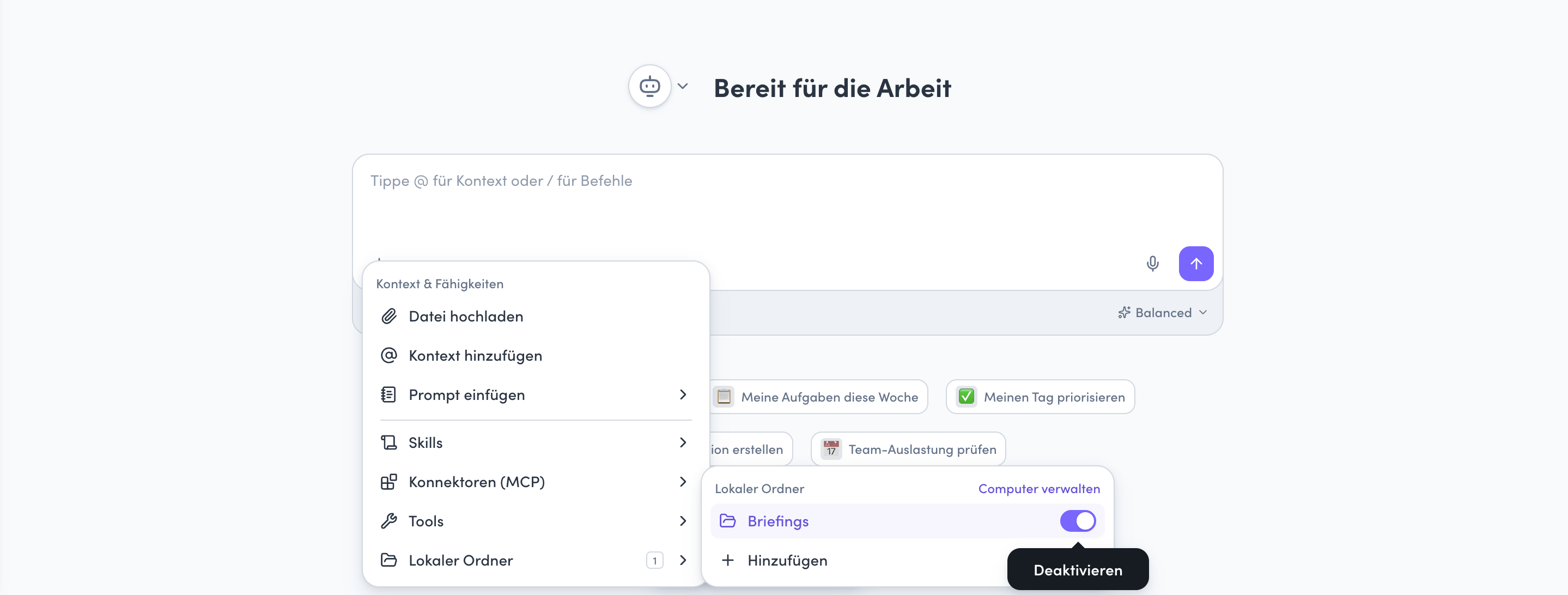
You can disable an active folder at any time using the toggle in the Lokaler Ordner submenu.
Pause access or disconnect your computer
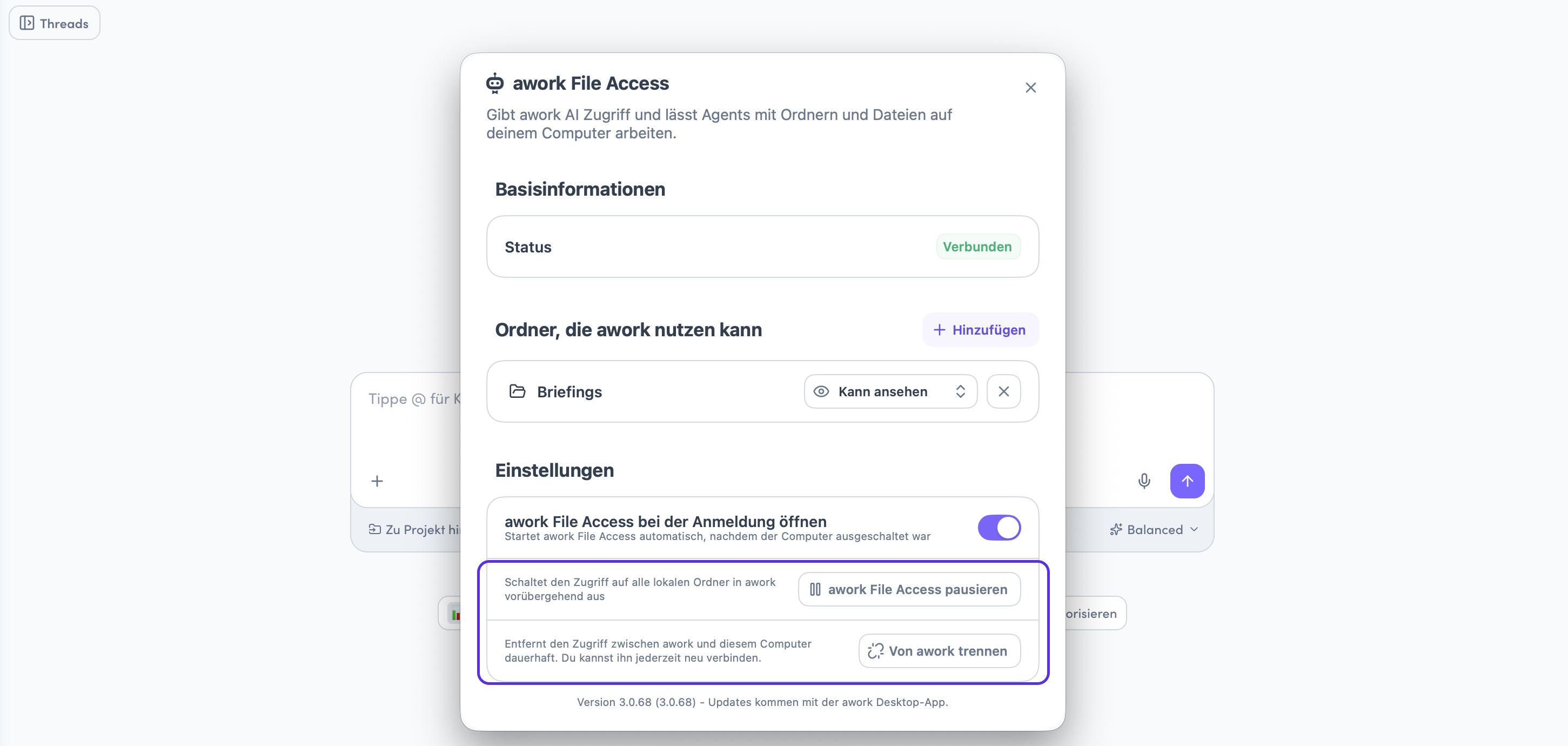
You can manage access to your local folders at any time in Einstellungen in awork File Access.
-
Pause access:
Click awork File Access pausieren to temporarily turn off access to all local folders in awork. Click awork File Access fortsetzen to turn access back on. -
Disconnect your computer:
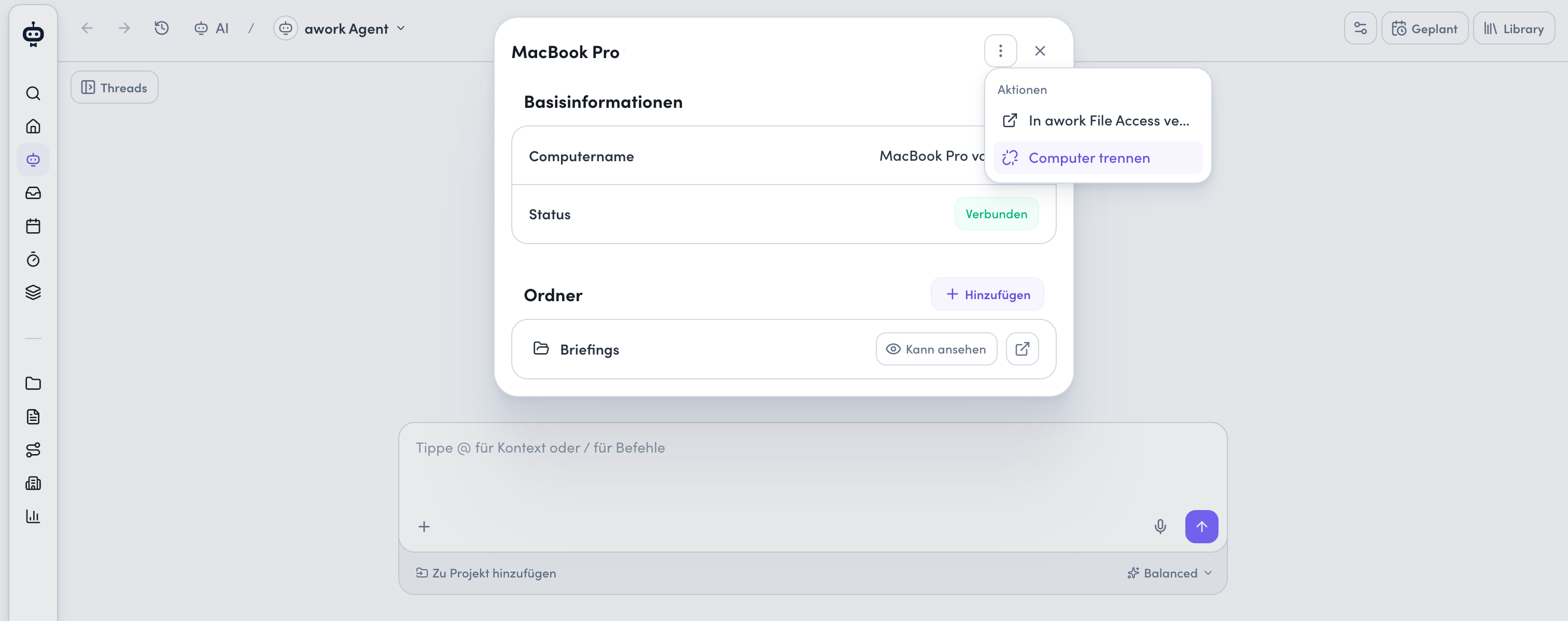
Click Von awork trennen. This disconnects your computer from awork. You can reconnect it at any time.Alternatively, in the chat, click + > Lokaler Ordner > Computer verwalten. A window opens with basic information about your computer, its connection status, and the connected folders. Click the Aktionsmenü in the top-right corner > Computer trennen.
To make further changes or add folders, open awork File Access.
If your computer is offline or access is paused, the chat displays the relevant status.
Known limitations and privacy
What limitations apply?
-
You can connect up to 16 folders and one computer per user
-
On Windows, local NTFS folders and OneDrive files stored on the device are supported
-
Network drives, USB drives, and online-only files aren't supported on Windows
-
Local folders can be used in private and shared chats, as well as chats in projects, tasks, and documents
-
Each user can only access folders on their own computer
-
Chats with custom agents don't support local folders
How are files saved?
When saving a file, awork checks whether its version has changed since it was opened. If the file has changed in the meantime, the save is stopped.
Changes are made directly to the files. No backup copies are created.
What happens to your files and data?
Opened files are processed in the cloud and may be sent to the selected AI provider.
Important: If you disable a folder or disconnect your computer, copies of files the agent has already read aren't deleted.
Working with local files doesn't use any additional AI credits. It's part of the agent's regular response.
Troubleshooting and tips
- The computer isn't connected
Check that awork File Access is running. If the connection isn't available, the chat displays Verbindung fehlgeschlagen. - Access is paused
If the chat displays Pausiert, local access has been paused. You can manage it again in awork File Access. - A folder isn't displayed or can't be used
Check that you've added the folder in awork File Access and enabled it in the current chat under + > Lokaler Ordner. Also check the supported file locations and the limit of 16 folders per user. - A file wasn't saved
If the file's version changed while it was being edited, awork stops the save. This prevents changes made in the meantime from being overwritten.
FAQ
Do I need to upload files before using them?
No. You can share a folder on your computer and let the agent work with it directly.
Can I choose what the agent is allowed to do with my files?
Yes. For each folder, you choose whether the agent can only view files, edit them, or manage them with Vollzugriff.
Can the agent run commands on Mac?
Yes. With Vollzugriff, it can run commands such as scripts or Git commands in the shared folder. Commands don't have network access and are stopped after 120 seconds. The security check in awork File Access must also pass on your Mac.
Can the agent run scripts on Windows?
No. Even with Vollzugriff, the agent doesn't run scripts or commands on Windows. It can create folders and move, rename, or delete files and folders.
How many folders and computers can I connect?
You can connect up to 16 folders and one computer per user.
Does local file access work in all AI chats?
Local folders can be used in private and shared chats, as well as chats in projects, tasks, and documents. Chats with custom agents don't support this feature.
What happens if I disable a folder or disconnect my computer?
The agent can no longer use the folder through that connection. However, copies of files the agent has already read aren't deleted.
Does working with local files use additional AI credits?
No. Working with local files is part of the agent's regular response and doesn't use additional AI credits.
 Powered by happysupport.ai