
Sharing AI threads
Share AI threads with users, teams, or your organization and control whether recipients can read or edit conversation history
Share AI threads with individual users, teams, or your entire organization, and choose who can read or manage the conversation. This lets you review AI results together and continue conversations without linking the thread to a project.
Key benefits and use cases
-
Review results together: Share an AI conversation with colleagues so they can follow the responses and review the results.
-
Continue collaborating: Others can continue an existing thread with its conversation history instead of starting a new conversation.
-
Grant access selectively: Share private threads with selected users, teams, or your entire organization, independently of any project.
-
Control access: Choose whether others can only read the thread or also manage it.
People with access can see the full conversation history, attachments, generated files, and data and sources saved during the conversation. Future responses will also be shared.
Requirements
To share an AI thread, you need to meet the following requirements:
-
You need access to AI in your workspace: at least Use AI & Agents, without sharing through the global permission role.
-
You must have created the thread or have the Manage permission.
You can only share threads directly if they aren't linked to a project or task. The relevant project and task permissions still apply to linked threads.
If Share isn't available, check these requirements or contact a workspace admin.
How to share an AI thread
1. Open the thread actions
-
Open AI from the main menu.
-
In the thread list on the left, hover over the thread you want and open the Actions menu on the right.
-
Select Share to open the Share thread dialog.
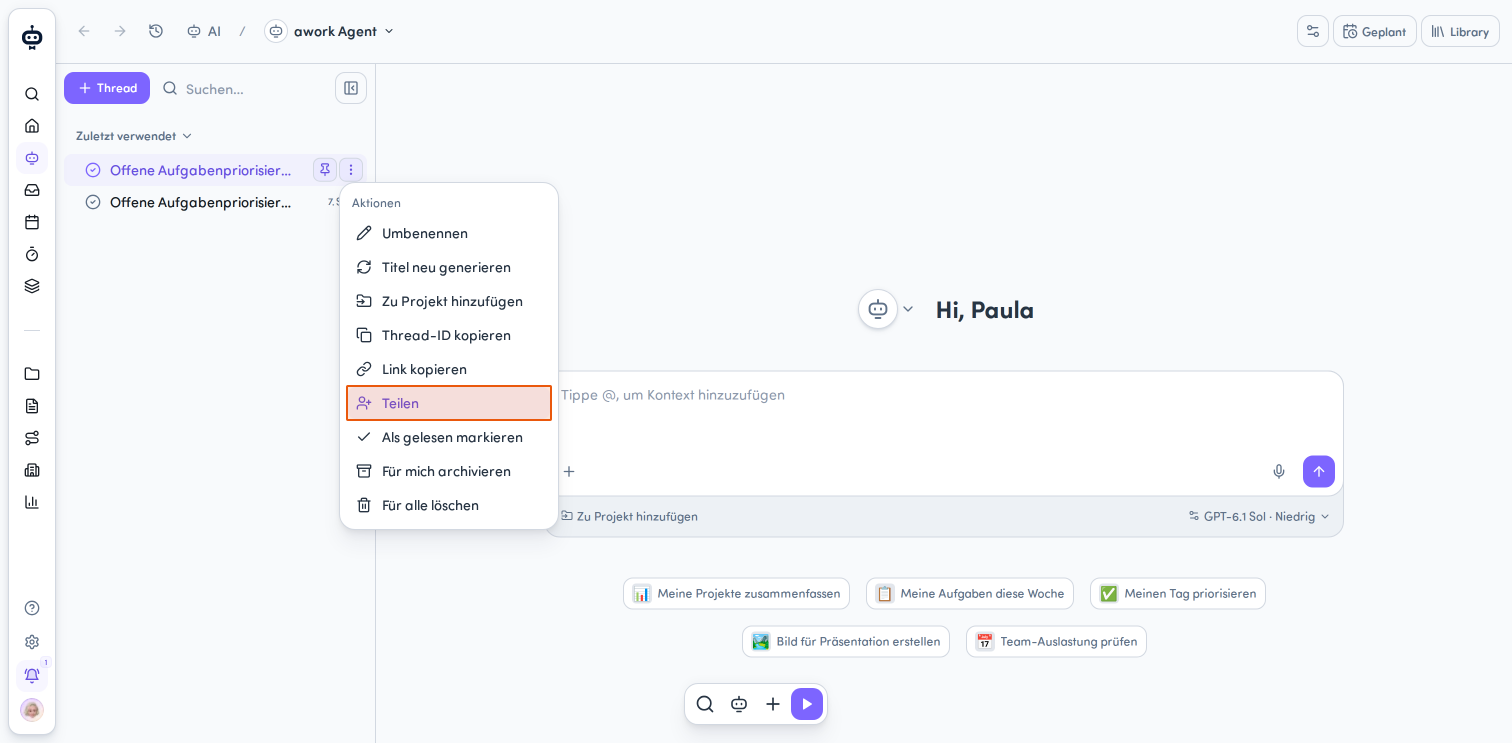
The Share option is only available in the main AI view, not in the AI chat pop-up or AI chat sidebar.
2. Set general access permissions
Under General access, you'll see your organization's name and a dropdown menu. Use it to choose the access permissions that apply to all members of your organization.
You have three options:
-
None: Only individually added users or teams can access the thread.
-
Read: All members of your organization can view the full conversation history and shared content.
-
Manage: All members of your organization also get management permissions for the thread.
None is selected by default. If you select Read or Manage, future responses in the thread will also be shared.
3. Add individual users or teams
Under Individual access, you can select specific users or teams.
-
Click + Add user or team.
-
Select User to add individual users, or Teams to add an entire team.
-
Search for the users or teams you want. Use the search field or the Recently used and All filters.
-
Set the access level you want for each selection.
New users and teams are given the Manage permission by default. You can change this to Read.
You can't share a thread with external users.
4. Save or cancel sharing
Once you've set all the access permissions, click anywhere in the workspace outside the Share thread dialog. This closes the dialog and saves your changes.
If you close the dialog with the Escape key, your changes won't be saved.
Understanding access permissions
Directly shared AI threads have two access levels: Read and Manage.
Read
Users with the Read permission can:
-
view the full conversation history,
-
open attachments and generated files,
-
view data and sources saved during the conversation,
-
read future responses in the thread.
With read access, they can't send messages in the thread or change its sharing settings.
Manage
Users with the Manage permission can also:
-
send messages in the thread,
-
invite more users or teams,
-
change the sharing settings,
-
rename the thread,
-
delete the thread.
To send messages, users with Manage also need access to the AI agent used in the thread. Sharing a thread doesn't automatically grant them this access.
How do recipients join a thread?
Recipients can find shared threads in their thread list or open them directly from the sharing notification.
How they join the thread depends on how they were granted access:
-
Invited individually with Manage: If a user can use the agent in the thread, they'll automatically join when they open it.
-
Granted Manage through a team or the entire organization: The user must first click Join thread.
People with read access can view the thread but can't actively participate. To send messages, they need both Manage and access to the agent used in the thread.
Managing shared AI threads
Archive threads
Use Archive for me to hide a shared thread from your active thread list without losing access to it.
The thread will remain accessible to you. Archiving doesn't remove the share or your permissions.
Leave threads
Use Leave thread to remove your own shared access to the thread.
This also applies if you got access through a team or because the thread was shared with your entire organization. After leaving, you can only access the thread again if someone shares it with you individually.
Delete threads
When you delete a thread, the conversation is removed for everyone who has access to it.
Keep in mind that deleting a thread affects more than just your own view. Only use this option if the conversation is no longer needed.
Review sharing and activity
Shared threads are marked in the thread list:
-
The thread owner sees a team icon.
-
Users the thread was shared with see the thread owner's icon.
Changes to sharing settings are recorded in the thread's activity timeline.
You can view current access permissions under Shared with in the thread details.
Rules for thread owners
The thread owner can't be removed through the sharing settings.
If you have the Manage permission and change your own access level or remove yourself from the share, you immediately lose the relevant permissions.
Access for workspace admins
Workspace admins don't automatically get access to private AI threads.
They also need to be granted access. This can be done directly, through a team, or by sharing with the entire organization.
Link threads to a project instead
If you want to share an AI conversation in the context of a specific project, you can link it to that project.
The thread will then be visible to project members who have permission to access it. The relevant project and task permissions determine access.
The difference:
-
Share a thread directly: You choose exactly which users, teams, or organization members can access a private conversation.
-
Link a thread to a project: Visibility is determined by the access permissions for the project or task.
For more information, see Linking AI threads to projects.
FAQ
Why can't I share an AI thread?
The Share option is only available if you have access to AI and created the thread or have Manage permissions. You can only share threads directly if they aren't linked to a project or task. Sharing isn't available in the AI chat pop-up or AI chat sidebar.
What can people with access see?
They can see the full conversation history, attachments, generated files, and data and sources saved during the conversation. Future responses are also shared automatically.
Can users with read access reply in the thread?
No. To reply, they need the Manage permission and access to the agent used in the thread.
Do workspace admins automatically get access?
No. Admins also need to be granted access directly, through a team, or by sharing with the entire organization.
How is credit usage for shared threads displayed?
The thread details show the total credit usage for the conversation. This includes the recorded AI usage of all participants and delegated agent tasks. The total shown doesn't break down usage by individual participant.
What happens if I archive a shared thread?
If you archive the thread using Archive for me, it's hidden from your active thread list. You keep your access.
What happens if I leave a shared thread?
You lose your shared access to the thread, even if you got access through a team or the entire organization.
You can only access the thread again if someone shares it with you individually.
What happens if I delete a thread?
The thread is removed for everyone who has access to the conversation.
Can I remove my own access permissions?
Yes. If you have Manage, you can change your own access level or remove yourself from the share. You'll immediately lose the relevant permissions.
 Powered by happysupport.ai