
Review AI usage and activity
Track AI usage and activity across your workspace using the Usage & Activity dashboard to monitor credits, threads, and costs by project
With awork, you can transparently track AI usage and activity. This gives you an overview of everything and lets you assign costs directly.
You need admin rights to access the usage report.
Key benefits and use cases
- Central overview
Use Nutzung & Aktivität in the AI section of the settings to monitor AI usage across your entire workspace in one place. - Analyze project costs
By linking AI threads to projects, you can clearly assign AI usage to projects and transparently review their costs. This lets you see at a glance how much AI was used in each project and which customer the usage was for. To report on usage by customer, a project must be assigned to a customer.
The Nutzung und Aktivität section shows, among other things:
-
The number of AI threads
-
The number of credits used
-
The highest credit usage by usage group
-
How usage is distributed over time
This helps you see how many credits each agent, project, or user has used, so you can assign costs accordingly. You can group, sort, and export the data using various criteria.
Workspace-wide AI usage statistics
-
Go to Einstellungen (the gear icon at the bottom left of the main menu).
-
Under AI, select Nutzung & Aktivität.
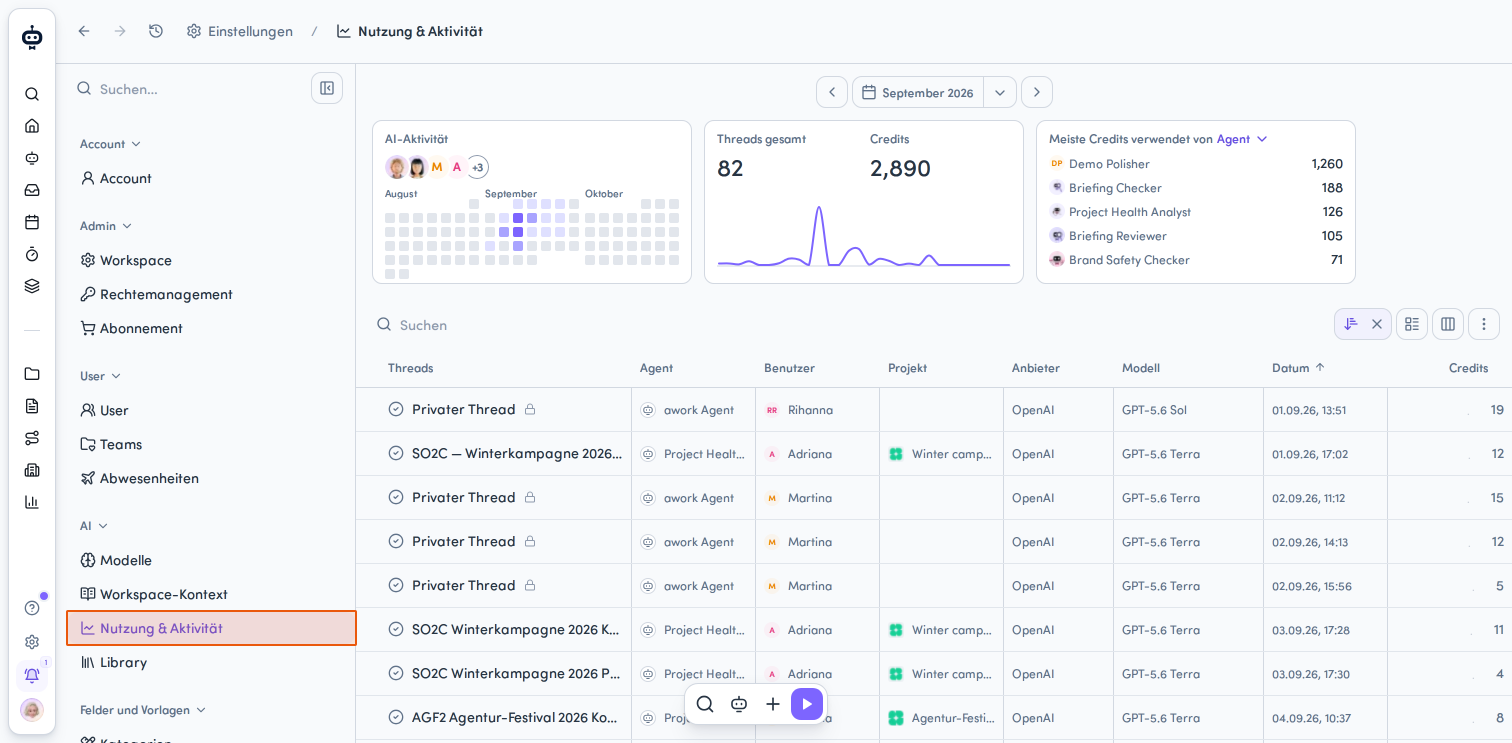
- Select a Zeitraum: The date navigation is at the top, in the middle. Use the dropdown arrow to select a time period, then use the arrow buttons on the left and right to move to an earlier or later period. You can view AI usage for the following periods:
Tag, Woche, Monat, Quartal, Jahr or Abrechnungszeitraum
The dashboard shows three main cards with usage data:
- 3-Monats-Aktivität: A heatmap showing relative credit usage for the current and previous two calendar months (UTC) up to today. This period is fixed and isn't affected by the date filter selected above. Days with higher usage are highlighted more prominently. Hover over a tile to see the actual credits used that day. Exception: During a trial, the activity display shows the period selected for the trial.
- Threads gesamt und Credits: Shows the number of AI threads and credits used during the selected period, along with a usage chart.
- Meiste Credits verwendet von: A top-five ranking of the biggest credit users across different usage categories, based on the selected period. Click the selected usage grouping to change it. Select Agent, Benutzer, Projekt, Kunde, Anbieter or Modell.
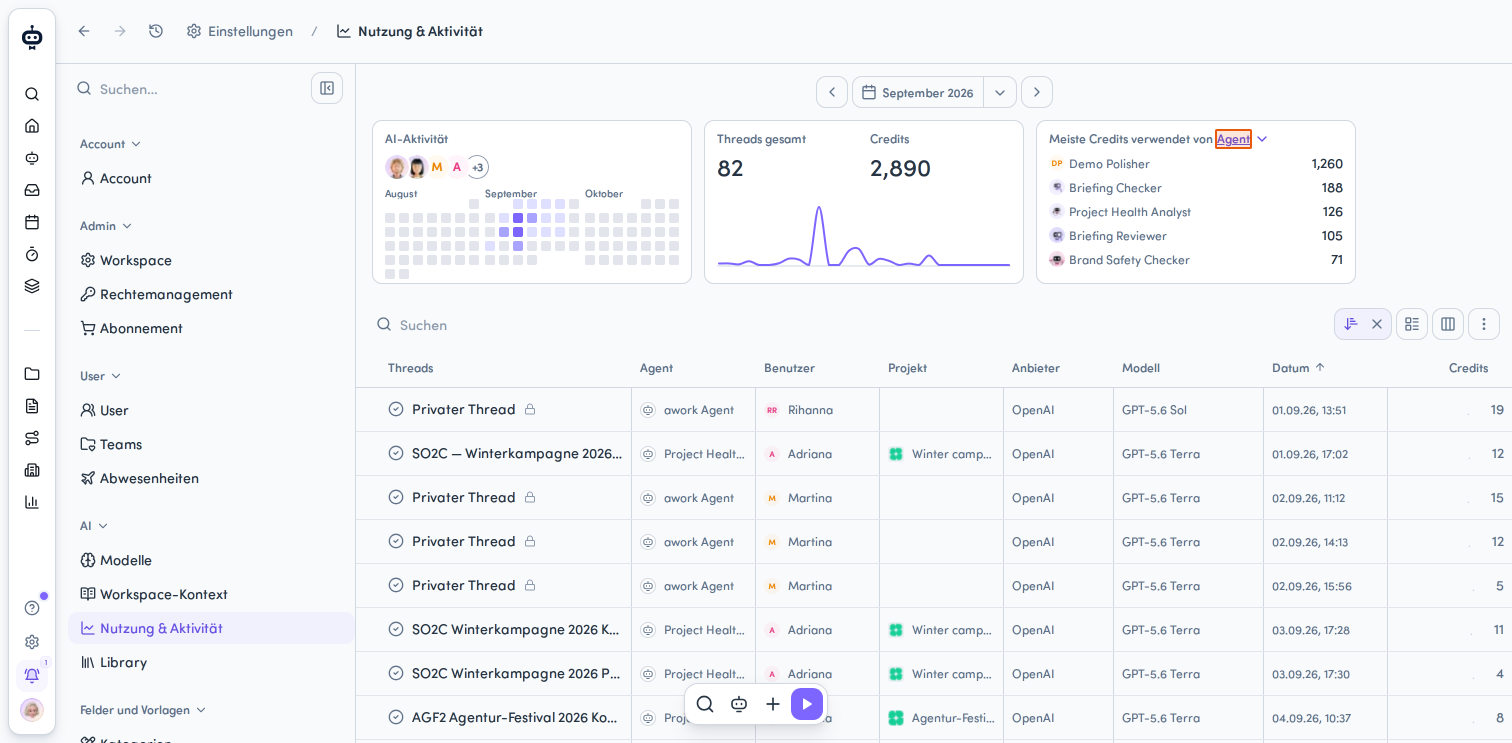
You can't report on individual agent runs within a thread as separate units of usage.
The credit usage shown applies to the relevant AI activity or thread.
AI usage details in table form
The table below the three cards shows detailed information about all AI activity:
-
Thread-Name (or marked as a privater Thread)
-
Agent
-
Benutzer
-
Projekt
-
Kunde
-
Gestartet durch (started via chat, from a project or task, mentioned in a comment, or started by an automation)
-
Anbieter
-
Modell
-
Datum
-
Credits
Filter, sort, and group the data using various criteria to create meaningful reports.
Configure the table view
- Adjust sorting
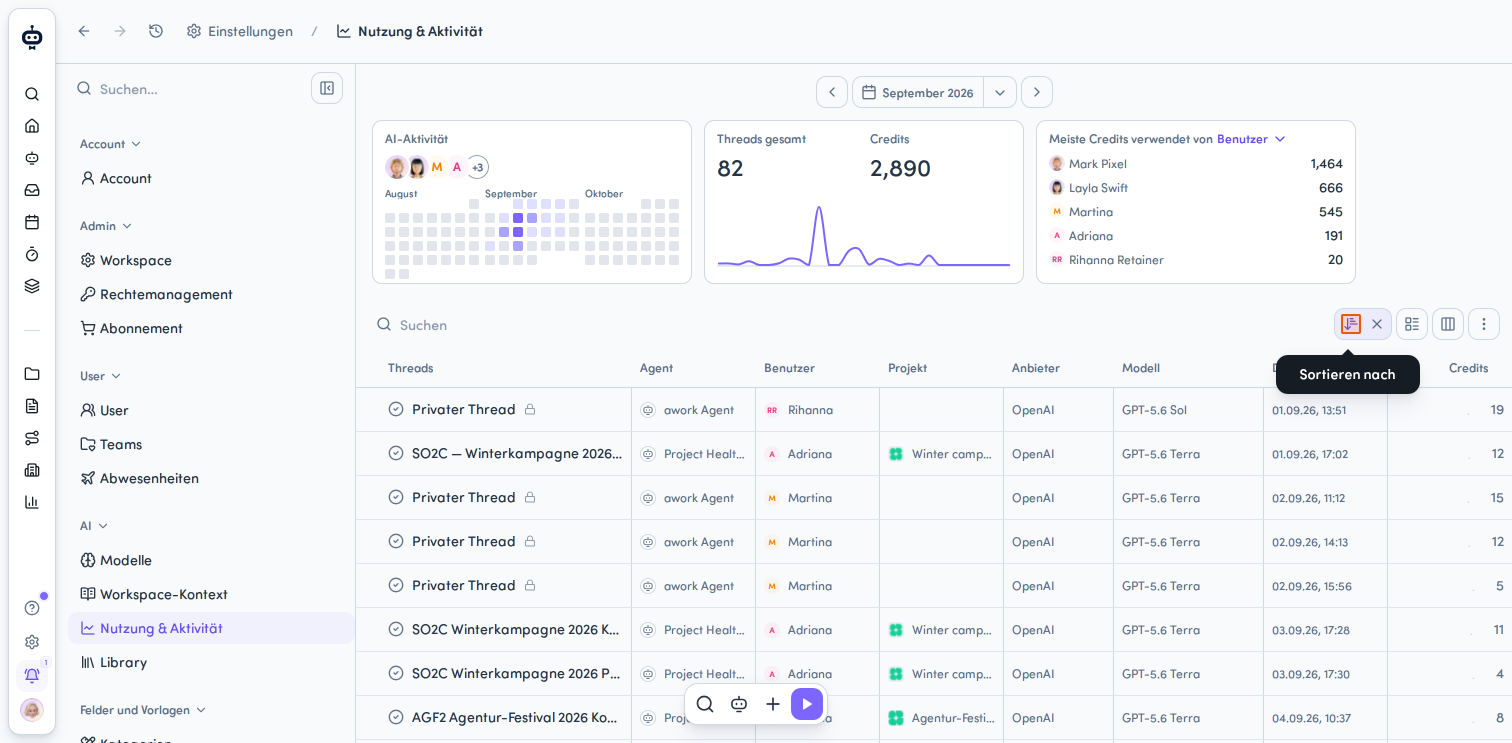
Click the sort icon above the table. A dropdown menu titled Sortieren nach opens, with options to sort by Agent, Anbieter, Benutzer, Credits, Datum, Gestartet durch, Kunde, Modell, and Projekt, in ascending or descending order. Alternatively, click a column heading directly. The small arrow in the column heading shows the current sort direction.
-
Set the table grouping
Click Gruppieren nach in the toolbar above the table. The dropdown menu shows the grouping options Agent, Benutzer, Gestartet durch, Kunde, Projekt, Anbieter, and Modell. -
Configure the columns shown
Click the column icon in the toolbar. A dropdown panel titled Spalten appears, where you can use checkboxes to select which columns to show. -
Open more options
Click the action menu in the toolbar to access additional actions, such as Exportieren (as an Excel file) or Auf Standard zurücksetzen.
Export data
You can start an XLSX export from the action menu. The export includes the current search and selected period. Once the file is ready, you can download it from the notification.
The file contains thread titles, agent titles, users, projects, customers, execution type, date, and credits used. It also includes the IDs for users, projects, and customers, as well as the provider and model. Hidden thread titles remain hidden in the export.
Requirement for assigning usage to a project
For an AI thread's usage to be assigned to a project in the usage report, the thread must be linked to that project. The project link is what assigns the usage. Project context alone doesn't assign usage to a project.
👉 Learn more: Link AI threads to projects
Assigning a project after the fact
If you assign a thread to a project after the fact, its previous credit usage is also assigned to that project. The report shows the usage in the selected period based on the original usage date. The usage date remains unchanged. It isn't moved to the date the project was linked.
Threads not linked to a project
Threads that aren't assigned to a project also appear in the report. Their credit usage is included as well.
Data for private AI threads and visible metadata
Administrators can't automatically open every AI thread. An AI thread that isn't linked to a project and was created by another user remains private.
In this case, the administrator can still see certain metadata, for example:
-
Creator
-
How it was started
-
Agent used
-
Provider
-
Model
-
Date
-
Credit usage
-
Run status
The actual content of the private AI thread remains inaccessible.
Review AI usage in a project
In addition to workspace-wide reporting, you can also view AI usage directly at the project level.
Requirements: You need read access to project details and AI access (at least AI & Agents verwenden – ohne Teilen through the global permission role).
-
Open the project
Open the project whose AI usage you want to review. -
Open the AI tab
There you'll find three metrics:- AI activity: An activity display covering the current and previous two calendar months (UTC) up to today. This period is fixed and isn't affected by the period selector.
- Total threads and the credits used during the selected period.
- A top-five ranking of the biggest credit users: Group by Agent, Benutzer, Anbieter or Modell.
-
Adjust the period
By default, the period includes all recorded project usage up to the current day (UTC). You can also select a shorter period.
The overview also includes recorded usage from deleted threads. Historical usage values may change if the credit conversion rate changes.
The project view is especially useful when you want to investigate the usage of a single project without relying on the workspace-wide report.
FAQ
Can administrators open every AI thread?
No. A thread that isn't linked to a project and was created by another user remains private.
Can I export AI usage data?
Yes. You can export AI usage data from the action menu.
What does the heatmap show?
The heatmap shows relative credit usage for each day. Days with higher usage are highlighted more prominently.
 Powered by happysupport.ai