
Link AI threads to projects
Link an AI thread to a project to enable team collaboration, track costs by project, and control access through project permissions for shared conversations.
Link an AI thread to a project to make it visible there, let multiple users work on it together, and transparently attribute its credit usage.
Once a thread is linked to a project, it becomes visible to everyone who has access to that project.
You can also work on an AI thread with others without assigning it to a project.
👉 Learn more about sharing directly in Sharing AI threads.
Key benefits and use cases
- Work with the agent together: Linked AI threads are visible in the project and can be used by multiple users with the required permissions. This lets teams work together in a conversation instead of spreading knowledge and prompts across individual threads.
- Keep AI work together in the project: AI threads are available alongside project data and documentation. This keeps work with the agent in the context of the relevant project and makes it easier for the team to find.
- Continue existing threads together: You can link an existing AI thread to a project. Other project members with the required permissions can then read the conversation, join it, and send additional prompts.
- Manage access through project permissions: This lets you control which project members can see and use shared AI conversations.
- Transparently assign costs to a project
Linking a thread assigns the AI costs incurred in it to the correct project. This lets you keep track of project-specific usage and analyze it later.
How to link a thread to a project
You can link a thread as long as it isn't already linked to a project or task.
- Click Zum Projekt hinzufügen at the bottom left of the chat input field.
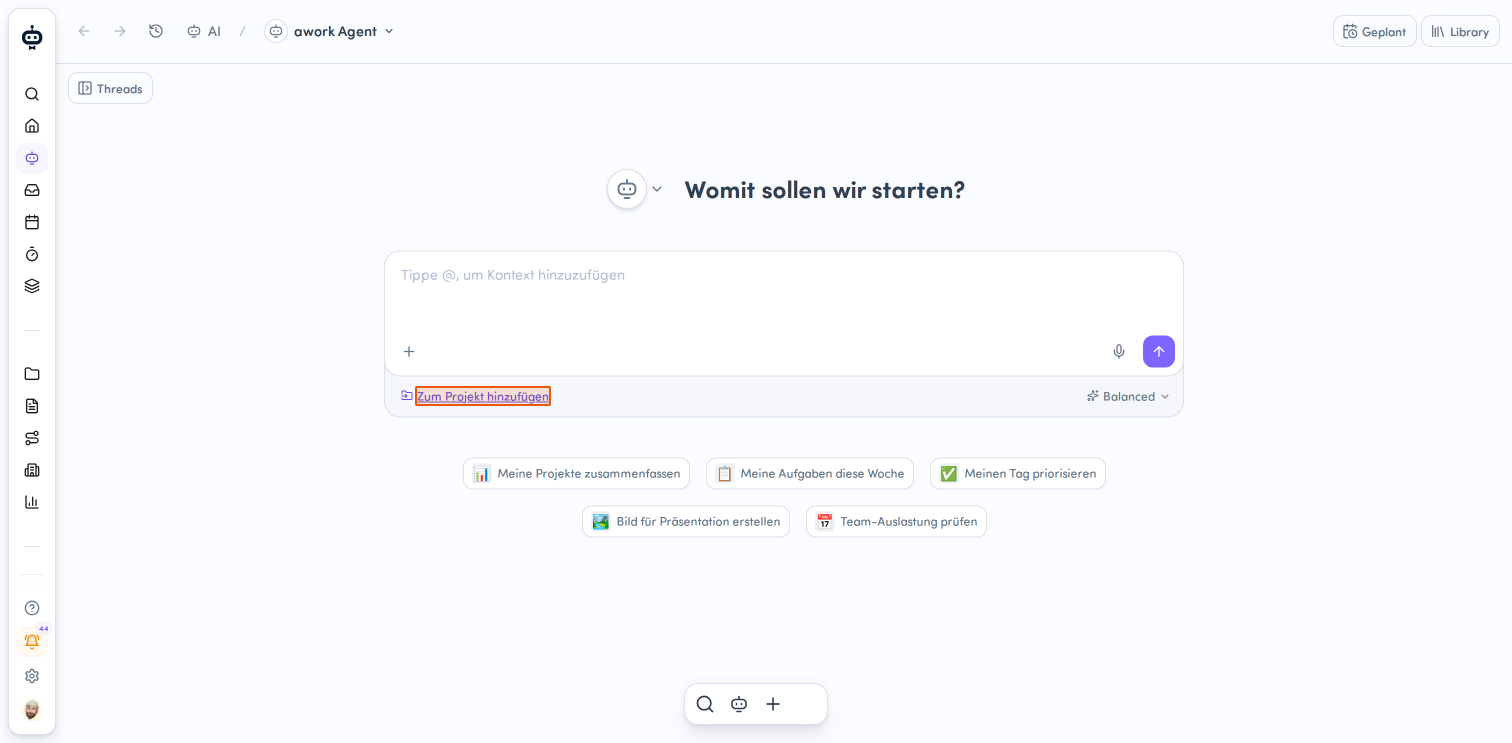
- Select a project
A project selection window opens.
You can quickly switch between Zuletzt verwendet, Favoriten, Meine, and Alle. This makes it easy to find frequently used projects without searching through the entire project list. Alternatively, you can search for a specific project using the search field. Projects are shown with their names, project keys, and associated customers.
Once you select a project, the thread is linked to it and visible to all team members with access to the project.
Project context vs. linked threads
It's important to distinguish between project context and linking a thread to a project:
- Project context tells the agent which project is relevant to the conversation.
- Linking a thread to a project makes the thread visible within that project.
You can specify a project as context when creating an AI thread. This helps the agent associate the conversation with the right project. However, this doesn't make the thread visible in the project. If you want other project members to be able to access the thread, you need to explicitly link it to the project.
Shared AI threads in a project
An AI thread linked to a project can become a shared conversation. This lets multiple users work with the same agent in the same project context.
Users with the required permissions can:
-
read the AI thread
-
join the AI thread
-
send new prompts
-
see other participants in the thread details
-
leave the AI thread
If you leave an AI thread linked to a project, the thread remains. You are no longer a participant, but you can join again later as long as you still have access to the thread and its project context.
This rule applies to project threads. For privately shared threads, leaving a thread works differently: your shared access is removed, even if it was granted through a team or the entire organization. You can only regain access if someone shares the thread with you individually again.
Learn more in Sharing AI threads.
Permissions for project threads
Whether someone can see an AI thread in a project is controlled by the Projekt-AI-Threads permission in a project-specific permission role. This permission allows users to see all AI threads in the project.
There are two options for this permission:
- Lesen: The user can see all AI threads in the project
- Keine: The user can't see any AI threads in the project
For a user to participate in the conversation and send messages, the associated agent must also be shared with them. The user needs the following permissions:
-
Agent: Lesen und verwenden
-
Write access to the specific context
The user can actively participate in the conversation and send messages in the thread only when both requirements are met.
👉 Learn more: AI and agent permissions
Special considerations for external users
Users invited through awork Connect don't have access to a project's AI thread list.
They can't assign agents there or mention agents through the project.
If an external user creates an AI thread in their own workspace, it stays there. The AI thread can't be moved to a project in another workspace.
Organize AI threads in projects
In a project, users with read access have a dedicated AI section.
This section shows the threads linked to the project.
The level of access to a thread's content depends on the type of thread:
-
Threads with a specialized agent can be read in full by project members with the required permissions
-
Threads with the awork Agent remain private in terms of their content. Other project members can only see metadata such as the title, status, and activity
Attribute AI usage to a project and analyze consumption
Linking an AI thread to a project isn't just relevant for sharing visibility. It also determines how credit usage is attributed. Only when a thread is linked to a project can its usage be attributed to that project in the AI usage report or directly in the project's AI tab. If you link a thread later, the credits already used will also be included in the report.
If you only use a project as context for a thread, credit usage won't be attributed to that project.
Please note: The project-specific report may include usage data for threads you can't open. The aggregated values don't reveal any additional thread content or titles.
FAQ
Does project context automatically make a thread visible in the project?
No. Context and linking are two different things.
How does a thread become visible in a project?
The thread must be explicitly linked to the project.
Can multiple people work on a project thread?
Yes. With the required access, users can join a shared project thread and send new prompts.
What permissions are required to participate in a conversation in a project thread?
To actively participate in a project thread, three requirements must be met:
- Project-specific permission Projekt-AI-Threads: Lesen
- Agent: Lesen und verwenden
- Write access to the specific context
 Powered by happysupport.ai