
Run Agents in Projects and Tasks
Start agents directly from your project or task details view with custom instructions and context mentions to complete work without leaving your workspace.
Start agents directly from a project or task, and give them the information they need to do their work with instructions and context mentions.
Benefits and use cases
Agents let you work directly in context without losing track of your project or task.
-
Relevant context: Link people, teams, customers, tasks, projects, and documents to your instructions
-
Custom instructions: Give the agent optional, formatted instructions
-
Start directly: Start an agent from the project or task details view
-
Status and follow-up: Track the agent's status and respond to notifications when your input or approval is needed
How to start an agent in a project or task
Prerequisites:
-
A paid AI plan for the workspace
-
Agent access
-
Write access to the project or task in question
1. Select an agent
-
Open the project you want and go to the Home tab or to the details view of a task.
-
Click the robot icon with the tooltip Agent hinzufügen
-
In the Agent auswählen panel, search for the agent you want or use the Zuletzt verwendet, Favoriten, and Alle filters
-
Click the agent you want
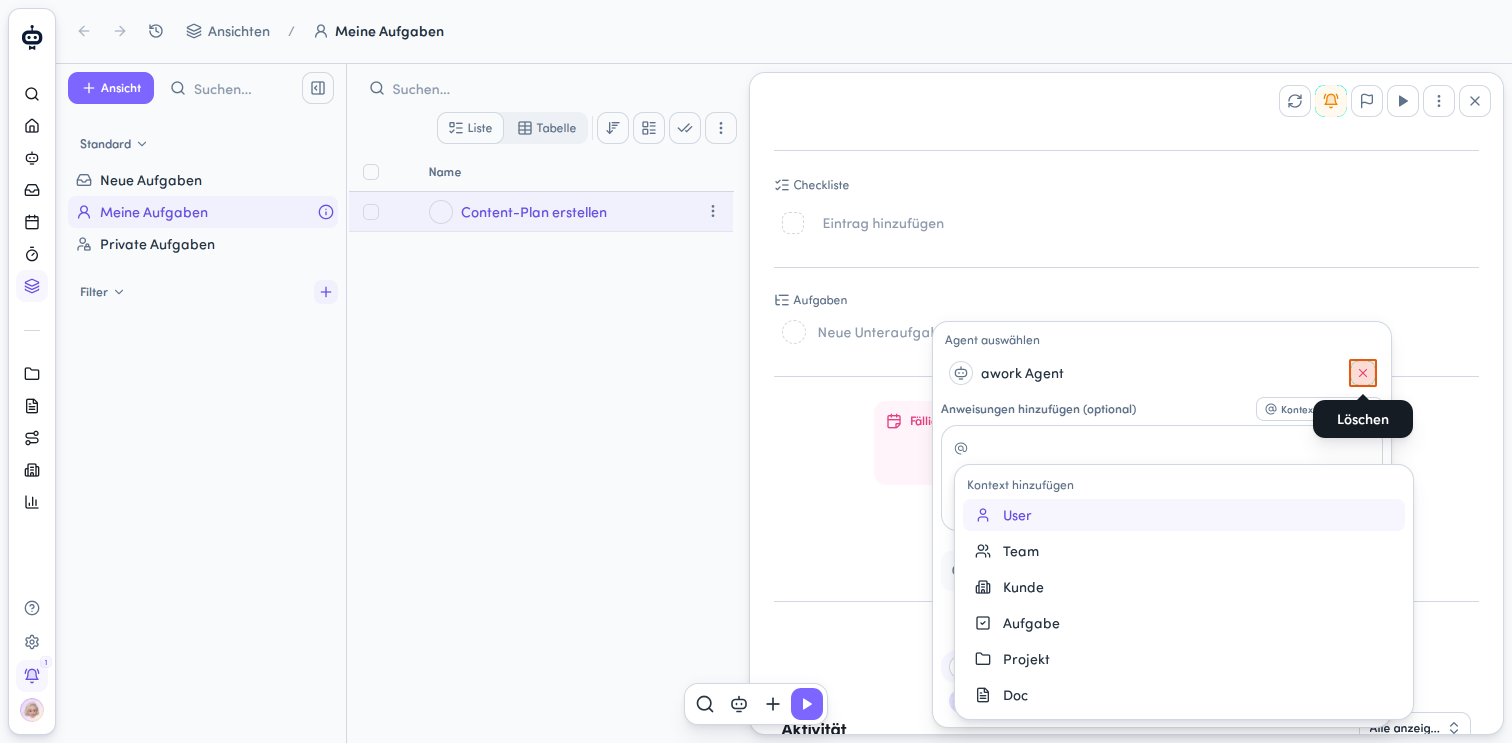
You can remove a selected agent by clicking the X icon.

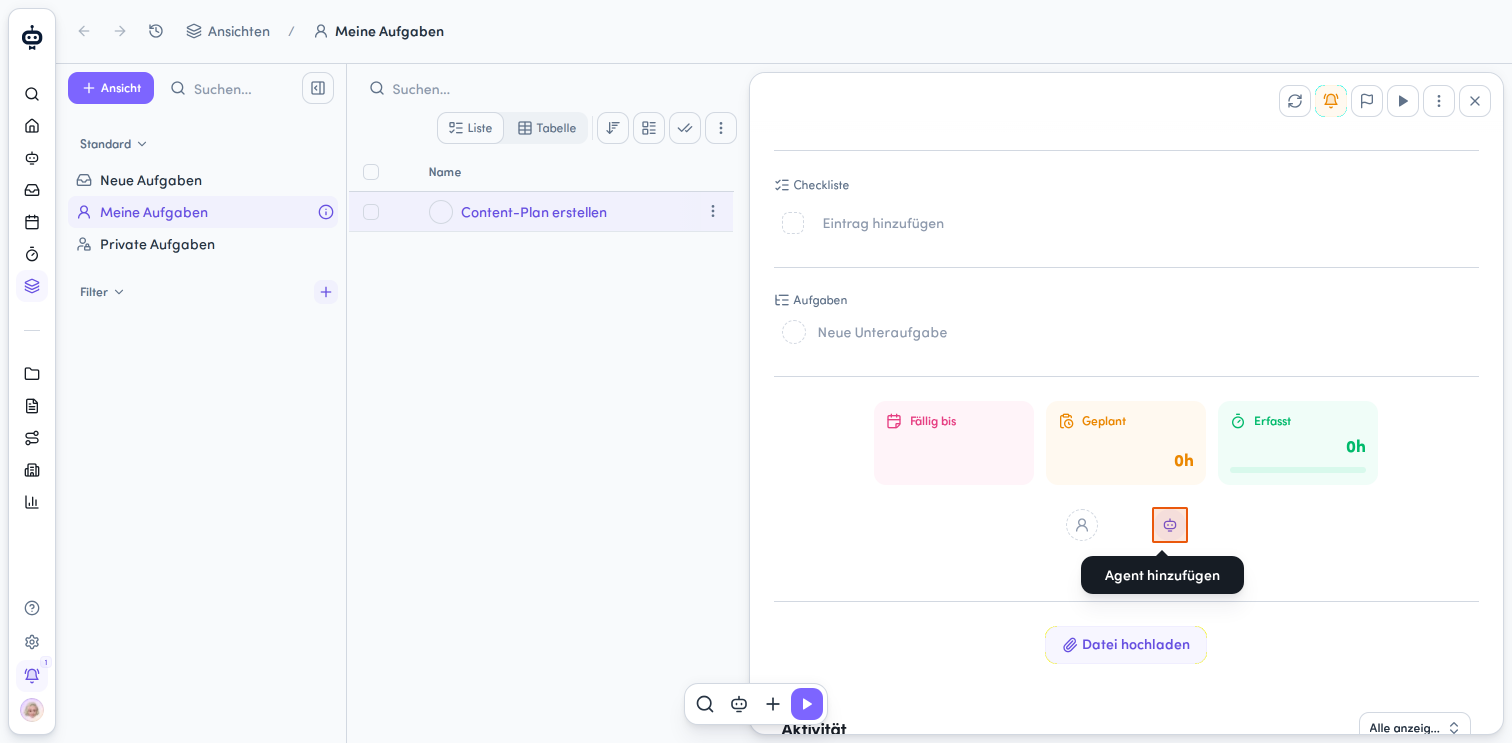
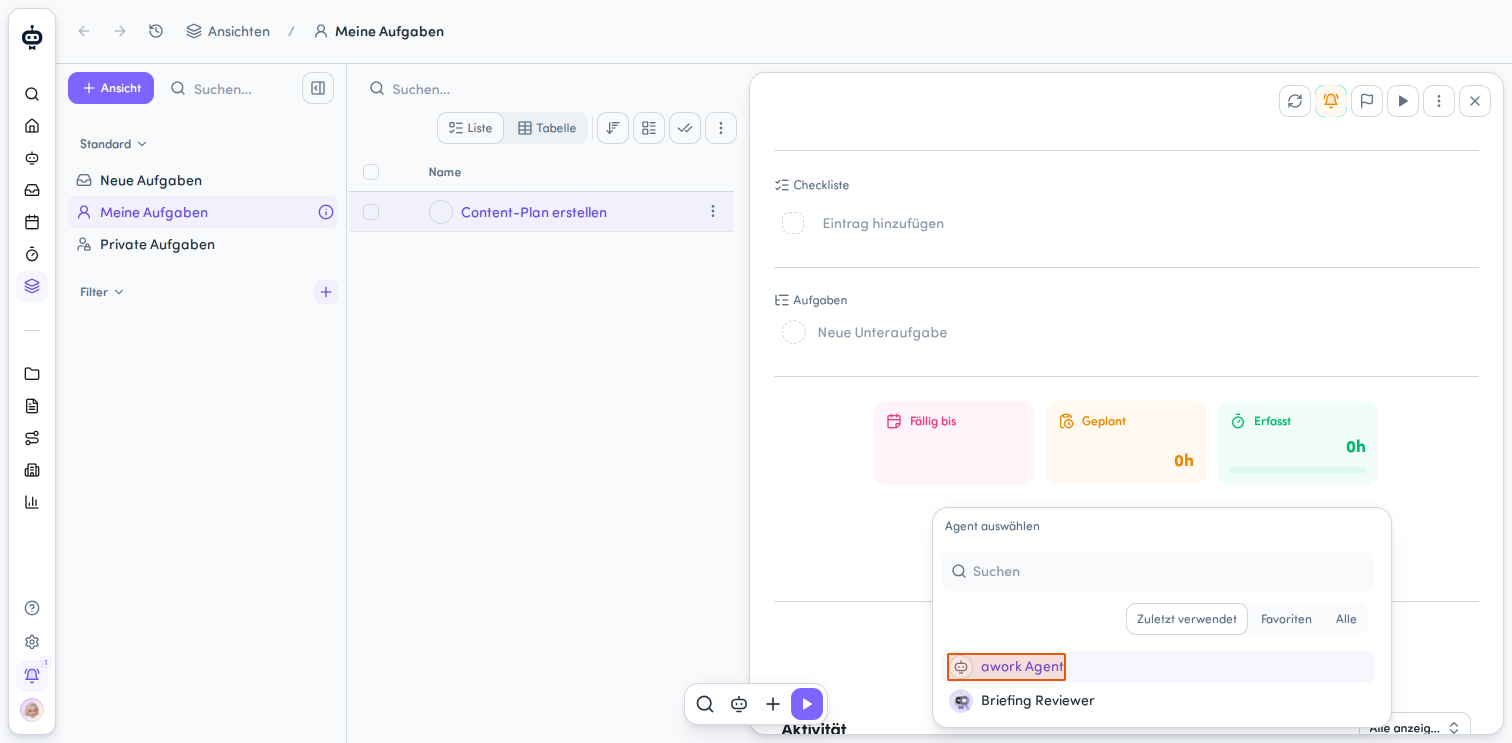
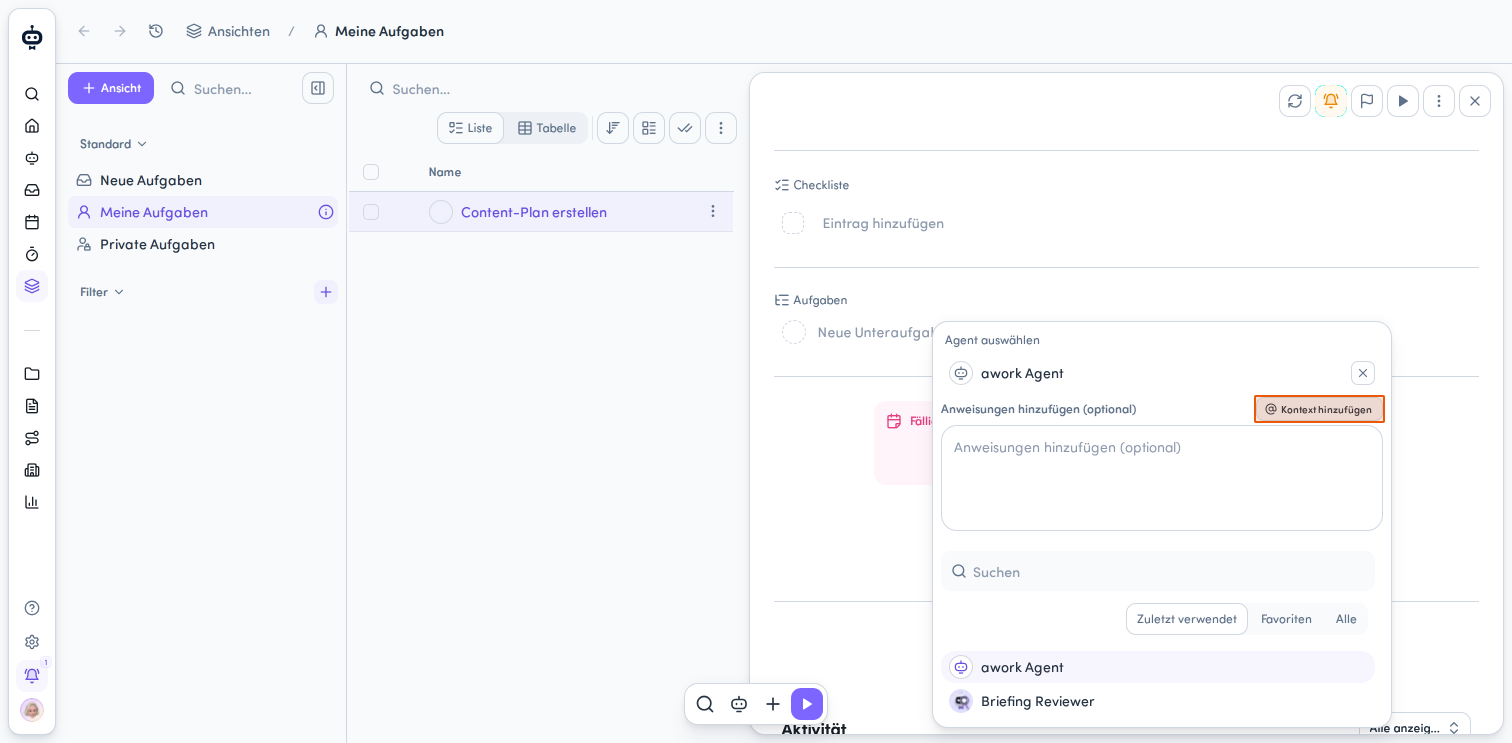
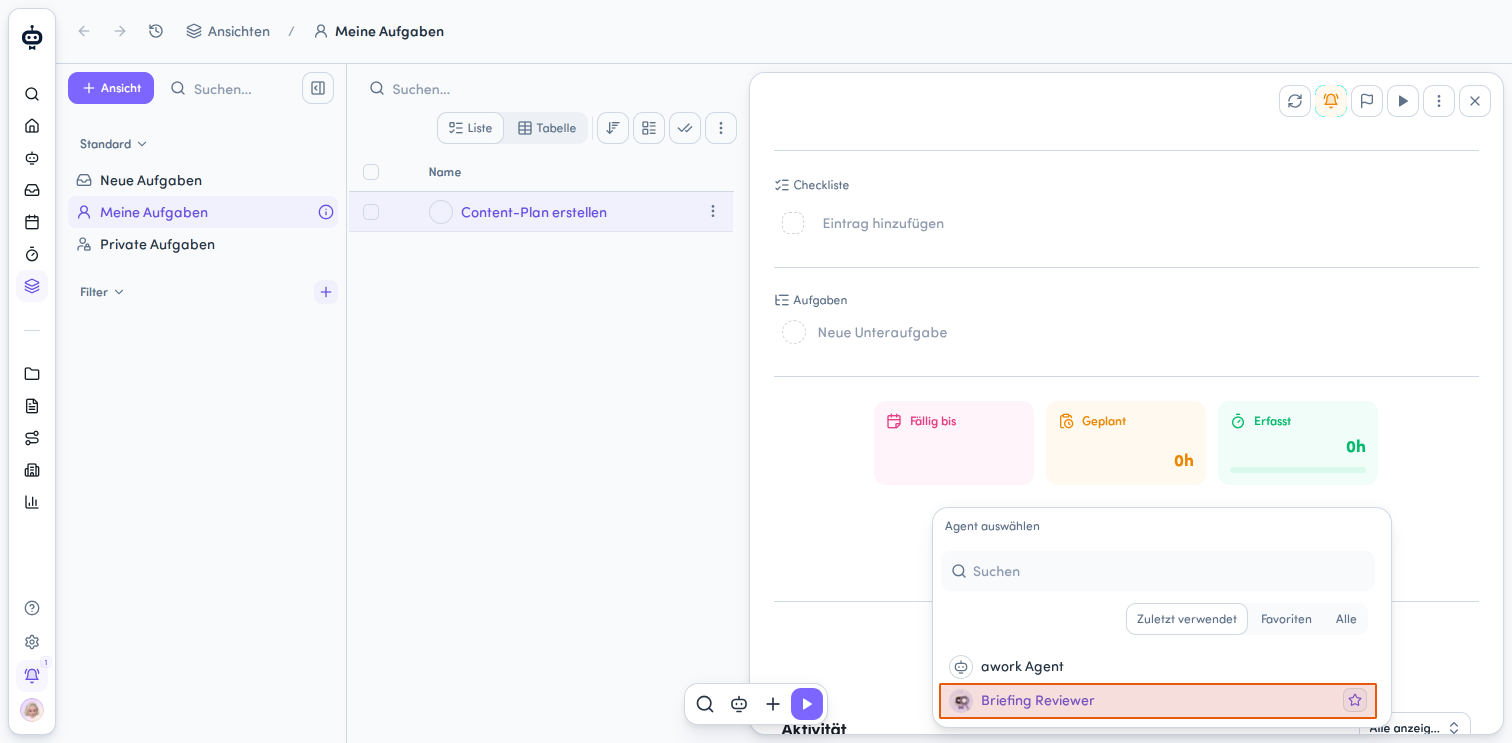
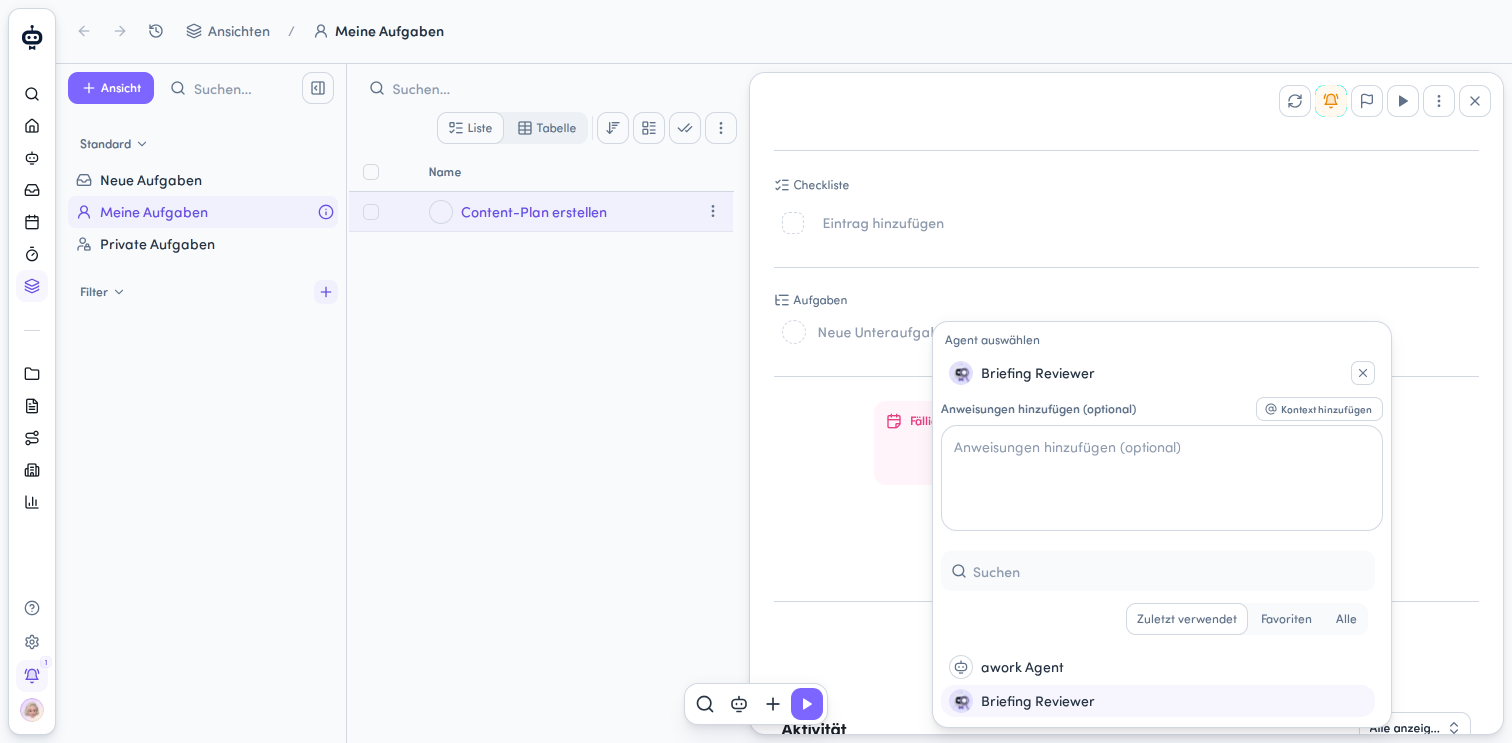
After you select an agent, the popup automatically switches to the instruction editor. The agent does not start at this point.
2. Add optional instructions
After you select an agent, a text field appears. Enter your instructions there. You can also use formatted text.
3. Add context
You can give the agent relevant context so it has the right information for its task.
-
Click @ Kontext hinzufügen next to the instruction field, or type @ directly in the text field
-
In the Kontext hinzufügen menu, select the appropriate category
-
Then select the specific item
The following context categories are available:
-
User
-
Team
-
Kunde
-
Aufgabe
-
Projekt
-
Doc
The items you select are inserted into your instructions as context mentions.
4. Start the agent or cancel
Once you've finished your instructions and context mentions, you can start the agent.
Enter or click outside the panel: Starts the agent
Shift+Enter: Adds a line break in the editor without starting the agent
Escape: Cancels the process
While it's running, the agent temporarily appears as an active run in the project. This does not permanently assign the agent as the person responsible.
The run also appears in the project's AI tab. Here, you can:
-
Open the thread
-
Stop the run
The resulting thread is automatically linked to the project and is visible according to the project's existing permissions.
Mention agents in comments
When an agent is mentioned:
- The agent receives the request.
- The run is automatically assigned to the relevant project or task.
- The resulting thread is linked to this context.
- The run appears in the relevant AI activity areas.
FAQ
Can I start an agent without additional instructions?
Yes. Instructions are optional. When you start an agent from a task, an empty instruction is sent if you leave the field blank.
How do I reach an agent that needs more input or approval?
When you start an agent from a project, you may receive a notification. Click Thread öffnen to go directly to your conversation with the agent, or open your threads in the AI menu.
 Powered by happysupport.ai