
Create your own AI agents
Create custom AI agents in the Agent Library with names, instructions, models, and tools to automate tasks and use in chat or comments
Build AI agents for recurring tasks, use ready-made templates, or customize them to fit the way you work.
Key benefits and use cases
Specialized agents are saved, named, versioned agents designed for a specific task, role, or recurring workflow.
The main benefit: set up an agent once and reuse it whenever you need.
You can:
-
Use a custom agent in chat
-
Mention one in comments
-
Run one in a task or project
-
Use one in automations
-
Run one on a schedule
-
Share one with your team
What is an agent?
An agent is a saved AI configuration for a specific task, role, or recurring workflow.
An agent's configuration can include:
- Name
- Description
- Instructions (system prompt)
- Model
- Reasoning level
- Tools
- Skills
- Connectors
- Files
- Avatar
You can then run an agent in chat, in comments, in tasks and projects, or through schedules and automations.
New agents are private by default and are only available to their creator and workspace admins.
How to create an agent
You can create and manage agents in the Agent Library.
The Agent Library is the central place for Agents, Skills, Connectors
You can create new items there and open and configure existing ones.
-
Click the Library button in the top-right corner and select Agenten.
-
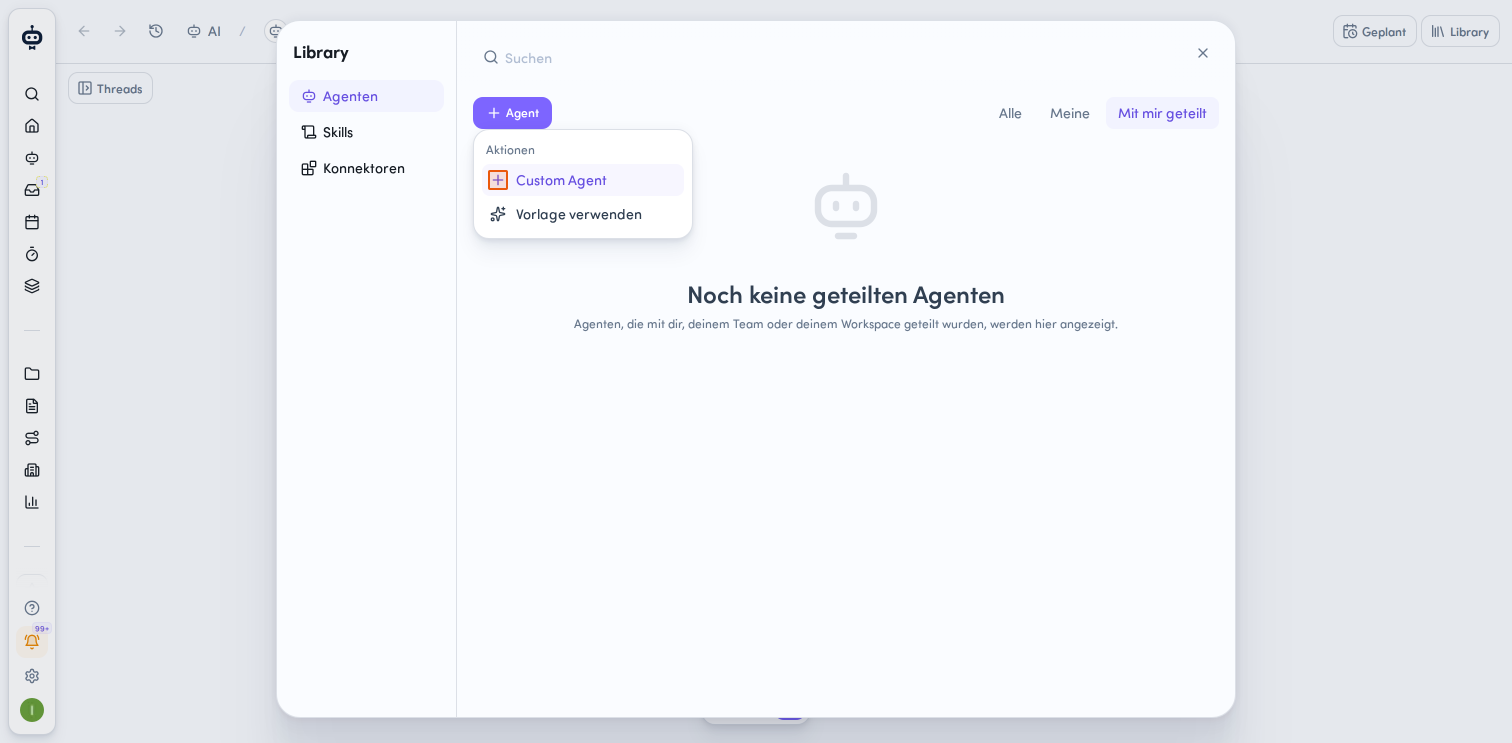
Click the + Agent button.
-
The dropdown menu gives you two options:
- Neuer Agent: Create a completely custom agent to suit your needs
- Vorlage verwenden: Use an existing template as the starting point for your new agent
Select + Neuer Agent to continue creating your agent.
-
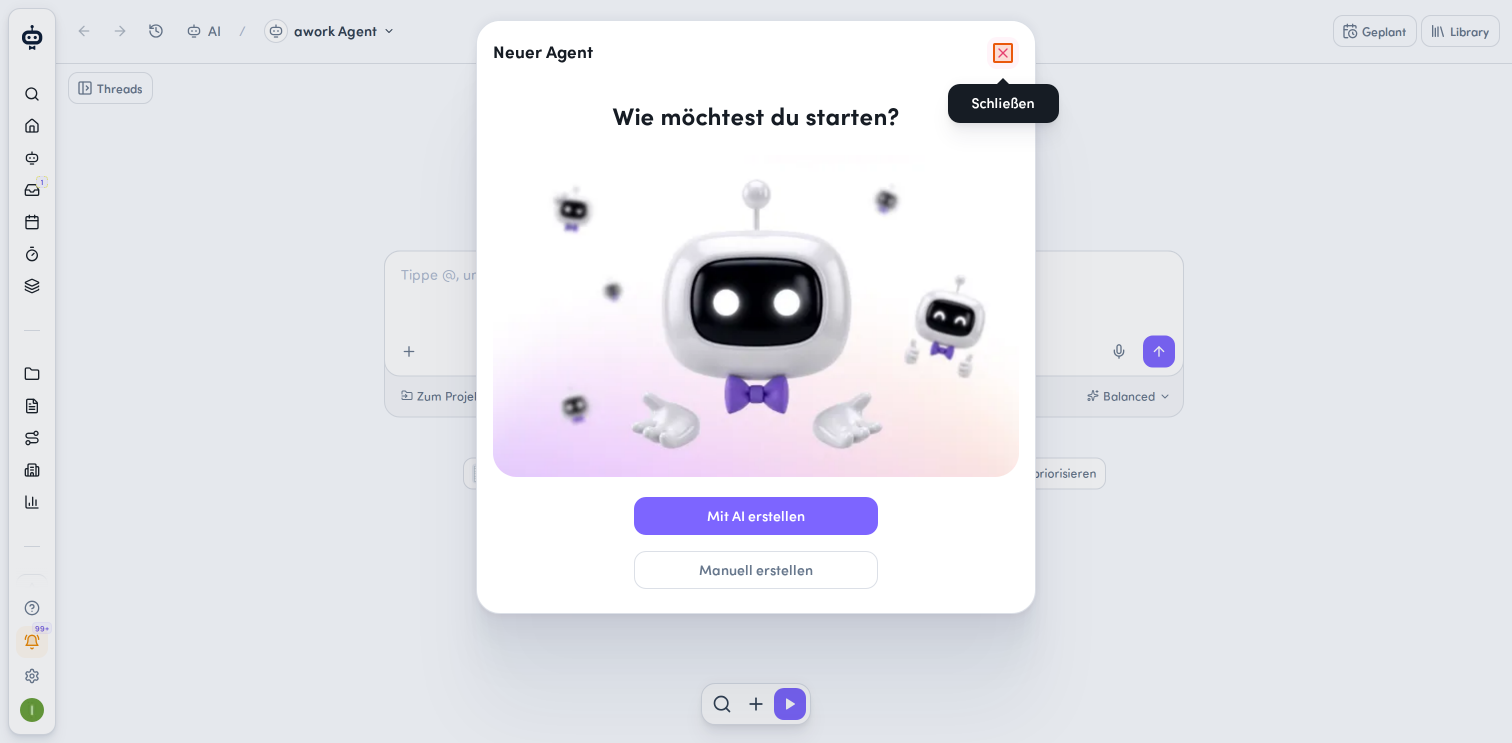
Choose a starting method
- Mit AI erstellen (empfohlen): Get help from AI to create your agent. awork guides you through a conversational setup process. AI asks questions, gathers requirements, and helps you build the agent configuration.
- Manuell erstellen: Configure the agent yourself from scratch
-
Give your agent a name and description.
-
Define the agent's task and instructions.
-
Choose a model: Every new agent starts with the Balanced model preset and a medium reasoning level. The model actually used depends on your workspace configuration.
-
Enable tools and add skills and connectors.
-
Set an avatar if you like.
-
Test the agent and refine its configuration.
Changes to instructions are versioned. You can restore earlier versions without changing the rest of the agent's configuration.
What you can change depends on your access permissions. Editable items show their configuration and editing options. Items with read-only access can still be used and viewed, but not changed.
Many changes are saved as you edit. These areas don't have a separate Save step.
Agent version history
An agent's instructions have a version history.
You can view earlier versions and restore them if needed.
Use ready-made agents from a template
You don't always have to create an agent from scratch.
The Agent Library includes curated templates created by awork. They already contain:
-
System prompt
-
Suitable model and reasoning settings
-
Relevant tools
You can create your own agent from a template and then customize it. Templates are a useful starting point, not a fixed, final configuration.
Open the Library, click the + Agent button, and select Vorlage verwenden to create a regular, fully editable agent in your workspace.
Available agent types
The templates cover common agency tasks, including:
-
Reviewing briefs
-
Planning projects
-
Checking project and portfolio health
-
Reviewing time entries
-
Preparing meeting follow-ups
-
Preparing campaign strategies
-
Reviewing personas
-
Checking brand safety
You can use the templates even if your workspace has little relevant context to start with.
Some templates can even help create the context they need if it doesn't exist yet.
Customize templates
A template isn't a fixed agent. After you click Vorlage verwenden, you get an agent you can edit, try out, and refine.
For the best results, tailor a preset to your needs early on:
-
Describe the specific task: Explain exactly what you want the agent to do
-
Add company knowledge: Include company-specific rules and requirements
-
Add relevant connectors: Presets don't include external app connectors by default
-
Provide existing context directly: Point to relevant information instead of making the agent guess
This is especially important for agents such as brief and brand safety agents, which rely on company-specific requirements.
You can always use the original template again to create a new version if you want to start over with the default configuration.
👉 Learn more about using agent templates: Use ready-made agent templates
Use your own agent
You can run your own agent in several ways.
In chat
-
Create a new thread.
-
Select a custom agent.
-
Write your message.
-
The thread uses that agent's configuration.
When you select an agent in a thread, its configuration is used as the default for that run.
You can still adjust some settings for the current thread. These changes won't permanently change the agent.
If you remove the agent from the thread, your usual default settings will be used again.
In comments
You can mention a custom agent in a comment using @. As soon as you type the first letter, the available agents will be suggested. Select the agent you want.
A person must add an @mention to start an agent run. An @mention written by an agent won't start another agent. To automatically hand work off between your own agents, use a task change and a project automation.
In a task or project
You can select a custom agent from a selection field on tasks and projects.
When you select the agent, it runs immediately. This doesn't permanently add it as an assignee.
So, for customer-facing communication: Run the agent in a task or project.
In automations
You can use a custom agent as a step in a project automation.
On a schedule
An agent can run automatically on a schedule.
When it runs, the agent uses the permissions of the user who created the schedule. Only the creator can edit it.
A schedule:
-
Can run no more than once per hour
-
Can include additional instructions
-
Can optionally use a project or task as context
-
Is automatically disabled after three consecutive failed runs
Skills for custom agents
Skills are reusable instructions or areas of expertise that an agent can use.
You can:
-
Create a skill in the Agent Library
-
Create a skill directly within a custom agent
-
Import a skill from a compatible skill package
Skills from the library
A reusable library skill belongs to its creator and can be linked to multiple agents.
This lets you maintain an approach in one place and use it in multiple agent configurations.
Skills within an agent
A skill you create directly in an agent belongs exclusively to that agent.
It's available there immediately and won't appear as a reusable skill in the general library.
For skills, you can set details such as a name, description, instructions, supporting files, and required access.
Connectors for agents
Connectors let an agent use external systems through MCP.
A connector and an authenticated connection are two different things:
-
Connector: Describes the external system.
-
Connection: The specific authenticated connection to that system.
A connector can have multiple connections.
Which connection an agent can use also depends on the permissions and available connections of the responsible user. Sharing an agent doesn't automatically give it access to a shared user account.
When multiple users use an agent, the connections and permissions available to each user apply to their respective use.
Add connectors to an agent
Each custom agent has its own list of connected external tools.
You can:
-
Select an existing workspace connector
-
Create a new connector
-
Select one or more available connectors using search
A newly created connector is connected to the agent right away.
Only the connectors connected to the agent will then appear in its configuration.
Adding a connector to an agent doesn't automatically create a new authenticated connection.
Available connectors
There's a curated catalog of around 30 ready-made connectors, including:
-
Slack
-
Notion
-
GitHub
-
HubSpot
-
Salesforce
-
Google Workspace
-
Microsoft 365
Most connectors can be connected with one click. Some require your own API credentials for the application.
If an application isn't included in the catalog, you can also add another MCP connector using its URL.
Share connectors and connections
For shared agents, editors can choose how connections are used.
They can choose whether:
-
Each user uses their own connection
-
A specific connection is provided by the agent
Connections have their own sharing settings.
A connection is private by default. You can then share it with the entire workspace, specific teams, or individual users.
Only the owner of a connection or a workspace admin can manage or remove a shared connection.
Share agents and skills
You can share agents and reusable skills with specific people or groups.
You can give access to agents and skills to:
-
The entire workspace
-
Specific teams
-
Individual users
There are two access levels:
-
View and use: The user can use the agent and its linked skills
-
Manage: The user can change the agent's configuration and sharing settings
A user with access to an agent doesn't also need separate access to each skill used by that agent.
FAQ
What's the difference between the awork Agent and a custom agent?
The awork Agent is the built-in agent for general tasks and works without any setup.
A custom agent is configured, saved, and shared for a specific task or recurring workflow.
Do I have to build a custom agent myself?
No. You can start with a curated preset and edit it afterward.
Can I change a preset later?
Yes. Selecting Use preset creates a standard, fully editable custom agent.
Can I apply a custom agent to a task or project?
Yes. You can select the agent and run it directly from the task or project.
Can an agent run automatically?
Yes. A custom agent can run in an automation or on a schedule.
Can custom agents use external apps?
Yes. You can connect the relevant connectors to the agent.
What's the difference between a connector and a connection?
The connector defines the external system. The connection is the specific authenticated identity used to access it.
Can I share a custom agent with my team?
Yes. You can share agents with the entire workspace, specific teams, or individual users.
 Powered by happysupport.ai