
Manage AI threads with multi-select
Manage multiple AI threads at once using multi-select checkboxes to archive, add to projects, or mark as read or unread in bulk
Use multi-select to manage up to 100 threads in AI chats at once.

Key benefits and use cases
With multi-select, you can manage multiple threads at the same time instead of performing the same actions one by one.
-
Less effort: Perform the same action on multiple threads at once.
-
Stay organized: Archive threads or add eligible threads to a project.
-
Your personal overview: Mark multiple threads as read or unread.
Perform actions on threads with multi-select
Turn on multi-select mode
-
Open the AI menu.
-
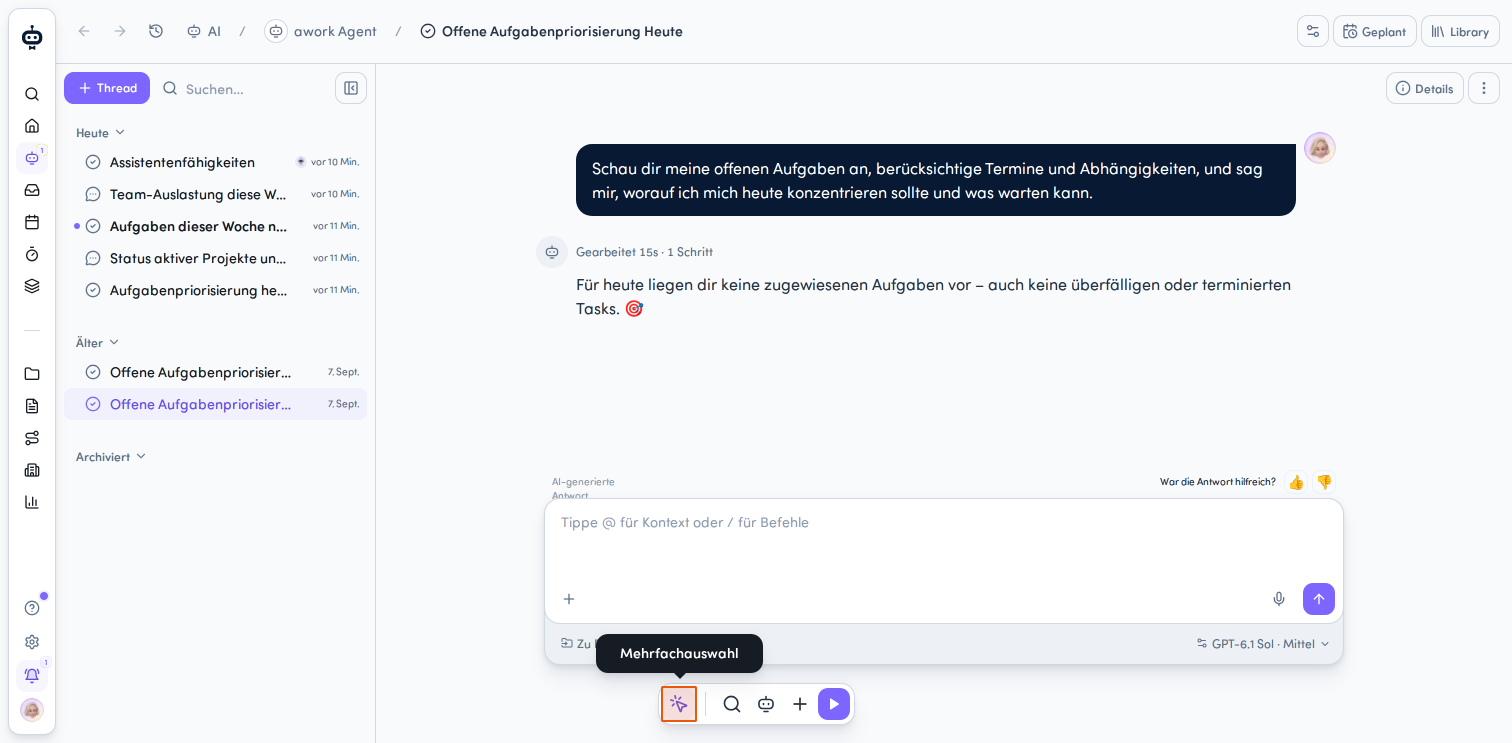
Click the Mehrfachauswahl button with the cursor icon on the left side of the floating action bar at the bottom of the screen.
-
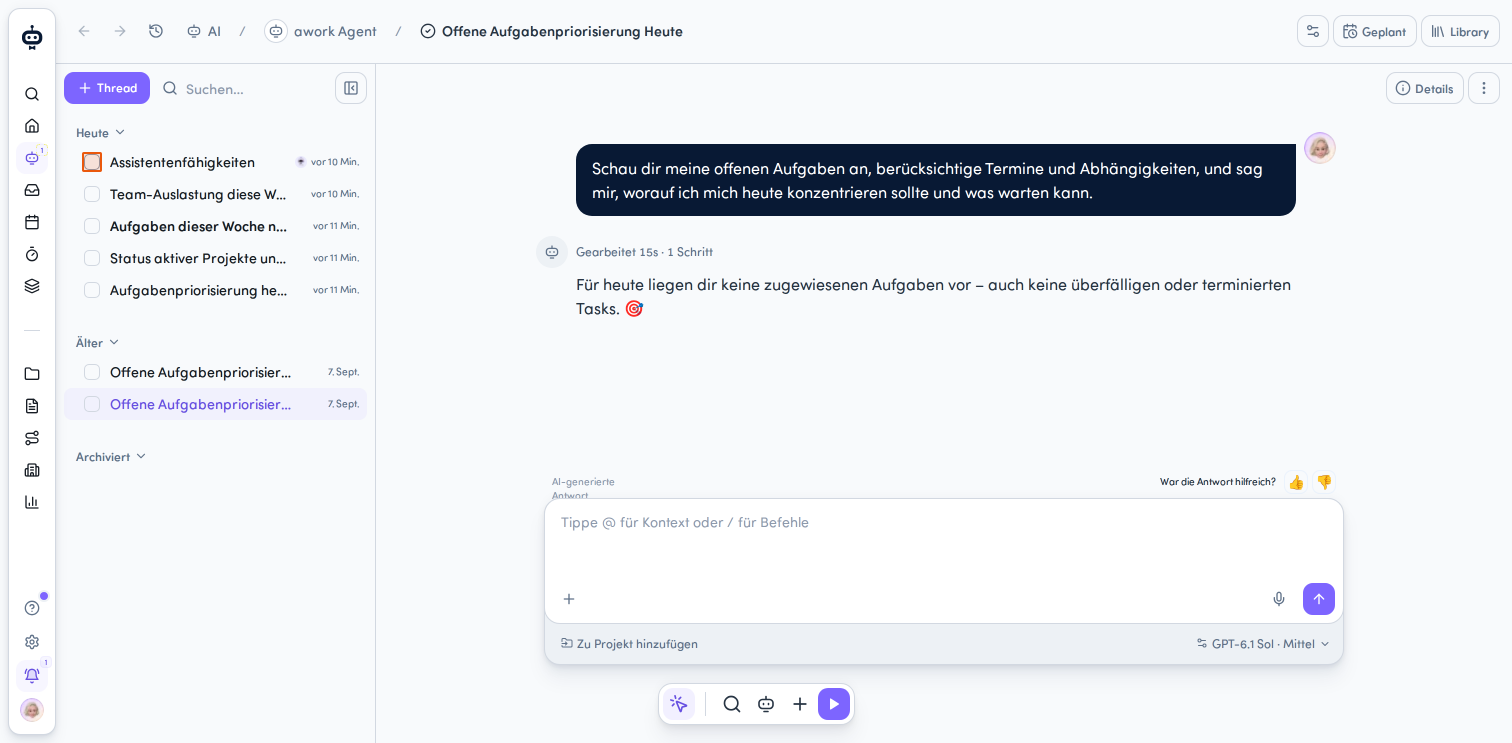
Once you click the button, multi-select mode is turned on. Checkboxes appear next to the threads in the list on the left.
-
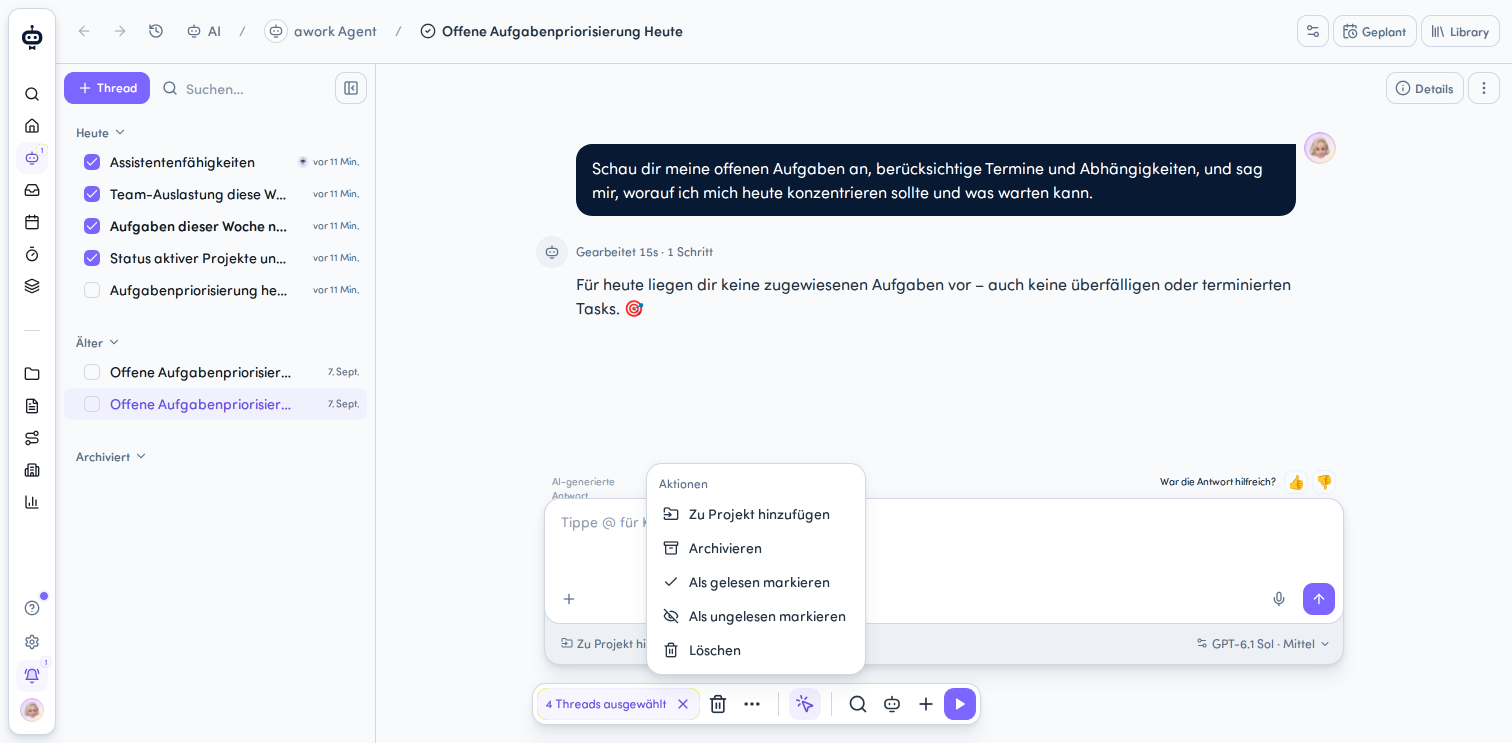
Select the threads you want using the checkboxes next to their titles. As soon as you select at least one thread, the action bar shows how many threads are currently selected and displays the available actions.
-
Open the action menu in the floating action bar (tooltip: Aktion auf Auswahl ausführen) and choose the action you want.
-
Confirm the action: A confirmation dialog appears after you make your selection. It asks whether you want to perform the action on the selected threads.
-
Complete the action: Confirm it using the appropriate button. Select Abbrechen to close the dialog without performing the action.
Important: Each action has its own permissions. Selecting a thread doesn't automatically mean you can edit it.
Select multiple threads
You can select up to 100 threads at once in multi-select mode.
Tip: Use Shift + click to select a range. Your existing selection will also be kept.
Clear your selection
You can clear your entire selection without deselecting the threads one by one.
To do this, click the X icon next to the "[Anzahl] Threads ausgewählt" indicator in the floating action bar. The tooltip says Auswahl aufheben. No threads will be selected afterward. You can turn on multi-select mode again or make a new selection.
Your entire selection is also cleared automatically after an action is completed.
Multi-select is only available in the AI menu. You can also use it while a thread is open.
Available actions
Add threads to a project
Use Zu Projekt hinzufügen to link eligible threads to a project. This doesn't move them between projects.
The project picker opens first. You can select a destination project if all of the following requirements are met:
-
You have the required editing permission.
-
The thread is writable.
-
The thread isn't already assigned to a project or task.
-
The thread isn't shared directly.
-
You have access to the destination project.
Threads that don't meet the requirements will be skipped.
Archive or restore threads
Archivieren and Wiederherstellen only affect your own thread list.
-
Archiving a private thread that isn't assigned to a project or task stops active work and pauses pending messages. The messages aren't deleted.
-
Shared threads, as well as project and task threads, continue running while archived.
-
Unarchiving a thread doesn't restart work that was stopped.
Mark threads as read
Use Als gelesen to clear the indicator for new activity that's already there. Later activity may still appear as unread.
Mark threads as unread
Use Als ungelsen markieren to set a personal unread status.
-
Threads with no new activity remain unchanged.
-
The unread status is cleared when you open the thread again.
-
If one of the selected threads is currently open, you'll leave it before it's marked as unread.
Note: Marking threads as read or unread doesn't change your notification settings.
Delete threads
The Löschen action removes a thread for everyone involved. Any unfinished work is canceled.
Important: Deletion can't be undone.
Permissions for multi-select actions
Permissions are checked for each thread individually when you perform the action.
| Action | Required permission |
|---|---|
| Mark as read or unread | Read access, including through a read-only share |
| Archive or restore | Read access; project and task threads also require ownership |
| Delete | Ownership of the shared thread or editing access; project and task threads also require ownership, as well as the existing permissions for posting and writing context |
| Add to a project | Editing access, a writable thread that isn't already assigned to a project or task, a thread that isn't shared directly, and access to the destination project |
Known limitations
- Partial results: Since permissions are checked for each thread when you perform an action, you may get partial results. Eligible threads will be changed even if the action fails for other threads. If an action only partially succeeds, you'll receive a general message without details about individual threads. As soon as an action succeeds, your entire selection is cleared, including threads for which the action failed.
- There's no bulk undo action.
- While you're selecting threads, the thread list behaves differently:
- You can't drag and drop to reorder pinned threads.
- If you change your search, the selected threads are deselected. Multi-select mode remains on.
- If you leave the AI menu, your entire selection is cleared.
FAQ
How many threads can I select at once?
You can select up to 100 threads. This also applies when selecting a range with Shift-click.
Are notifications changed when I mark threads as read or unread?
No. These actions only change your personal read status and don't affect notifications.
Can I undo a multi-select action?
No. There's no bulk undo feature. Also note that deleted threads can't be restored.
What happens if some of the selected threads can't be edited?
The app performs the action on eligible threads and skips or leaves unchanged any threads that aren't eligible. If an action only partially succeeds, you'll receive a general message without details about individual threads.
 Powered by happysupport.ai