
Personal settings for the awork Agent
Customize your awork Agent with personal instructions, model preferences, and reasoning levels to save your settings for every interaction
Adapt the awork Agent to the way you work. Save your own instructions and define how it should handle your tasks.

Benefits and options
Personal settings let you control how the awork Agent works in your threads and in triggered runs.
You can:
-
Save your own instructions: Add personal guidelines of up to 4,000 characters
-
Set run preferences: Choose the model, reasoning level, tools, connectors, connections, and skills
-
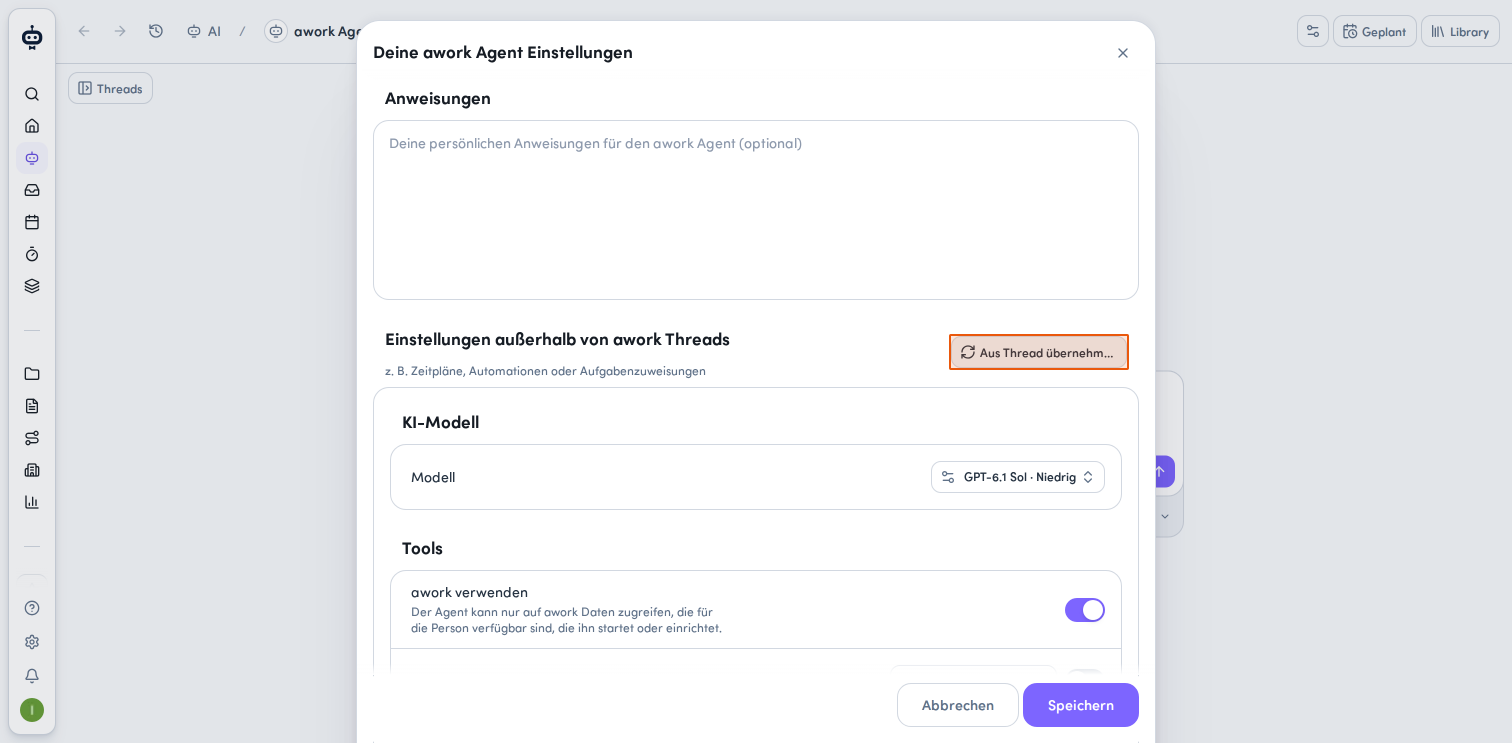
Apply settings: Copy the current thread configuration to your agent settings whenever you need to
This way, you don't have to choose your preferred settings again for every run.
How to configure the awork Agent settings
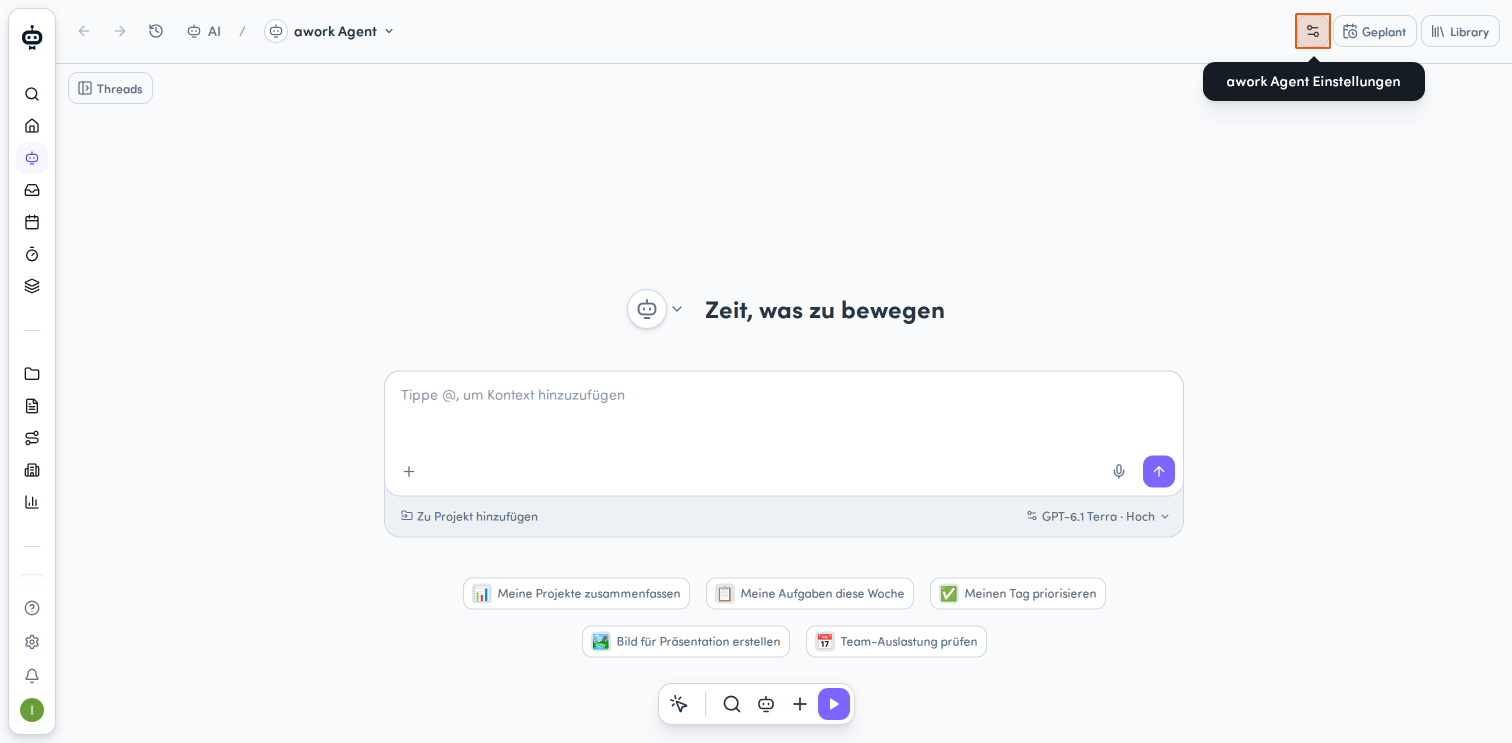
Open the awork Agent settings
-
Open the AI-Menü and select the awork Agent
-
Click the Einstellungen-Symbol (slider icon) in the top right, next to the Geplant and Library buttons. The Deine awork Agent Einstellungen window will open.
Add personal instructions
At the top of the settings window, under the Anweisungen heading, you'll find a large text field with the placeholder Deine persönlichen Anweisungen für den awork Agent (optional). You can add custom instructions here for the agent to follow in every interaction.
You can save optional personal instructions of up to 4,000 characters.
The editor also lets you:
- Format code blocks: Add formatted code blocks to your instructions.
- Insert project or document references: Add references to projects and documents as context in your instructions. When you select a reference, it's added directly to the editor. No chat message or chat mention is sent.
Saved references remain visible when you reopen the settings.
These instructions apply to:
-
Threads with the awork Agent
-
Triggered agent runs
This lets you give the agent additional guidance for its work.
Set preferences for agent runs
You can set additional preferences separately for runs outside of threads. These apply to schedules, automations, and task assignments, for example.
- Choose the model you want
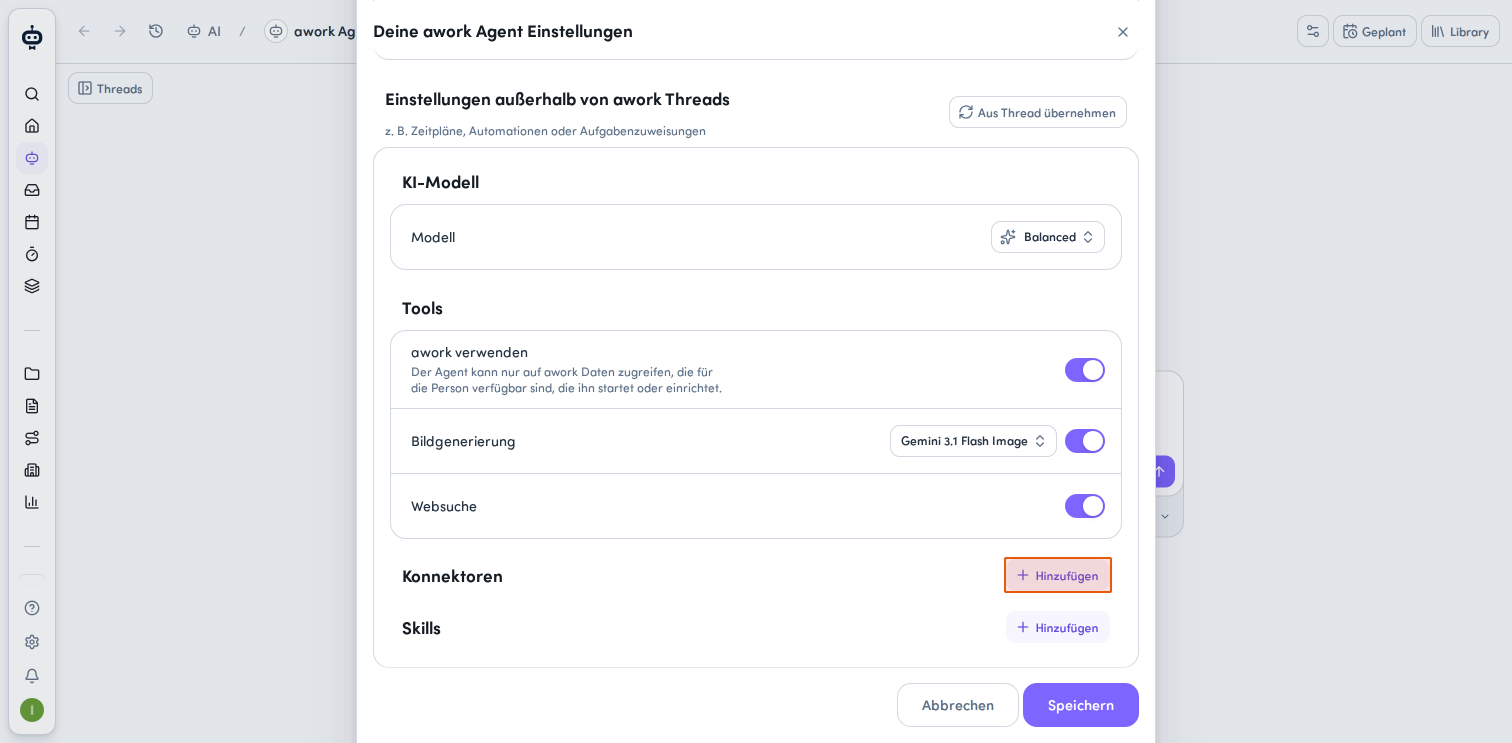
In the KI-Modell section, click the dropdown menu and choose Fast, Balanced, or Deep thinking. Alternatively, select Erweitert to choose your preferred model and reasoning level. - Choose which tools to use
- In the Tools section, you'll find the awork verwenden option. This lets the agent access awork data available to the person who starts or configures the agent. Use the switch on the right of the row to turn this option on or off.
- Bildgenerierung: Choose a model from the dropdown menu, then use the switch to turn the feature on or off.
- Websuche: You can also turn this option on or off using the switch.
- Choose the available connectors and skills
Scroll down to the Konnektoren and Skills sections in the settings window. Click + Hinzufügen to enable a connector and/or skill. Use the Aktionsmenü to remove a connector and/or skill from your personal agent settings, which disables it.
- Save or discard your changes
Once you've made all the changes you want, click Speichern in the bottom right of the window. To discard your changes, click Abbrechen or close the window using the X icon in the top right.
When do your settings take effect?
- Changes to your personal settings apply to new agent runs.
- Runs that have already been accepted keep their saved settings. Changes made afterward won't affect runs that are in progress or have already been accepted.
- If another team member continues a thread, the awork Agent uses that team member's personal instructions and access permissions.
FAQ
Which agent runs do my personal instructions apply to?
They apply to threads and triggered agent runs.
What happens if I change my personal awork Agent settings?
New settings apply to new runs. Runs that have already been accepted keep their previously saved settings.
Which settings apply if a team member continues my thread?
The team member uses their own instructions and access permissions.
 Powered by happysupport.ai