
Connect WhatsApp to the awork Agent
Connect your WhatsApp account to the awork Agent to message directly from your phone and receive answers, files, and task updates in chat
Use the awork Agent directly in WhatsApp, get answers and files in your chat, and take care of tasks while you're on the go.
This guide shows you how to connect WhatsApp to your awork Agent.

Benefits and use cases
Reach the awork Agent directly through WhatsApp. You can start and continue conversations without having to open awork for every request.
The WhatsApp integration lets you:
-
Get direct access: Message the awork Agent from your smartphone
-
Get answers in chat: Receive the Agent's answers directly in WhatsApp
-
Receive files: Answers can include supported images and documents generated by the Agent
-
Send files: Send the Agent voice messages, images, videos, and documents as part of your request
-
Keep centralized control: Users with permission to manage Workspace settings decide whether WhatsApp is enabled for the Workspace
How WhatsApp works with the awork Agent
To use WhatsApp, the feature must first be enabled for your Workspace. You can then link your WhatsApp account.
Step 1: Enable WhatsApp for the Workspace
Only users with permissions for Workspace settings can enable this feature.
-
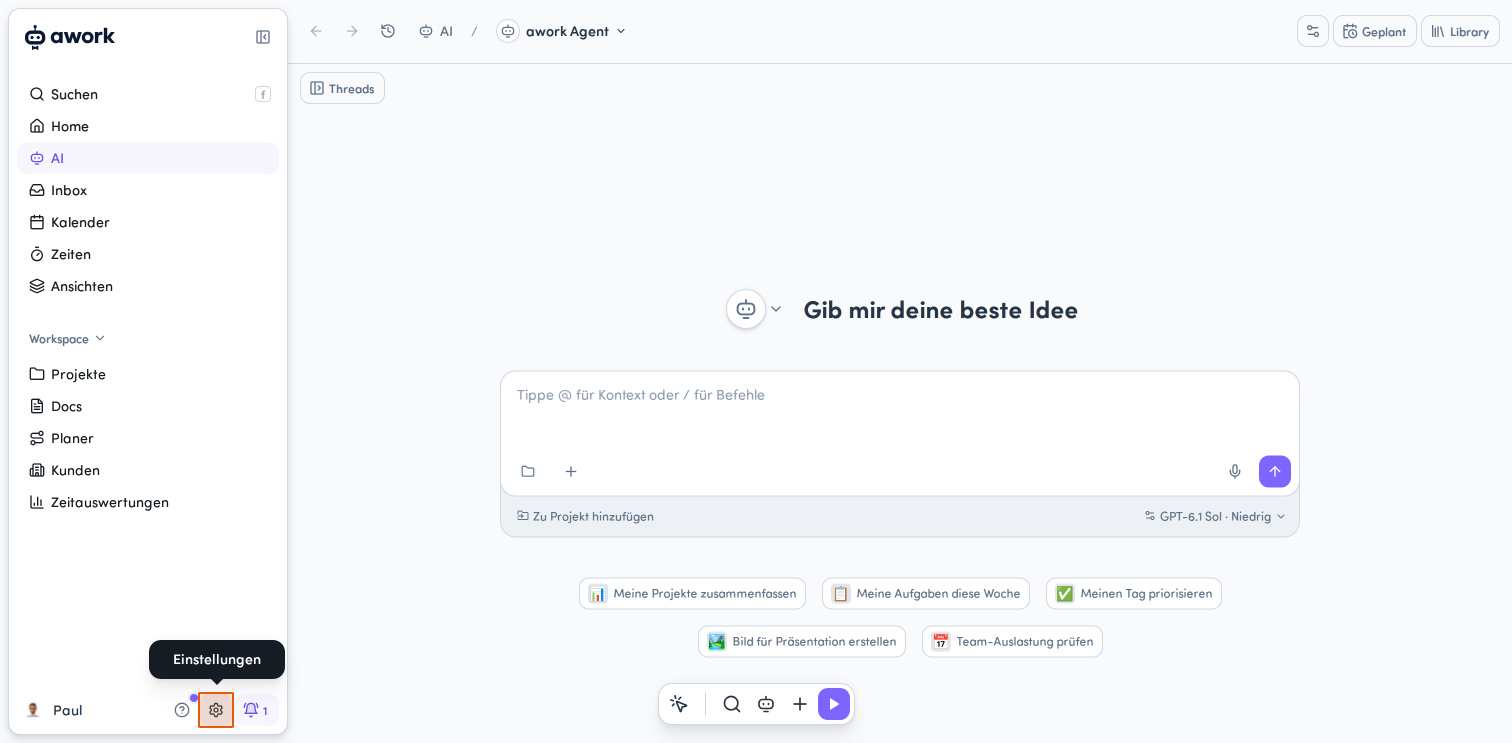
Open Einstellungen (the gear icon in the bottom-left corner of the main menu).
-
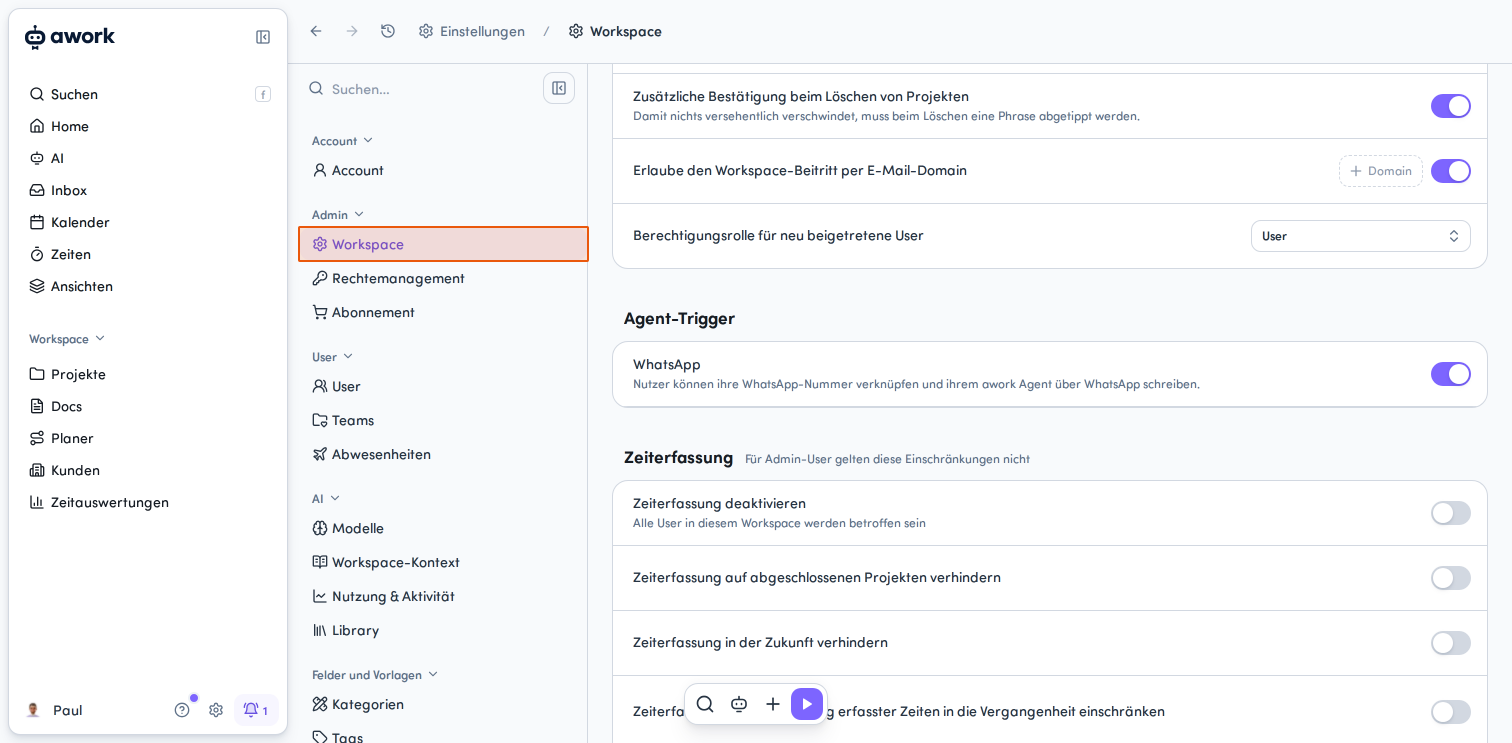
Under Admin, select Workspace.
-
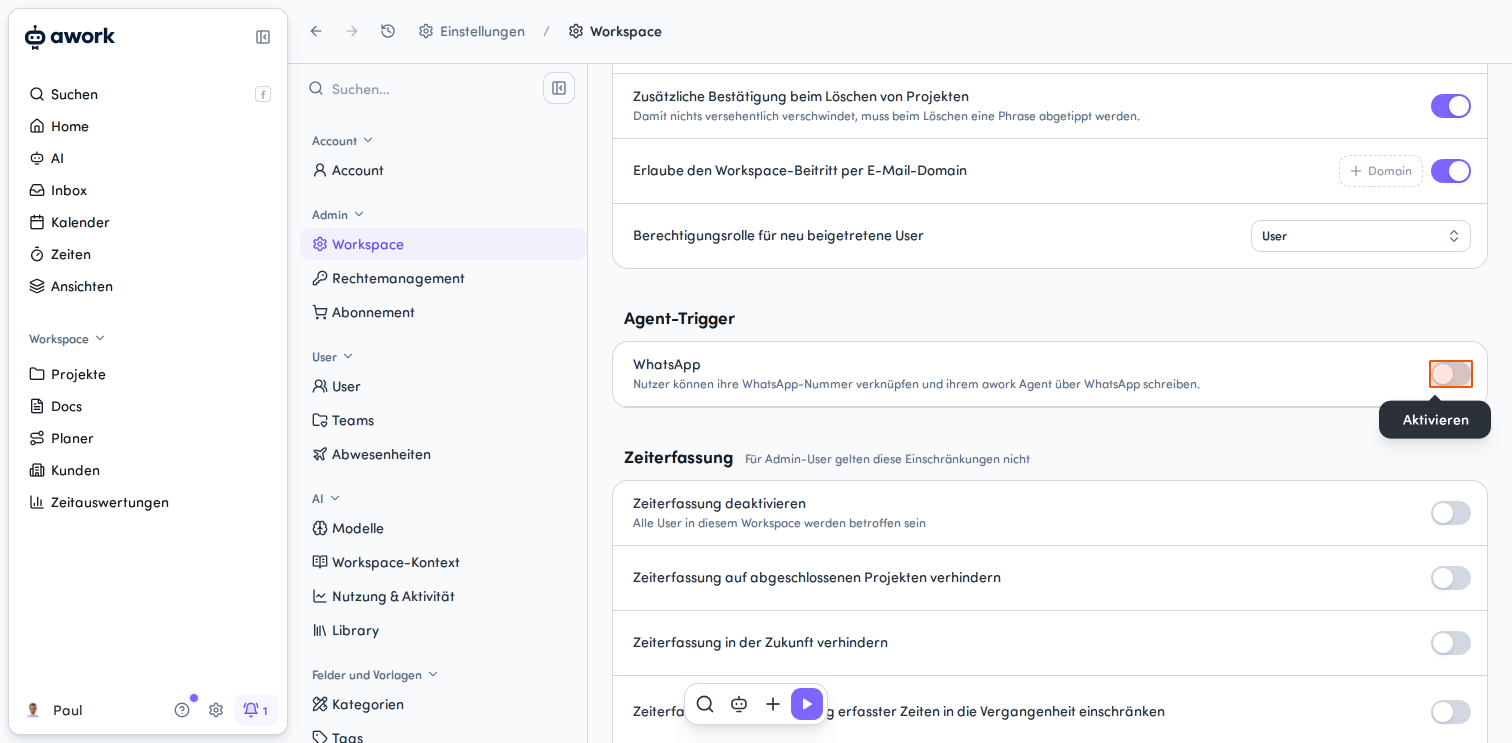
Scroll down to the Agent-Trigger section. There, you'll find the WhatsApp option. Click the toggle on the right of the row to enable the WhatsApp trigger.
The WhatsApp Agent trigger is disabled by default for new and existing Workspaces.
Step 2: Link your WhatsApp number
Once the Workspace setting is enabled, users can link their WhatsApp accounts. You need AI access and available AI credits.
-
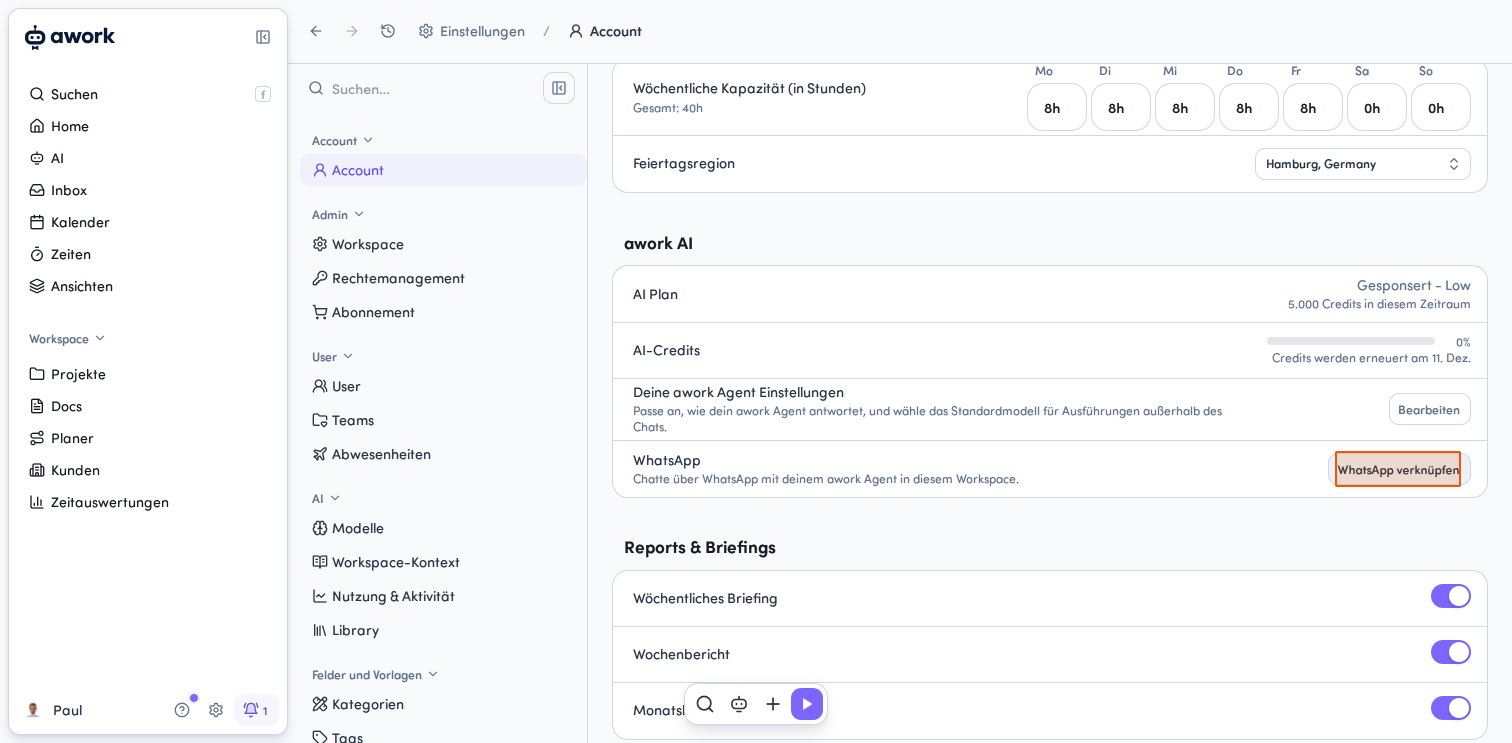
Open Account-Einstellungen from your profile picture in the bottom-left corner of the main menu. Alternatively, click the gear icon in the main menu, then Account.
-
Scroll down to the awork AI section and click WhatsApp verknüpfen in the WhatsApp row.
-
Scan the QR code shown with your smartphone, or click the WhatsApp öffnen link.
-
Send the prepared message in WhatsApp to verify your number. The code expires after five minutes. If needed, you can send a new code using the Neuer Code button.
-
A dialog will open confirming that the link was successful and showing the linked phone number.
-
Click Schließen to close the confirmation dialog. The linked number will now appear in the WhatsApp row.
Step 3: Chat with the awork Agent
Send the awork Agent a message through WhatsApp. This starts a new conversation or continues an existing one.
You'll receive replies directly in your WhatsApp chat. If the Agent needs more information or your approval, the relevant link will take you back to awork.
Optional: Unlink WhatsApp
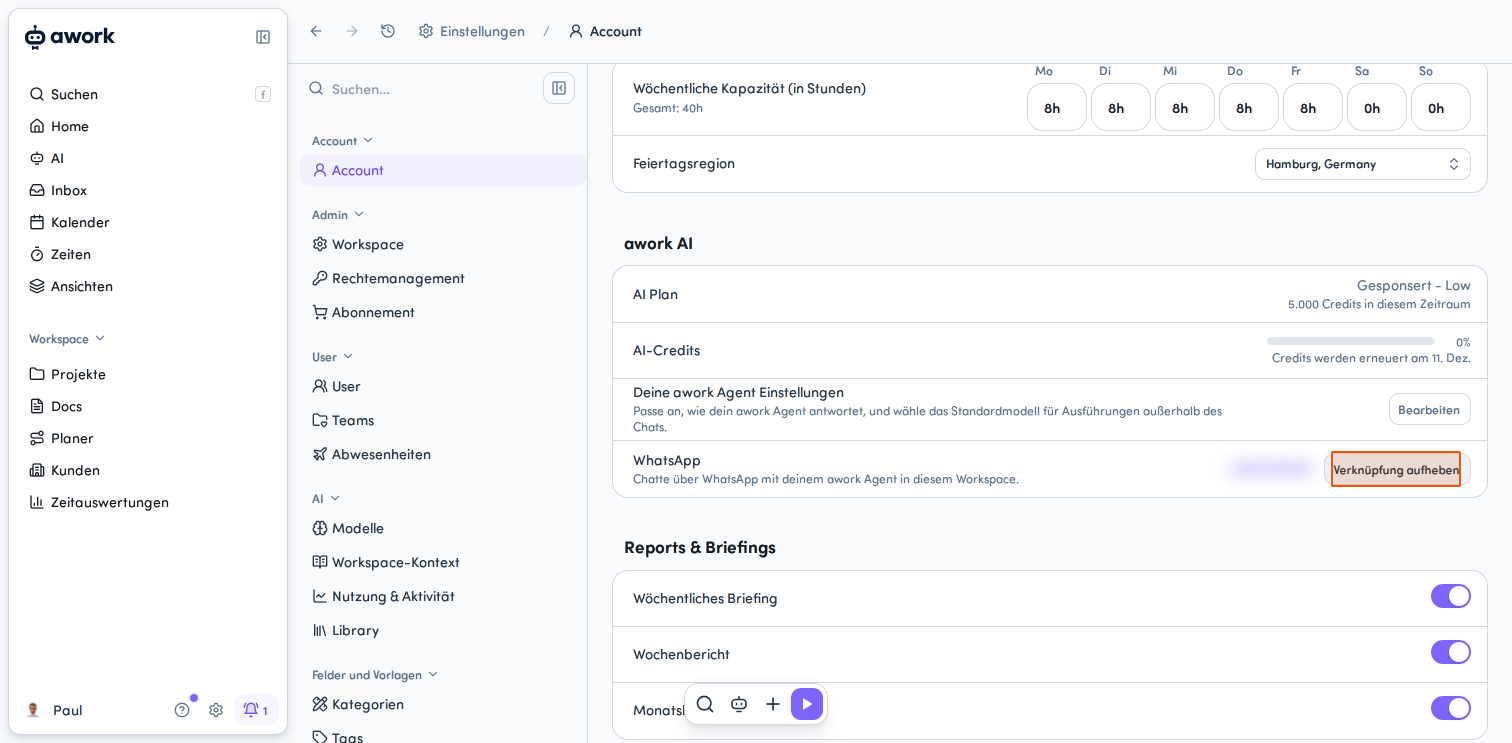
If you want to disconnect WhatsApp, go to the awork AI section in Account-Einstellungen and click Verknüpfung aufheben in the WhatsApp row.
Send messages and files through WhatsApp
The awork Agent can process files in incoming WhatsApp messages and send files back in its replies. Different file size limits apply in each direction.
Send files to the awork Agent
You can send the Agent the following through WhatsApp:
-
Voice messages
-
Images
-
Videos
-
Documents
Each file can be up to 40 MiB.
The accompanying text for a file serves as your request to the Agent.
Receive files from the awork Agent
An Agent's reply can include generated image or document files as well as text.
The following size limits apply:
-
Images: up to 5 MiB
-
Documents: up to 20 MiB
The reply text and a link to the full conversation in awork appear in the file's caption. If there is no supported file, you'll receive the reply as a text message only.
Workspace controls and limitations
Users with permission to manage Workspace settings remain in control of whether WhatsApp can be used in the Workspace.
What happens when WhatsApp Agent is disabled?
When WhatsApp Agent is turned off, users can't:
-
Link new WhatsApp accounts
-
Use WhatsApp Agent triggers
-
Send messages through WhatsApp
The relevant options will be hidden, and a notice will appear in the account settings.
However, any existing number links will remain saved.
Known limitations
-
Personal linking: A WhatsApp number can be linked to only one user and one Workspace at a time
-
No group chats: Group chats aren't supported
-
Follow-up questions and approvals: You need to open these in awork, not directly in WhatsApp
Important: Even without AI access, the WhatsApp linking section remains visible as long as an account is linked. This lets you disconnect it. After that, the section will be hidden unless other AI settings are available.
FAQ
Can I link my WhatsApp number to multiple users or Workspaces?
No. A number can be linked to only one user and one Workspace at a time.
Can I send files and voice messages to the Agent?
Yes. The Agent can receive voice messages, images, videos, and documents up to 40 MiB.
What files can I receive from the Agent?
Replies can include image or document files. Images can be up to 5 MiB, and supported documents can be up to 20 MiB.
What happens to my link if the WhatsApp Agent trigger is disabled?
Your saved number link will remain in place. You can use WhatsApp Agent again once the feature is enabled.
Can I use the awork Agent in WhatsApp group chats?
No. Group chats aren't supported.
Where can I find the Agent's follow-up questions and approval requests?
You'll receive replies in WhatsApp. If the Agent needs more information or your approval, open the relevant link in awork.
 Powered by happysupport.ai