
Google Sheets Integration
With the add-on for Google Sheets, you can load data from awork and create individual reports with just a few clicks.
Use the awork add-on for Google Sheets to import raw data from awork into your spreadsheets with just a few clicks.
You control the import through a dedicated awork sidebar within Google Sheets.
Main Benefits and Use Cases
Import awork data into Google Sheets when you want to create analyses, reports, or custom views.
- Import raw data from awork directly into your open spreadsheet
- Choose which data types you want to import
- Update your data anytime by running the import again through the sidebar
What awork Data Can Be Imported into Google Sheets?
You can import the following raw data:
- Tasks
- Users
- Time
- Projects
How to Set Up the Google Sheets Integration
Installing the awork Add-on
- Open awork in the Google Workspace Marketplace
- Click Install in the Marketplace
Or install the add-on directly from Google Sheets:
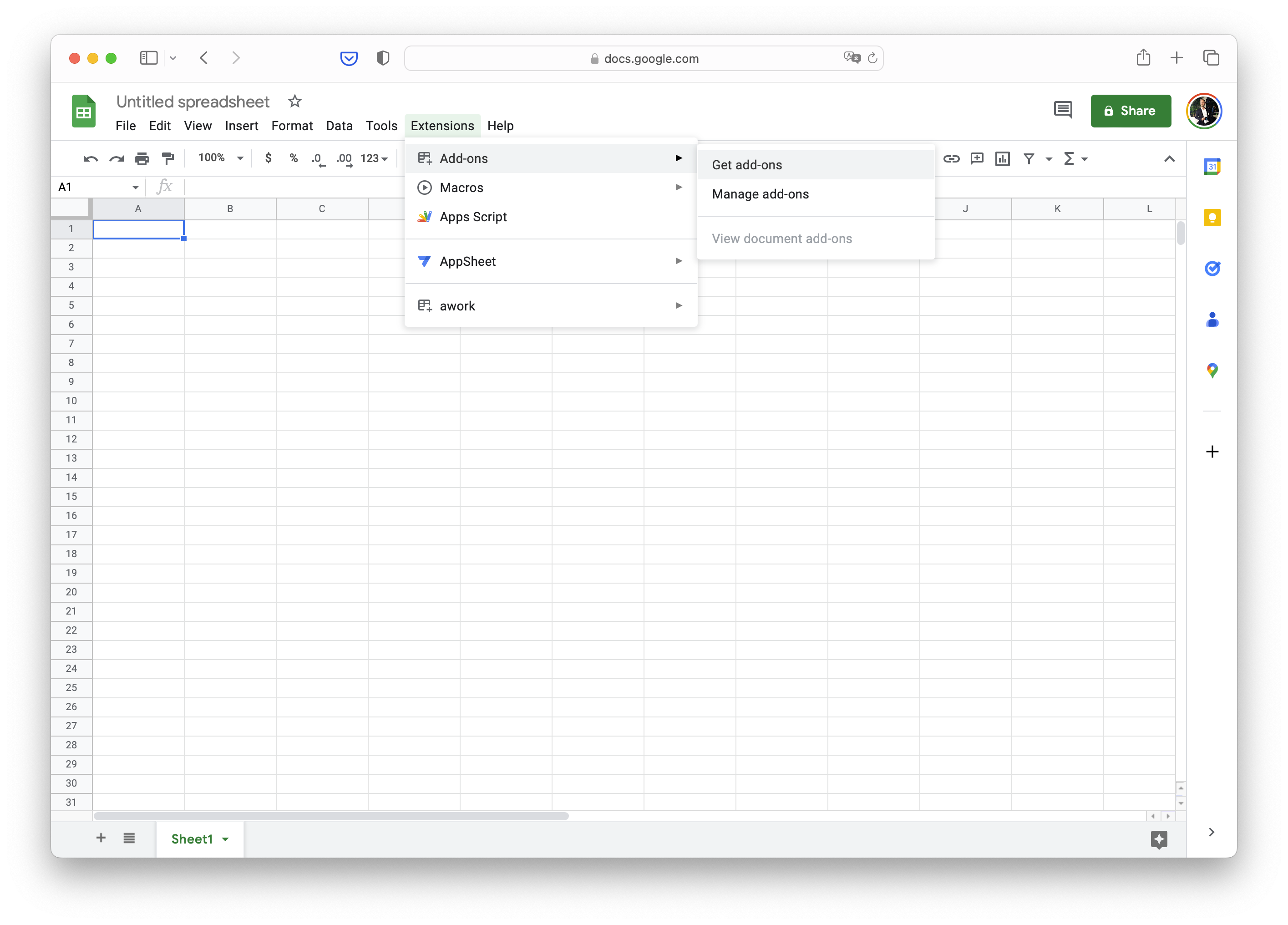
- In your spreadsheet, go to Extensions > Add-ons > Install add-on
- Search for awork in the Marketplace
- Click Install
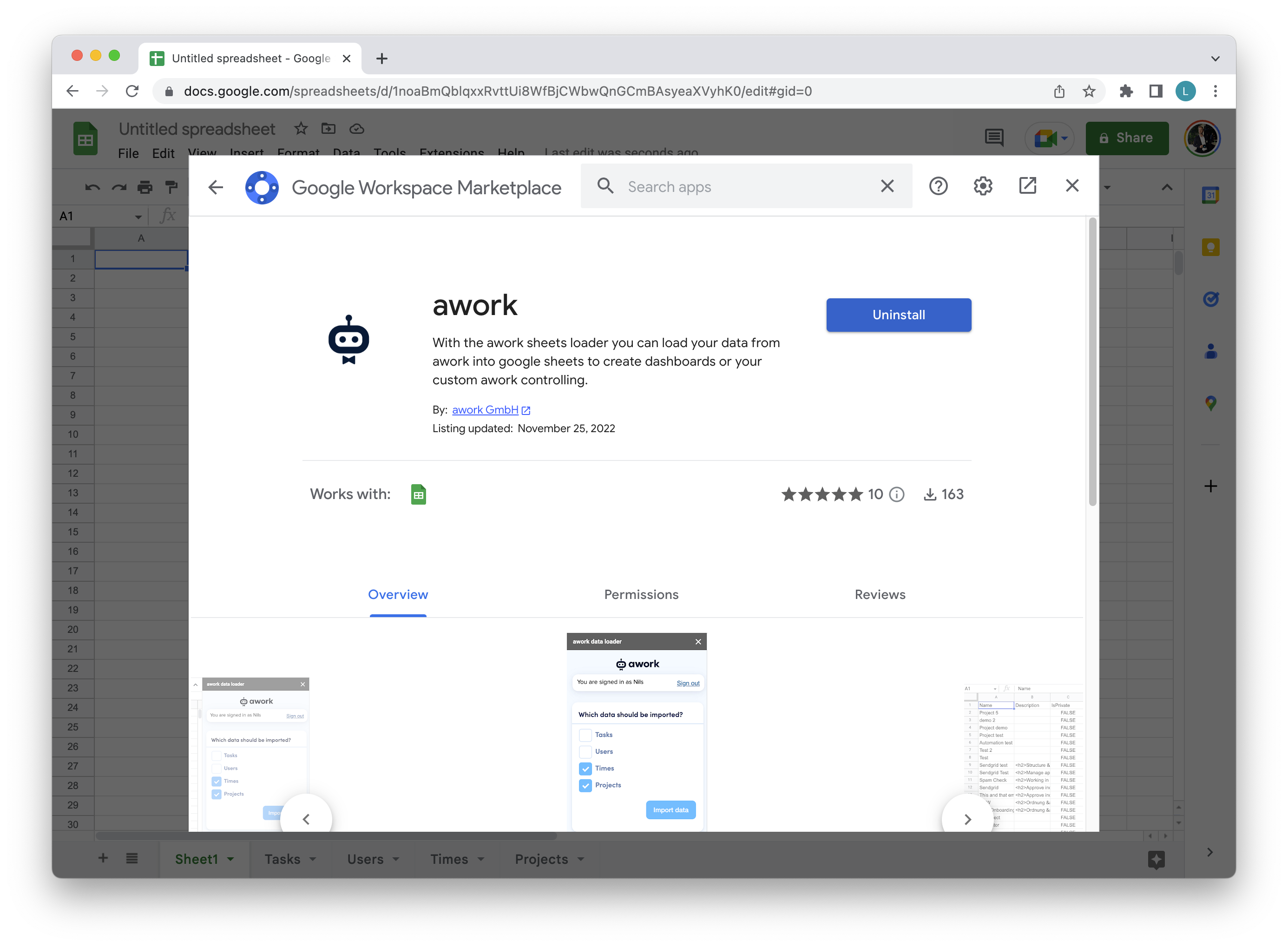
The add-on will now be set up for your currently logged-in Google account.
How to Load awork Data into Google Sheets
Opening the awork Sidebar
In Google Sheets, go to Extensions > awork > Open Sidebar.
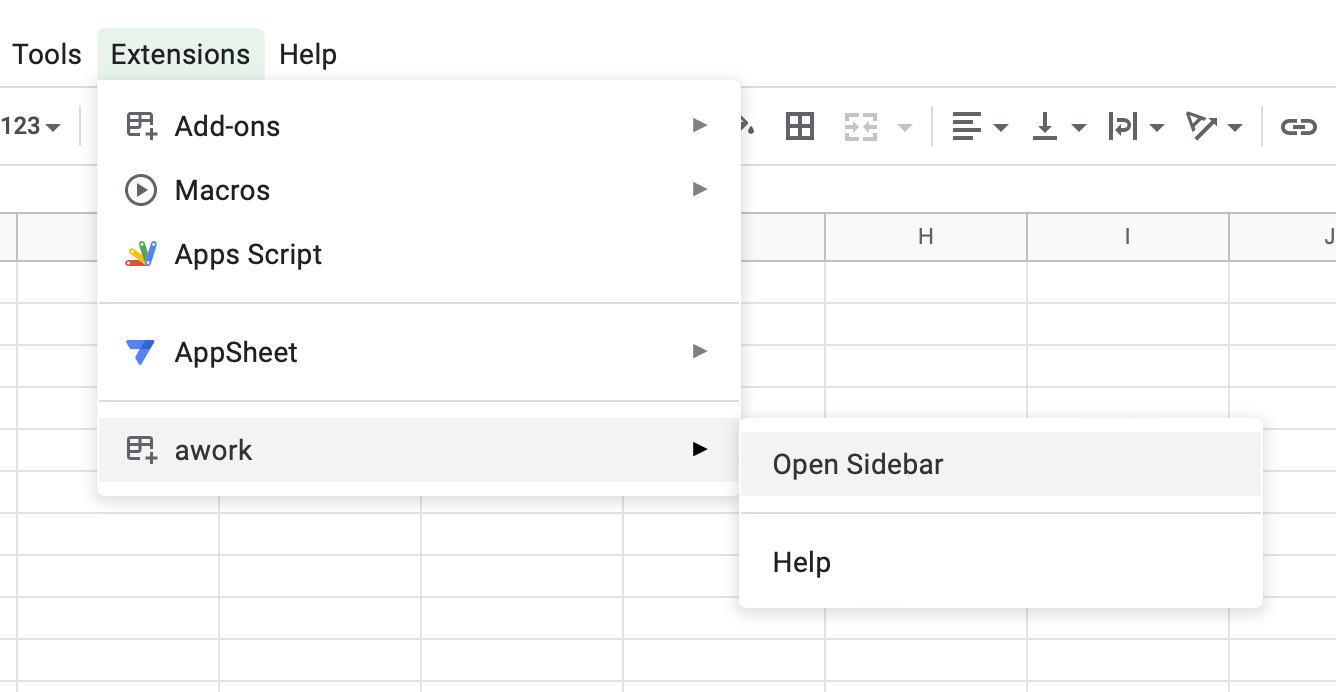
Note: It may take a few seconds for the add-on to appear in the Extensions menu and for the sidebar to load.
Signing In to the awork Add-on
Sign in to the sidebar once with your awork account.
Important: Refresh the Google Sheets page after you've successfully signed in. If the sidebar disappears, open it again using Extensions > awork > Open Sidebar.
Importing Data
- In the sidebar, check the boxes for the data you want to load
- Click Load data.
The data will be automatically retrieved and displayed in separate spreadsheets.
Tips for Working with Imported Data
Do not edit the automatically created spreadsheets. When you update, all changes in these spreadsheets will be overwritten.
To work with your data safely: Use references and lookups to analyze and display the raw data in your own spreadsheets.
How to Update Data
When you need current data, just run the import again.
- Open the sidebar using Extensions > awork > Open sidebar
- Click Load data
The raw data in the automatically created spreadsheets will be overwritten and updated.
If your reports reference this raw data, the new data will be automatically applied.
FAQ
What awork data can I import into Google Sheets?
You can import raw data for Tasks, Users, Time, and Projects.
Where do I find the awork sidebar in Google Sheets?
Go to Extensions > awork > Open Sidebar.
Why doesn't the add-on appear right away?
It can take a few seconds for the add-on to load in the Extensions menu and for the sidebar contents to appear.
Do I need to refresh Google Sheets after signing in?
Yes. After you've successfully signed in, you should refresh the spreadsheet page once. If the sidebar is hidden, open it again using Extensions > awork > Open Sidebar.
Can I edit the automatically created spreadsheets?
No. If you edit them, your changes will be overwritten the next time you click Load data.
 Powered by happysupport.ai