
Notion Importer
Import your Notion pages, subpages, and databases into awork Docs by uploading an HTML export file and selecting your destination space and access permissions.
With the Notion Importer, you can bring your Notion content into awork as Docs - cleanly structured with pages and subpages.
You export a ZIP file (HTML) from Notion and then upload it to awork.
Main Benefits and Use Cases
The Notion Importer is ideal if you want to:
-
Take over pages and subpages from Notion into awork Docs
-
Make databases available as tables in awork
-
Flexibly adjust access permissions after import in awork
How to Use the Notion Importer
You can find the Notion Importer in two places:
-
On the Docs home page
Click the import icon in the top right (tooltip Import Docs) in the Docs menu -
In Settings (gear icon in the bottom left of the main menu) > Importer
Click Start Import next to Notion
Prepare Your Notion Export
To export your data from Notion, you have two options:
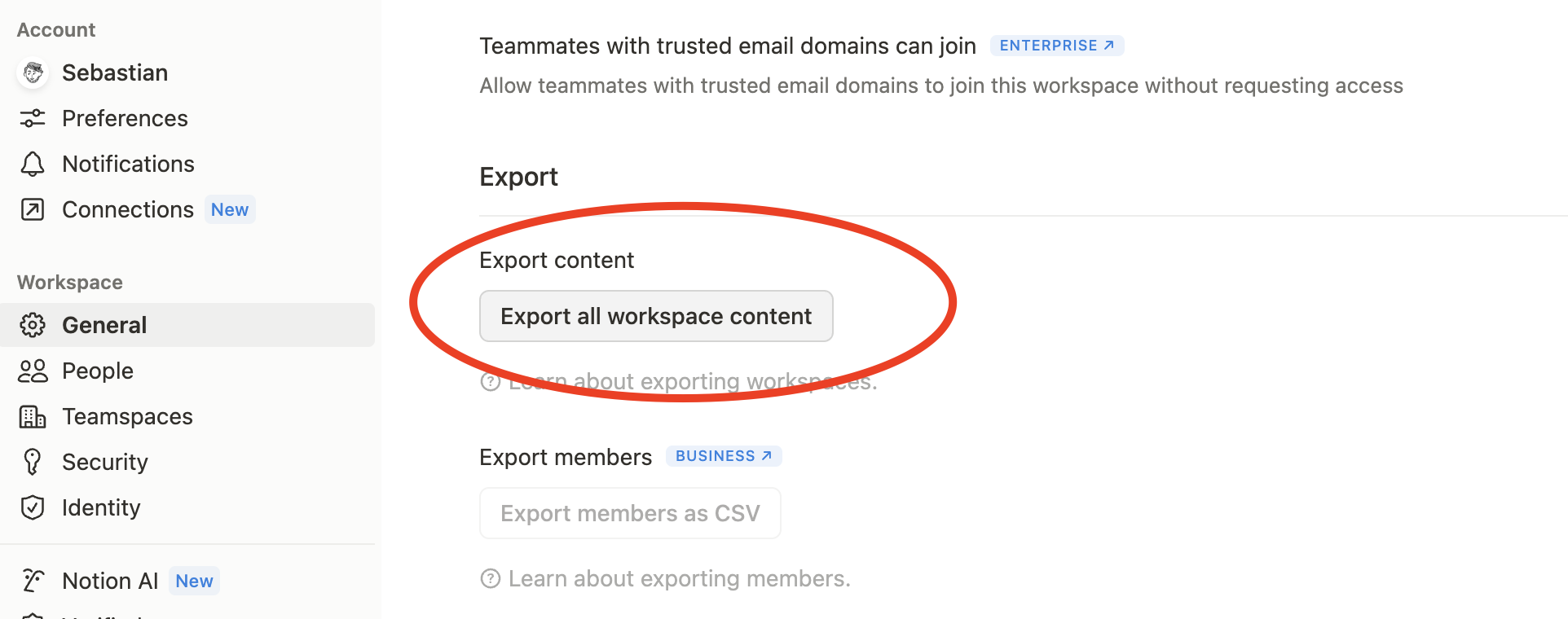
- Export Entire Workspace
Go to Settings > General > Export in Notion. Select HTML format, enable Include content: Everything and Create folders for subpages
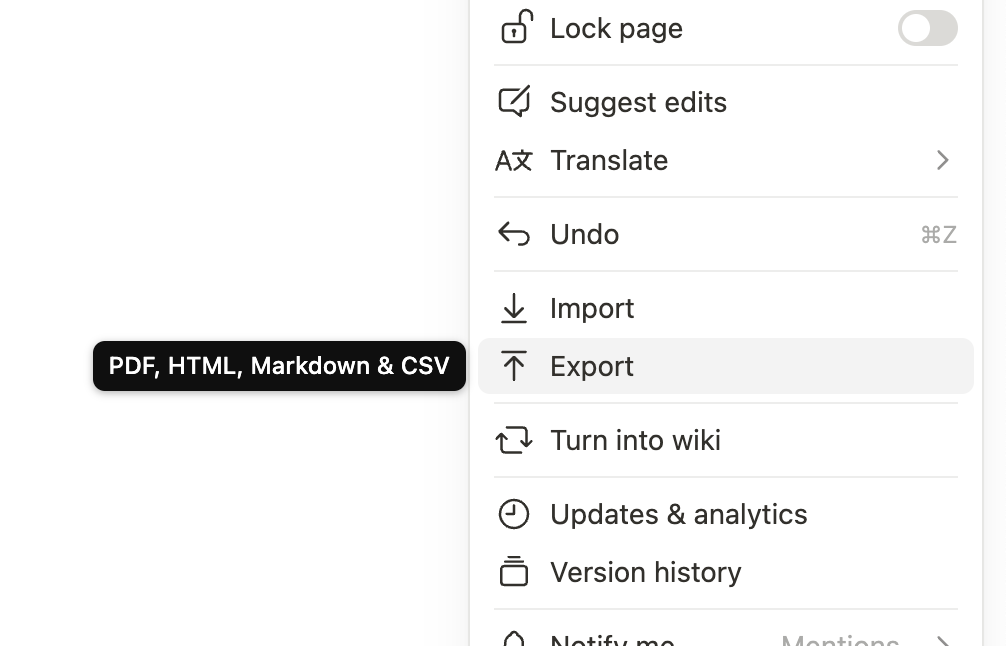
- Export Individual Page with Subpages
Open the page you want in Notion, click the menu (three dots) in the top right, and select Export. Make sure you select HTML format and the Include subpages option
Note: The export only contains content you have access to. Ideally, the export should be performed by someone with admin rights.
Perform Import in awork
-
Upload the exported ZIP file in the Notion Importer
-
Select the Docs Space in awork where the content should be imported
-
Decide whether the imported documents should be private (visible only to you) or accessible to your team
What Gets Imported
-
Pages and subpages as documents in awork
-
Databases as tables based on the view settings you selected in Notion
-
Comments and trash content are not imported
-
Maximum file size: Exports larger than 1.5 GB are not supported
Tips for Best Results
-
Export large areas separately if your export is larger than 1.5 GB
-
Export databases separately to get optimal results
-
Adjust access permissions after import, since you can set permissions for documents and spaces individually in awork
FAQ
Where do I find the Notion Importer?
You'll find it on the Docs home page using the import icon in the top right, or in Settings under Importer.
Which export format do I need to select in Notion?
Select HTML format when exporting in Notion.
Why is content missing after the import?
The Notion export only contains content you have access to. Ideally, someone with admin rights performs the export.
How are Notion databases imported?
Databases are imported as tables based on the view settings you selected in Notion. For optimal results, we recommend exporting the database separately.
What can I do if my Notion export is larger than 1.5 GB?
Exports larger than 1.5 GB are not supported. In this case, export individual subareas separately.
 Powered by happysupport.ai