
Monday Importer
Import your Monday.com projects, tasks, and files into awork using a Personal Access Token with flexible column mapping
Import your projects and content from Monday.com into your awork Workspace – including tasks, subtasks, files, and comments.
With the Monday Importer, you'll make a clean move, stay in control of your mapping, and watch the import progress live. The import takes between 2 and 15 minutes – depending on how many projects you're importing.
Key Benefits and Use Cases
Why importing is worth your time:
-
Structured migration of projects and related content from Monday.com to awork
-
Flexible mapping of Monday columns to Custom Fields and selective choice of what gets imported
-
Transparent progress with import status and estimated remaining time shown right in the process
How to Use the Monday Importer
Prerequisites
-
Access to the Importer Hub in awork (typically Admin or Owner rights)
-
Personal Access Token from Monday (access to the Monday Developer Console)
-
Set up in advance: If you want to use Custom Fields, Project Templates, or Project Types, these need to exist in awork beforehand
Make sure assigned users in Monday.com and awork exist with identical email addresses
1. Open the Importer Hub in awork
-
Open Settings in awork (gear icon in the bottom left of the main menu) and navigate to Importer Hub
-
Select Monday and click Start Import
2. Create an Access Token in Monday
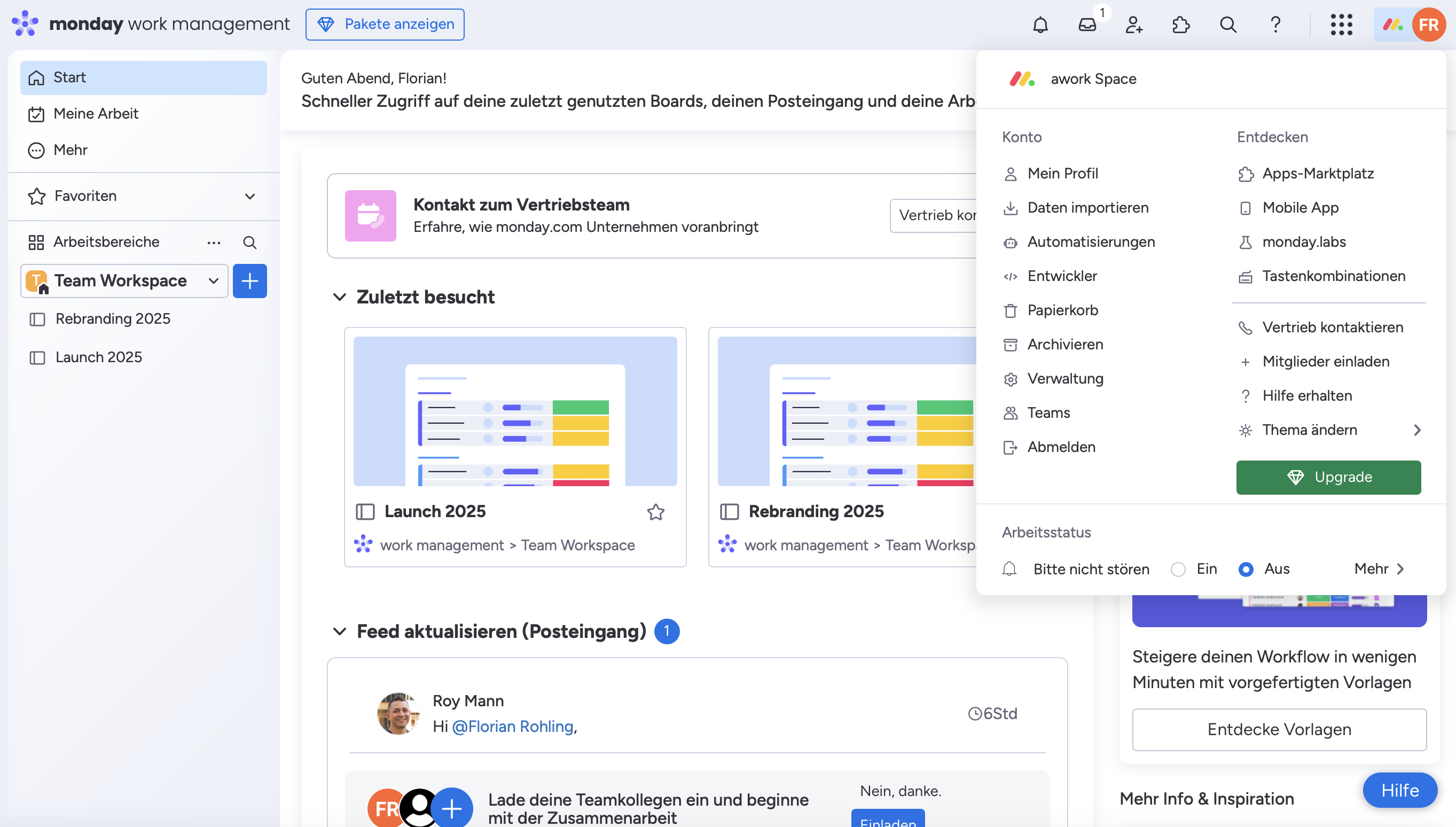
- Click on your profile in Monday.com and then select Developers from the menu
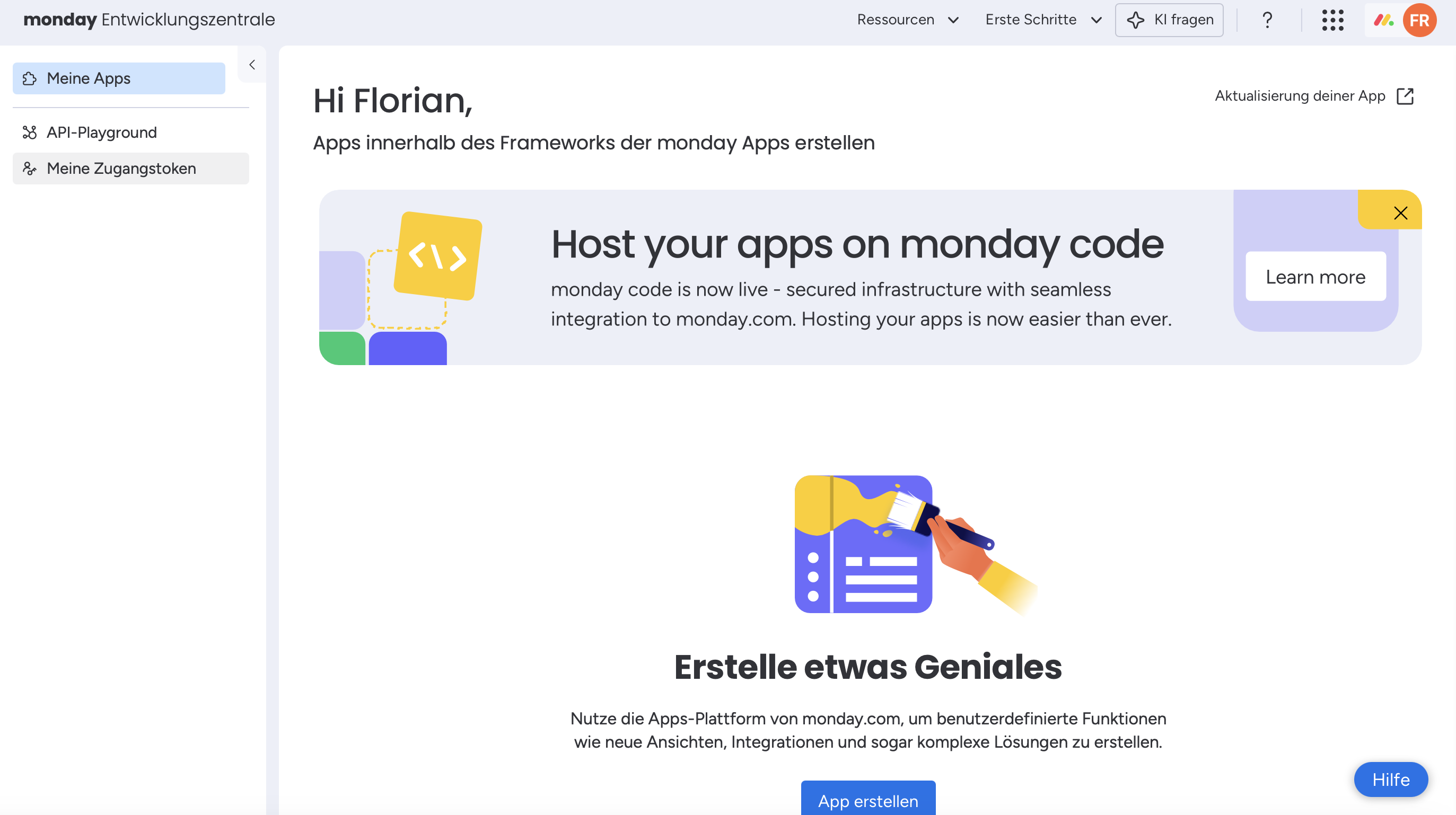
- Click on My Access Tokens
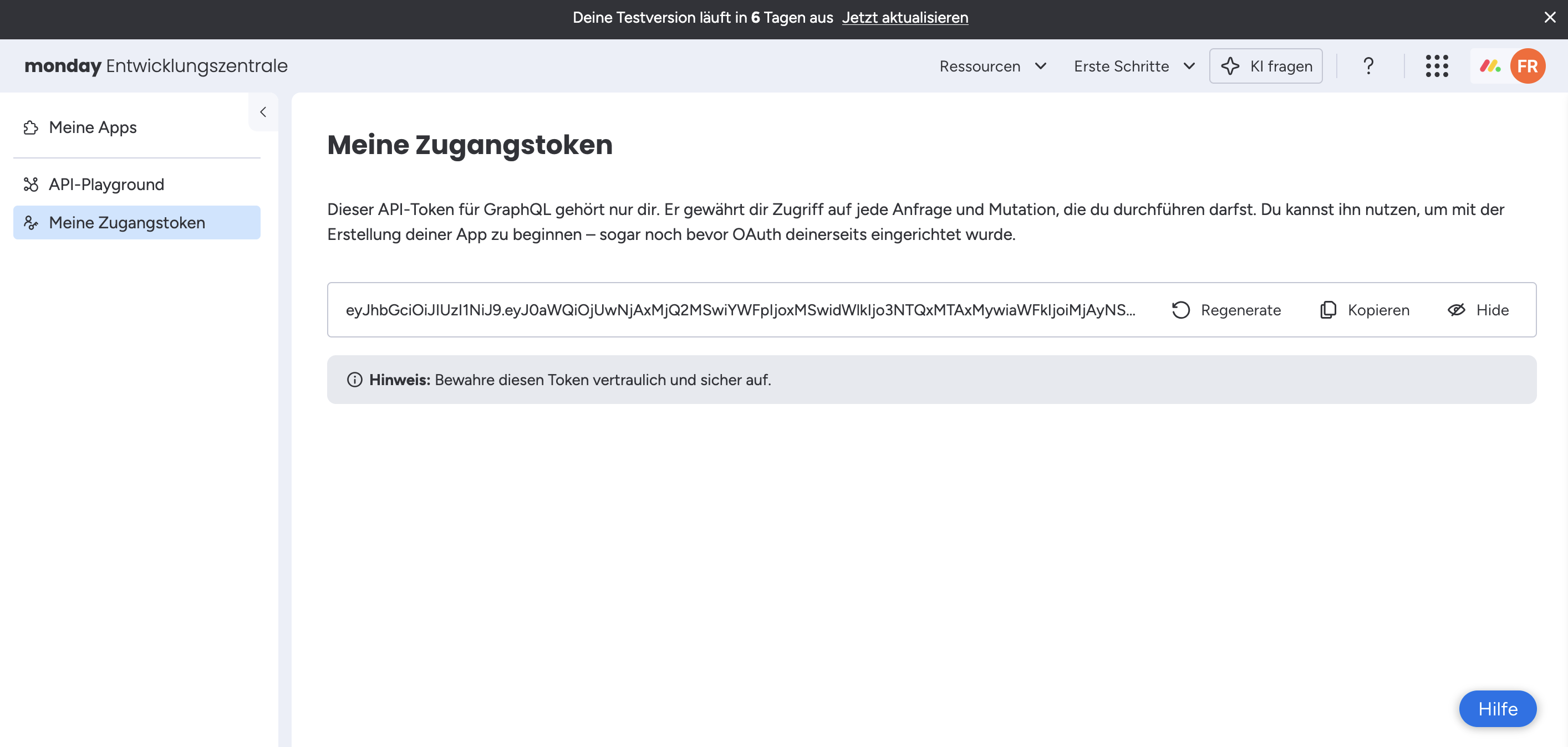
- Click on Show
- Copy the access token
3. Insert the Token in awork
-
Switch back to awork
-
Paste the access token you copied from Monday into the corresponding field and click Next
4. Select Project Type and Project Template (optional)
Select one or more projects you want to import. Optionally, you can choose a Project Type and a Project Template. Both need to be created in awork beforehand.
5. Map Custom Fields
In the next step, you can map Monday columns to Custom Fields in awork. If you don't want to map a column, select Don't assign.
The Custom Fields must already be created in awork before you can select them in the import.
A Status must first be created in a Project Template before you can use it in mapping. Otherwise, the status won't be imported correctly.
6. Select Import Options (Subtasks, Comments)
Map subtasks separately and choose whether you want to import comments.
Note: Imported comments won't be assigned to the person who originally commented, but to the person doing the import
7. Review Summary and Start Import
Check the summary (projects, tasks, subtasks, files, and comments). This may take a few seconds.
Then click Start Import.
8. Track Progress and Check Results
During the import, you'll see the progress and an estimated remaining time.
If successful, you'll see a confirmation. If the import fails, you'll also get a notification. Click Back to Home to restart the process.
Once complete, you'll find your imported project in your awork Workspace.
Column Mapping: Monday Columns to Custom Fields in awork
You can map columns from Monday.com to the following fields in awork:
| Monday | awork |
|---|---|
| Item | Task |
| Sub-Item | Subtask |
| Update | Comments |
| Text | Tags, Text (Custom Field), Task Description |
| Number | Number (Custom Field) |
| Date | Text (Custom Field), Date (Custom Field) |
| Timeline | Timeline (Start/Due Date) |
| Label | Text (Custom Field), Selection (Custom Field), Status |
| Checkbox | Priority, Checkbox (Custom Field) |
| People | Assigned User, Person (Custom Field) |
| Location | Text (Custom Field) |
| Link | Text (Custom Field), Link (Custom Field) |
| Files | Task Files |
| Time Tracking | Tracked Time on Task |
Tips and Best Practices for a Clean Import
To make sure your import runs smoothly:
-
Check email addresses so task assignments match the right users
-
Create Custom Fields in advance so you can map Monday columns right away
-
Set up Project Templates and Project Types beforehand if you want to select them during import
-
Maintain status in a Project Template or status won't be imported correctly
-
Plan for comment ownership since imported comments get assigned to the person doing the import
FAQ
How long does an import from Monday take?
The import takes between 2 and 15 minutes, depending on how many projects you're importing.
What do I need to start the Monday Importer?
You need an access token from Monday. In awork, you start the process via Settings → Importer → Start Import for Monday.
Why aren't statuses sometimes imported correctly?
A status needs to be created first in a Project Template in awork before you can use it in the import. Otherwise, the status won't be imported correctly.
Are imported comments assigned to the original person who commented?
No. Imported comments aren't assigned to the person who originally commented, but to the person doing the import.
What can I do if the import fails?
You'll get a notification. Click Back to Home to restart the import process from the beginning.
 Powered by happysupport.ai