
Asana Importer
Import your Asana projects, tasks, and comments into awork using a Personal Access Token from the Asana Developer Console.
With the Asana Importer, you can bring projects, tasks, and optionally subtasks, comments, and attachments from Asana into awork. The import typically takes 2 to 15 minutes and depends on the number and size of your projects.
Key Benefits and Use Cases
When you switch from Asana to awork, the importer saves you a lot of manual work:
-
Quick project migration by importing projects and tasks from Asana
-
More context through optional import of subtasks, comments, and attachments
-
Controlled import by mapping Asana fields to Custom Fields in awork
How to Use the Asana Importer
Prerequisites
-
Access to the Importer Hub in awork (typically admin or owner rights)
-
Personal Access Token from Asana (access to the Asana Developer Console)
-
Create in advance: If you want to use Custom Fields, Project Templates, or Project Types, these must already exist in awork
Important: User assignments only work reliably if people exist in both Asana and awork with the same email address.
1. Open the Importer Hub in awork
-
Open Settings in awork (gear icon in the bottom left of the main menu) and navigate to the Importer Hub
-
Select Asana and click Start Import
2. Create a Personal Access Token in Asana
awork needs an Asana Personal Access Token for the import:
- Open your Asana workspace
- Click on your Profile in Asana and select Settings (a pop-up will appear)
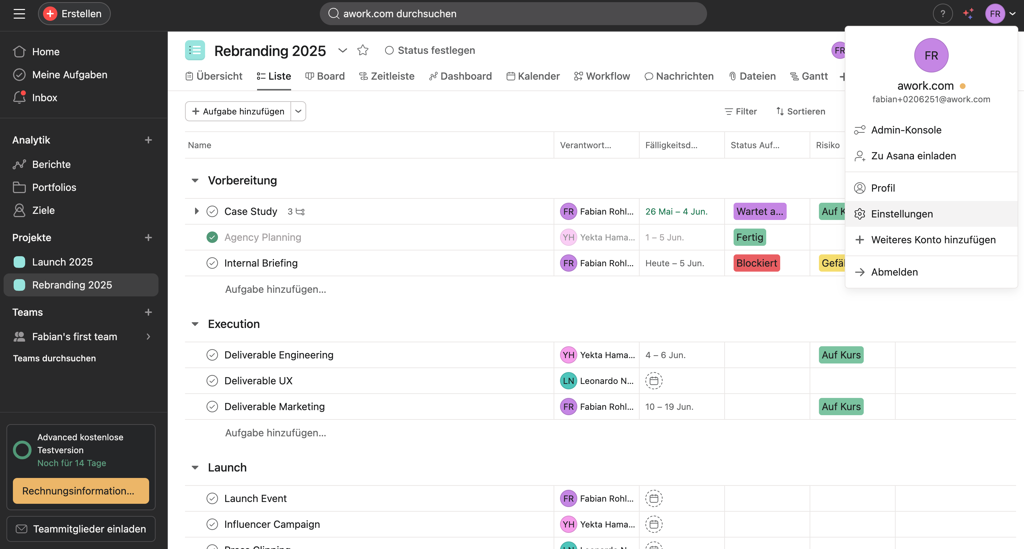
- Scroll to the bottom of the pop-up and click Show Developer Console
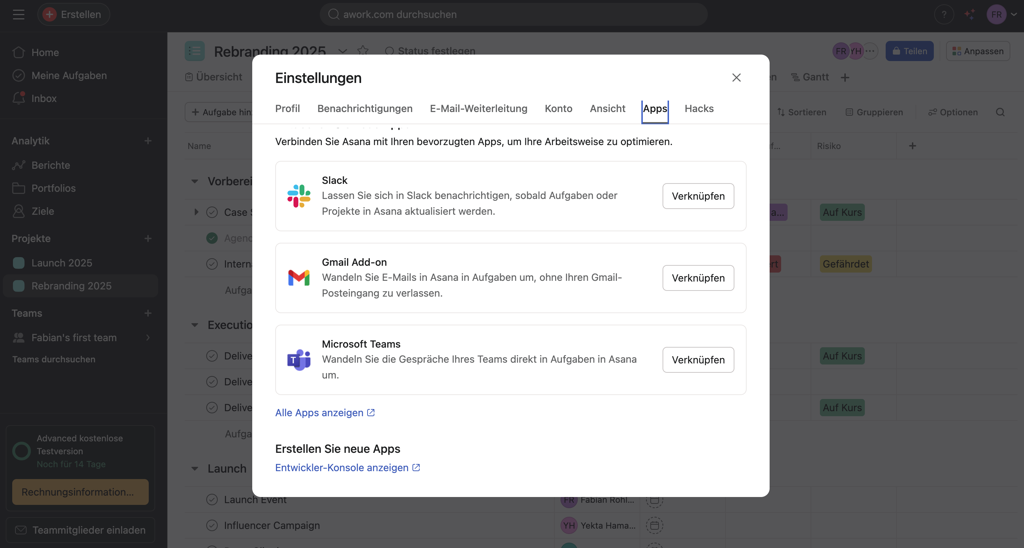
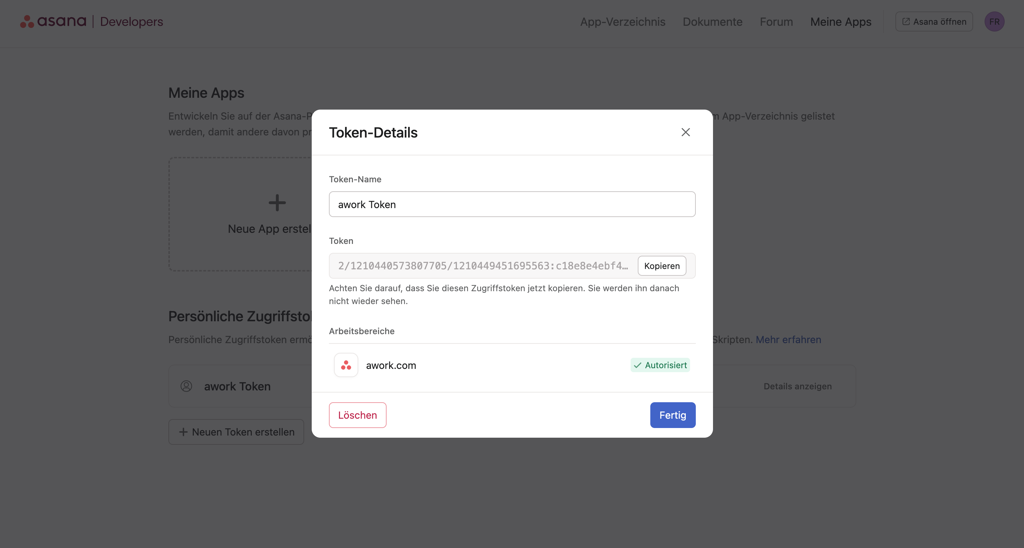
- A new tab will open. Click Create New Token
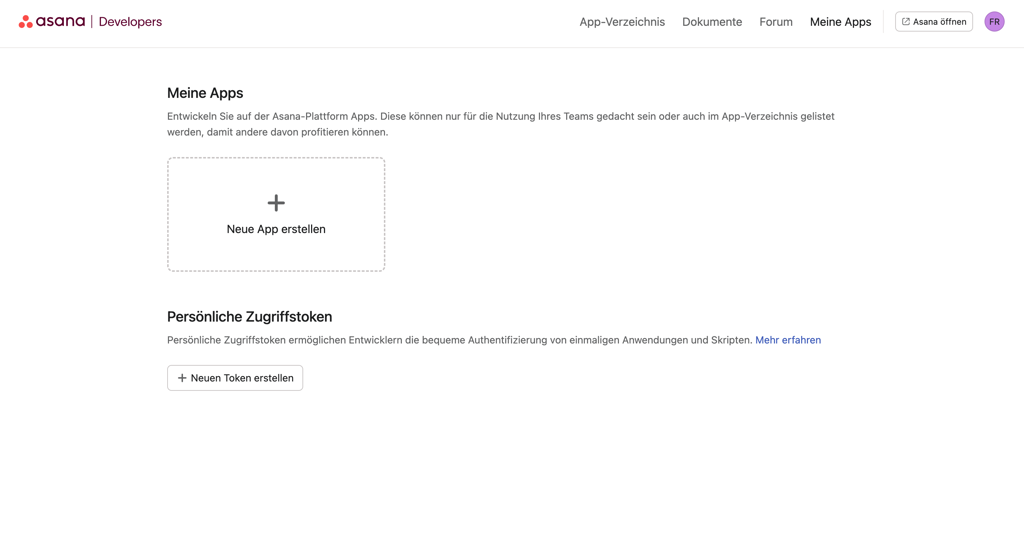
- Give it a name (for example, awork Token), confirm the Asana API terms of use, and click Create Token
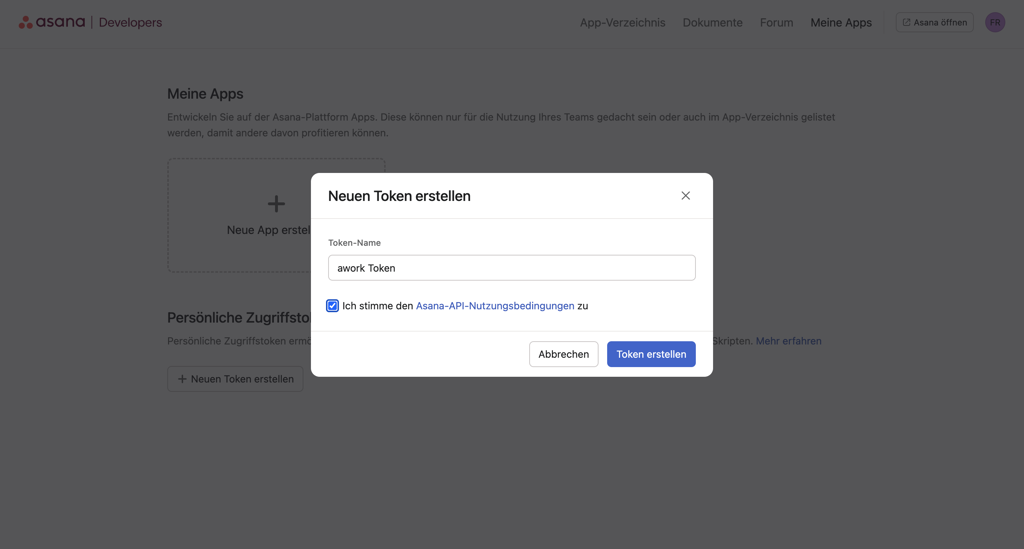
- Your token will be displayed in the next pop-up. Copy it and save it securely so you can paste it into awork right away
3. Insert the Token into awork
- Switch back to awork
- Paste the token into the appropriate field and click Next
4. Select project type and project template (optional)
You can optionally select a Project Type and a Project Template. Both must already exist in awork.
5. Map Custom Fields
In the next step, you can map Custom Fields from Asana to Custom Fields in awork. If you don't want to map a column, select Do Not Map.
- The Custom Fields must already be created in awork before you can select them in the import.
- A Status must first be created in a Project Template in awork before you can use it in the mapping. Otherwise, the status will not be imported correctly.
6. Select import options (subtasks, comments, attachments)
You can separately choose whether to import Subtasks, Comments, and Attachments.
Note: In awork, there is only one level of subtasks.
7. Review summary and start the import
Before starting, you'll see a summary of your selections (for example, projects, tasks, subtasks, files, and comments). The calculation may take a few seconds.
Then click Start Import.
8. Track progress and check results
During the import, you'll see the progress and an estimated remaining time.
If your import is successful, you'll receive a confirmation. If the import fails, you'll also see a notification. You can click Back to Home to restart the import process.
After a successful import, you'll find your imported project in your awork workspace.
Mapping Columns to Custom Fields
You can map columns and fields from Asana to the following awork fields (overview):
| Asana | awork |
|---|---|
| Task Name | Task |
| Approval Status | Task |
| Mark Task Complete | Status |
| Subtask | Subtask as well as Timeline (start and due date) and Date (Custom Field) |
| Assignee | Assigned to and Person (Custom Field) |
| Description | Description as well as Text (Custom Field) |
| Comments | Comment |
| Attach Files | Attachment |
| Single Select | Text (Custom Field), Select (Custom Field), or Status |
| Multi Select | Text (Custom Field) |
| Date | Timeline (start and due date) and Date (Custom Field) |
| People | Assigned to and Person (Custom Field) |
| Text | Description and Text (Custom Field) |
| Number | Text (Custom Field) and Number (Custom Field). The number in Asana is linked to both Text and Number in awork. |
| Formula | Text (Custom Field) |
| ID | Text (Custom Field) |
| Time Tracking | Tracked Time |
| Rollup | Text (Custom Field) |
| Projects | Text (Custom Field) |
| Tags | Tags as well as Text (Custom Field) or Select (Custom Field) |
| Completed At | Text (Custom Field) and Date (Custom Field) |
| Last Modified | Text (Custom Field) and Date (Custom Field) |
| Created At | Text (Custom Field) and Date (Custom Field) |
| Created By | Assigned to and Person (Custom Field) |
| Followers | Assigned to and Person (Custom Field) |
Tips, Limitations, and Security
Known Limitations
- Subtasks: awork supports only one level of subtasks. Deeper nested structures from Asana will be simplified accordingly
Tips for Clean Results
-
Match email addresses between Asana and awork before importing
-
Create Custom Fields in advance in awork
-
Prepare the Project Template (including statuses) and optionally create a Project Type in awork
Handling the Token
-
Protect your token: Treat your Asana Personal Access Token like a password and don't share it publicly
-
Revoke the token: If you suspect your token has been compromised, revoke it in Asana and create a new one
FAQ
How long does the import from Asana take?
The import usually takes between 2 and 15 minutes. The duration depends on the number of projects and the amount of tasks, subtasks, comments, and attachments.
Why are tasks not assigned to the correct person?
Assignments only work if the person exists in both Asana and awork with the same email address. Also check whether the person has access to the workspace in awork.
Why are statuses not imported correctly?
A status must first be created in a Project Template in awork before you can use it in the mapping. If no matching status exists, it cannot be correctly assigned during import.
Can I map Custom Fields from Asana to awork?
Yes. However, the target fields must be created as Custom Fields in awork before the import. In the mapping, you can also intentionally skip fields by selecting Do Not Map.
Are deeply nested subtasks from Asana fully imported?
awork supports only one level of subtasks. If you use multiple nesting levels in Asana, these will be simplified accordingly during import.
 Powered by happysupport.ai