
Import Markdown files into Docs
Import Markdown files into awork Docs with automatic formatting preservation and reference restoration for seamless content migration.
With the Markdown importer, you can import Markdown files (.md) into awork, either as new Docs in a location you choose or directly into an existing Doc.
Key benefits and use cases
With Markdown Import, you can bring your Markdown content directly into awork. You can choose whether to create new Docs or add content to an existing Doc.
-
Create new Docs: Import one or more Markdown files (.md) into a Space, a project, or your private area.
-
Add to existing Docs: Append Markdown content to an existing Doc or replace its current content.
-
Convert content automatically: awork automatically converts the imported Markdown content into Doc content.
-
Preserve formatting: Supported Markdown formatting is preserved during import. For Markdown files exported from awork, supported references and rich content are also restored. Missing files and comments are not recreated.
Import Markdown files as new Docs
You can open the import dialog in several ways. Choose the option that best fits your current workspace.
Requirements
Access to the importer: You need admin permissions or access to the workspace settings.
Create new Docs: You need permission to create Docs in the location you choose.
Add to existing Docs: You need edit access to the Doc.
Open the import dialog
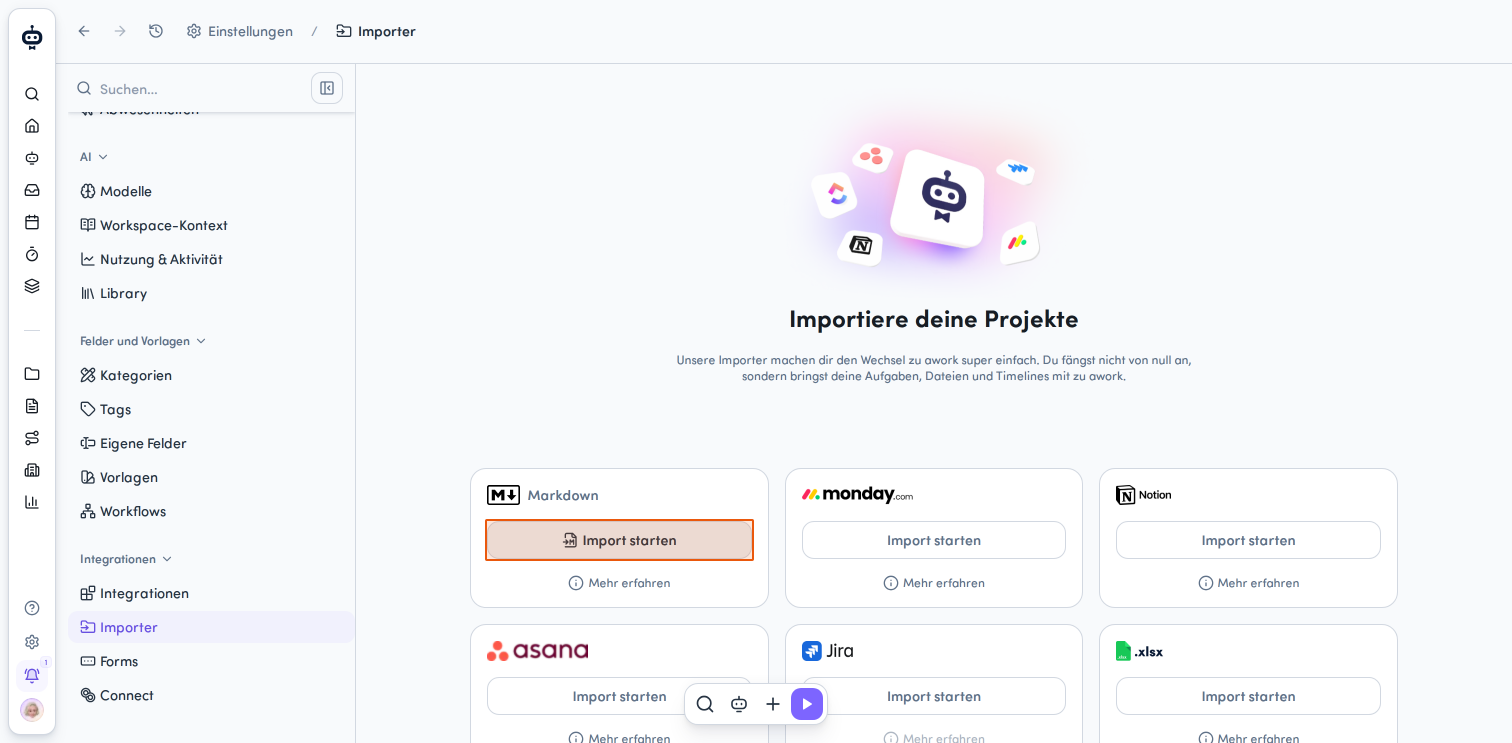
Option 1: From the importer in settings
You need admin permissions to use the importer.
-
Go to Einstellungen (the gear icon at the bottom left of the main menu)
-
Under Integrationen, select Importer
-
On the Markdown card, click Import starten
Option 2: From the Docs home page
-
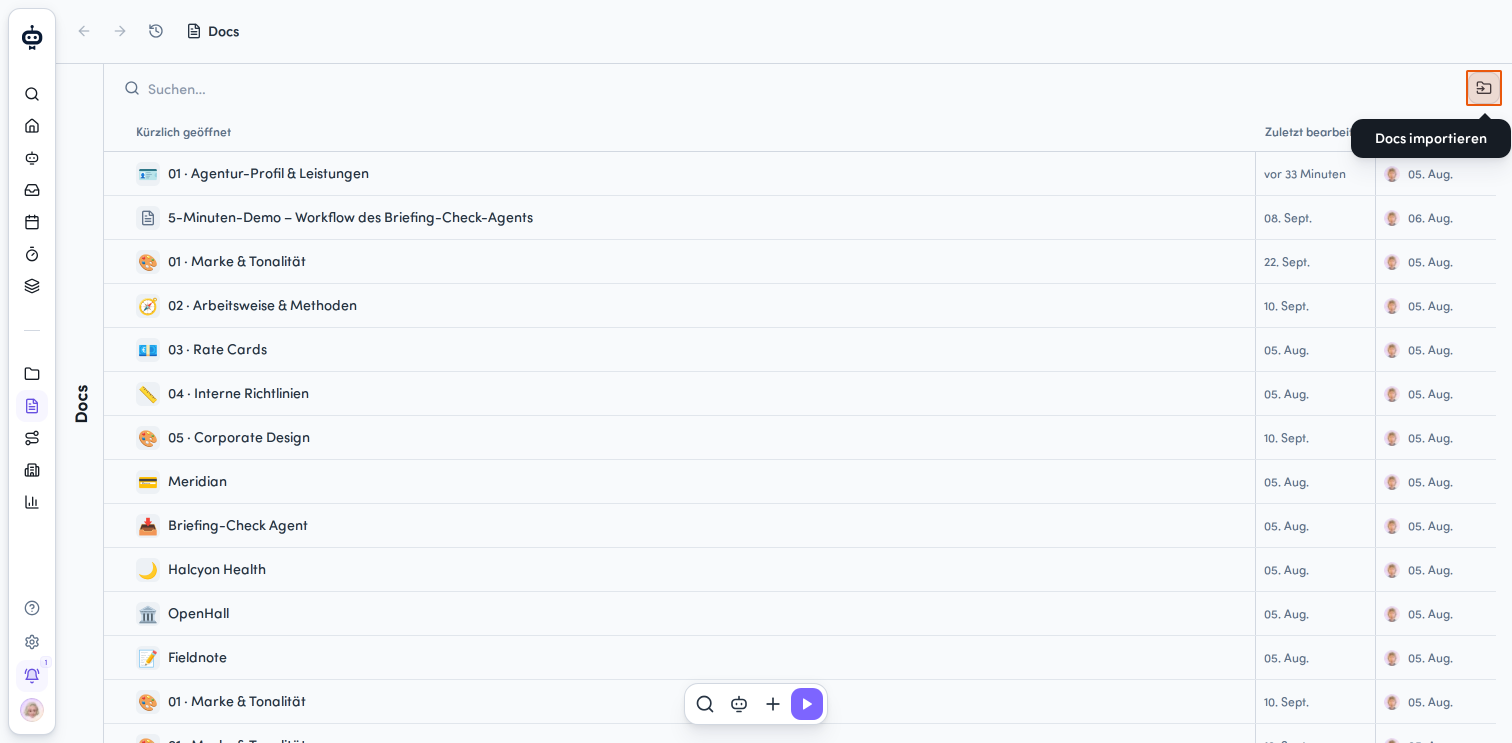
Go to Docs in the main menu
-
In the action bar at the top right, click the Docs importieren icon
-
Select Aus Markdown importieren
Option 3: From a Docs Space
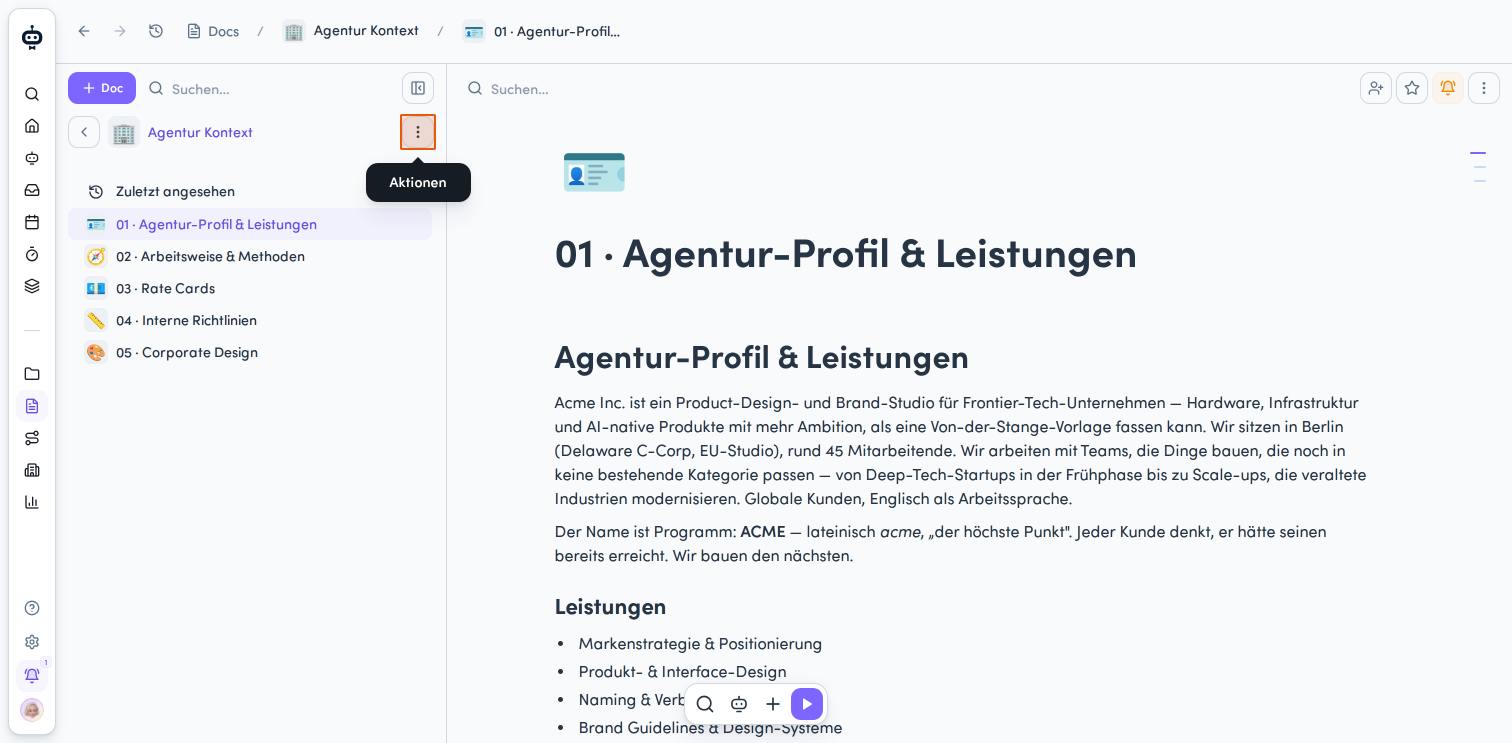
- Open the Aktionsmenü in a Space
- Select Aus Markdown importieren
Option 4: In a project
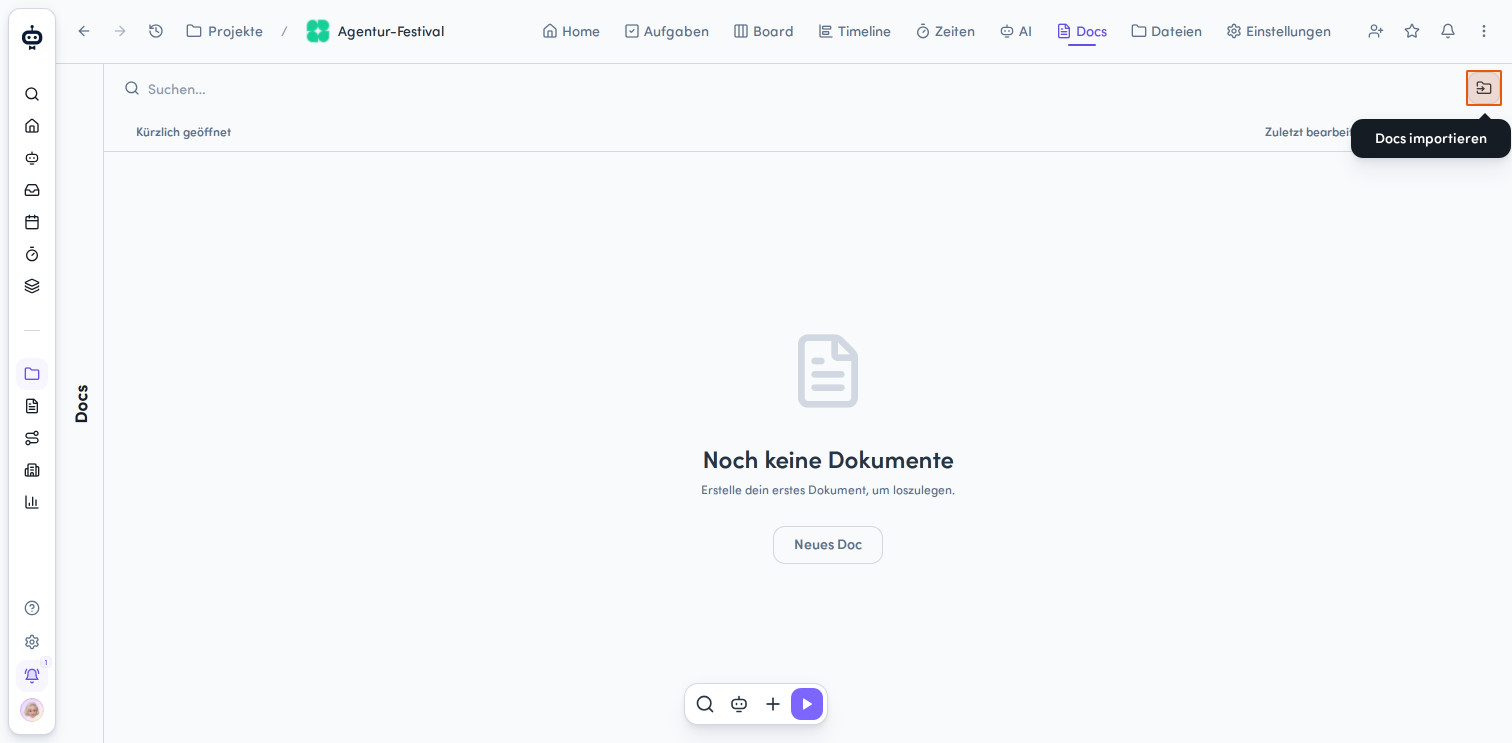
- Open a project
- Go to the Docs tab
- In the action bar at the top right, click the Docs importieren icon
- Select Aus Markdown importieren
The Docs aus Markdown importieren dialog opens.
Choose a location
- Next to Wähle einen Speicherort, click Durchsuchen or check the preselected location.
- If you start the import from a Space or project, that location is preselected. You can change it if needed.
- If you open the import dialog from the importer rather than from a Space or project, you need to select the destination yourself.
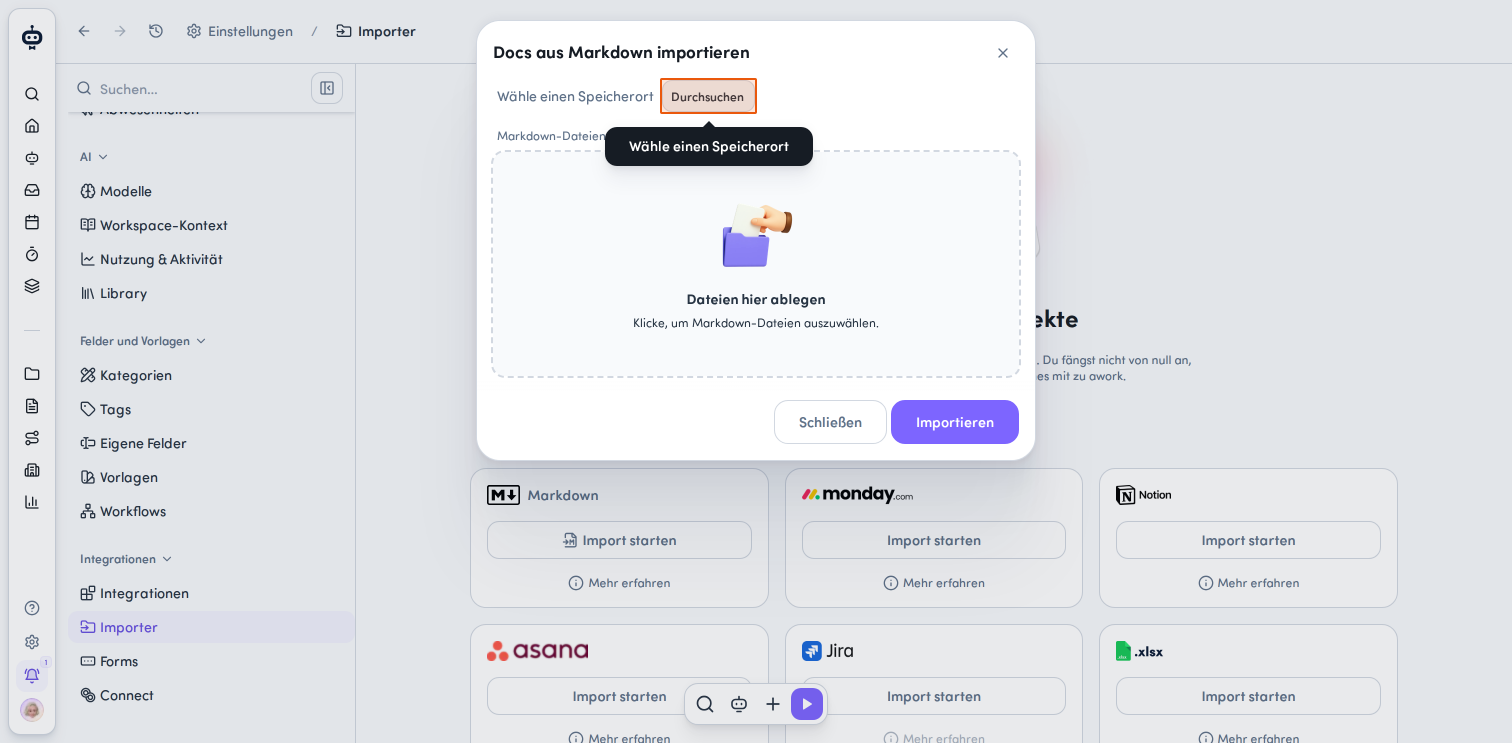
- In the selection window, choose the area you want:
-
Space – Import the Docs into a Space
-
Projekt – Import the Docs into a specific project
-
Privat – Import the Docs into your private area
- Go to the destination you want and confirm by clicking Auswählen
You can also optionally select an existing Doc as the parent Doc.
Add Markdown files
-
In the Markdown-Dateien (.md) section, drag and drop the files you want into the Dateien hier ablegen field, or click the area to select Markdown files using the file browser.
-
Check the filenames shown in the dialog after you select them.
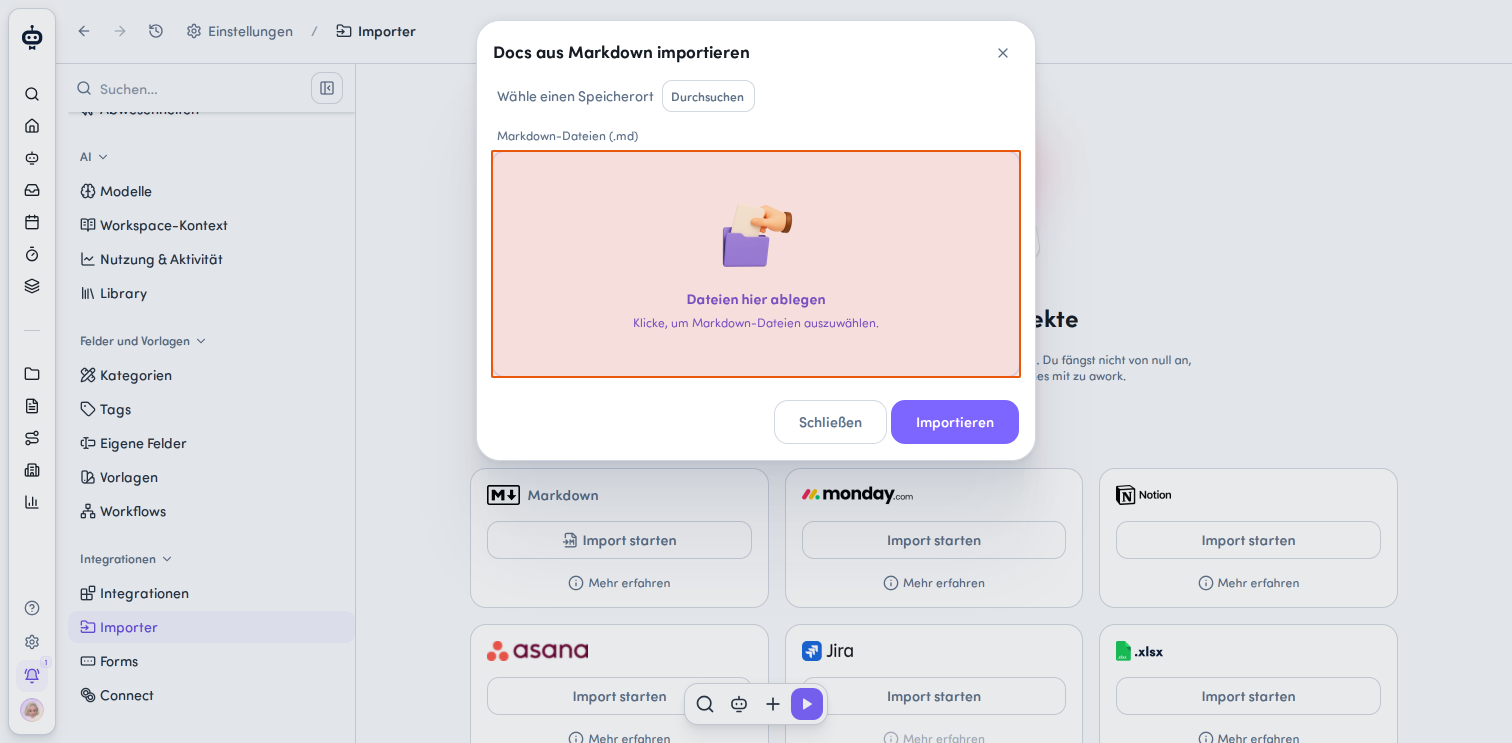
You can select one or more Markdown files at a time. A separate Doc is created for each file in the location you selected. Each Doc uses the corresponding filename as its name.
Only Markdown files with the .md extension are accepted. Other file types are rejected.
Start the import and check the results
-
Click Importieren to start the process.
-
Wait for awork to process all the files.
-
Check the import confirmation and the links to the Docs that were created.
-
Click Schließen to close the dialog.
awork imports the files one by one. You can't select files while they're being processed.
Import Markdown into an existing Doc
You can add the contents of a Markdown file directly to an existing Doc. You need edit access to the Doc to do this.
-
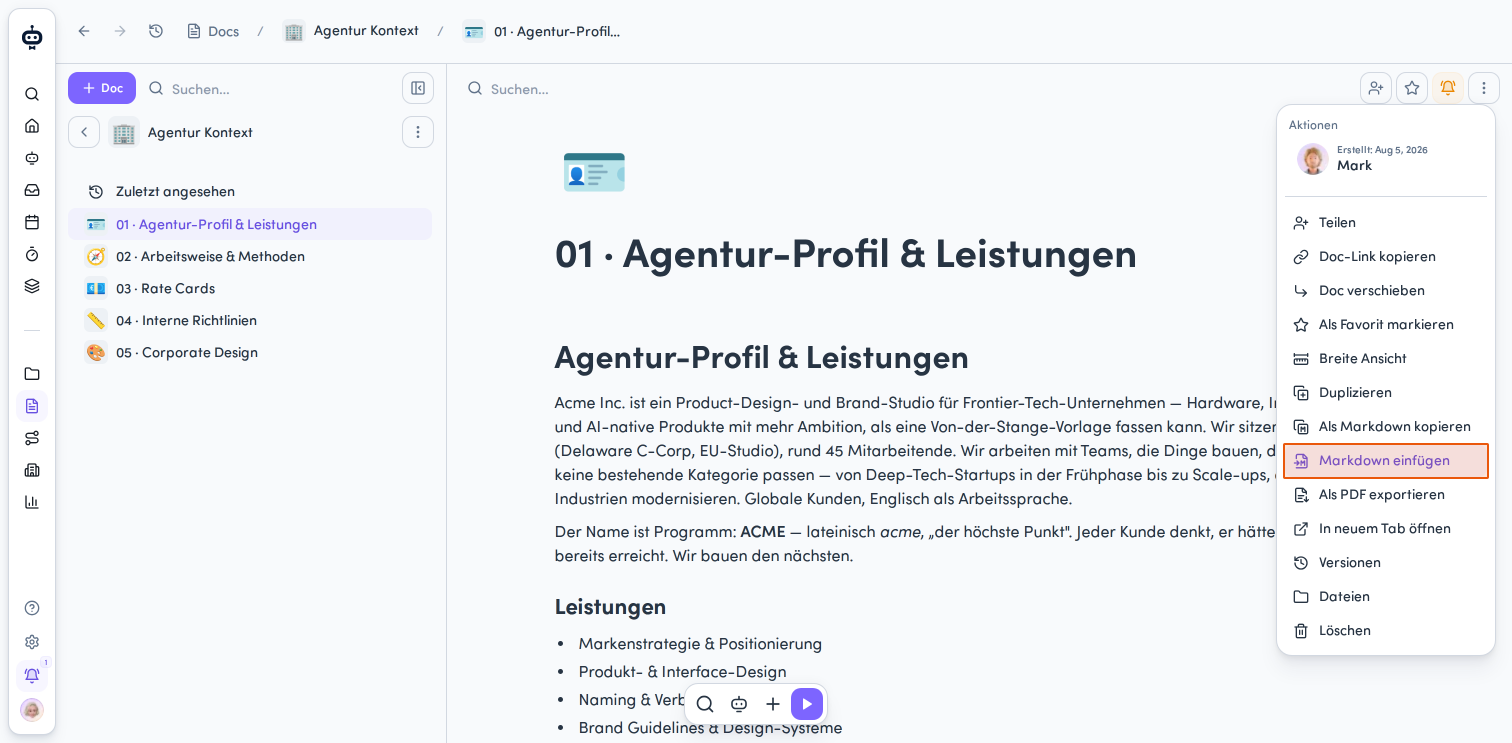
Open the Doc you want and click the Aktionsmenü in the top right. Alternatively, hover over a Doc in the Docs list and open its action menu.
-
Select Markdown einfügen
-
Drag a Markdown file into the highlighted area, or click the area to select a file.
-
Optionally, check Bestehenden Inhalt ersetzen
- Bestehenden Inhalt ersetzen: Replaces the current Doc content with the imported Markdown content.
- Leave the option unchecked: Adds the imported Markdown content to the existing content.
-
Click Importieren
You can select one Markdown file per import.
The dialog closes automatically after the import is complete. The imported content is then available in the existing Doc.
Troubleshooting tips
-
The Markdown import option isn't available: Make sure you have permission to create or edit Docs in the location you want. To access the importer through Einstellungen → Importer, you need admin permissions or access to the workspace settings.
-
The import won't start: If you haven't selected a file, awork displays an error when you try to import. Add at least one Markdown file (.md) before starting the import again.
-
A file is rejected: The importer only accepts Markdown files with the
.mdextension. Other file types aren't accepted. -
File selection is disabled: You can't select files while awork is processing them. The files are imported one at a time. When the import is complete, check the confirmation and the links to the Docs that were created.
FAQ
Can I import multiple Markdown files at once?
Yes. When creating new Docs, you can select multiple .md files at once. A separate Doc is created for each file, using the filename as its name. When importing Markdown into an existing Doc, you can only select one file per import.
Where can I find the imported Docs?
You'll find new Docs in the location you selected during import. If you import Markdown into an existing Doc, the content is added directly to that Doc.
Will the existing content of a Doc be overwritten?
That depends on your selection. If you enable Bestehenden Inhalt ersetzen, the current content is replaced. If you leave the checkbox unchecked, the imported content is appended.
What happens to the Markdown content during import?
awork automatically converts the imported Markdown content into Doc content. Supported Markdown formatting is preserved.
 Powered by happysupport.ai