
AI chat with the awork Agent
Chat with the awork Agent to find projects and tasks, create content, search the web, and generate images using voice or text input
The awork Agent understands your awork context and can do more than just answer questions. It can also look things up in awork and take action there.
Key benefits and use cases
The awork Agent is the built-in agent. You can get started right away without setting up an agent yourself.
For example, it can help you:
-
Find information – Find projects, tasks, or other information in awork
-
Get tasks done – Ask the agent to create tasks or update existing content
-
Use the web and images – The agent can use web search and image generation
-
Work with your awork context – Link projects, documents, and files directly to a thread
-
Use voice input – Dictate your prompt using the microphone instead of typing it
Typical questions include the current status of a project, available capacity, or which client a task is assigned to.
How to open the chat interface
You can access the awork Agent in 3 ways:
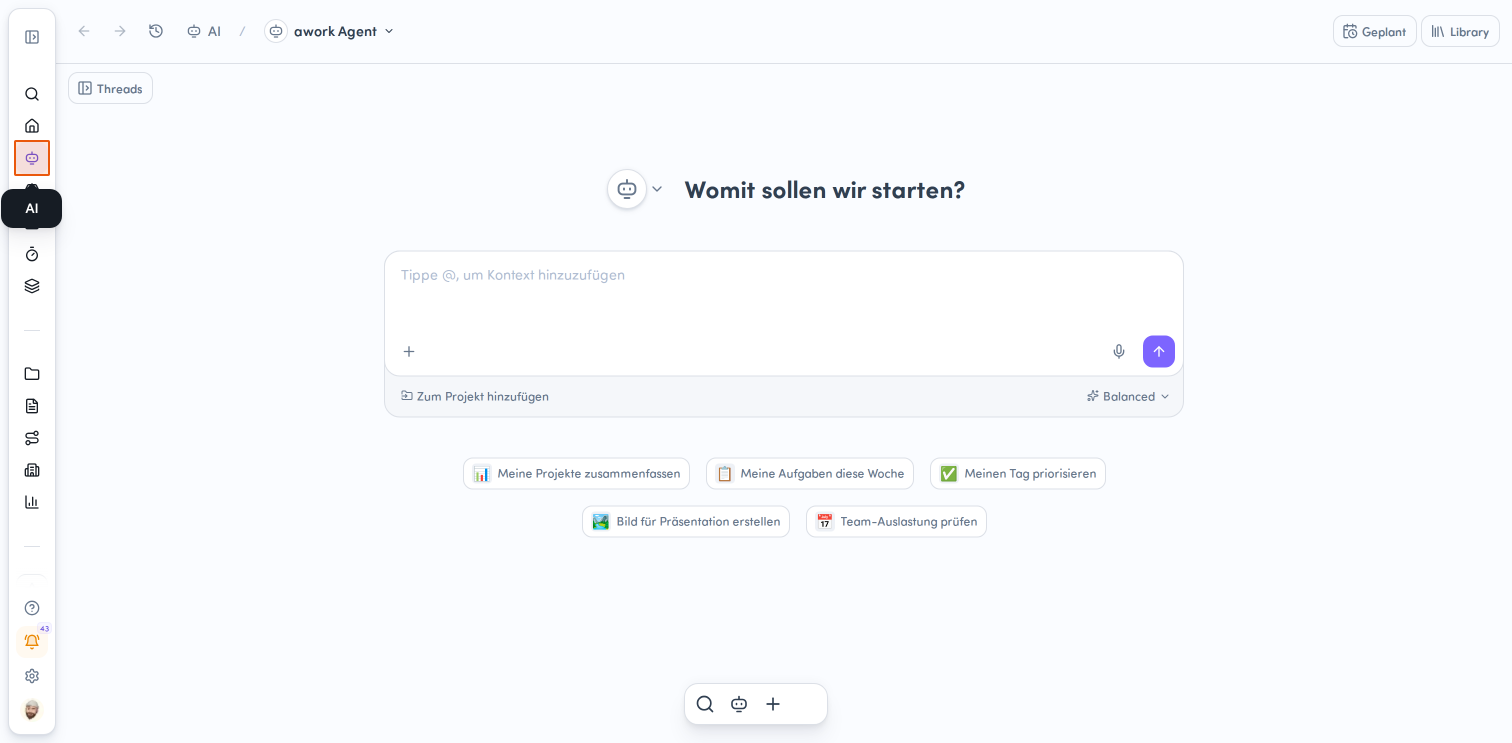
- Click AI in the main menu on the left
- Click the awork AI chat button in the floating action bar at the bottom of the screen. You can recognize it by the robot icon.
- Use the shortcut Cmd/Ctrl + I to open the AI chat sidebar
The views use the same thread history.
The prompt input field will open.
The input area
The input area is the main place where you interact with an agent.
View threads
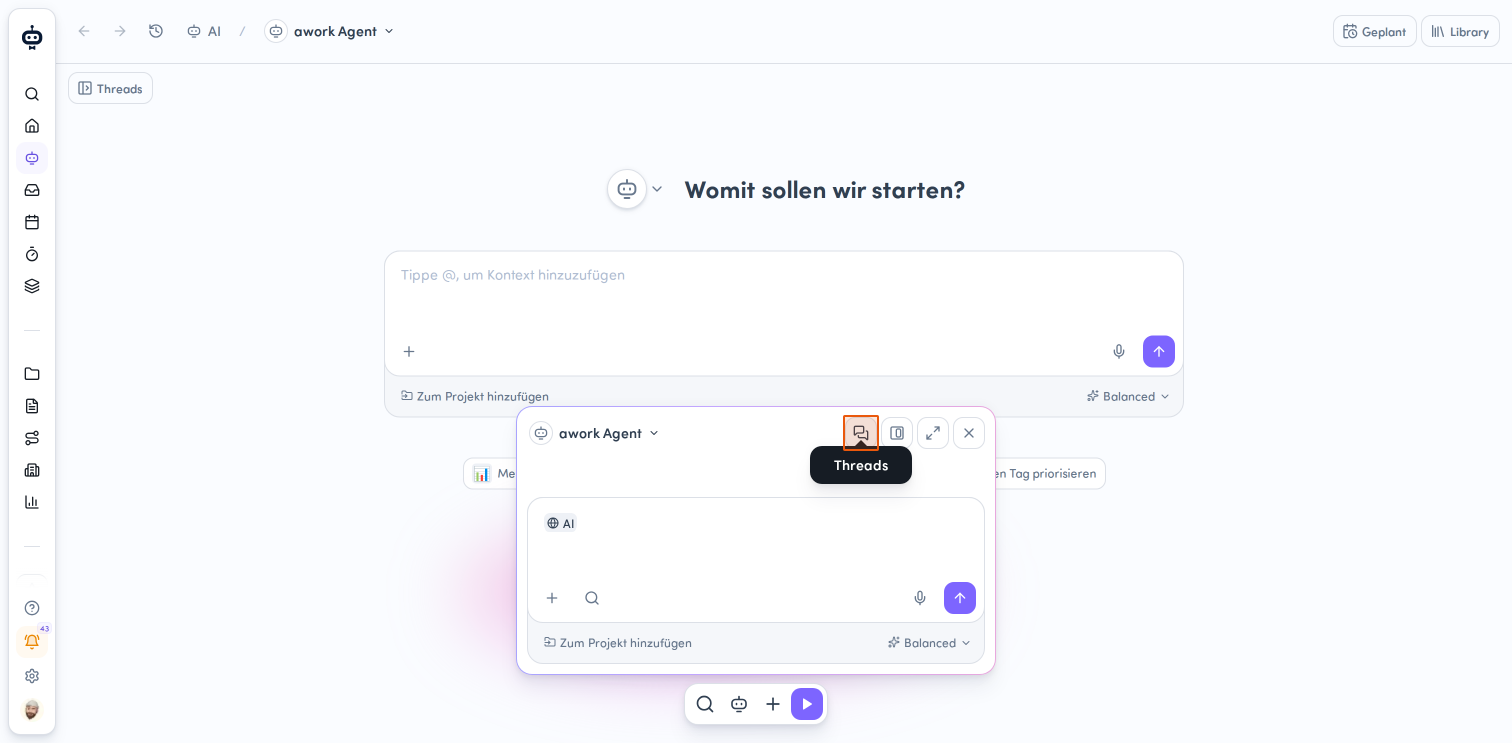
Click the Threads icon in the panel header to open an overview of your previous conversations. Threads are grouped into categories such as "Wartet auf eine Aktion" and "Zuletzt verwendet".
Adjust the view
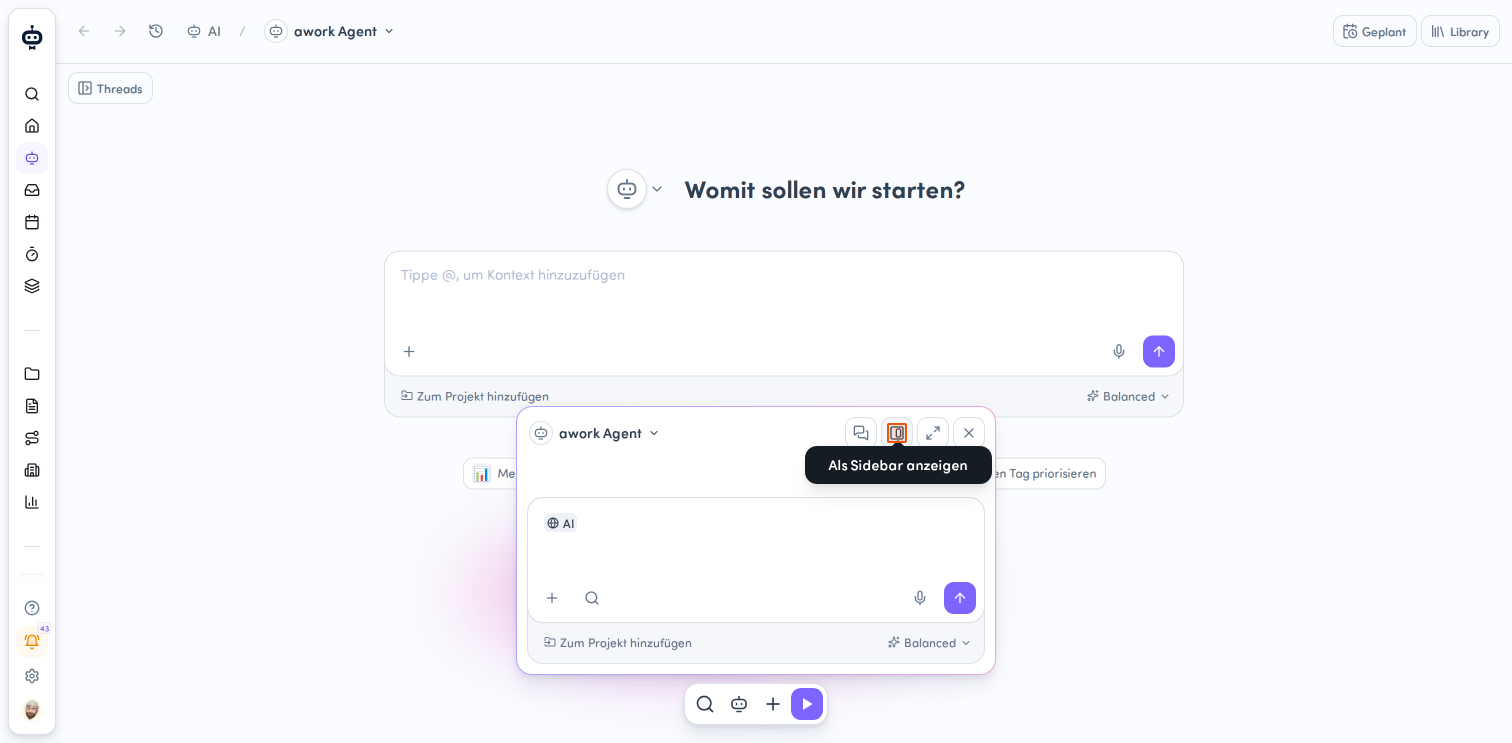
The chat window header gives you several display options:
- Als Sidebar anzeigen: Dock the panel as a sidebar on the right
-
Als Popup anzeigen: Show the panel as a floating window
-
Größe erweitern: Make the panel larger
-
Kleiner machen: Make the panel smaller
-
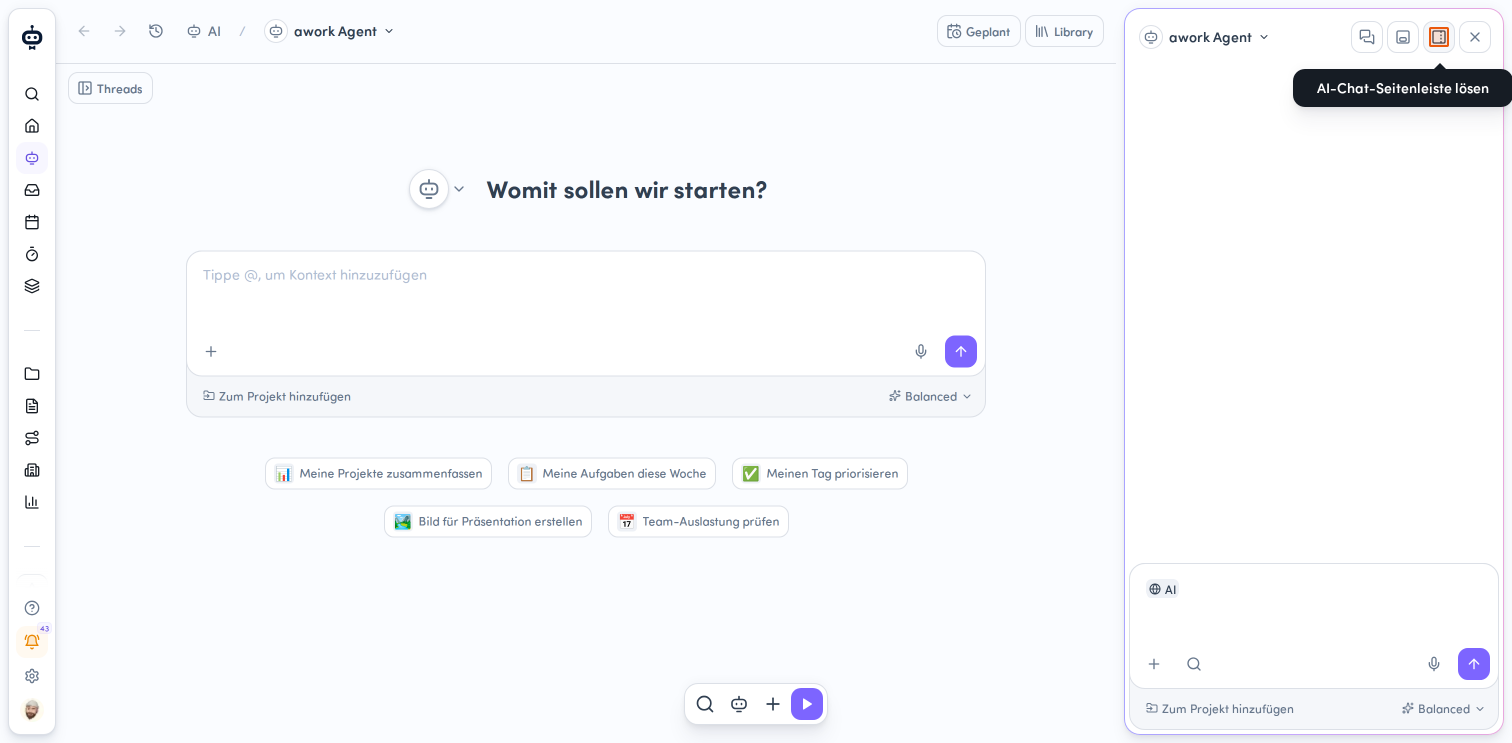
Dock and undock the sidebar
When the panel is displayed as a sidebar, use AI-Chat-Seitenleiste andocken to dock it, or AI-Chat-Seitenleiste lösen to undock it.
- Close the chat panel
Click the X in the top-right corner of the panel header to close the chat window. You can also press Esc.
Manage AI threads
A conversation with an agent is called a thread.
New threads are private by default. Connect a thread to a project when you want your team to see it. The access permissions of the relevant project or task context apply. You can also share individual threads directly with others.
Your threads are saved so you can return to them later.
Thread list
The thread list on the left gives you access to recently used threads.
Here you can:
-
Create threads
-
Search threads
-
Pin threads
-
Open threads and continue using them
Thread details
The thread details in the top-right corner show the following information:
- Agent: Which agent was used
- Gestartet durch: How the thread was started, for example through a project, an automation, or a schedule. You can open the relevant project or task directly from the thread details.
- Verantwortlich: Which user started the thread
- Gestartet: When the thread was started
- Verbrauchte Credits: The total AI credit usage for a thread, including all participants and delegated agent tasks. Credits used for failed or canceled work are also included.
- Projekt: Which project or task was involved
Thread actions
The action button for a thread, or the button in the top-right corner, gives you the following options:
-
Umbenennen: Change the thread name. Thread names are generated automatically.
-
Titel neu generieren: Generate a new thread title.
-
Zum Projekt hinzufügen: Link a thread that isn't already associated with a project to one.
-
Thread-ID kopieren: Copy the thread ID.
-
Link kopieren: Copy the link to the thread.
-
Teilen: Open the sharing settings for a private thread. You can add users, teams, or the entire organization with read or manage permissions. This option is available only in the main AI view and if you have the required permissions.
-
Als gelesen markieren
-
Für mich archivieren: Move the thread to the archive. Archived threads can no longer be actively worked on, but you can restore them later.
-
Thread verlassen: Remove your shared access to a thread, even if you got access through a team or the entire organization.
-
Für alle löschen: Delete the thread for everyone who has access to it.
Sharing, archiving, and leaving a thread require the relevant permissions. Direct sharing is intended for threads that aren't linked to a project or task.
Collaborate on shared threads
When someone shares a thread with you, you'll find it in your thread list or you can open it from the sharing notification.
With Lesen permission, you can view the conversation history and shared content. With Verwalten permission, you can also send messages and manage the thread.
To send messages, you need both Verwalten permission and access to the AI agent being used.
If you no longer want to see a shared thread in your active list, you can hide it using Für mich archivieren ausblenden without losing access. To remove your access completely, select Thread verlassen.
Thread status
AI threads can display different statuses and indicators.
-
Läuft: The agent is currently working on a request. A loading indicator appears while it's processing.
-
Fertig: The agent has finished processing the current request. A purple dot appears to the left of the thread title.
-
Agent wartet auf Deine Eingabe: When an agent asks a question and needs a decision or input, the AI thread is marked with a speech bubble icon. These AI threads are temporarily grouped under Wartet auf eine Aktion, so you can quickly see where your input is needed. Depending on the request, the agent may show you options to choose from or a custom input form.
You can also reply through a connected Slack, Microsoft Teams, or WhatsApp chat. The question and possible answer options will be sent there. Reply with the number of an option, the answer text, or your own wording. The waiting agent run will then continue. Approvals and special setup steps still need to be completed in awork. -
Unread thread messages
If a new message has arrived in an AI thread since your last visit, you'll see a notification counter on AI in the main menu on the left. This is especially useful for scheduled or automated agent runs.
Find AI threads in global search
You can also find AI threads in global search if you have permission to view them. Search respects existing access rights and sharing settings.
You can't access other users' private threads. For shared AI threads or threads linked to a project, visibility depends on the applicable sharing settings and project permissions.
If an AI thread doesn't appear in your search results, check whether you have the required access rights to the thread or the associated project.
Generated files
A thread contains more than just its messages. It can also include information such as files generated by the agent and the tools and connectors it used.
The agent decides how to share generated files in its response:
- Inline display: Selected HTML and image files can appear directly in the response. You can expand and collapse HTML previews, open them, and download them.
- Attachment cards: Other selected files are displayed as attachment cards in the response.
Choose and use an agent
Every new thread starts with the awork Agent by default, unless you've set a personal default agent.
To choose a custom agent when creating a new thread:
-
Open a new thread.
-
Click awork Agent and choose a custom agent from the selection field. Agents are grouped into Zuletzt verwendet, Favoriten, and Alle. This lets you quickly select agents you use often. You can also use the search field.
-
Start the thread.
Threads with specialized agents show that agent's avatar in the thread list. Threads with the awork Agent don't show an agent avatar there.
The agent is set for the thread after your first message. You can't switch agents within a thread. To use a different agent, start a new thread.
Set a default agent for AI chats
You can set a custom agent as your personal default so that new chats automatically start with your preferred agent. This setting applies to new chats on the AI page, in the sidebar, and in project chats. You can change the agent at any time or reset the setting so that the awork Agent is selected by default again.
👉 Learn more: Set a default agent for AI chats
Start custom agents through the awork Agent
The awork Agent can start a custom agent for a specific task. For example: "Use our briefing review agent to review this briefing."
How it works
-
Start an agent: Ask the awork Agent to use the custom agent you want.
-
Confirm the start: You confirm the first time each custom agent is started in a conversation.
-
Get the result: The result appears in the same conversation.
-
Continue the work: Further requests to the same agent continue its work without requiring you to confirm the start again.
The custom agent receives the task description and the context explicitly provided for the handoff. It doesn't automatically have access to the full chat history. Make sure to provide all the information it needs to complete the task.
Starting a custom agent doesn't change the agent initially selected for your conversation.
Work with context from awork
The awork Agent can work with your existing awork context.
You can enter text in the message input area and add context directly.
For example, when you select a project from the context menu, the AI receives the exact object ID. This avoids confusion with objects that have the same name.
-
Use the @-Verknüpfung to refer to awork objects and include projects, documents, or files in a thread, for example.
-
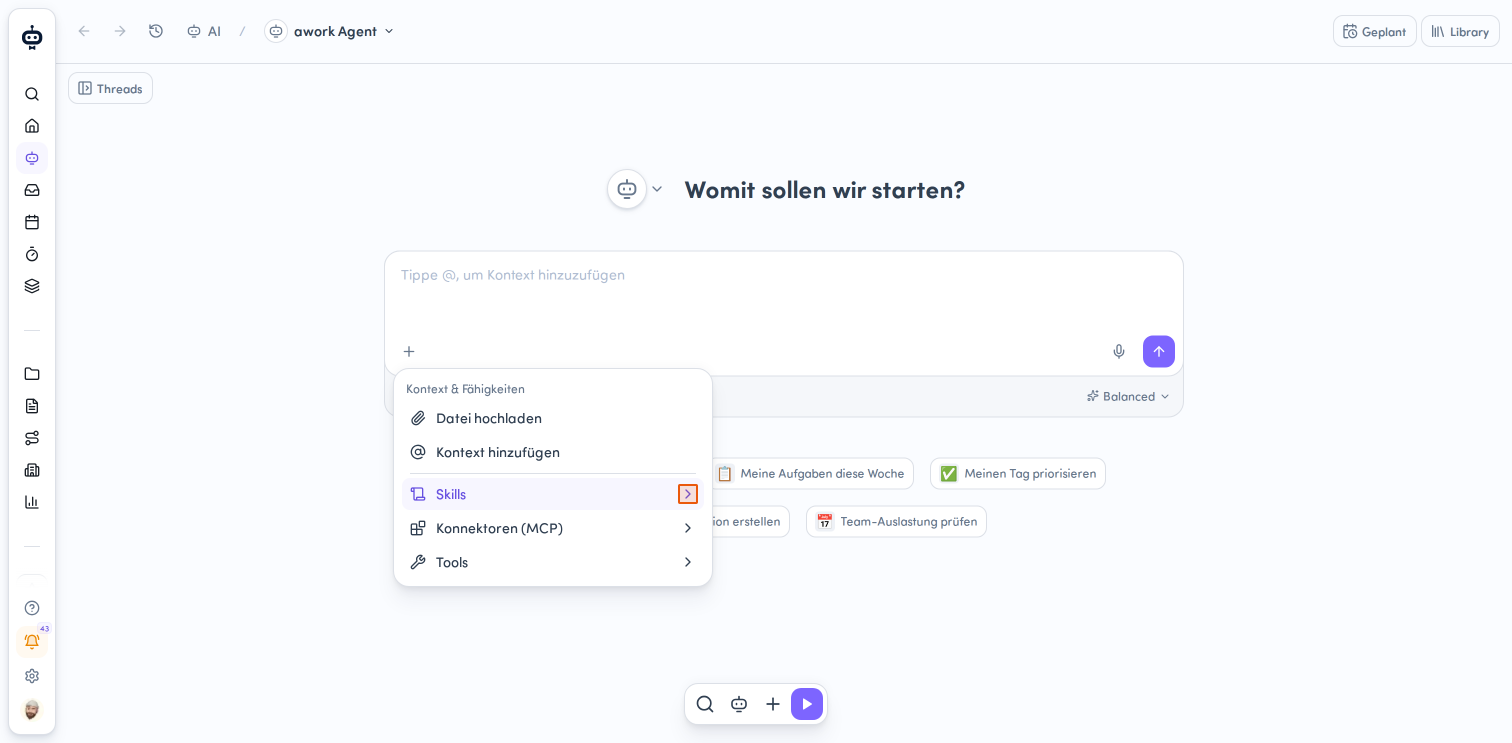
Or click the plus icon at the bottom left of the input field. A menu called "Kontext & Fähigkeiten" appears, with several options for adding content.
-
Datei hochladen: Add files as context. You can also drag and drop files or copy and paste them.
-
Kontext hinzufügen: Provide additional context.
Choose Person, Team, Kunde, Aufgabe, Projekt, Doc, or Aktueller Seitenkontext.
-
For the best results, provide relevant existing context directly whenever possible. This means the agent has less to infer or guess from your workspace.
A direct context reference is often more reliable than simply typing an object's name as plain text in the prompt.
Context doesn't necessarily mean that the entire contents of a referenced object are inserted into the prompt.
Instead, the AI evaluates the available context along with your intent and decides which information is relevant.
This lets you reference projects, documents, and other objects without manually copying all their contents into the prompt.
Upload files
You can attach files, including:
- Images
- PDFs
- Other documents
You can also add links.
You can send a valid file without any text. This works both as the first message to start a thread and as a follow-up message.
Use awork AI from anywhere
You can open AI from different areas of awork.
The page you currently have open can automatically become part of the context for a new AI interaction. For example, while working on a project or document, you can open AI and ask questions about that page.
Add capabilities
Click the plus icon at the bottom left of the input field. The menu that opens contains these options:
-
Skills: Turn skills on or off for your next message. In the panel that appears, you can activate more skills by clicking "In Library verwalten".
-
Konnektoren (MCP): Set up external connections. The side panel shows available connectors, which you can turn on or off using the toggle.
-
Tools: Turn tools such as Websuche and awork-Zugriff on or off. Web access is recommended for up-to-date information. Turn on awork access if you want to ask questions about information in awork or work with it. You can still turn these tools off if you want to limit the available capabilities or reduce usage.
Control the awork Agent's thinking mode
Choose a performance mode
You can choose how quickly or thoroughly the awork Agent should work. Click the Balanced button below the input field.
There are three simple presets:
-
Fast: For quick answers
-
Balanced: Balanced performance (default)
-
Deep thinking: For more challenging tasks that require more reasoning
In the workspace settings, a user with the required permissions can choose which model and reasoning level are used for the three presets. The models available also depend on the central workspace settings.
Enable advanced settings
Below the presets, you'll find the Erweitert option with a toggle. Turn it on to show additional settings such as Reasoning-Stufe, Bildmodell, and a selection of different AI-Modelle.
This lets you override the preset and choose the underlying model and reasoning level yourself.
The reasoning level determines how much effort the model puts in before responding. A higher level can produce better results for difficult tasks, but it works more slowly.
Not every model supports every reasoning level.
Hover over the available AI models to see their credit usage.
Switching models during a thread
You can also switch models after a thread has started.
Some models use technical prompt caching during inference to reuse previously processed context more efficiently. No prompt or output content is stored persistently.
We recommend sticking with the model you selected for the duration of an ongoing thread whenever possible.
Different models may interpret the same conversation context differently, which can affect the consistency of their responses. In addition, switching models may use more credits because technical prompt caching cannot be reused across models.
Sending messages while processing
You don't have to wait for the Agent to finish responding.
If you send another message while a run is in progress, it will be added to a queue. Up to 10 messages can be processed one after another per thread.
If there are already 10 messages waiting in the queue, you can't send another one until a spot becomes available. You can still edit messages that are already waiting.
By default, messages are processed in the order you sent them.
You can also prioritize a message that's already waiting. This ends the current run and starts the selected message instead.
Agent run details
While an Agent is working, you can use a dropdown arrow to expand or collapse a section containing reasoning and activity information.
The display distinguishes between:
- Reasoning and intermediate activities, which are shown in a less prominent style
- Final responses, which are highlighted as the actual answer
The reasoning section may contain information about:
- Searches
- Tool calls
- Individual processing steps
- Intermediate thoughts during execution
Each message also includes a timestamp and a button for copying the response.
This information is intended to make the process easier to follow. It isn't the Agent's actual response. The actual response is displayed separately.
Using voice input
There's a microphone icon in the input field. You can use it to dictate your message. Your spoken prompt is converted into text and sent to the Agent as a regular message.
Note: This is a dictation feature, not a spoken conversation with the awork Agent.
Taking action in awork with the awork Agent
The awork Agent can do more than just read awork data. It can also edit it.
For example, it can create or edit tasks and documents.
Before the Agent creates, edits, or deletes anything in awork, it will ask for your confirmation.
The awork Agent doesn't make changes silently in the background. It will ask for your confirmation before taking any actions that write to awork.
Memory and Workspace Context
The awork Agent can save information about you, a customer, or a project.
Different rules apply:
-
Personal information applies to you personally
-
Project-related information is used when the Agent is working in the context of that project
-
Customer-related information is used when the Agent is working in the context of the relevant customer
This memory runs in the background. There's no view where you can see or manage saved memories.
There's also the Workspace Context, where a team can add shared background knowledge, such as company information, terminology, rules, and ways of working.
All Workspace members can read the Workspace Context. Only users with the relevant Workspace configuration permissions can edit it.
The Workspace Context doesn't give Agents any additional tools or permissions.
FAQ
Is the awork Agent a custom Agent?
No. The awork Agent is the built-in Agent available to all users. Custom Agents, on the other hand, are saved Agents that can be set up and shared for specific recurring tasks.
Can I switch Agents within a thread?
No. Once you've sent the first message, the Agent is set for that thread. To use a different Agent, you'll need to start a new thread.
Can the awork Agent make changes in awork?
Yes. For example, it can create or edit tasks and documents. It will ask for your confirmation before taking any actions that write to awork.
Can the awork Agent use other tools?
Yes. It can search and edit awork data, use web search, generate images, and access other tools through connected apps.
Can I see what the Agent has done?
Yes. Agent actions are recorded in awork's activity logs, along with the responsible user and the Agent used.
 Powered by happysupport.ai