
Enable web search for agents
Enable web search for your agent so it can research current information online, find external sources, and cite references in its answers
Web search lets an agent research current information on the internet and cite sources in its answers. Here's how to enable web search, when to use it, and what limits apply to research.

Key benefits and use cases
Web search helps an agent answer questions that go beyond awork or require up-to-date information. It can find external web sources, read the content of a specific HTTPS page, and reference the sources it used in its answer.
Web search is useful for:
-
Up-to-date information: Research facts that go beyond the awork context
-
External sources: Find relevant information online and open sources directly
-
Verifiable answers: Reference the sources it finds in the agent's answer
You don't need web search to find tasks, projects, or other content in awork. The agent accesses your awork context directly for that. Learn more in AI chat with the awork agent.
How web search works
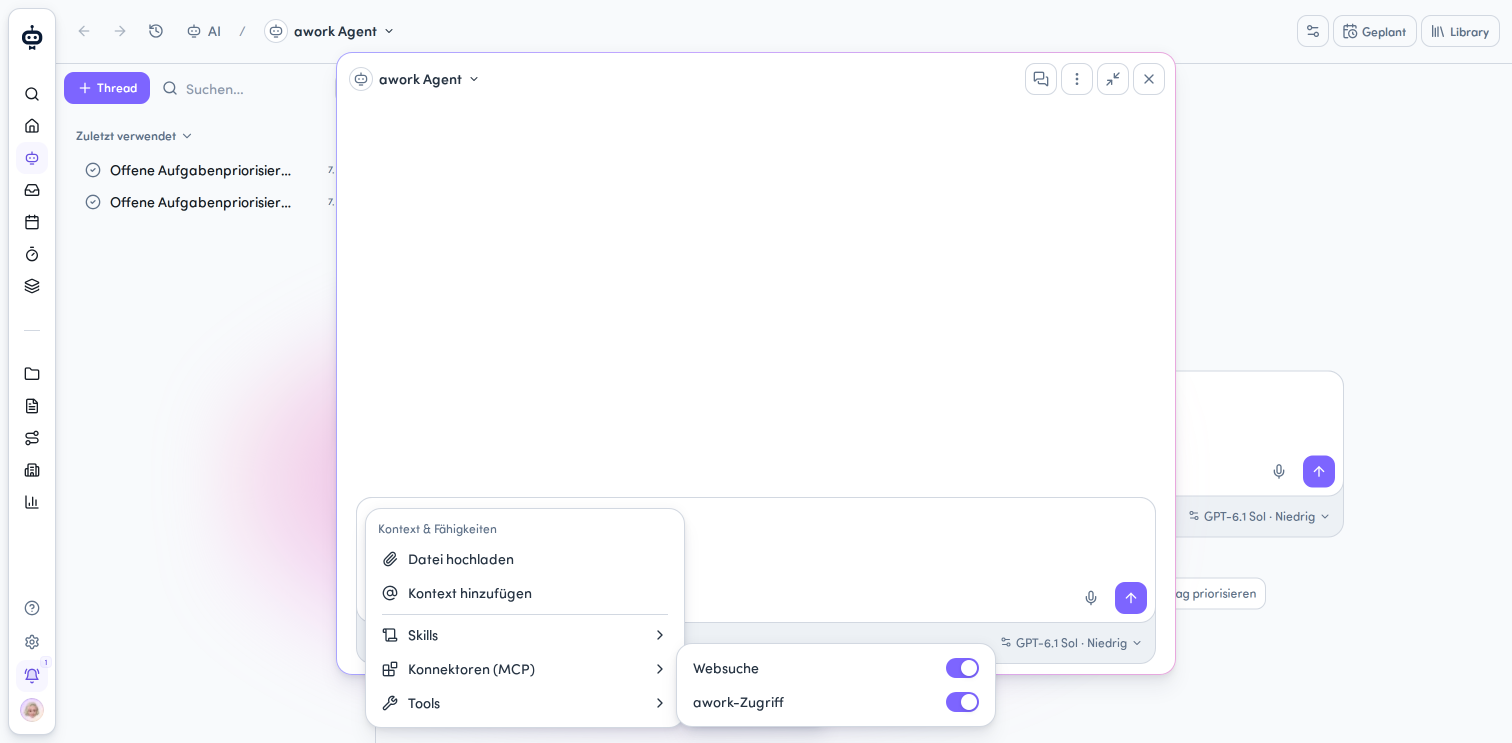
Describe what you need in the message field, then select web search as a tool from the chat features menu.
While researching, the agent can access information in three ways:
-
Search: Finds current web sources. Search results include links to sources
-
Read page: Retrieves the main content of a specific HTTPS page
-
Read search results: Reads extensive, previously saved search results section by section
The research appears in the thread as a Web search activity. Expand it to view the details.
Enable web search
For your agent to use web search, you need to enable the tool for that agent. You can enable it in the agent settings or directly in the agent chat window.
Enable web search in the agent settings
-
Open the agent settings
-
Enable web search for the relevant agent
Turn web search on or off in the agent chat window
-
Open the agent chat window.
-
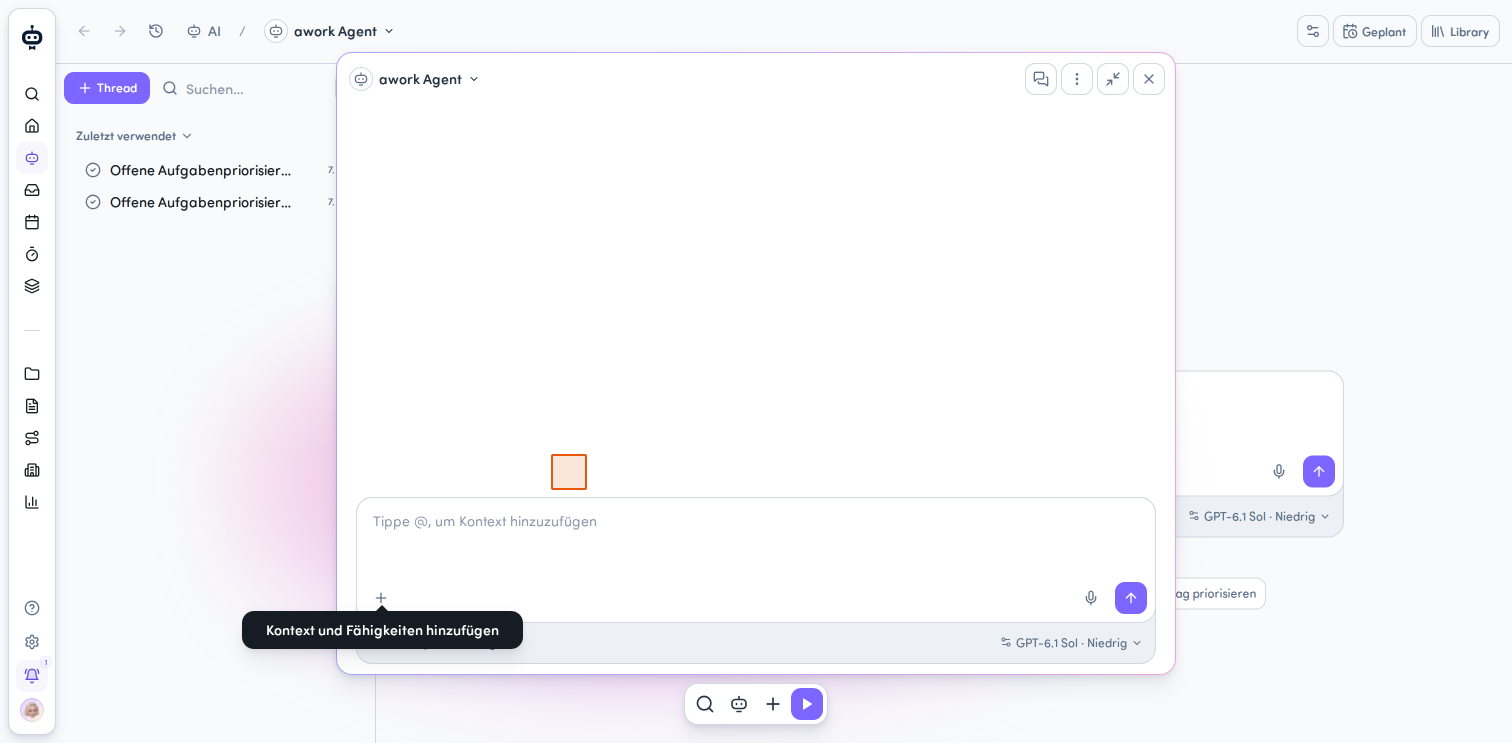
Click the plus button in the lower-left corner of the message area to open the Kontext & Fähigkeiten hinzufügen menu.
-
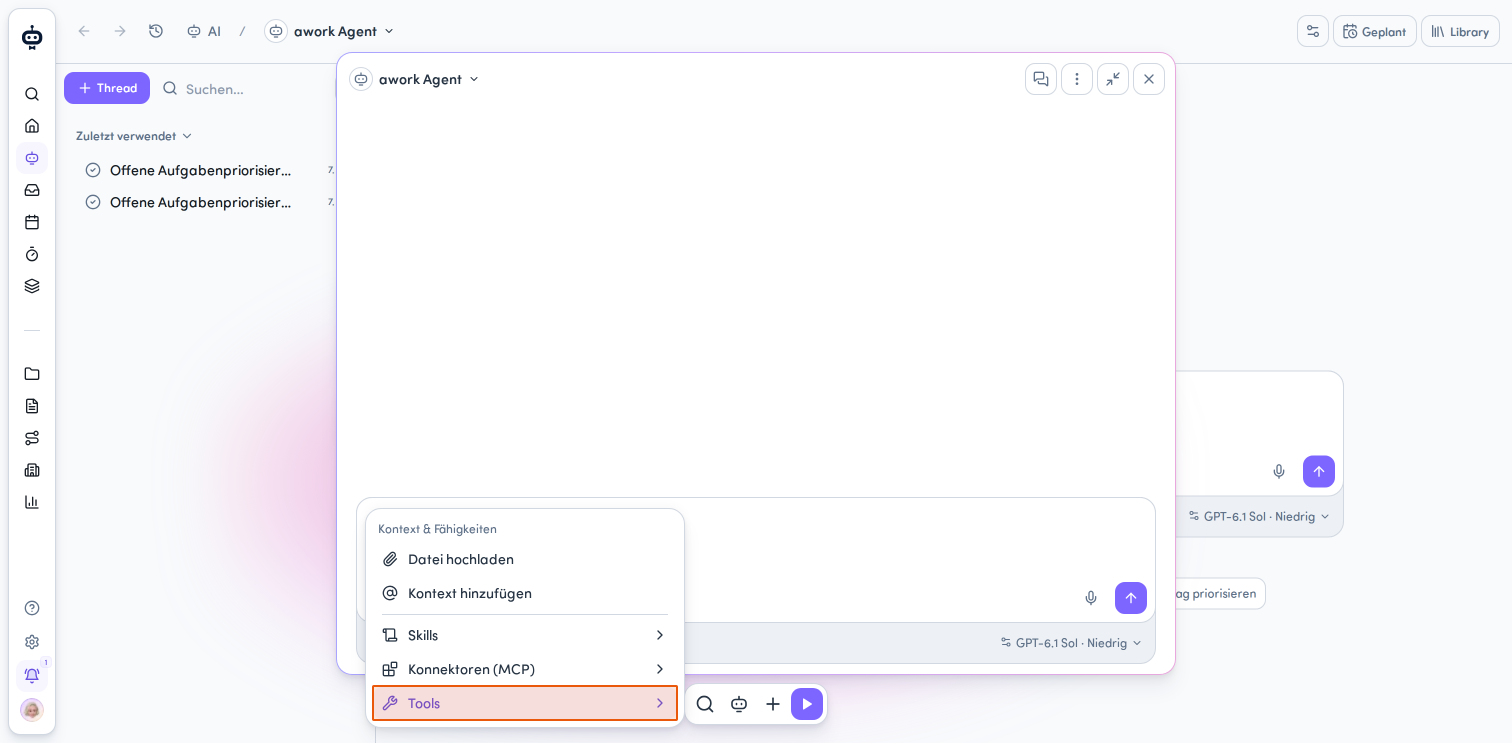
Click Tools to open a submenu with the available tools.
-
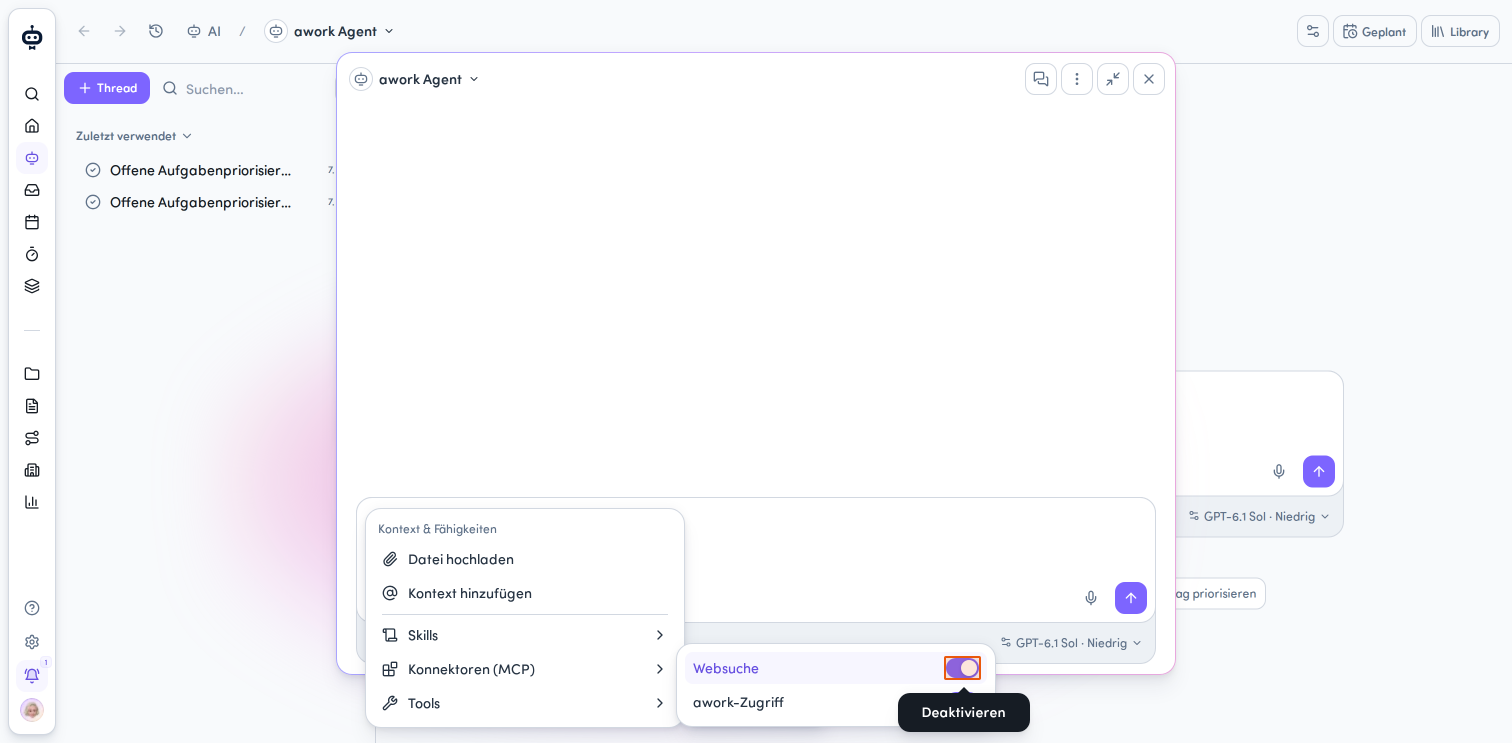
Turn on the toggle next to Websuche.
-
Click in the message area to close the menu. You can now write your message to the agent.
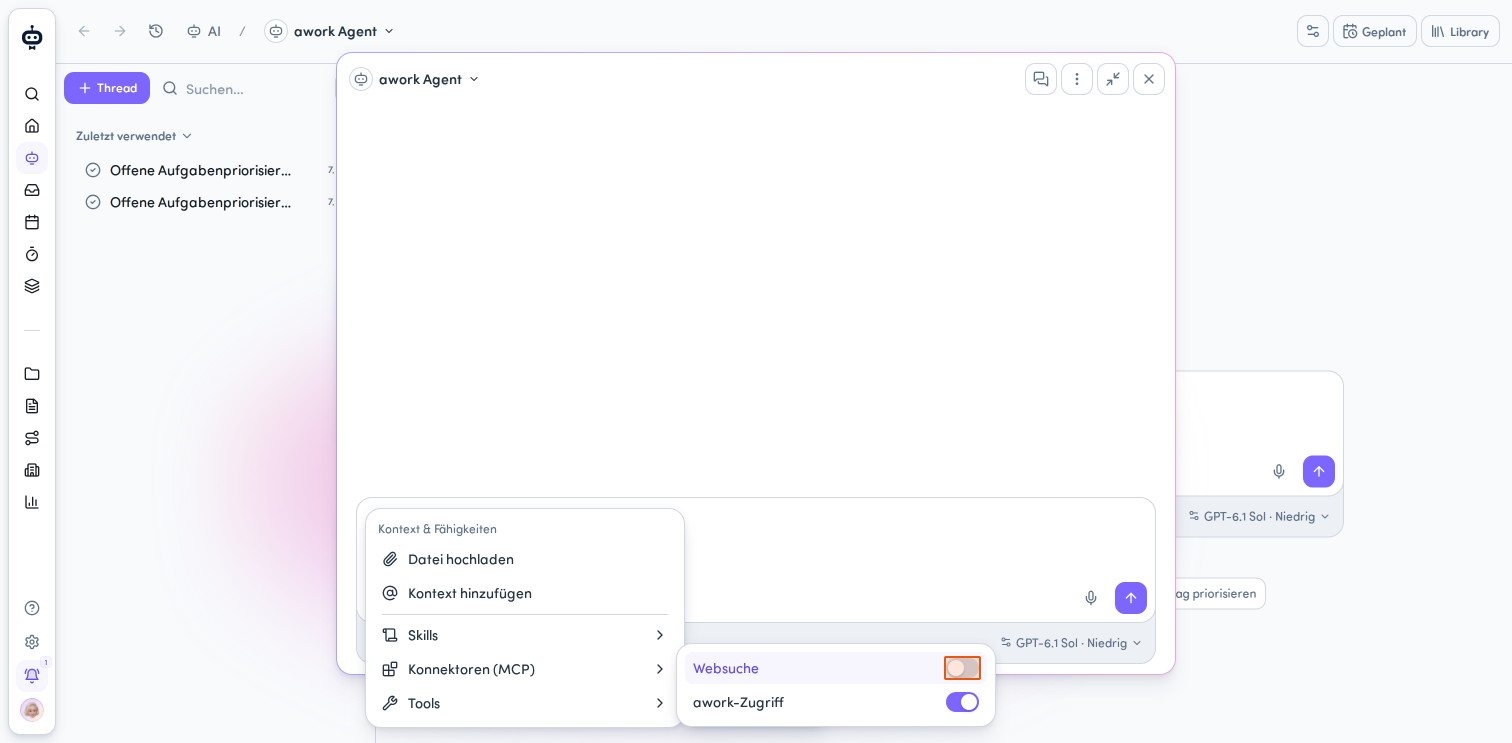
You can turn web search off at any time by following the same steps and clicking the toggle again.
Web search call limit
You can make a maximum of four web search calls per agent run. An agent run is the work the agent does to respond to your message.
Here's what to keep in mind:
-
Reading search results counts as a call, not just searching
-
Any further calls are rejected once the limit is reached
-
The agent stops researching and responds with the information it has already found
-
The results collected up to that point remain available. The agent's response may therefore be based on the evidence collected so far.
FAQ
When should I use web search?
Use it for questions that go beyond awork or require current facts from the internet.
Can the agent use web search to find tasks and projects in awork?
No. The agent accesses your awork context directly to find tasks, projects, and other awork content.
How many web search calls are allowed per agent run?
You can make a maximum of four calls per agent run. Reading search results also counts as a call.
How can I tell if the agent has searched the web?
The Web search activity appears in the thread. Expand it to view the research details.
Do I need to enable web search for each agent?
Yes. An agent can only use web search if you've enabled it for that agent.
 Powered by happysupport.ai