
Connectors Catalog
Connect AI agents to external tools like Airtable, Notion, Slack, and GitHub to search data, edit content, and automate workflows from conversations
Connect AI agents to external tools and work with data, content, and workflows directly from your conversation.
Key benefits and use cases
The Connectors Catalog lets you connect AI agents to external tools. Depending on the connector, an agent can search and analyze data, read and edit content, or take action.
The actions available depend on your connected account, your permissions, and the tools enabled by the provider.
The catalog includes connectors in the following categories:
-
Data and content: Airtable, Box, Contentful, Dropbox Dash, Google Workspace, Notion, WordPress.com
-
Development and infrastructure: Cloudflare, GitHub, LaunchDarkly, Sentry, Supabase
-
Sales, marketing, and CRM: Google Ads, HubSpot, Kickscale, Meta Ads, Moco, PostHog, TikTok Ads, Typeform
-
Communication and collaboration: Atlassian Rovo, Calendly, Intercom, Microsoft 365, Miro, Slack, Zoom
-
Analytics and other tools: Apify, Bitly, Metabase, Mobbin
Figma, Pitch, and Canva aren't available in awork yet. Work is underway on these integrations.
How to use the Connectors Catalog
A connector can share data with an external tool. Where supported, an agent can also create or modify data there. The available actions correspond to the permissions you grant to your connected account.
Connect a connector

-
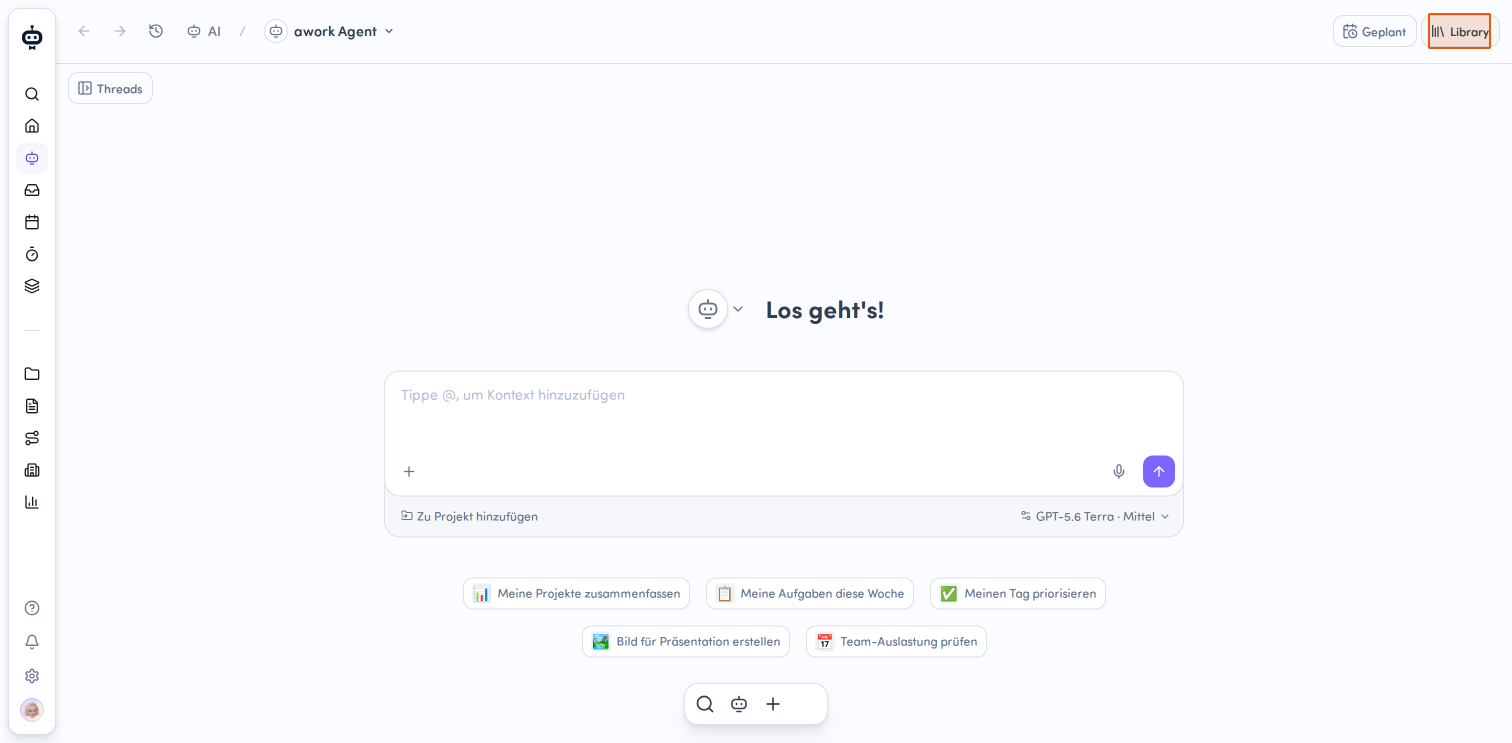
Open the Library
- Go to Einstellungen (the gear icon at the bottom left of the main menu) > Library
- Or open the AI section in the main menu on the left and click the Library button in the top right
-
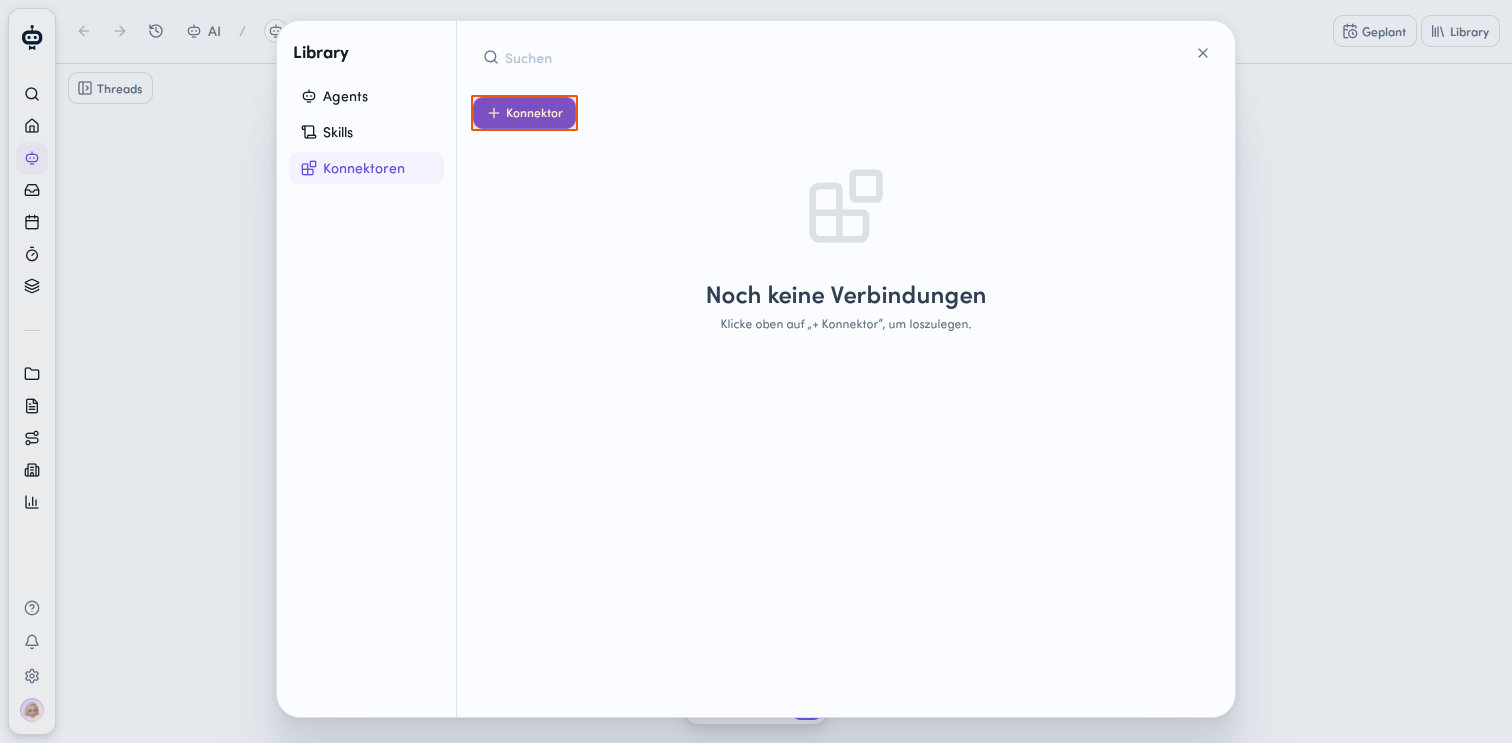
Select Konnektoren in the navigation on the left to view the available connections.
-
Then click the + Konnektor button at the top to add a new connector.
-
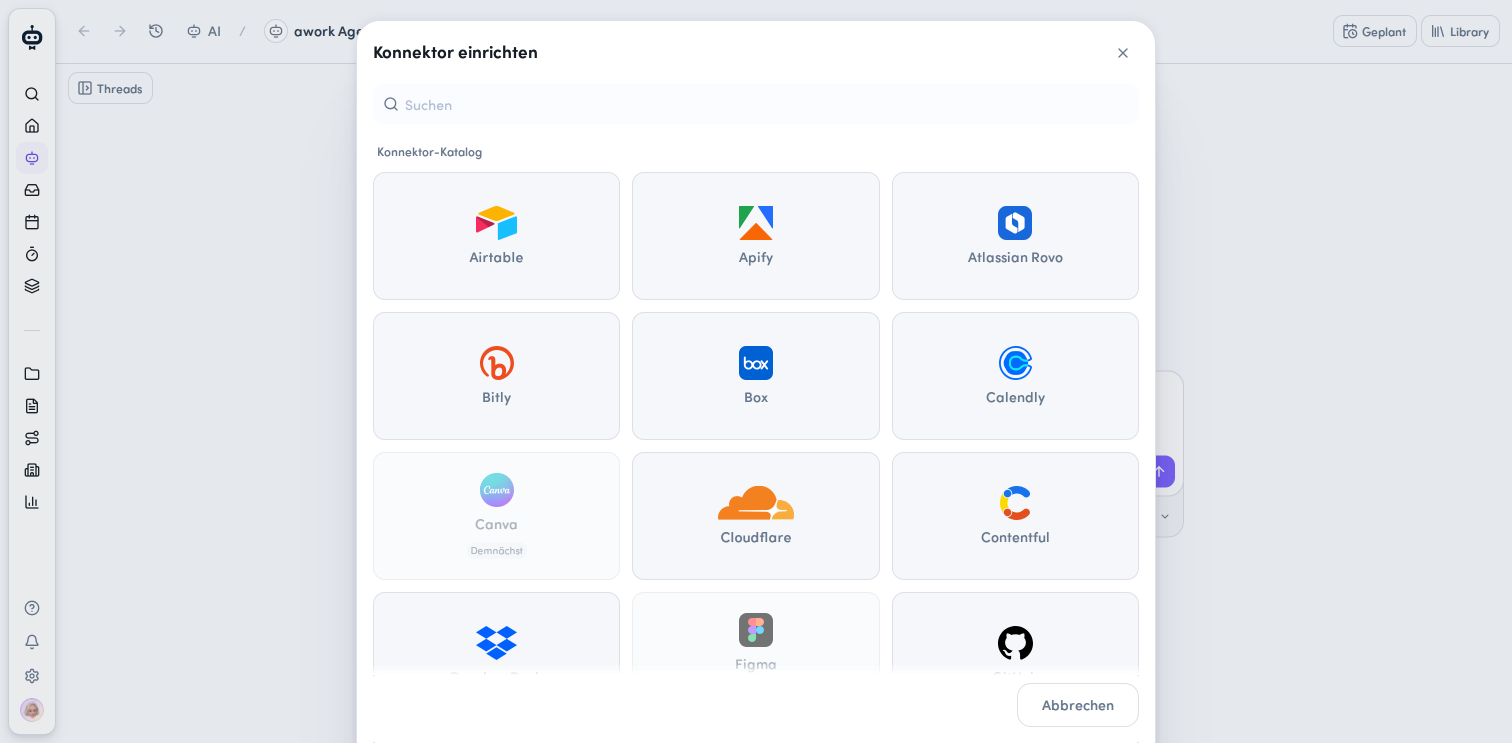
Select a connector from the catalog
The Konnektor einrichten modal opens, showing a catalog of available integrations. You can use the search field to find a specific connector, or scroll through the tiles. Select the connector you want by clicking its tile. -
Fill in the connector settings shown.
-
Add a connection.
-
Sign in with the relevant provider and approve access.
You've now selected a connector from the catalog and can continue setting up the connection.
Important: Adding a connector doesn't connect your account. Access is only granted once you add a connection, sign in, and approve access.
Most connectors only require you to sign in. You can find additional settings in the details for each connector.
Permissions and access
The actions a connector can perform depend on more than just the connector itself. Your connected account's permissions, the access you approve during authorization, and any settings configured by your organization or administrator may also affect what it can do.
Important: Before connecting, check which permissions the connector requests and what actions they allow.
Preconfigured connectors
Airtable
With Airtable, an agent can search and analyze data in your bases, create and update records, and work with bases, interfaces, and automation drafts. Your existing Airtable permissions remain in effect. This means users with read-only access can't make changes.
Permissions: The connector can read and modify records, comments, and the structure of the bases you authorize.
Requirements: An Airtable account, data in bases, and permission to use third-party integrations in your Airtable organization. An organization administrator may need to allowlist the integration.
Apify
With Apify, an agent can find and run Actors. These are ready-made tools in the Apify Store that collect and process web data. The agent can also retrieve results and search the Apify documentation.
Permissions: The connector gets access to your Apify account to run Actors and read or manage their data and results within your account permissions.
Requirements: An Apify account and authorization for the hosted connection.
Atlassian Rovo
Atlassian Rovo brings information from Jira, Confluence, Compass, and Teamwork Graph into your conversation with an agent. You can search for work items, summarize pages, and create content using your existing Atlassian permissions.
Permissions: The connector can read and modify Jira work items, Confluence content, and supported Compass and Teamwork Graph data within your account permissions.
Requirements: An Atlassian Cloud account with access to the relevant Jira, Confluence, or Compass apps. For OAuth, your organization must allow the AI tool's domain. Organization-wide IP allowlists and authentication policies can also block requests. API token authentication is an advanced option that depends on an organization setting.
Bitly
With Bitly, you can manage link workflows in the agent using natural-language requests. Access depends on your Bitly account.
Permissions: Access is determined during authorization and may also include managing your links. The permissions shown during authorization determine what the connector can do.
Requirements: A Bitly account and authorization for the hosted connection.
Box
With Box, an agent can search for and work with files and folders. The connector also provides access to Box AI tools. Access remains limited by your existing Box permissions.
Permissions: Access depends on the permissions configured for the Box integration and your access to files and folders. The permissions shown during authorization determine what the connector can read or modify.
Requirements: A Box administrator must enable MCP in the Box Admin Console. For custom clients, you also need Box Integration Credentials, including an OAuth Client ID, Client Secret, Redirect URI, and appropriate scopes such as Content Actions. All requests remain subject to Box permissions.
Calendly
With Calendly, an agent can find availability, book or cancel meetings, and create scheduling links. It can also list your event types. Available actions depend on your Calendly account permissions.
Permissions: The connector can read scheduling information and take actions such as booking and canceling meetings.
Requirements: An active Calendly account. Authorization is handled through the hosted connection. A pre-registered Client Secret or personal access token isn't supported.
Canva
Canva isn't available in awork yet. Canva currently limits its MCP server to certain clients. Integration with awork is in progress.
Cloudflare
With Cloudflare, an agent can work with DNS, Workers, R2, and Zero Trust, among other things. It can read account settings, suggest changes, and apply changes within the permissions you've granted.
Permissions: The Cloudflare account permissions you select during authorization determine which services the connector can read or modify.
Requirements: Sign in to Cloudflare using OAuth with the permissions selected during authorization. For CI/CD or automation, you can provide a Cloudflare API token with the required permissions as a bearer token. User and account tokens are supported.
Contentful
With Contentful, an agent can read and edit content, manage content models and assets, and work with spaces and environments. The available actions depend on your Contentful permissions and the tools enabled for the space and environment.
Permissions: The connector follows your Contentful permissions and the tools your administrator has enabled for the relevant spaces and environments.
Requirements: A Contentful account with access to the spaces and environments you want to use. The Contentful MCP App must also be installed and configured for remote use in each environment. For data residency, choose the appropriate global or EU endpoint. A local server requires a Content Management API Personal Access Token instead. Space and environment defaults are optional.
Dropbox Dash
With Dropbox Dash, an agent can search your connected business sources and read documents and files. The available search features are read-only.
Permissions: The connector requests access to your identity and to read and write Dash content. The documented tools currently focus on finding and reading information.
Requirements: A Dropbox Dash account with connected sources. Dropbox requires authorization for the hosted connection.
Figma
Figma isn't available in awork yet. Figma currently limits its MCP server to certain clients. Integration with awork is in progress.
GitHub
With GitHub, an agent can work with repositories, issues, pull requests, and discussions. Depending on your account and the available tools, it can also support development workflows, automated checks, and code security.
Permissions: The connector requests permissions to read and modify repositories and projects, download or publish packages, work with gists, and manage notifications. Actual access is limited by your account permissions and the permissions of the installed GitHub App.
Requirements: A GitHub account and authorization for the hosted endpoint. The upstream documentation doesn't list any additional client ID, tenant, or token fields in the catalog. Access and available actions depend on the GitHub account you're signed in to and the selected toolset or read-only URL.
Google Ads
With Google Ads, an agent can retrieve campaign data, compare performance, and analyze metrics, budgets, and campaign status.
Permissions: The current Google Ads MCP server provides read-only tools. The data available depends on your access to the relevant Google Ads accounts. During sign-in, Google requests the Google Ads permission scope, even though the server's current tools can't modify campaigns.
Requirements: Your organization must host the Google Ads MCP server itself with Google OAuth sign-in enabled. This requires a Google Cloud project with access to the Google Ads API and an OAuth client configured on the server.
Required configuration: Server URL: Enter the publicly accessible HTTPS address of your hosted MCP endpoint, including the path, for example, https://ads-mcp.example.com/mcp. The OAuth credentials are configured on the hosted server. Then add a connection in awork, sign in with Google, and confirm access.
Google Workspace
With Google Workspace, an agent can work with Calendar, Docs, Sheets, and Slides. Depending on the tools enabled, it can manage events and read and edit documents, spreadsheets, and presentations.
Permissions: The connector requests permissions to manage calendars and to read or modify documents, spreadsheets, and presentations. It also requests basic profile and email address information.
Important: The connector can't currently access your Gmail inbox. Also, access to Google Drive is limited to files created by an awork AI agent. Other Google Drive files aren't accessible. These limitations are due to a restriction on Google's side. We're working on a solution. Use the enhanced Google Workspace connector to work with emails in Gmail and files in Google Drive.
Google Workspace (enhanced)
With Google Workspace (enhanced), an agent can work with Gmail, Calendar, Drive, Docs, Sheets, and Slides. Depending on the tools enabled, it can manage events, retrieve and send emails, and read and edit files, documents, spreadsheets, and presentations.
Permissions: The connector requests permissions to manage calendars and to read or modify emails, files, documents, spreadsheets, and presentations. It also requests basic profile and email address information.
Setup: To use the enhanced Google Workspace connector, you need your own OAuth client in Google Cloud.
- Configure OAuth consent: Under Google Auth Platform → Branding, enter an application name and a support email address. Under Audience, select Intern.
- Add scopes: Under Data Access, add the scopes required by the connector:
openid
https://www.googleapis.com/auth/userinfo.email
https://www.googleapis.com/auth/userinfo.profile
https://www.googleapis.com/auth/gmail.modify
https://www.googleapis.com/auth/drive
https://www.googleapis.com/auth/calendar
https://www.googleapis.com/auth/documents
https://www.googleapis.com/auth/spreadsheets
https://www.googleapis.com/auth/presentations
- Create the OAuth client: Under Clients → Create client, select Web application, enter a name, and add the awork redirect URI. Create the client and securely save the Client ID and Client Secret.
https://app.awork.com/api/v1/agents/connectors/auth/callback
- Enable the Google APIs you want to use.
Use the ID and secret in the enhanced Google Workspace connector in awork.
HubSpot
With HubSpot, an agent can query CRM records, sales activities, marketing content, campaigns, conversations, and account information. It can create or update selected CRM records and activities, publish landing pages and blog posts, manage campaigns, and prepare marketing email drafts. The available actions depend on your HubSpot permissions.
Permissions: The connector's permissions are based on your HubSpot user permissions, your account subscription, and the access you grant when you authorize the connection.
Prerequisites: A MCP Auth App must be set up in your HubSpot account. Authorization takes place through the hosted connection. The available scopes are based on the signed-in user's permissions and the account's subscriptions.
Intercom
With Intercom, an agent can search and retrieve workspace data such as conversations and contacts. The documented tools also support Intercom actions such as creating Help Center articles. Access depends on the authenticated user.
Permissions: The connector needs access to contacts, companies, and conversations. The documented permissions also allow internal conversation notes and the creation or updating of Help Center articles.
Prerequisites: According to Intercom, the hosted MCP server currently supports only US-hosted workspaces. Each connection is authenticated. No separate provider credentials or additional setup steps were visible on the available first-party page.
Kickscale
With Kickscale, an agent connects to Sales Insights, allowing you to bring conversation and deal context into your workflows. In its extended integrations, Kickscale combines CRM, meeting, email, and calendar data to analyze customer conversations, coaching signals, and deal progress.
Permissions: Access is determined when you authorize the Kickscale connection. You can see which information and actions are available during authorization.
Prerequisites: The linked page confirms an MCP server but does not document authentication, account requirements, or setup steps.
LaunchDarkly
With LaunchDarkly, an agent can manage feature flags and targeting rules using natural language. It can also manage AgentControl configurations and query observability data such as logs, traces, errors, metrics, and dashboards.
Permissions: The connector requests read and write access, as well as access to observability data. The actions available to you depend on your LaunchDarkly permissions.
Important: You must enable the hosted MCP server in LaunchDarkly before using it. The hosted server is not available in the Federal and European Union environments. You must use the local server there.
Meta Ads
With Meta Ads, an agent can retrieve campaign performance, list ad accounts, and create or manage campaigns, ad sets, and ads.
Permissions: The available actions depend on your Meta account permissions and the access you grant when signing in. Additional permissions can provide access to catalogs, business assets, Facebook Pages, and Instagram accounts.
Prerequisites: A Meta account with access to the ad assets you want to use. For the current OAuth setup in awork, you also need a Meta app with the use case for the Ads MCP server.
Required configuration: Enter your Meta App ID as the OAuth Client ID. A client secret is not required. Meta also offers connections that do not require your own app for certain AI platforms. However, automatic client registration was rejected in our test with awork. The instructions below therefore describe how to set up a Meta app.
-
Create or open an app in Meta for Developers.
-
Add the use case Create & manage ads with ads MCP server.
-
In Facebook Login for Business, enter this redirect URL:
https://app.awork.com/api/v1/agents/connectors/auth/callback -
In awork, enter your Meta App ID in the OAuth Client ID field.
-
Add a connection, sign in to Meta, and confirm access.
Metabase
With Metabase, an agent can access governed business data, create and run queries, and return results as text or as inline bar, line, or table charts. It can also retrieve database metadata, allowing an agent to prepare Metabase questions and dashboards using real tables and fields.
Permissions: Depending on your Metabase configuration, the connector can access available business data, run queries, and create or modify saved questions, metrics, dashboards, and collections. Your Metabase permissions and administrator settings determine which actions are actually available.
Prerequisites: A Metabase administrator must first enable AI features and then enable the MCP server under Admin > AI > MCP. Each connection uses the permissions of the signed-in Metabase user.
Required configuration: Subdomain: the part before .metabaseapp.com in your account address. For example.metabaseapp.com, enter example. It can contain letters, numbers, and hyphens, and must be no more than 63 characters long. It must begin and end with a letter or number. Enter only the subdomain, without https://, dots, or paths. Then sign in and confirm access.
Microsoft 365
With Microsoft 365, an agent can work with Outlook email and calendars, OneDrive files, Excel workbooks, OneNote, To Do, Planner, contacts, and Microsoft Search. Depending on the enabled tools and account access, it can also work with Teams, SharePoint, meeting transcripts and recordings, and shared mailboxes and calendars.
Permissions: The connector requests access to read and modify emails, calendars, contacts, and files, as well as to send messages and read SharePoint content. Depending on your account permissions, Teams permissions may also include creating or deleting channels and changing team membership.
Prerequisites: The connected upstream server requires Microsoft authentication and requests the appropriate Microsoft Graph permissions based on the enabled tools. The default app supports interactive authentication. For a custom production deployment, you can instead use an Azure Entra app registration with a Tenant ID, Client ID, an optional client secret for Public Apps, and the appropriate redirect URIs.
Miro
With Miro, an agent can search and summarize boards, build boards, create diagrams, and work with comments. Supported content includes frames, sticky notes, shapes, text, cards, documents, tables, and images from public URLs.
Permissions: The connector can read and modify boards and their content that you can access. It can also access your identity and email address.
Requirements: During authorization, you select a Miro team. The connector can only access boards shared with the user under their current permissions. The server is available on all Miro plans. In an Enterprise environment, an administrator may need to enable it for the organization or selected teams.
Moco
With Moco, an agent can query business data about leads, offers, projects, planning, time tracking, billing, customers, and business development. If write access is enabled, it can also create or update projects, contacts, planning entries, time entries, leads, and offers, among other things.
Permissions: The connector can read the data you have access to in Moco. If your administrator enables write access, it can also create or modify supported records.
Requirements: An account administrator must enable the AI feature under Settings > Account > AI and select read-only or read/write access for MCP. Users then authorize with their personal Moco login through an OAuth-enabled client. Your existing Moco permissions remain in effect. Depending on the client, a paid plan or admin privileges may be required.
Required configuration: Subdomain: the part before .mocoapp.com in your account address. For example.mocoapp.com, enter example. You can use letters, numbers, and hyphens, up to 63 characters. The value must start and end with a letter or number. Enter only the subdomain, without https://, dots, or paths. Then sign in and confirm access.
Mobbin
With Mobbin, an agent can access a searchable library of real-world product screens and design patterns. It can find examples of flows such as onboarding, checkout, pricing, and permissions, compare solutions from published products, and use these references when designing products.
Permissions: The connector requests access to sign-in, your profile, and your email address, as well as permission to keep the connection active. Access to the design library is controlled by your Mobbin account.
Requirements: Mobbin paid plan. Sign in with your Mobbin account and confirm the connection in your browser. According to Mobbin, no API key is required.
Notion
With Notion, an agent can read and update pages and other content you have access to in the selected workspace. It can find workspace knowledge, summarize or organize content, create and update pages, add comments, and upload files within Notion's limits.
Permissions: The connector uses the workspace access you grant. This may include the ability to read and edit content. Your Notion permissions determine which pages and other content are accessible.
Requirements: A Notion account with access to the desired workspace. The connection uses a browser-based OAuth flow, during which you select the workspace to connect. Notion currently requires interactive authorization.
Pitch
Pitch isn't available in awork yet. Pitch currently limits its MCP server to certain clients. The awork integration is in progress.
PostHog
With PostHog, an agent can work with product analytics and development data. This includes analytics and HogQL queries, errors and stack traces, feature flags and experiments, support tickets, and CDP destinations.
Permissions: The connector requests extensive access to analytics, feature flags, experiments, recordings, data sources, and project and organization settings. Many of these permissions allow not only viewing, but also changing data and settings.
Requirements: Sign in to the PostHog organization that contains the desired project and confirm OAuth access. Some tools that use PostHog AI require AI data processing to be enabled and may incur PostHog AI usage costs.
Sentry
With Sentry, an agent can search for errors, analyze performance, triage issues, read Sentry documentation, and manage projects. This lets you investigate errors and performance issues using up-to-date Sentry context.
Permissions: The connector requests access to organization information, as well as permissions to create or modify projects and teams and update issues.
Requirements: A Sentry account with access to the required organization or project. The first connection starts a browser-based OAuth flow.
Slack
With Slack, an agent can search messages, files, people, and channels, and read channel or thread history. It can also send or draft messages, create conversations, add reactions, manage canvases and lists, and upload files. The available actions depend on the granted scopes and workspace permissions.
Permissions: The connector can search and read channels, direct messages, files, and profiles that you can access. It can also send messages, manage conversations, edit canvases and lists, and upload files.
Requirements: Register a Slack app or use an existing one, and configure confidential OAuth with a client ID and client secret. For the Slack MCP server, Slack currently only allows apps published in the Marketplace and internal apps. Unpublished apps aren't supported. Add the scopes for the actions you want, and get approval from your workspace administrator if needed.
Required configuration: First register an OAuth app with the provider, then fill in these fields.
| Field | Meaning |
|---|---|
| OAuth client ID | The identifier issued by Slack for the registered app. It identifies the app, not your user account |
| OAuth client secret | The secret issued for the app. You can find it in the app settings. It isn't your account password |
Supabase
With Supabase, an agent can inspect and work with Supabase projects and Postgres databases. Depending on the enabled tool groups, it can query or migrate databases, check logs and advisors, generate TypeScript types, deploy Edge Functions, manage projects and branches, and search the Supabase documentation.
Permissions: The connector requests permission to read and modify projects, databases, Edge Functions, environments, and storage. Depending on your account permissions, it may also access analytics and project API keys or secrets.
Requirements: A Supabase account and selection of the organization that contains the project you want to use. The hosted server normally uses browser-based OAuth with dynamic client registration. For production data, Supabase recommends restricting access to the project you need and using read-only mode.
TikTok Ads
With TikTok Ads, an agent can retrieve campaign performance, create or update supported campaigns and ads, and work with ad creatives and product catalogs.
Permissions: The connector can read and modify data in the TikTok for Business resources you authorize. Available actions depend on your account permissions and the tools supported by TikTok.
Requirements: A TikTok for Business account with access to the ad resources you want to use.
Setup: Add TikTok Ads from the awork connector catalog. Then create a connection, sign in to TikTok, and confirm access. You don't need to configure an OAuth Client ID or Client Secret manually.
Important: TikTok authorization is valid for 30 days. After that, reconnect using the same TikTok for Business account.
Typeform
With Typeform, an agent can create and edit forms, including their fields, logic, and publishing settings. It can also manage automations, contacts, and lists, and analyze responses using raw data, aggregates, rankings, and time series.
Permissions: The connector can read and modify forms, responses, contacts, automations, webhooks, and workspaces. It can also access account information and insights.
Requirements: A Typeform account. The first connection starts an OAuth 2.0 flow. Typeform accounts hosted in the EU use different endpoints. Typeform also requires the redirect domain of a hosted connector to be allowlisted before a connection can be established.
Required configuration: Data region: Choose the region used by your Typeform account: Global (api.typeform.com, default), EU (api.eu.typeform.com), or EU2 (api.typeform.eu). Choose the region for your existing account. This setting does not move your data. Then sign in and confirm access.
Webflow
With Webflow, an agent can work directly with your Webflow projects. It can create and edit responsive pages, elements, styles, components, variables, assets, CMS collections, and custom code. It can also read site analytics and respects your existing Webflow role and permissions.
Permissions: The connector uses the site or workspace access you authorize. The content it can read or modify depends on your Webflow role and the permissions granted during authorization.
Requirements: A Webflow account with access to at least one site. Sites are authorized through a browser-based OAuth flow. During this process, Webflow installs the MCP Bridge app.
WordPress.com
With WordPress.com, an agent can edit your connected websites using natural language. It can use tools for website content and administration. For eligible self-hosted sites, the same connection can also provide Jetpack features such as Backup, Monitor, Newsletter, and Scan.
Permissions: The connector requests broad access to your account and websites, including content, users, comments, media, and stats. The available actions depend on your WordPress permissions and the connector tools you have enabled.
Requirements: MCP must be enabled in your WordPress.com account. MCP is available on paid WordPress.com plans, during the first 30 days of a newly created free site, and on self-hosted sites connected to Jetpack with a Jetpack AI or Jetpack Complete plan.
Zoom
With Zoom, an agent can find meeting information and work with cloud recordings, Zoom Docs, and Zoom Hub. Usage is subject to your existing permissions and Zoom licenses.
Permissions: The connector can find and read meeting content, recordings, documents, and notes. It also requests permission to create, modify, or delete meetings, change meeting settings, manage document collaborators, and write content to Zoom Hub.
Requirements: A Zoom account with admin or developer authorization, as well as the required licenses for the Zoom products you want to use. Create a General App in the Zoom App Marketplace, add the required OAuth scopes, and obtain a Client ID and Client Secret. Zoom's remote MCP servers require manual client registration and OAuth with PKCE. Dynamic client registration is not supported.
The connector uses the current Unified Streamable Endpoint: https://mcp.zoom.us/mcp/zoom/streamable.
Required configuration: First register an OAuth app with the provider, then fill in these fields.
| Field | Description |
|---|---|
| OAuth client ID | The identifier issued by Zoom for the registered app. It identifies the app, not your user account |
| OAuth client secret | The secret issued for the app. You can find it in the app settings. It is not your account password |
Notes
- A connector doesn't automatically expand your access rights: An agent operates within the permissions allowed by your connected account and the provider. This also applies to actions that can modify data.
Important: Before connecting, check whether your account and, if applicable, your organization or administrator have enabled and authorized the required features. This is explicitly required for several connectors.
- Enter specific settings correctly: For Metabase and Moco, you must use the Subdomain from your account address. For Typeform, you must select the Data region for your existing account. Slack and Zoom also require an OAuth Client ID and Client Secret.
Tip: Copy configuration values exactly from the relevant provider's settings. For example, the subdomain for Metabase and Moco must not contain a URL, periods, or paths.
FAQ
Is adding a connector to the library enough?
No. After adding it, you need to set up a connection, sign in to the relevant provider, and approve access.
Can an AI agent also change data using connected tools?
If the connector supports write actions, an agent can create or modify data. The available actions depend on your account permissions, the access you've granted, and the provider's enabled tools.
Can an AI agent access all my Google Drive files?
No. The Google Workspace connector can currently only retrieve Google Drive files created by an agent. Other Google Drive files aren't accessible.
Do the available actions depend on my account?
Yes. The available actions depend on the connected account, its permissions, and the tools enabled by the provider.
What should I do if the connection isn't working?
First, check whether the connector is available in awork, whether the required provider settings are enabled, and whether your account has the necessary permissions. For connectors with additional fields, also check the configuration values you entered.
What permissions do connectors have?
The permissions required vary by connector. They determine which data the connector can read or modify. Your account permissions and your organization's or administrator's settings may also restrict access.
Can a connector also modify data?
Yes. Many connectors support changes as well as read access. The actions that are actually available depend on the connector, your account permissions, and the access granted during authorization.
 Powered by happysupport.ai