
awork MCP Server
Connect your awork workspace to ChatGPT or Claude using the awork MCP Server to access tasks, projects, and Docs directly from your AI conversations.
Connect your awork workspace to ChatGPT, Claude, or other AI chats, and access tasks, projects, Docs, and more directly from your AI conversations.
The awork MCP Server lets your AI assistant act as your personal awork assistant and trigger actions or retrieve data in awork.
Key benefits and use cases
Once connected, you can use your AI assistant to:
-
Find and summarize tasks or projects ("Summarize the Website Redesign project from awork")
-
Work with Docs ("Find the Client Report Doc in awork and check it for errors")
-
Get an overview of current tasks
-
Prepare status updates based on project information
All actions respect your existing permissions and access rights in awork.
Features
The awork MCP Server provides access to all of awork's features. The AI tool can perform actions to retrieve data from awork or trigger processes, such as creating projects and much more.
Permissions
The awork MCP Server uses the same permissions as your awork account. This means, for example, that it can only see projects you have access to.
MCP server URL
Use this URL to connect to the awork MCP Server:
https://api.awork.com/api/v1/mcp
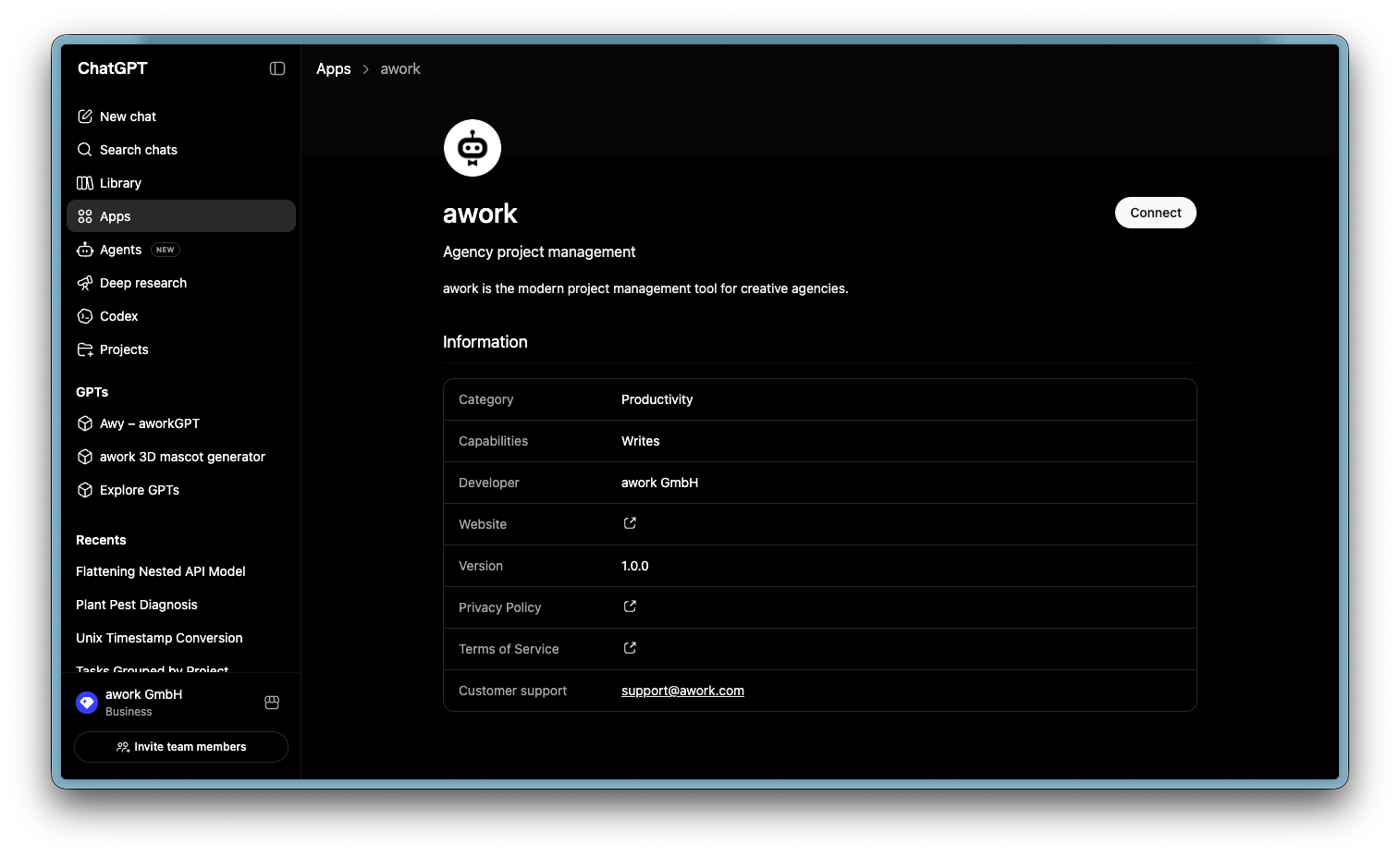
How to connect awork to ChatGPT
-
Open Apps in ChatGPT
-
Search for awork
-
Click Verbinden
-
Follow the instructions to sign in to your awork account
How to connect awork to Claude
Setup only takes a few steps.
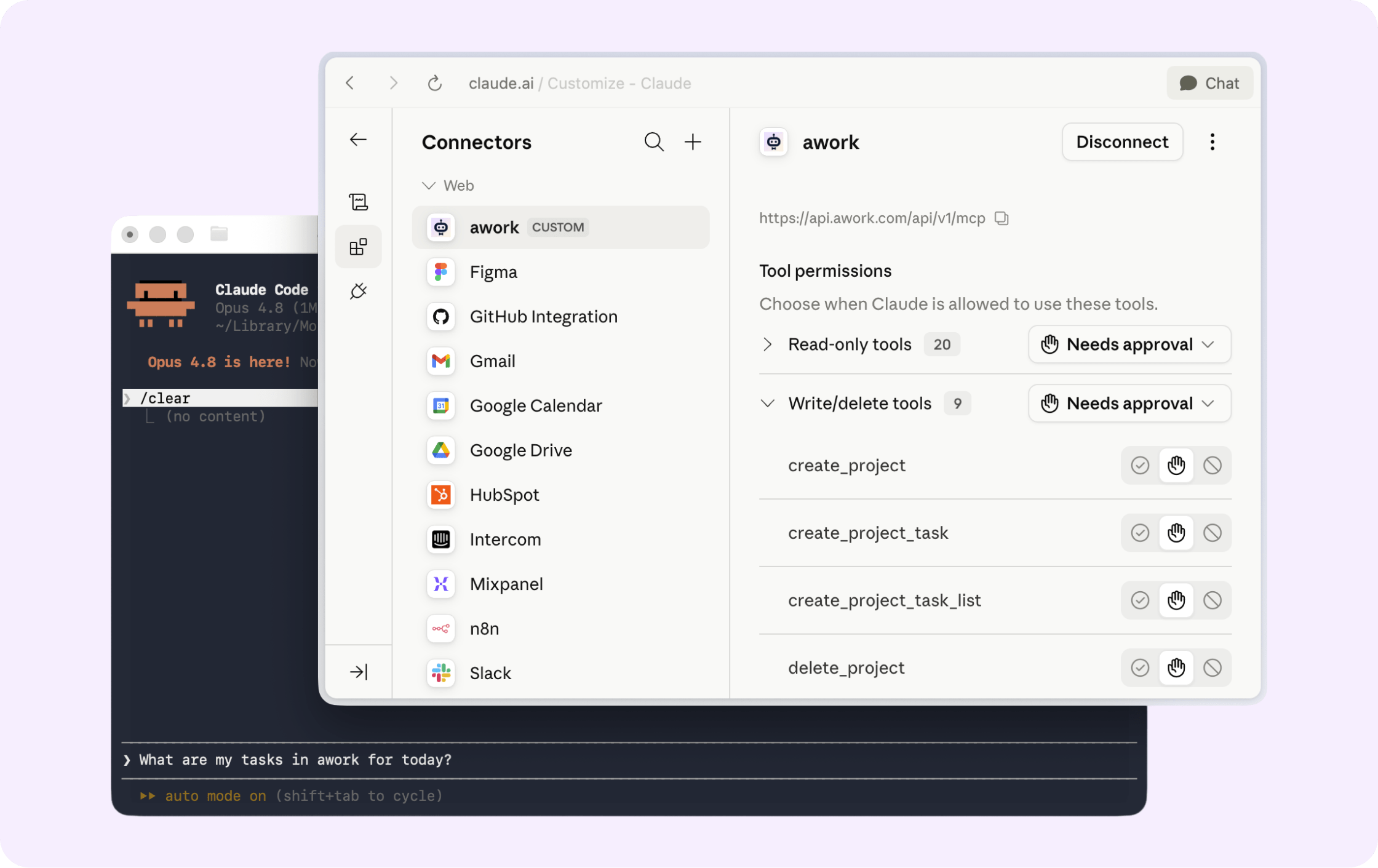
Note: Claude's custom connector feature is continuously evolving. Menu locations and available features may change.
1. Open Claude settings
-
Open Claude
-
Open Einstellungen
-
Open Connectors
2. Create a new connector
-
Select Anpassen
-
Click +
-
Select Create custom connector
-
Enter
aworkas the name -
Enter
https://api.awork.com/api/v1/mcpas the URL -
Save the connector
3. Authenticate and get started
-
Authenticate with your awork account when prompted
-
In a new chat, make sure the awork connector is active
-
For example, ask: "Summarize the Website Redesign project from awork"
Usage limits may apply depending on your Claude plan. Find out more in the Claude support documentation.
How to connect awork to Codex
Setup only takes a few steps.
Note: MCP server support in Codex is continuously evolving. Menu locations and available features may change.
1. Open Codex settings
-
Open Codex
-
Open Einstellungen
-
Open MCP servers
2. Add the awork server
-
Click Add server
-
Enter
aworkas the server name -
Select Streamable HTTP as the type
-
Enter
https://api.awork.com/api/v1/mcpas the URL -
Leave the remaining fields empty
-
Save the server
3. Authenticate and get started
-
After saving, authenticate with your awork account once
-
In a supported chat, make sure the awork server is active
-
For example, ask: "Summarize the Website Redesign project from awork"
Other clients
The awork MCP Server works with all chat clients that support the Model Context Protocol, such as Claude Code, Copilot in Visual Studio Code, and others.
You can also connect manually using an API key if your client doesn't support OAuth. Keep in mind that this gives the MCP Server admin permissions.
Find technical details in the Developer Docs.
FAQ
What is an MCP Server, and why do I need the awork MCP Server?
MCP (Model Context Protocol) lets you connect external data to AI tools like Claude or ChatGPT. With the awork MCP Server, you can access your awork project data directly in the LLM tool of your choice, without manually exporting it.
Which permissions apply to the MCP Server?
The MCP Server uses the same permissions as your awork account and can only see content you have access to in awork.
Which URL do I need to connect?
Use this MCP server URL: https://api.awork.com/api/v1/mcp.
Can I use the MCP Server with other clients too?
Yes. The awork MCP Server works with all chat clients that support the Model Context Protocol, such as Claude Code or Copilot in Visual Studio Code.
What should I keep in mind if my client doesn't support OAuth?
You can connect manually using an API key. This gives the MCP Server admin permissions.
 Powered by happysupport.ai