
Manage AI Library Items
Manage agents, skills, and connectors in your AI Library through Settings or the main menu to organize, create, and mark items as favorites
The AI Library is your central hub for agents, skills, and connectors.
This article explains how to manage the different items in the AI Library in awork. You'll learn the different ways to access the Library and navigate between agents, skills, and connectors.
Key benefits and use cases
The AI Library brings together the most important reusable AI building blocks in one place:
- Agents
- Skills
- Connectors
Here you'll find content you've created, shared items, and content curated by awork.
How to access the Library

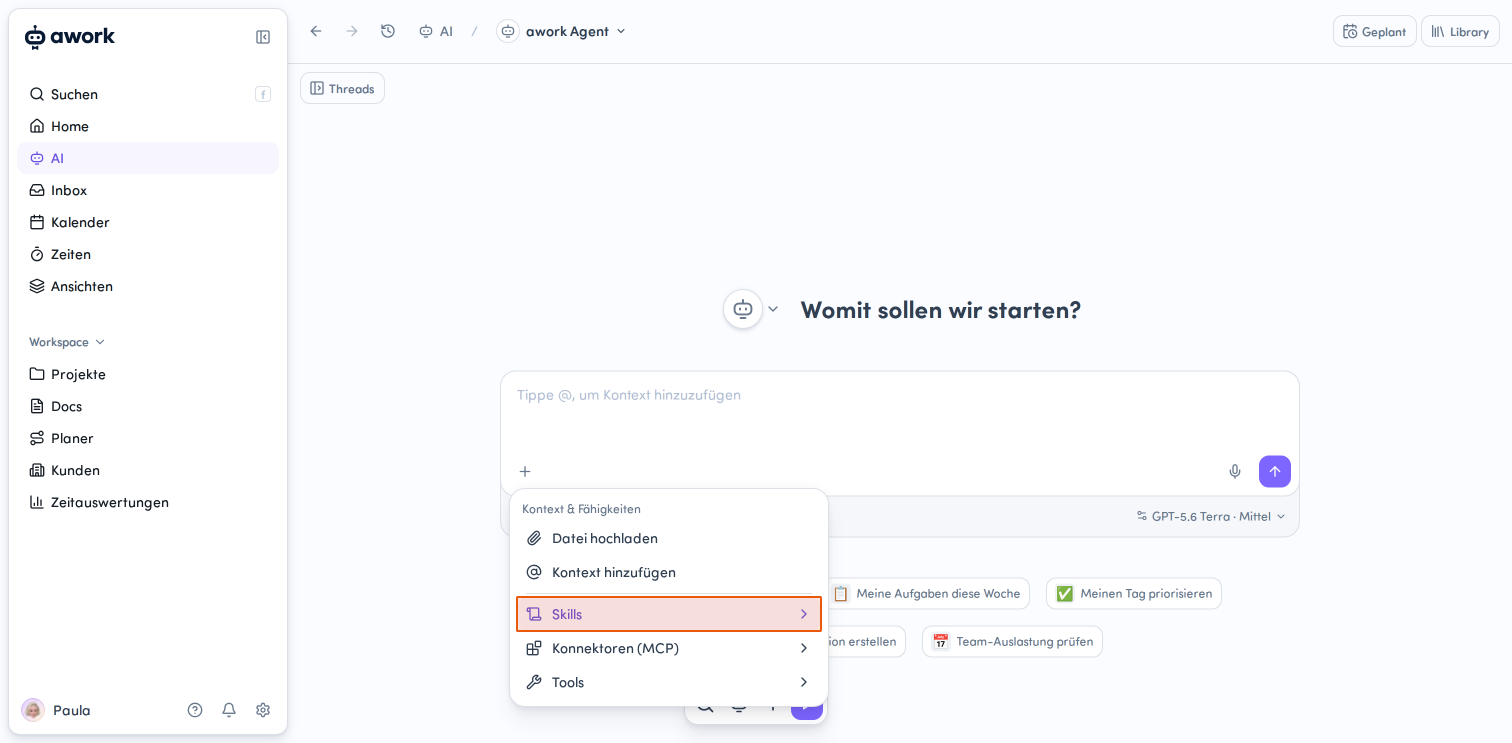
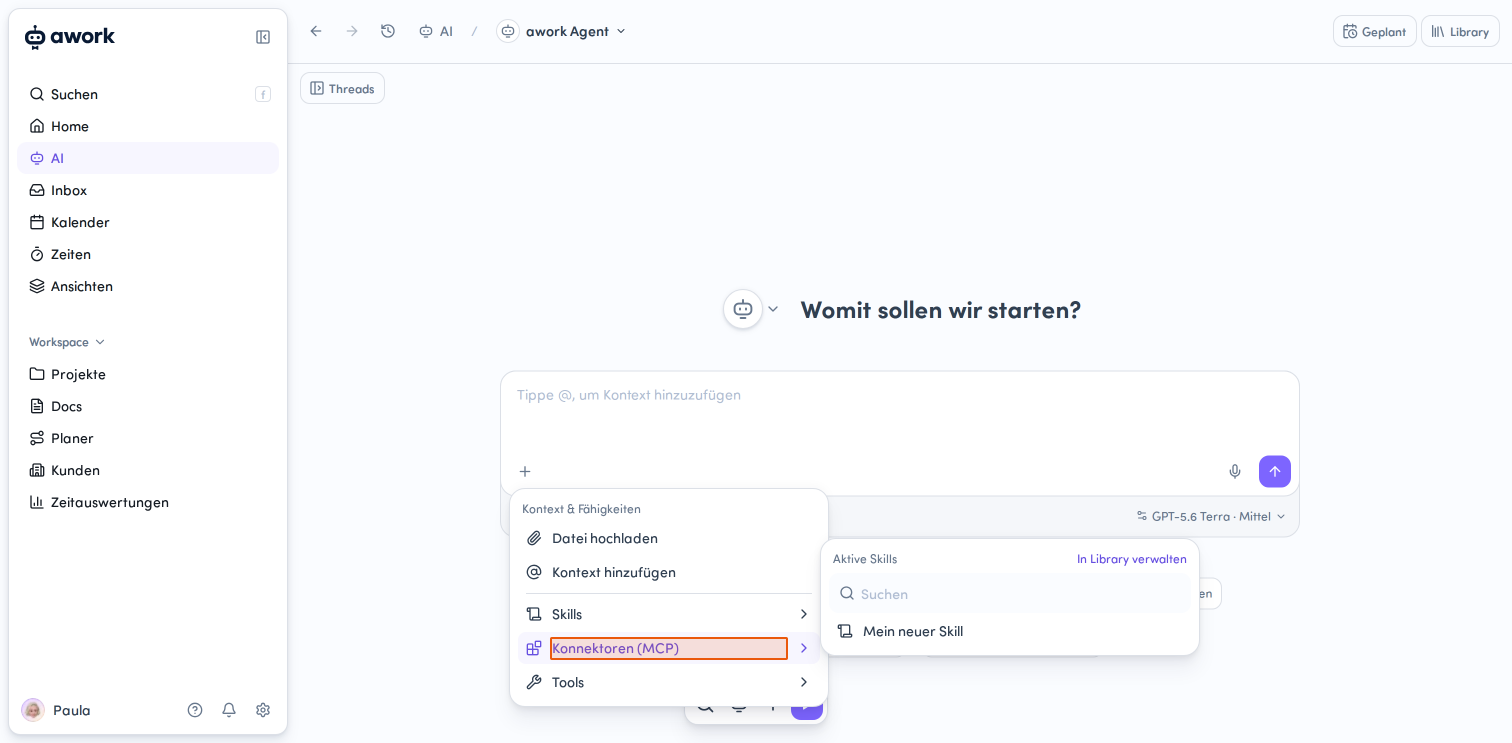
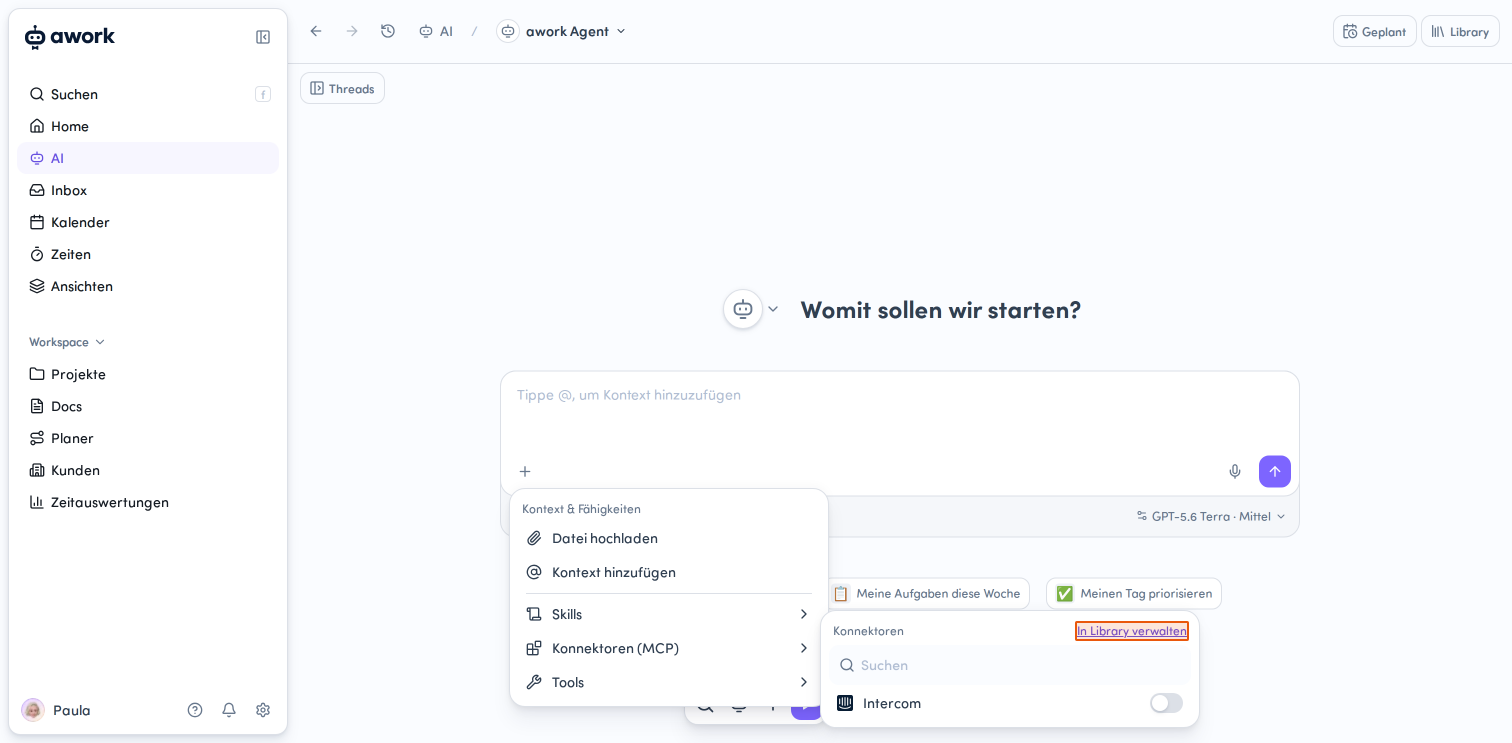
There are several ways to open the Library:
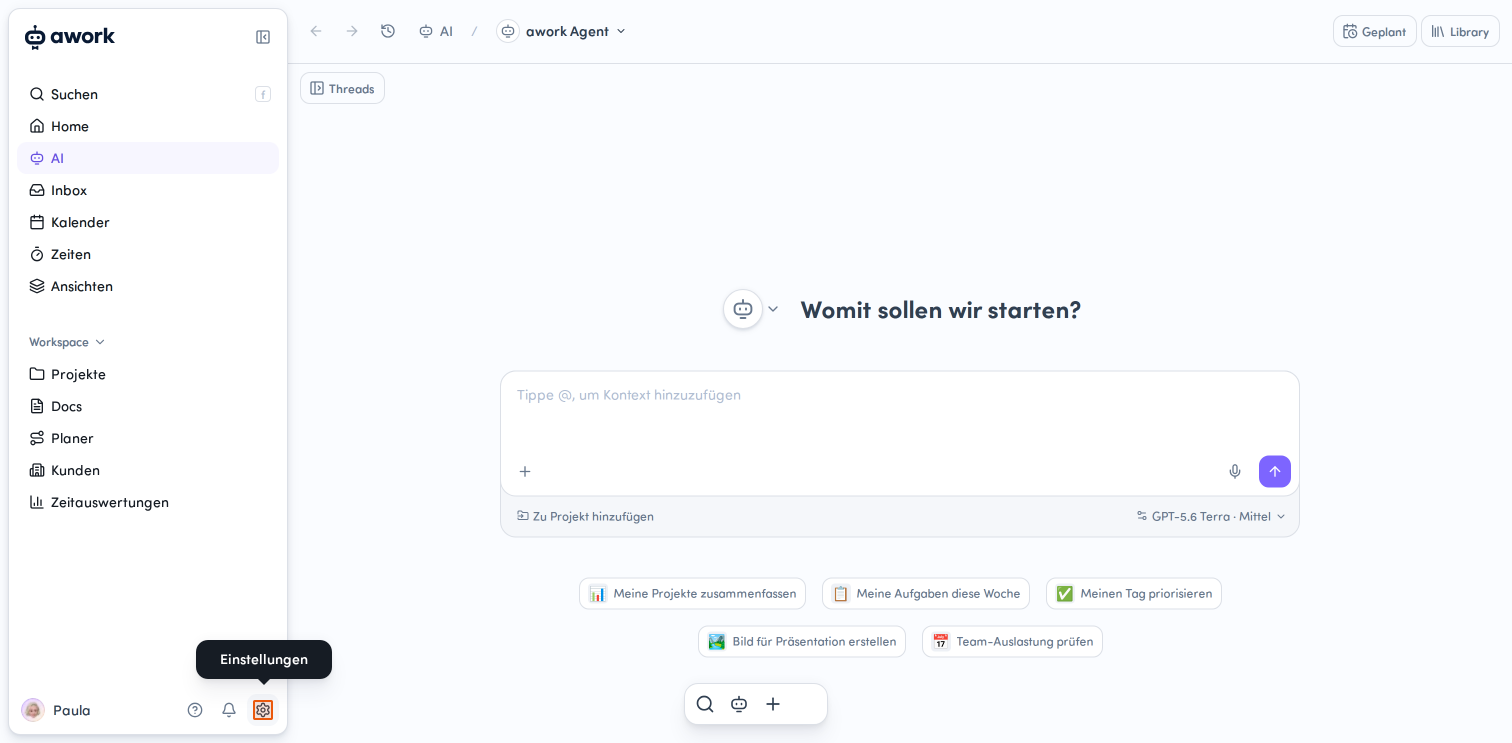
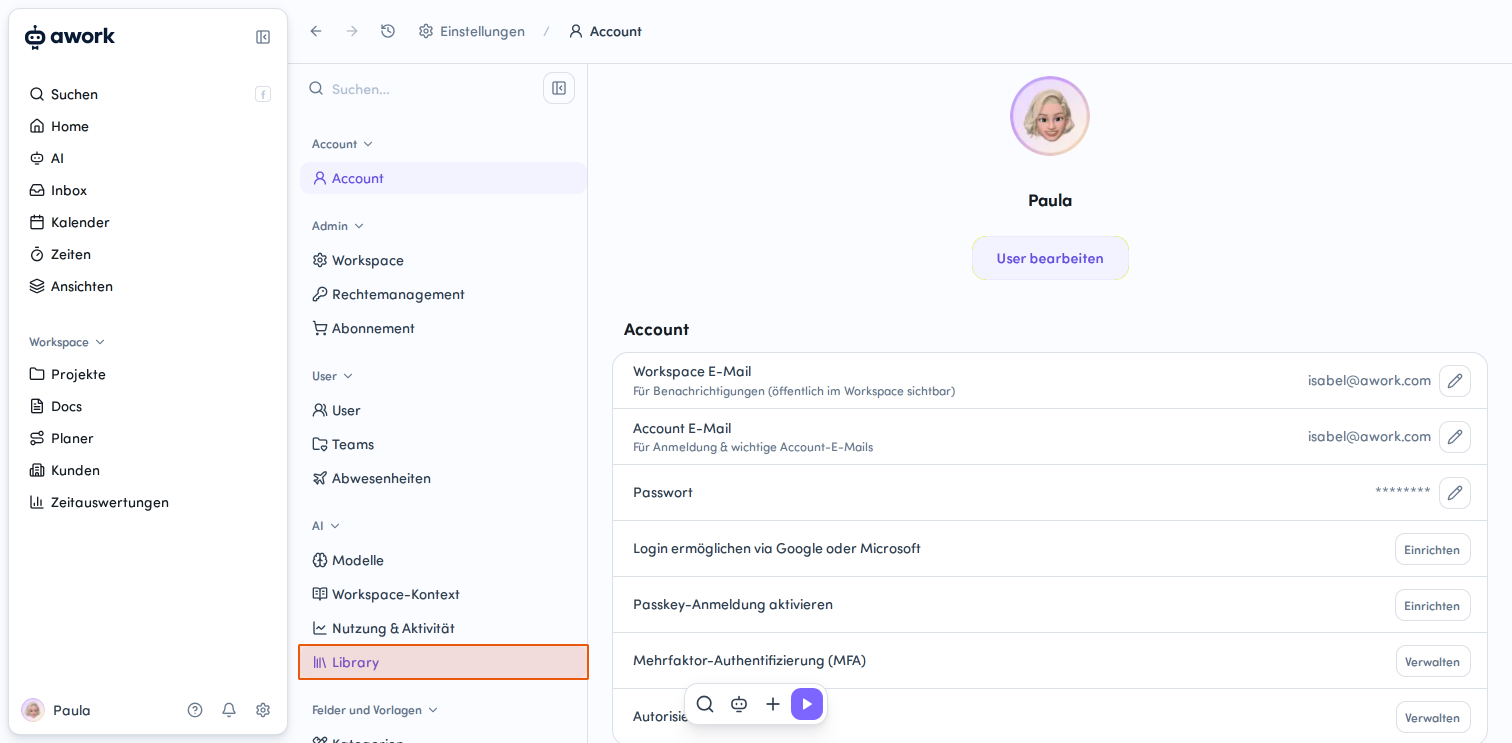
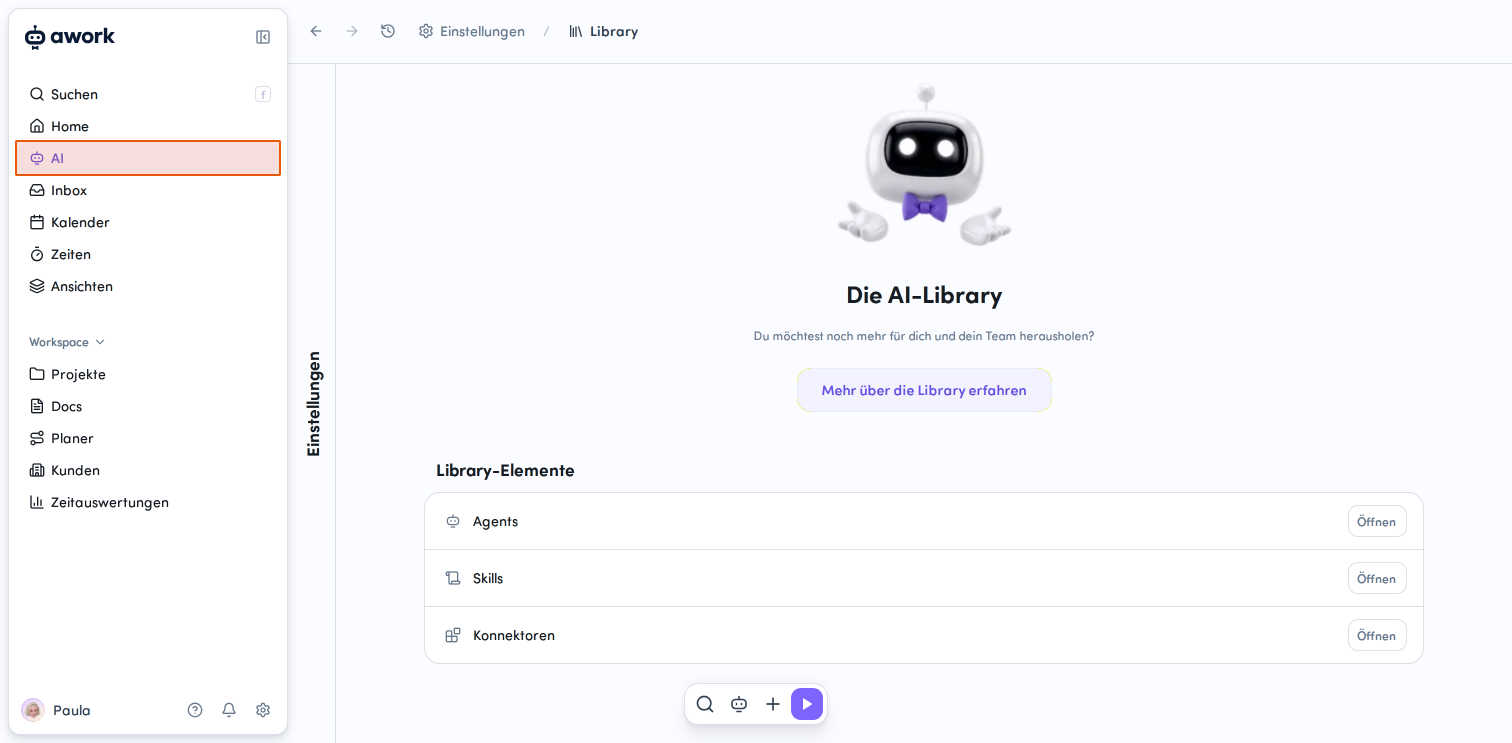
- Go to Einstellungen (the gear icon at the bottom left of the main menu), then select Bibliothek under the AI category.
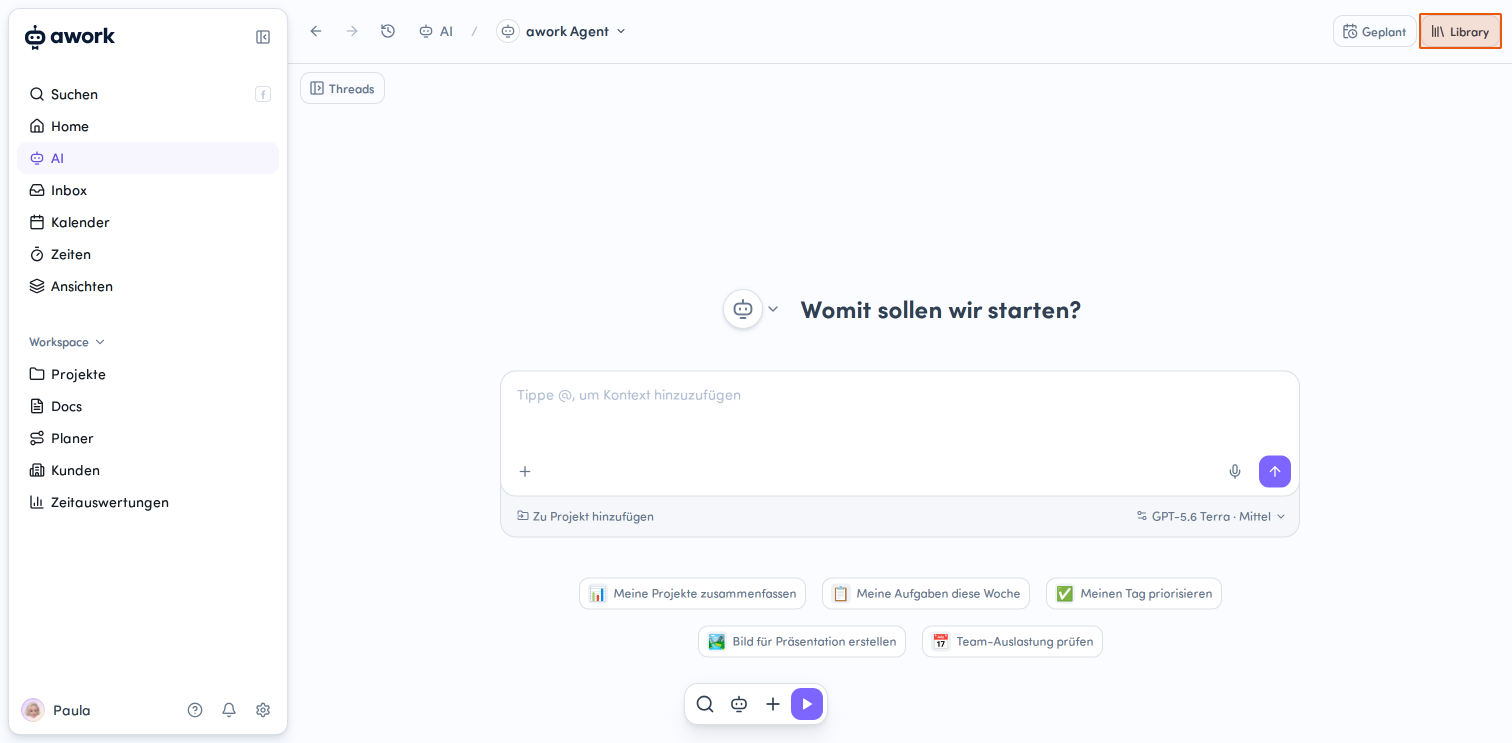
- Or open AI in the Hauptmenü and click the Library button in the top right.
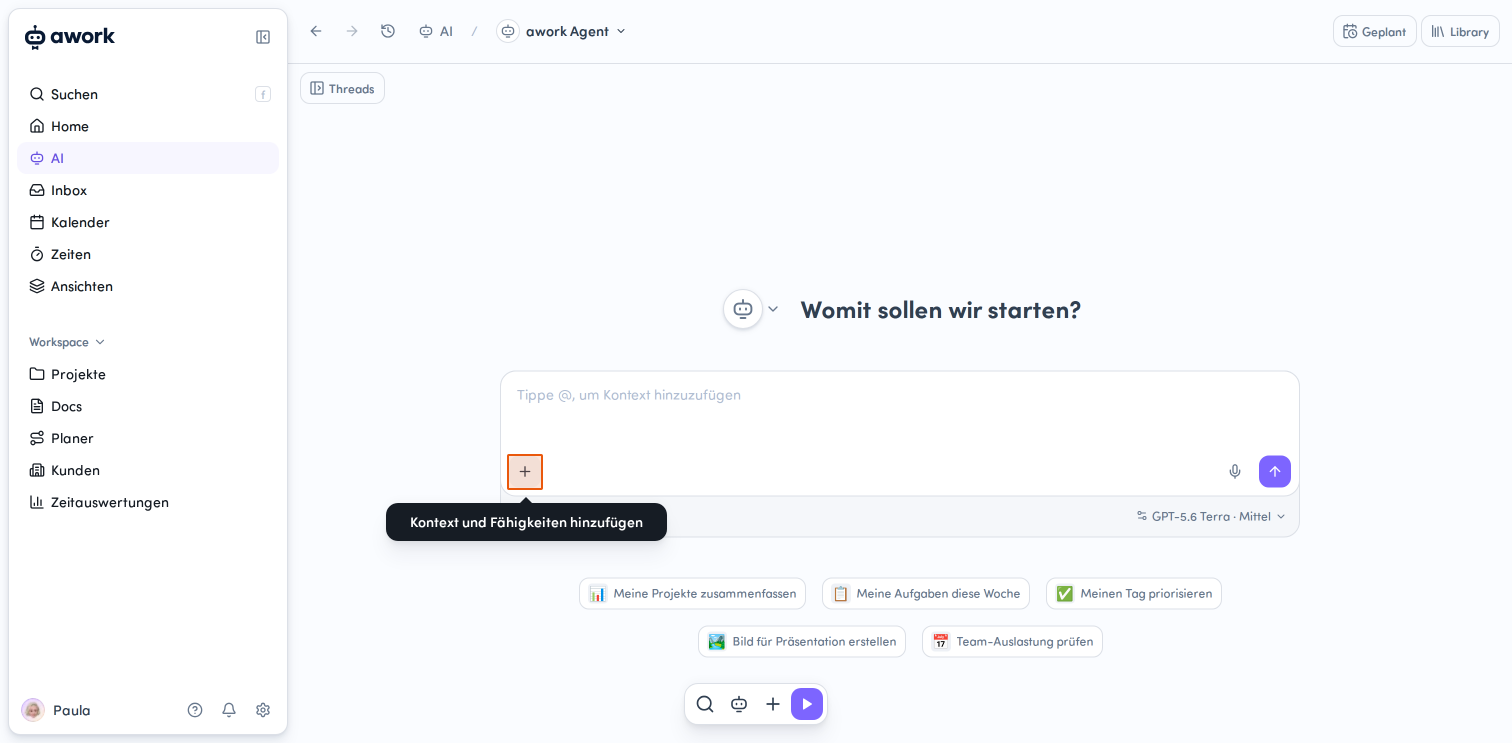
- Or click the + icon directly in AI Chat, select Skills or Konnektoren, then click In Library verwalten.
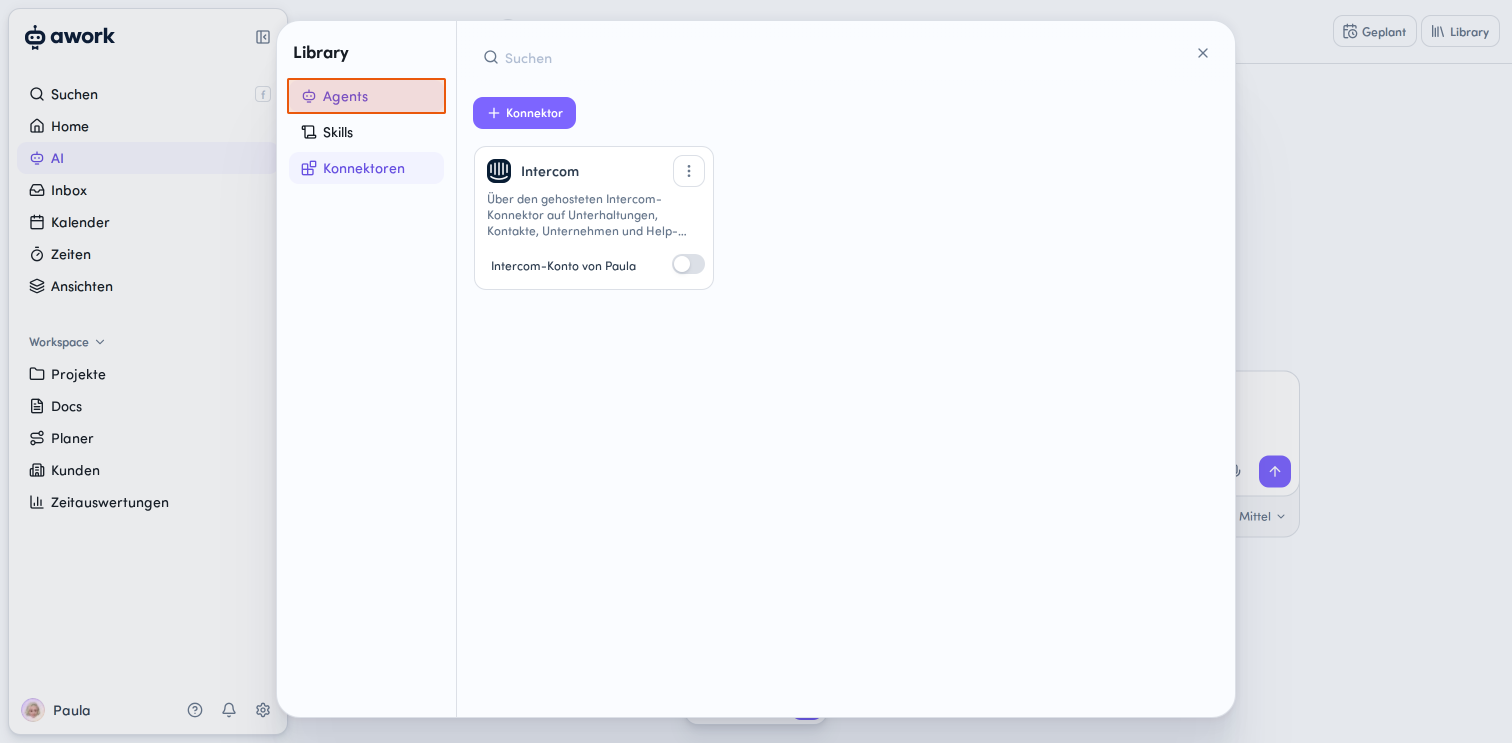
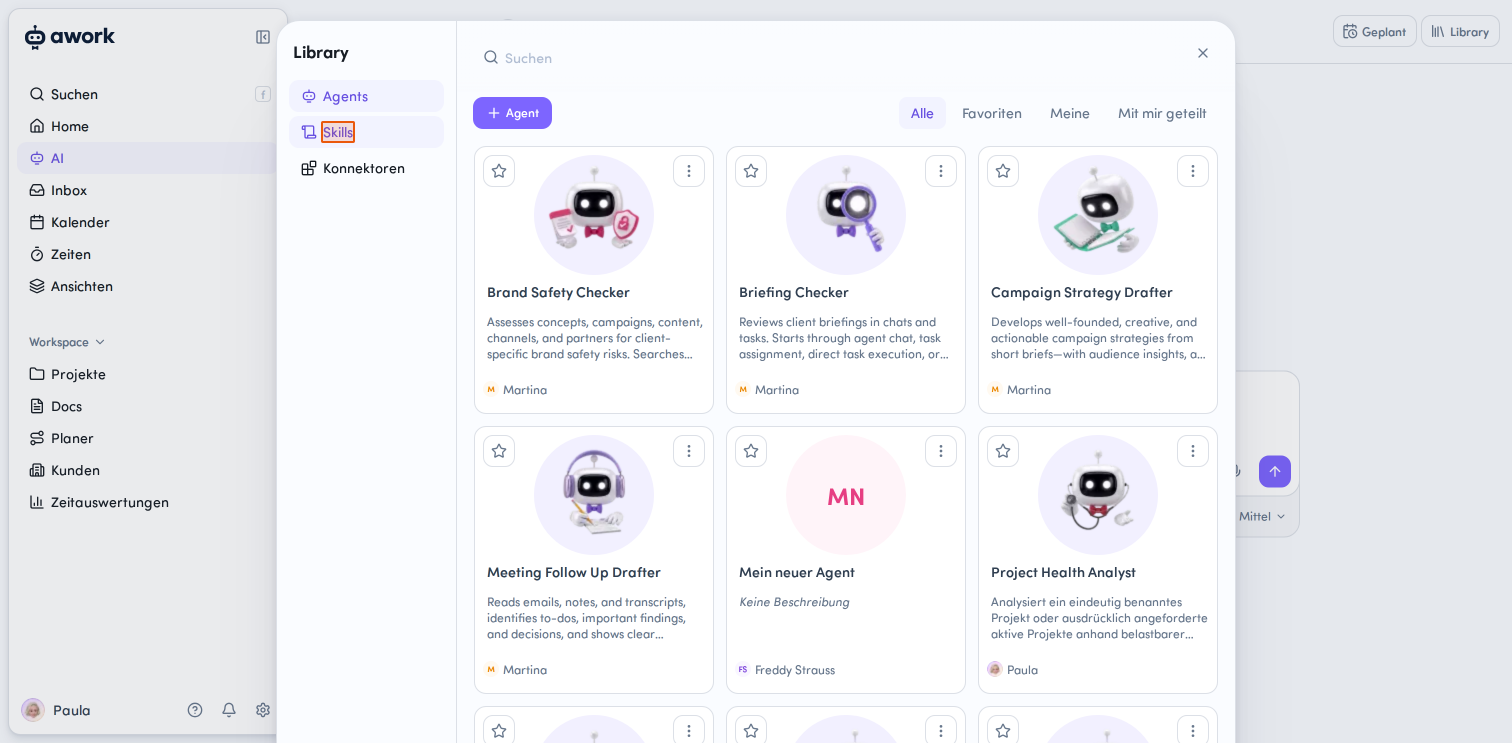
In the Library, you'll see a navigation menu on the left with the categories Agents, Skills, and Konnektoren.
Managing agents
Open the Agents section
Select Agents to see all available agents. The agents are displayed as cards in a grid, with a title, description, and creator.
Create a new agent
Click the purple + Agent button below the search field. A dropdown menu opens with two options:
- Neuer Agent: Creates a completely new, custom agent
- Vorlage verwenden: Uses an existing template as a starting point
Actions for an existing agent
Each agent card has an Aktions-Menü in the top right corner. Click it to open the menu. The following options are available:
- Agent bearbeiten: Opens the agent editor
- Agent-Link kopieren: Copies a link to the agent to your clipboard
- Als Favorit markieren: The agent appears in the Favorites tab. You can also mark an agent as a Favorit using the Stern-Symbol in the top left corner of the agent card. Click Von Favoriten entfernen to undo this.
- Als Standard festlegen: New chats will automatically start with this agent. Click Als Standard entfernen to make the awork agent your default agent for new chats again.
- Teilen: Lets you share the agent with others
- Duplizieren: Creates a copy of the agent
- Löschen: Permanently removes the agent
Hover over the bottom section of a card to view the agent's Details or start an AI-Thread.
Managing skills
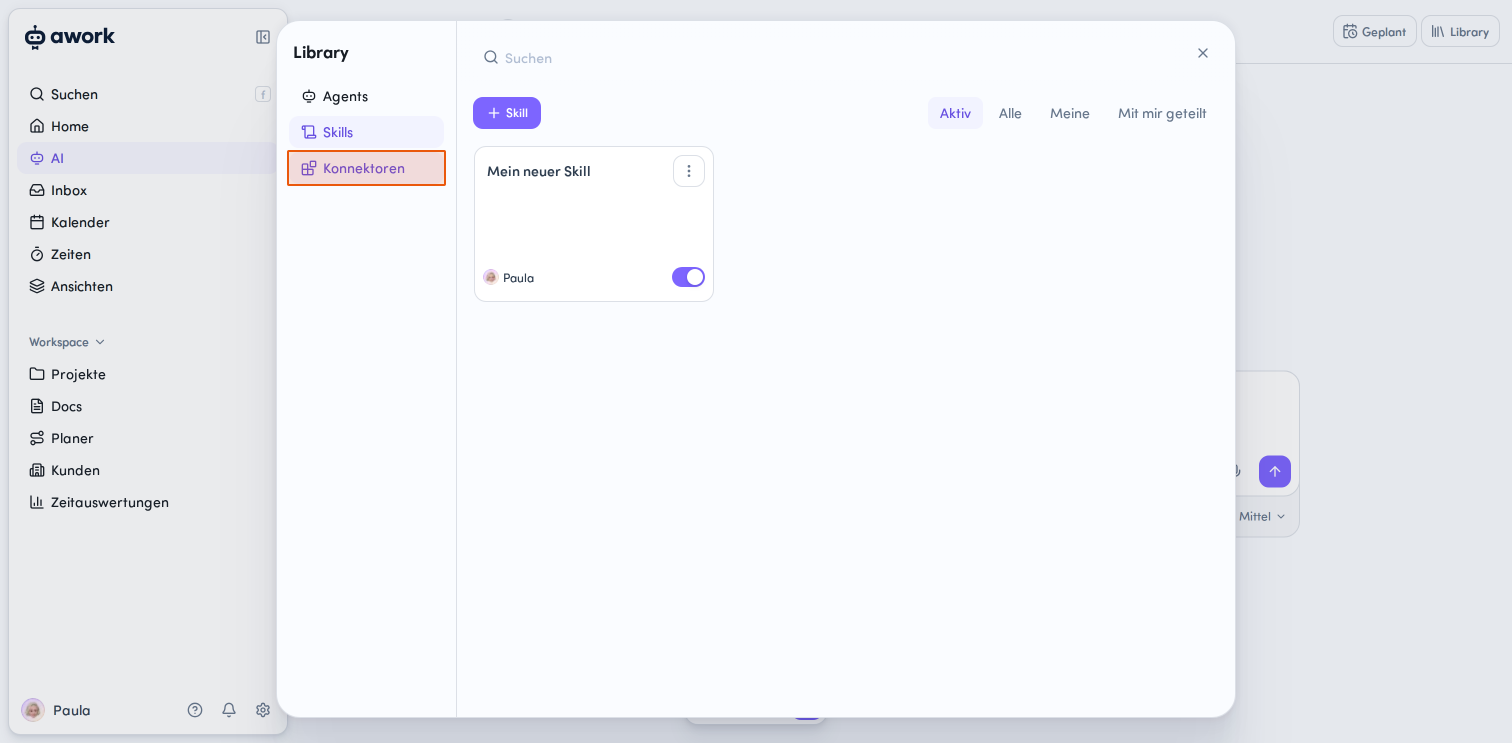
A skill contains reusable instructions for a specific task or recurring workflow.
Click Skills in the Library's left-hand navigation to open the skills overview.
👉 Learn more about creating and managing skills, activating them, and assigning them to agents: Skills for AI Agents
Setting up connectors
Connectors link agents to external tools and services. awork provides predefined connectors. You can also create your own connectors using the MCP protocol.
Select Konnektoren in the Library's left-hand navigation to see the available connectors and the connections set up for them.
👉 Learn more about setting up connectors, adding them to agents, and managing connections: MCP Connectors for AI Agents
FAQ
How can I access the AI Library?
You can access the AI Library by going to Einstellungen and selecting Library, or by opening the AI-Hauptmenü directly and clicking the Library button in the top right.
What types of content can I find in the AI Library?
In the AI Library, you'll find agents, skills, and connectors, including content you've created, shared items, and content curated by awork.
 Powered by happysupport.ai