
Importing Data from Trello
Import your Trello board data into awork by exporting CSV, using Text to Columns in Excel, then mapping fields to the import template
Here's how to export data from Trello when you're switching from Trello to awork, prepare the CSV in Excel, and transfer the contents into the awork import template.
Important: You can only import once you've exported your Trello data and converted it into a format you can copy into the awork import template.
How to Import Data from Trello
Export Data from Trello
First, export your data from Trello. You can find instructions here: Exporting Data from Trello.
Trello only allows data exports for Business Class customers. An alternative is to install the Trello Chrome Extension.
Split CSV into Columns in Excel
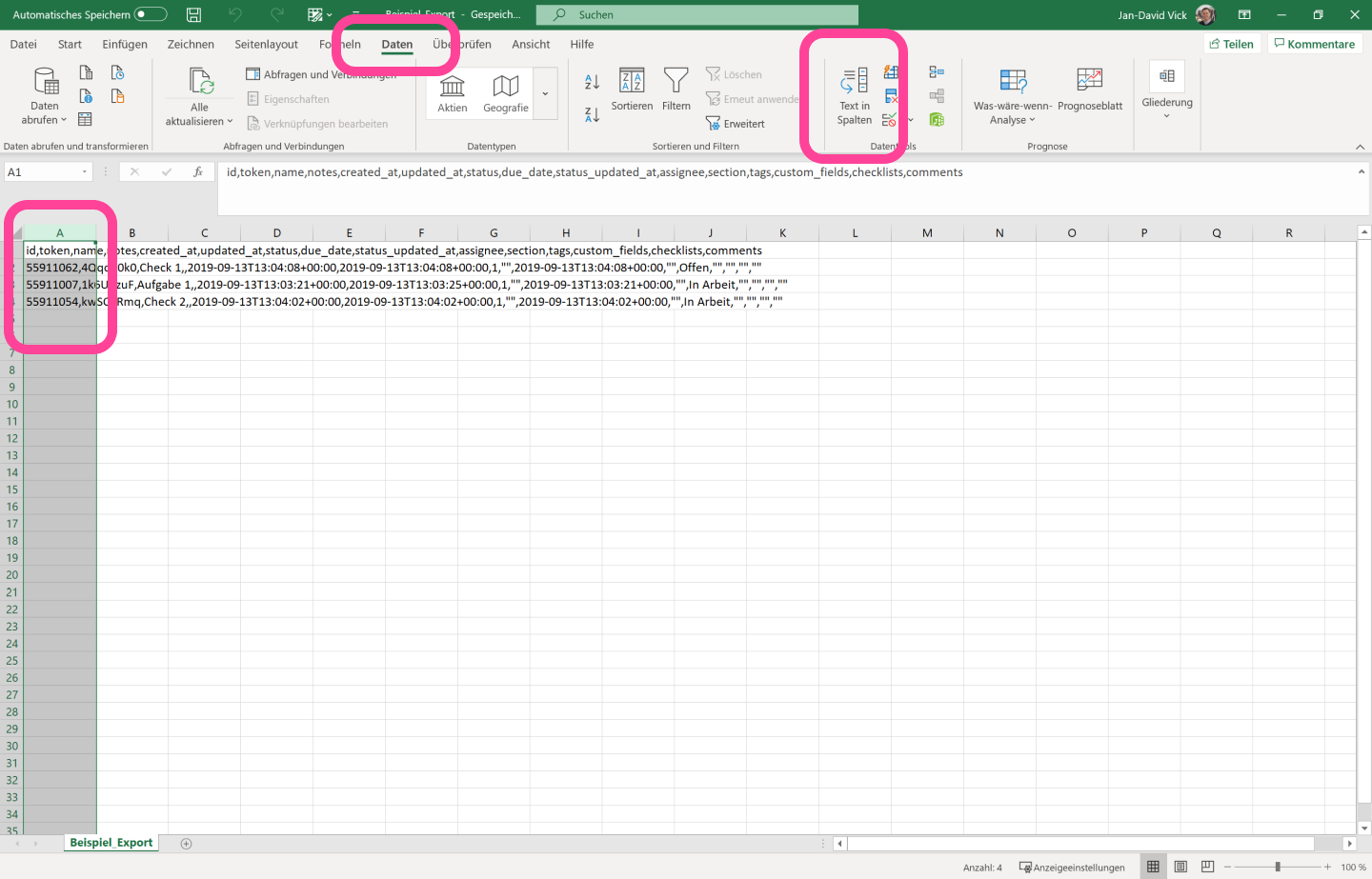
Trello exports your data as a .csv file. You can open it with Excel. However, all the data will be separated by commas in a single column.
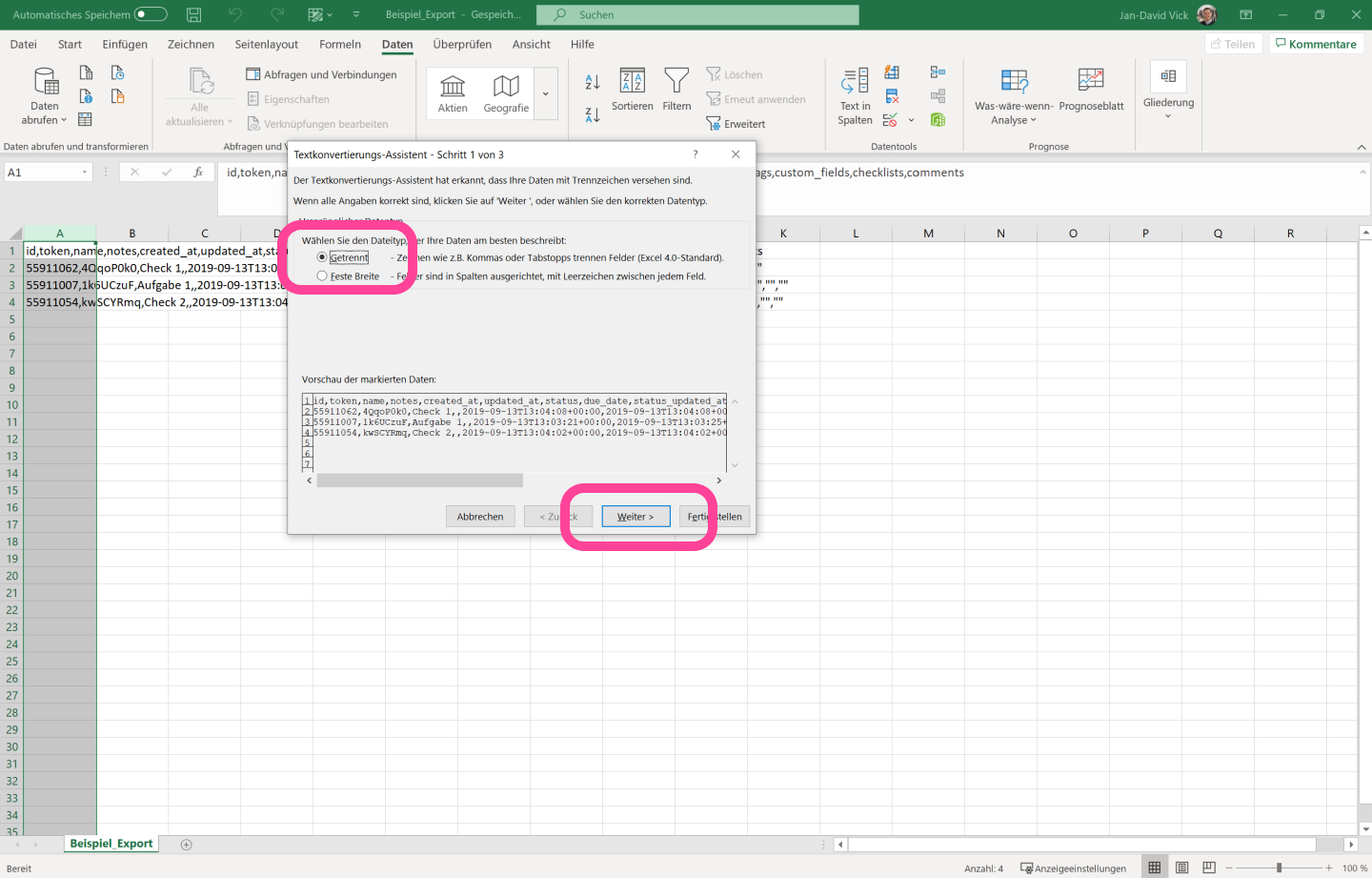
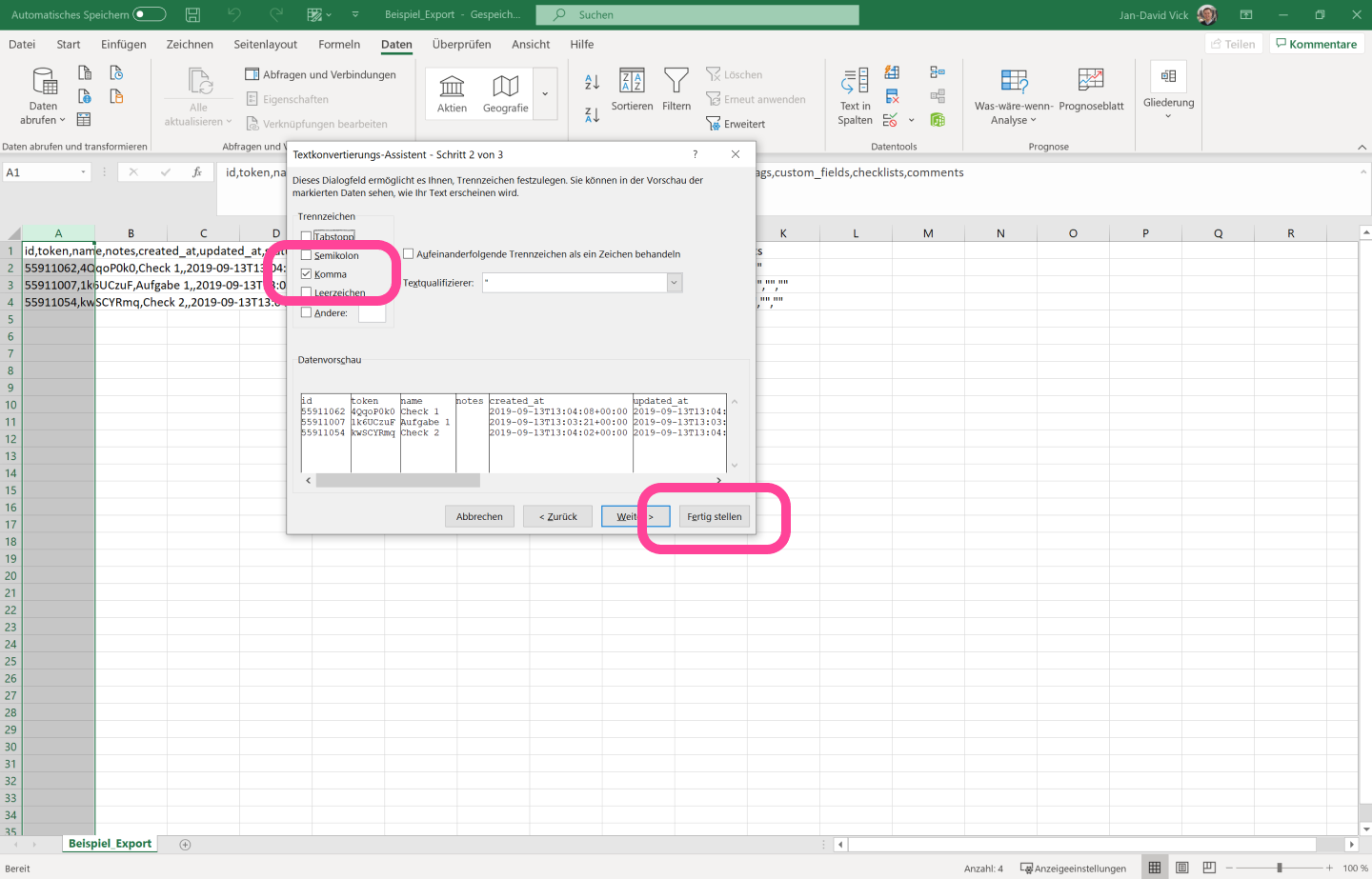
Here's how to split the data into individual columns:
-
Select the column with your data
-
Go to Data in Excel and then click Text to Columns
-
Select the Delimited option in the pop-up
-
Choose Comma and click Finish
Field Mapping (Trello Export → awork Import Template)
Now your data will be displayed in individual columns. You can copy this data into the awork import template.
The field mapping looks like this:
awork | Trello |
Project Name | Board Name |
Client | Name |
Task Name | Field not available in Trello export |
Description | Desc |
Activity | Field not available in Trello export |
Start Date | Field not available in Trello export |
End Date | Due |
Estimated Effort | Field not available in Trello export |
Assignee | Members |
Status | idList |
Field Mapping via Chrome Extension
If you're using the Trello Chrome Extension, use this field mapping instead:
awork | Trello |
Project Name | Board Name |
Client | Field not available in Trello export |
Task Name | Title |
Description | Description |
Activity | Field not available in Trello export |
Start Date | Field not available in Trello export |
End Date | Due |
Estimated Effort | Field not available in Trello export |
Assignee | Members |
Status | List |
Upload Data to awork
After that, you can upload your data to awork as described here.
Tips and Best Practices
-
Split Excel columns first before copying data into the awork import template
-
Watch out for missing Trello fields: Some awork fields are not available in the Trello export (see tables above)
-
Choose the correct mapping: Trello export and Chrome Extension provide different field names (for example, Status)
FAQ
Can I always export Trello data?
Trello only allows data exports for Business Class customers. As an alternative, this article mentions the Trello Chrome Extension.
What format does Trello use to export data?
Trello exports your data as a .csv file.
Why is all my data in a single column when I open it in Excel?
The values in the CSV are separated by commas. You can split them into individual columns in Excel using Data → Text to Columns (select Delimited option with Comma as the separator).
 Powered by happysupport.ai