
Schedule and automate agent runs
Schedule agent runs to execute automatically on recurring intervals or specific days and times using your agent type and context sources
Agents can run automatically at specific times or in response to events. In addition to specialized agents, you can also schedule runs with the awork Agent.
Key benefits and use cases
Not every agent task needs to be started manually. Agents can handle recurring work on a schedule or run as an action within an automation.
Typical use cases include:
-
Weekly project health checks
-
Project reviews
-
Project comments
-
Notifying users
-
Sending a message after a run
There are two ways to do this:
-
Scheduled agent runs
-
Automations with an agent
Set up scheduled agent runs
A scheduled agent run runs an agent according to a defined schedule.
Create a new scheduled run
- Go to your project and click the AI tab in the top navigation bar
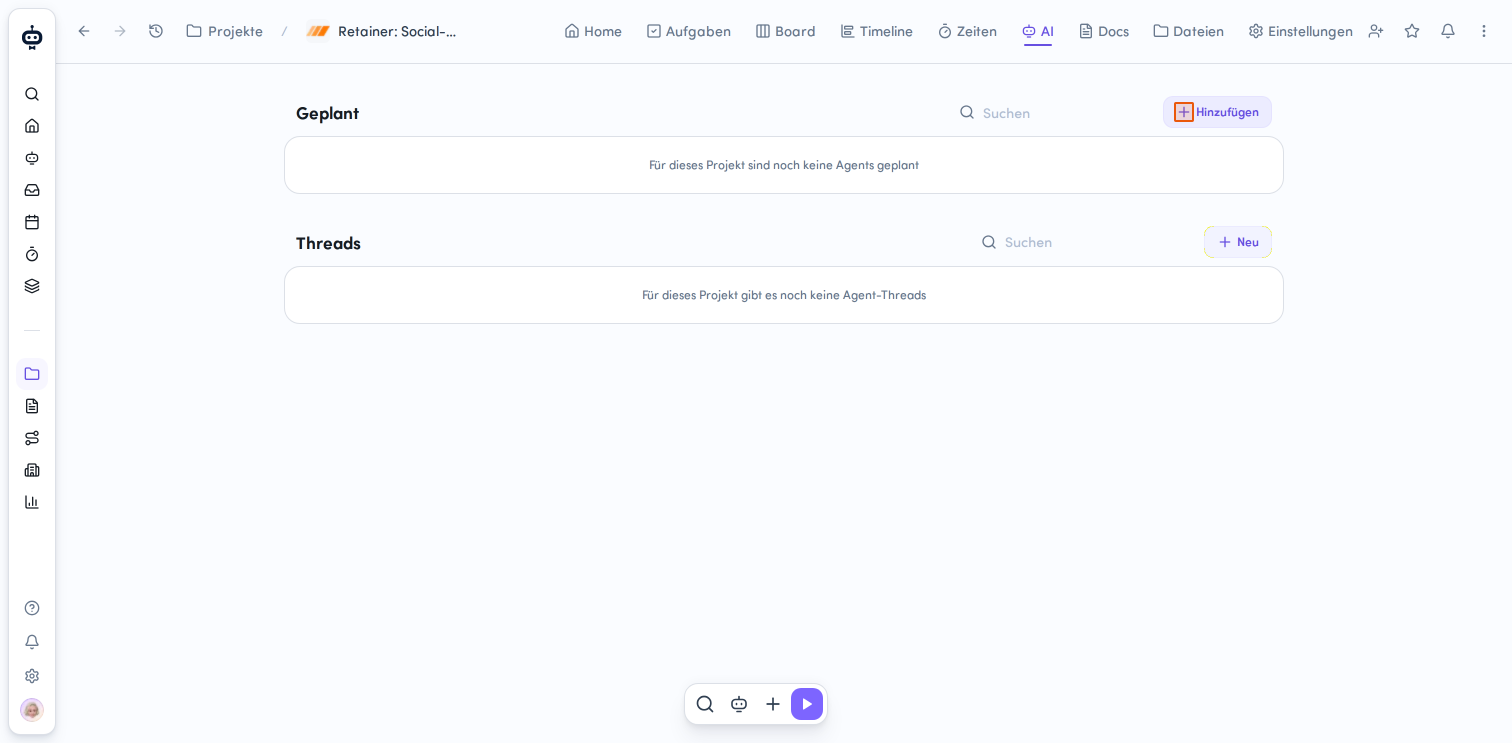
- In the Geplant section, click + Hinzufügen to the right of the search field
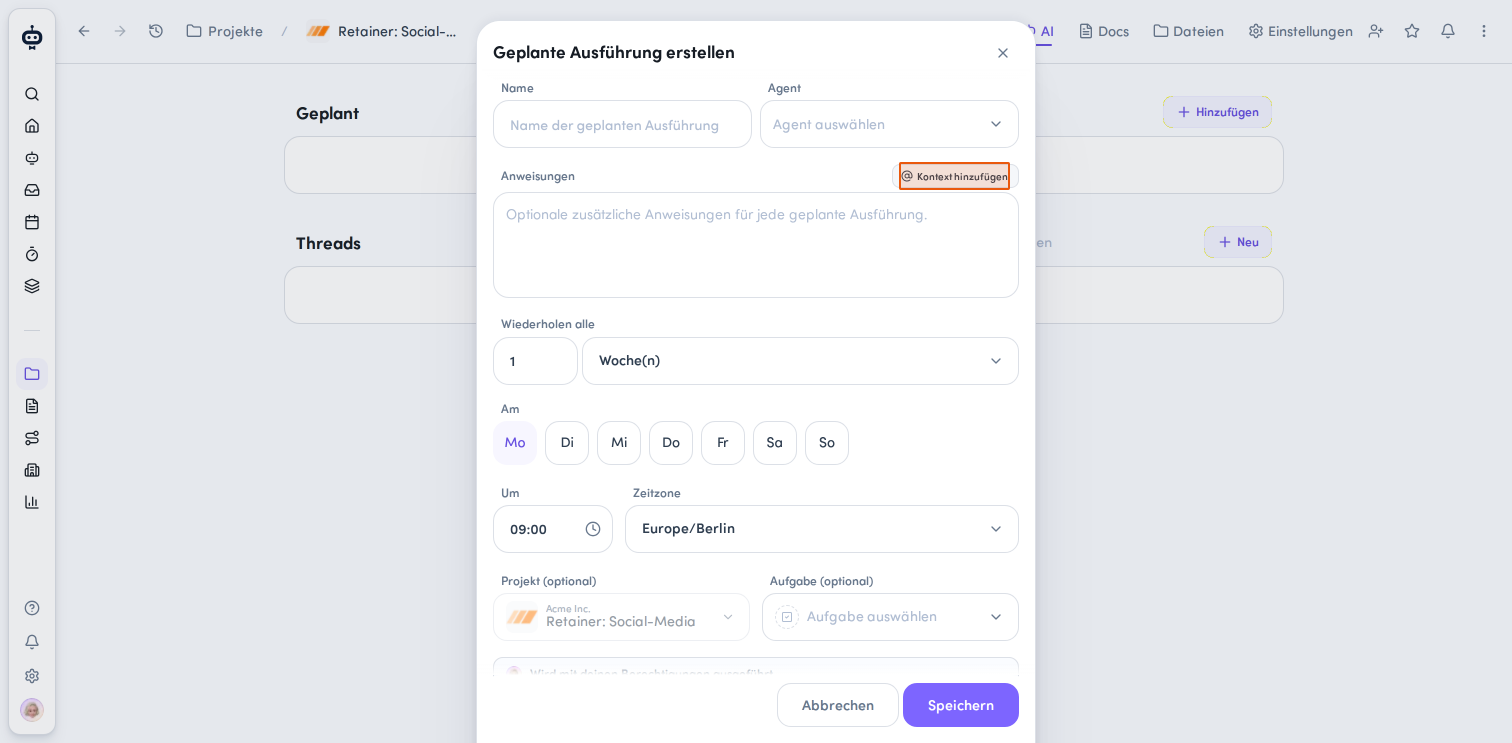
- In the Geplante Ausführung erstellen modal, enter a descriptive Namen
- Under Agent, select the agent you want from the available list. You can choose either a specialized agent or the awork Agent.
- If needed, add extra Anweisungen or add dynamic context sources (User, Team, Kunde, Aufgabe, Projekt, Doc) using the Kontext hinzufügen button or by typing
@in the text field
-
Set the repeat interval
Under Wiederholen alle, configure how often the agent should run:- Enter a number in the number field
- Choose a unit from the dropdown menu: Tag(e), Woche(n), Monat(e) or Jahr(e)
-
Choose the days and time for the run
- Am: Select the days of the week when the agent should run
- Um: Set the time for the run
- Zeitzone: Choose the appropriate time zone
-
Optionally, assign the run to an Aufgabe
-
Click Speichern
When you create a project-related schedule, the current project is already selected.
Manage scheduled runs
In the AI tab of a project, you can see all the agent runs set up for that project in the Geplant section. For each run, you'll see the run name, the agent being run, the repeat interval, and the creator of the scheduled run.
Use the toggle to deactivate a scheduled run and reactivate it whenever you need, without deleting it.
The action button gives you more options: you can edit a scheduled run, run it now, or delete it.
Use a project and task as context
A scheduled run can be linked to a project. You can also select a task.
- If a task is directly linked to the run, the agent knows which task to work on.
- If a task is only used as context and isn't directly linked to the thread, the run won't automatically appear directly on that task.
Personal scheduled agent runs
Agent schedules aren't limited to projects. You can also set up private scheduled agent runs for your own user.
Personal scheduled runs remain private as long as no project is selected.
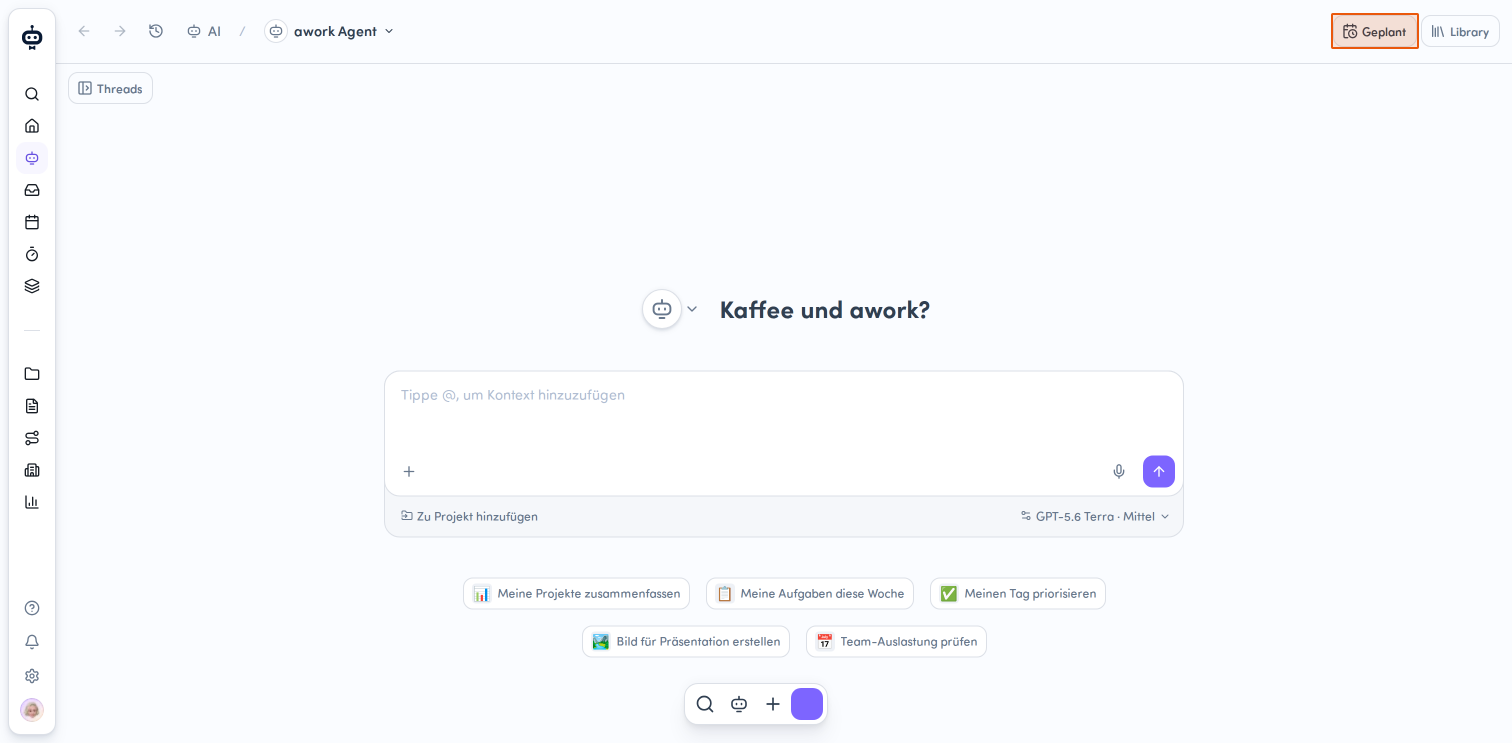
- Select AI from the Hauptmenü and click the Geplant button in the top-right corner.
- In the Geplante Ausführungen modal that opens, switch between Alle, Meine or Projekt, or use Suche
- Click the + Hinzufügen button in the top-left to create a new scheduled run.
- Select the Agent you want. As well as specialized agents, you can also use the awork Agent here.
- Optionally, select a project and a task.
Set up automations with agents
Agents can also run automatically in response to events in a project. To do this, use a project automation.
-
Open your project's Einstellungen
-
Scroll to the Automatisierungen section and click + Hinzufügen
-
Choose the trigger you want
-
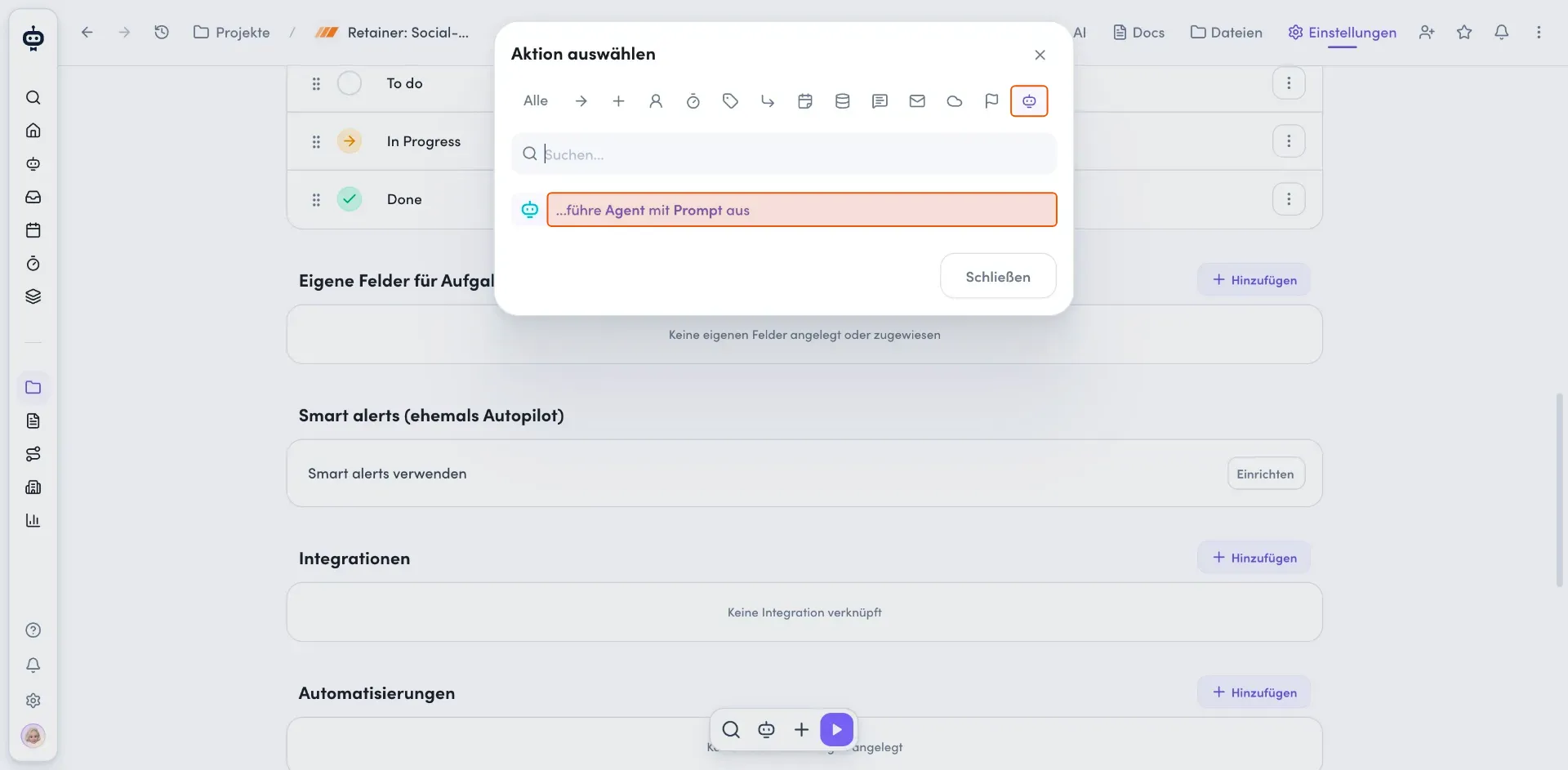
Then click + Aktion to add an action
-
For agent-related actions, select the category with the robot icon
-
Select …führe Agent mit Prompt aus
-
Select the appropriate agent
-
Configure the prompt with any additional instructions
-
Click Speichern to activate the automation.
The automation determines when the agent run is triggered.
Hand off work between your own agents
A custom agent can't directly start another custom agent. However, you can connect their work using a project automation.
Example: A drafting agent creates content that is then reviewed by a review agent.
Here's how to set it up:
-
Save the result: Tell the drafting agent to save its result in the task or in an awork Doc it can access.
-
Change the status: After saving, have the agent change the task status to Bereit zur Prüfung, for example.
-
Create an automation: In the project automation, create a trigger for this status change.
-
Start the review agent: Add the action to run an agent, enter a prompt, and select the review agent.
-
Define the review task: In the prompt, describe where the review agent can find the draft and what it should review.
The review agent starts in a separate conversation. It receives the triggering task and the project as context, but not the first agent's conversation or files automatically.
Permissions are based on the user responsible for the automation action, not the first agent.
Tips:
-
Use clear task statuses to hand work off between agents.
-
Make sure the review agent can access the saved draft.
-
Avoid automation rules that repeatedly trigger one another.
Permissions and responsibility
Agents always operate with the permissions of the user responsible for the run.
For a scheduled agent run, that's the user who created the schedule. For an automation, it's the user who set up the automation.
A schedule or automation does not give the agent any additional permissions.
So always check the permissions of the user who set up the schedule or automation. If that user can't perform a particular action, the agent can't perform it either.
Who can edit a scheduled run?
The user who created the schedule is responsible for editing it. Only this user can change its configuration, including the name, agent, instructions, or repeat rules. They also need the "Agent-Verwalten" permission and access to the selected context.
Other users with admin access to the associated project can manage the run's status (activate, pause, run now, delete), but can't edit the schedule configuration.
Scheduled run vs. automation
| Scheduled run | Automation |
|---|---|
| Agent starts regularly according to a schedule | Agent starts as part of a workflow |
| Simple time-based start | Time- or event-based workflow |
| Focuses on a single agent run | Focuses on a workflow |
FAQ
Can an agent perform recurring tasks automatically?
Yes. Agents can run according to a defined schedule.
What permissions does a scheduled agent run use?
It uses the permissions of the user who created the schedule.
What happens if a scheduled run fails multiple times?
Scheduled runs are automatically deactivated after three consecutive failed runs. This prevents a broken schedule from continuing to run unnoticed. Once a scheduled run has been automatically deactivated, you can check it and then reactivate it.
Can agents be part of an automation?
Yes. Agents can be used as an action in automations.
Does an agent get additional permissions through an automation?
No. The agent continues to use the permissions of the user who configured the automation.
 Powered by happysupport.ai