
Importing Data from Meistertask
Import your Meistertask data into awork by exporting the CSV file, splitting columns in Excel using Text to Columns, and uploading to the awork import template
Here's how to export your data from Meistertask, copy the contents into the awork import template, and then upload them to awork.
How to Import Data from Meistertask
1. Export your data from Meistertask
First, you need to export your data from Meistertask. You can find instructions on how to do this here: Export Data from Meistertask
2. Split CSV into columns in Excel
Meistertask exports your data as a .csv file. You can open it in Excel. There you'll find all the data separated by commas in a single column.
-
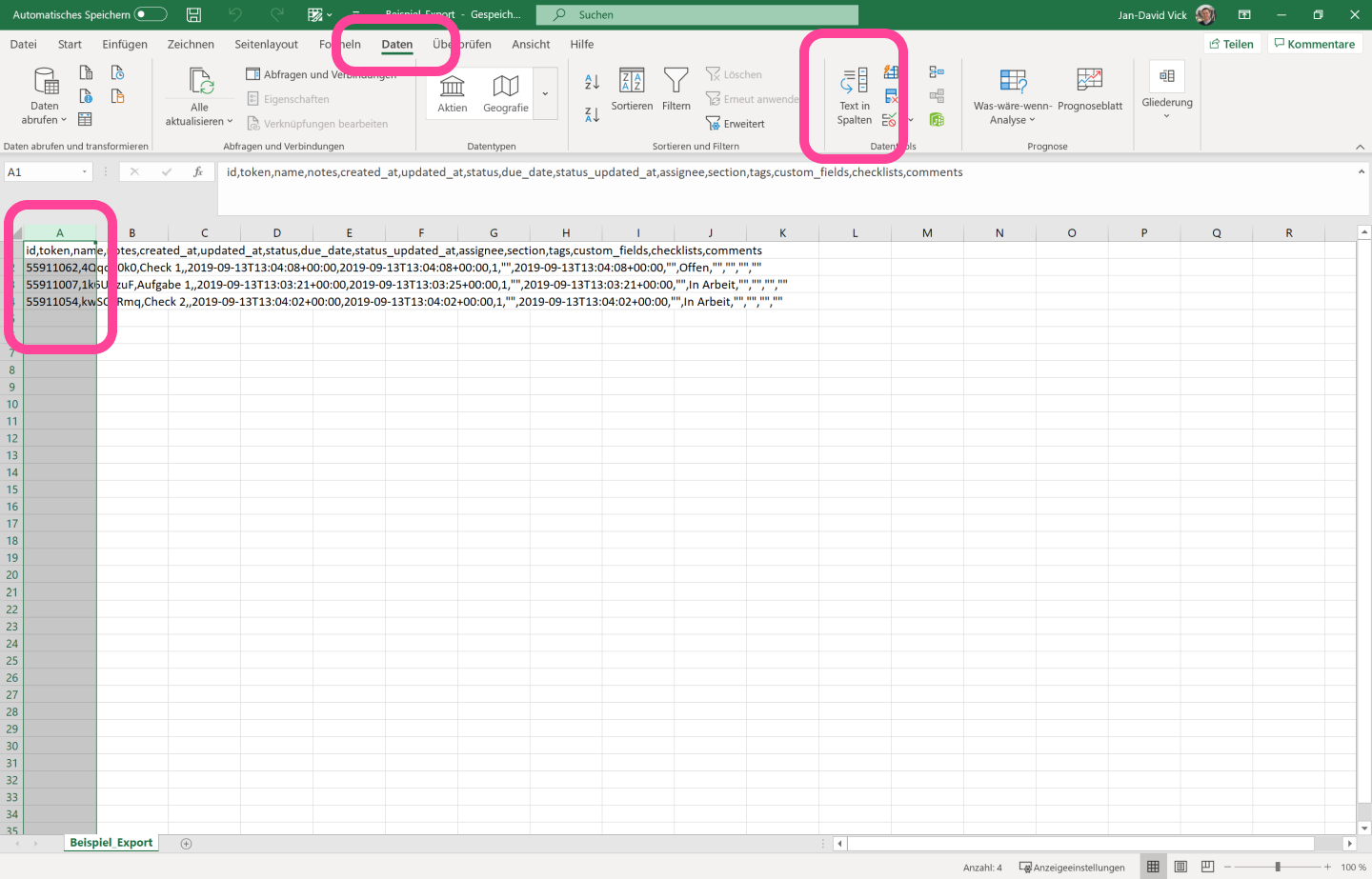
Select the column containing the data
-
In Excel, go to Data and then Text to Columns
-
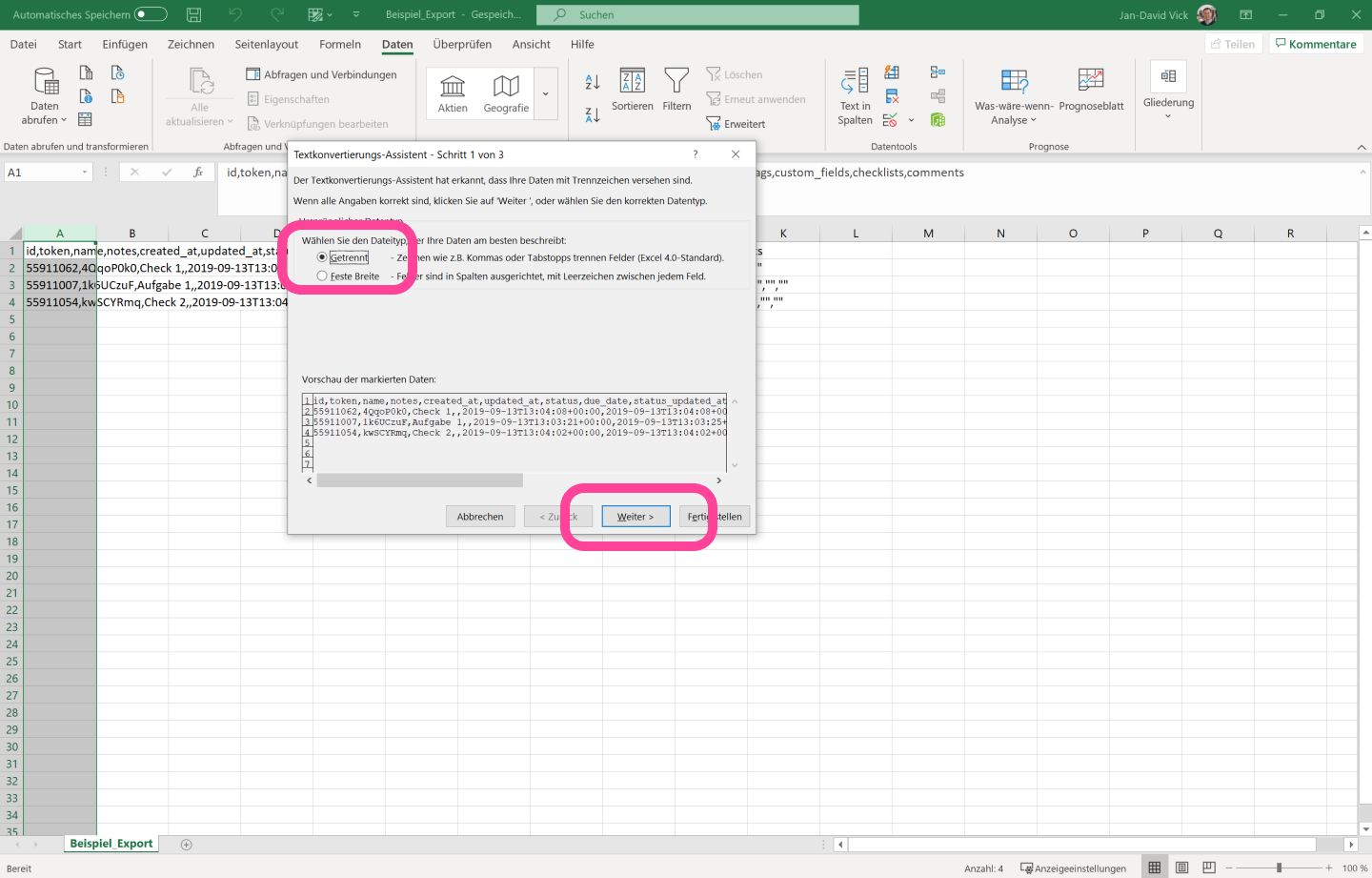
In the pop-up, select the option Delimited, then click Next
-
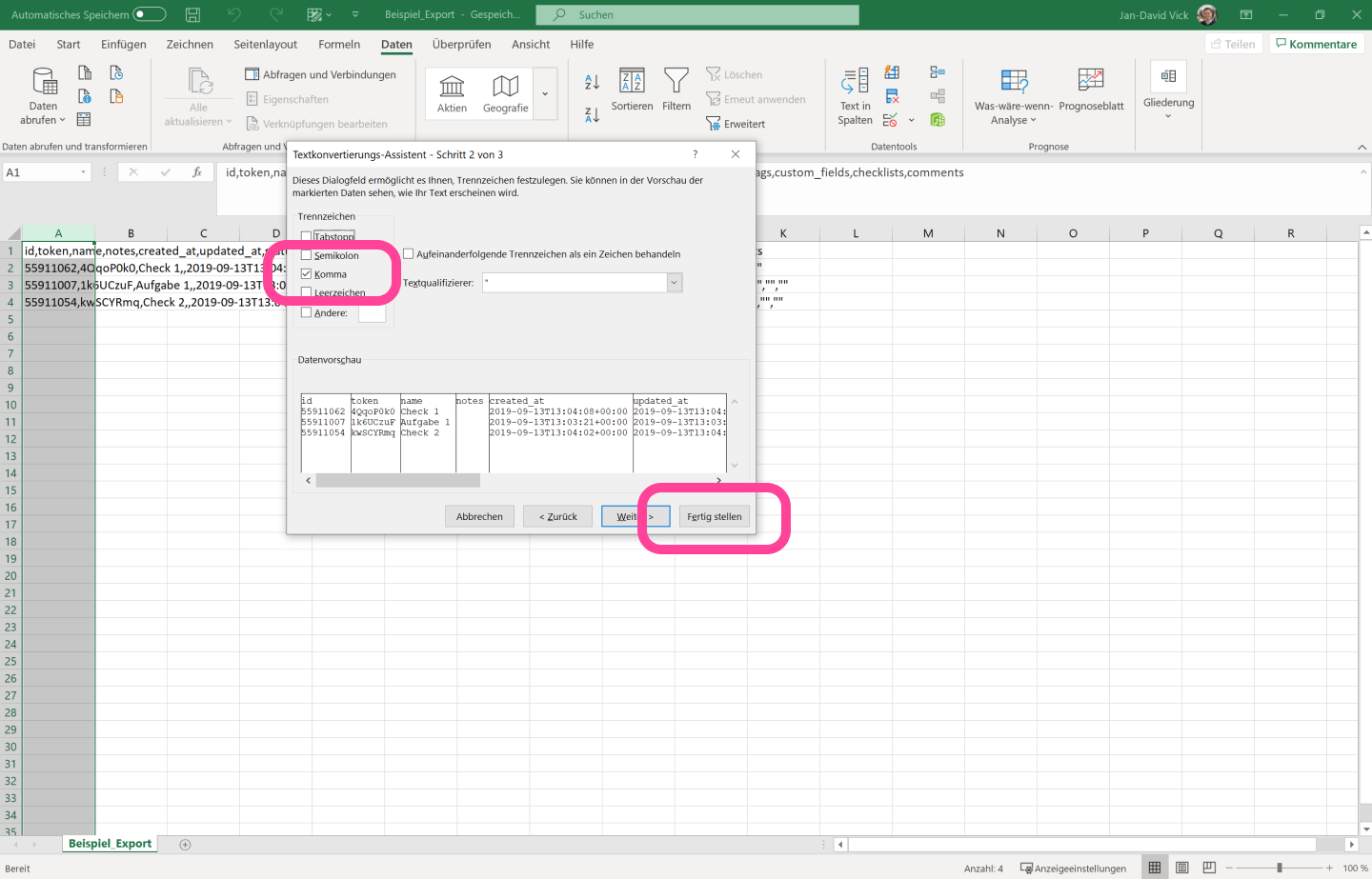
Select Comma and click Finish
3. Copy data into the awork import template
Now the data will be displayed in individual columns. You can copy this data into the awork import template.
Note: Some awork fields are not available in the Meistertask export. Check the mapping table below to see which fields are affected.
The field mapping is as follows:
awork | Meistertask |
Project name | Field is not available in Meistertask export |
Client | Field is not available in Meistertask export |
Task name | name |
Description | notes |
Activity | Field is not available in Meistertask export |
Start date | Field is not available in Meistertask export |
End date | due_date |
Estimated effort | Field is not available in Meistertask export |
Assignee | assignee |
Status | section |
4. Upload data to awork
After that, you can upload your data to awork as described here.
Tips for a Clean Import
Here's how to get your Meistertask data into a format you can use to import into awork:
-
If everything is in one column, use Data → Text to Columns in Excel and split by Comma
-
Use the field mapping so you select the right columns when copying into the awork import template
FAQ
Where can I find the instructions for exporting from Meistertask?
You can find the export instructions here: Export Data from Meistertask.
What does "Field is not available in Meistertask export" mean?
This means that this awork field is not included in the Meistertask export. You can see which fields are affected in the mapping table above.
How do I upload the prepared data to awork?
Follow these instructions: Import Data.
 Powered by happysupport.ai