
Schedule and Automate Agent Runs
Schedule agent runs to execute automatically at specific intervals using the Scheduled section in your project's AI tab.
Agents can run automatically at specific times or be triggered by events.
Key Benefits and Use Cases
You don't need to manually start every agent task. Agents can handle recurring work according to a schedule or run as an action within an automation.
Typical use cases include:
-
Weekly project health checks
-
Project reviews
-
Project comments
-
Notifying users
-
Sending a message after a run
You have two options available:
-
Scheduled agent runs
-
Automations with an agent
Set Up Scheduled Agent Runs
A scheduled agent run executes an agent according to a defined schedule.
Create a New Scheduled Run
- Navigate to your project and click the AI tab in the top navigation bar
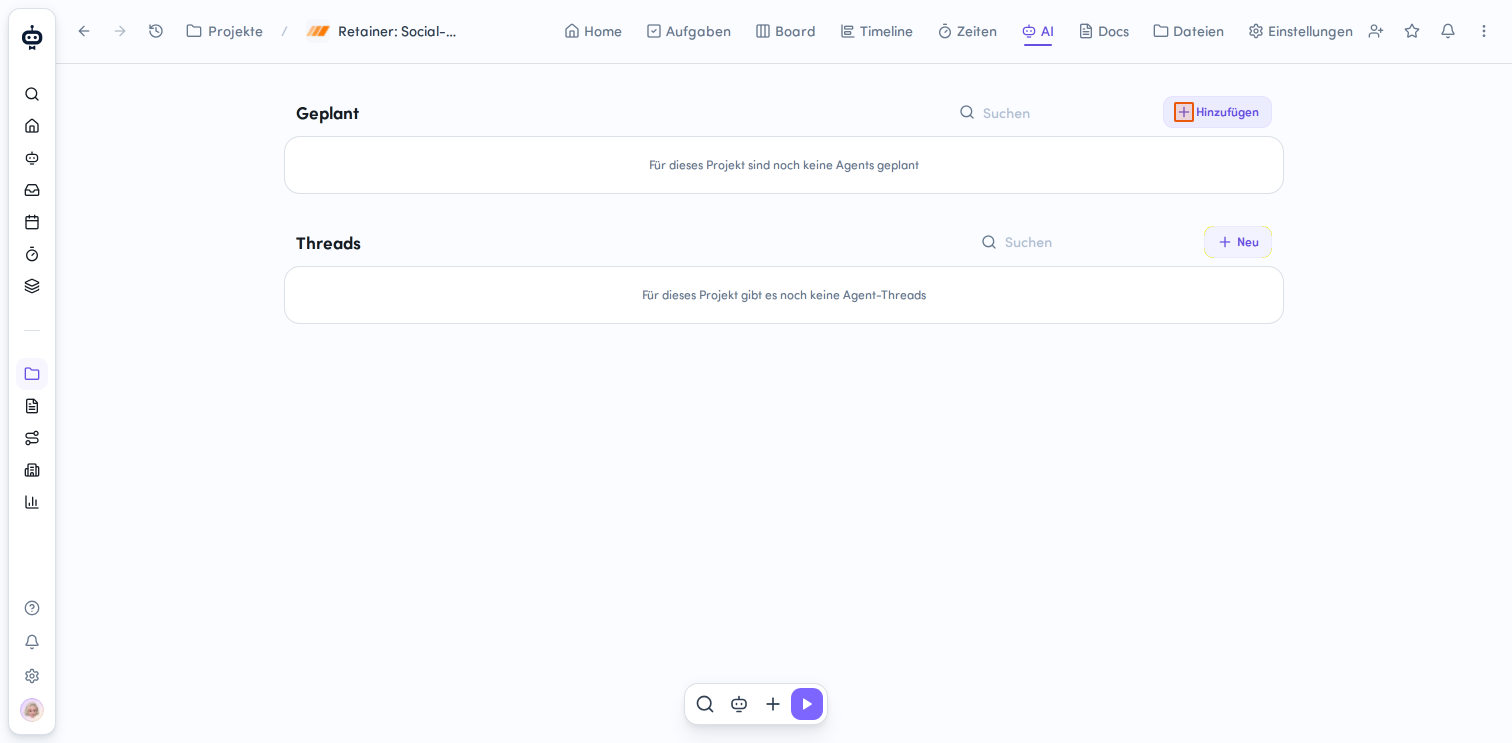
- In the Scheduled section, click + Add to the right of the search field
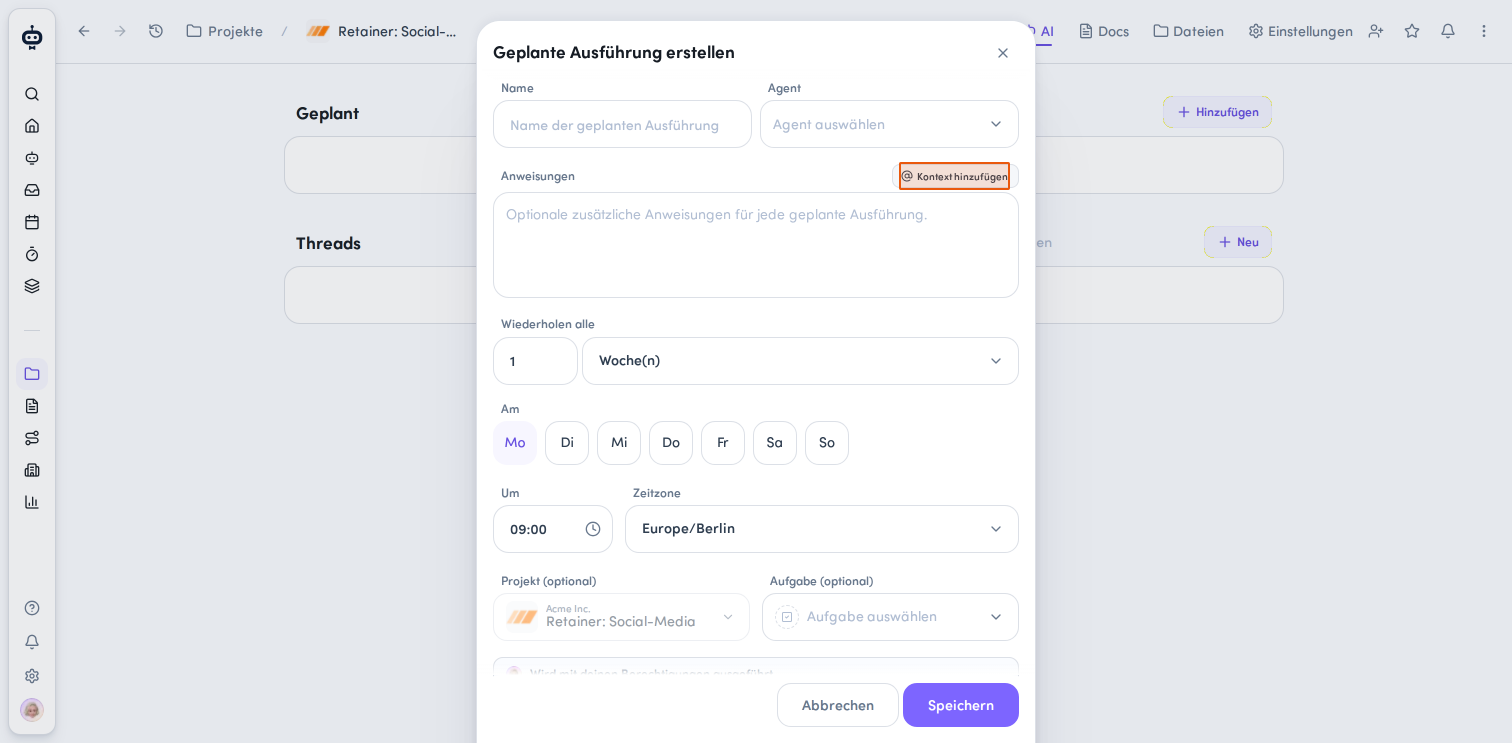
- In the Create Scheduled Run modal, give your run a meaningful Name
- Under Agent, select the agent you want from the available list (Important:)
- Add any additional Instructions if needed, or add dynamic context sources by clicking Add Context or by typing
@in the text field (User, Team, Customer, Task, Project, Doc)
-
Set the repetition interval
Configure under Repeat every how often the agent should run:- Enter the number in the number field
- Select the unit from the dropdown menu: Day(s), Week(s), Month(s), or Year(s)
-
Determine execution days and time
- On: Select the days of the week when the agent should run
- At: Set the time for execution
- Time zone: Choose the appropriate time zone
-
Optionally assign the run to a Task
-
Click Save
The current project is already pre-selected when creating a project-related schedule.
Important: Scheduled runs can currently only be started with a specialized agent. The generic awork agent cannot be used for this yet.
Manage Scheduled Runs
Within the AI tab of a project, you'll see all agent runs set up for the project in the Scheduled section. For each run, you'll see the run name, the executed agent, the repetition interval, and the creator of the scheduled run.
You can use the toggle to disable a scheduled run and enable it again if needed without deleting it.
Through the action button, you have additional options available: You can edit a scheduled run, run it now, or delete it.
Use Project and Task as Context
A scheduled run is connected to a project. You can also select a task.
- When a task is directly connected to the run, the agent knows which task to work on.
- When a task is used only as context, without being directly connected to the thread, the run won't automatically appear directly in that task.
Personal Scheduled Agent Runs
Agent schedules aren't limited to projects. You can also set up private scheduled agent runs for your own user.
Personal scheduled runs stay private as long as no project is selected.
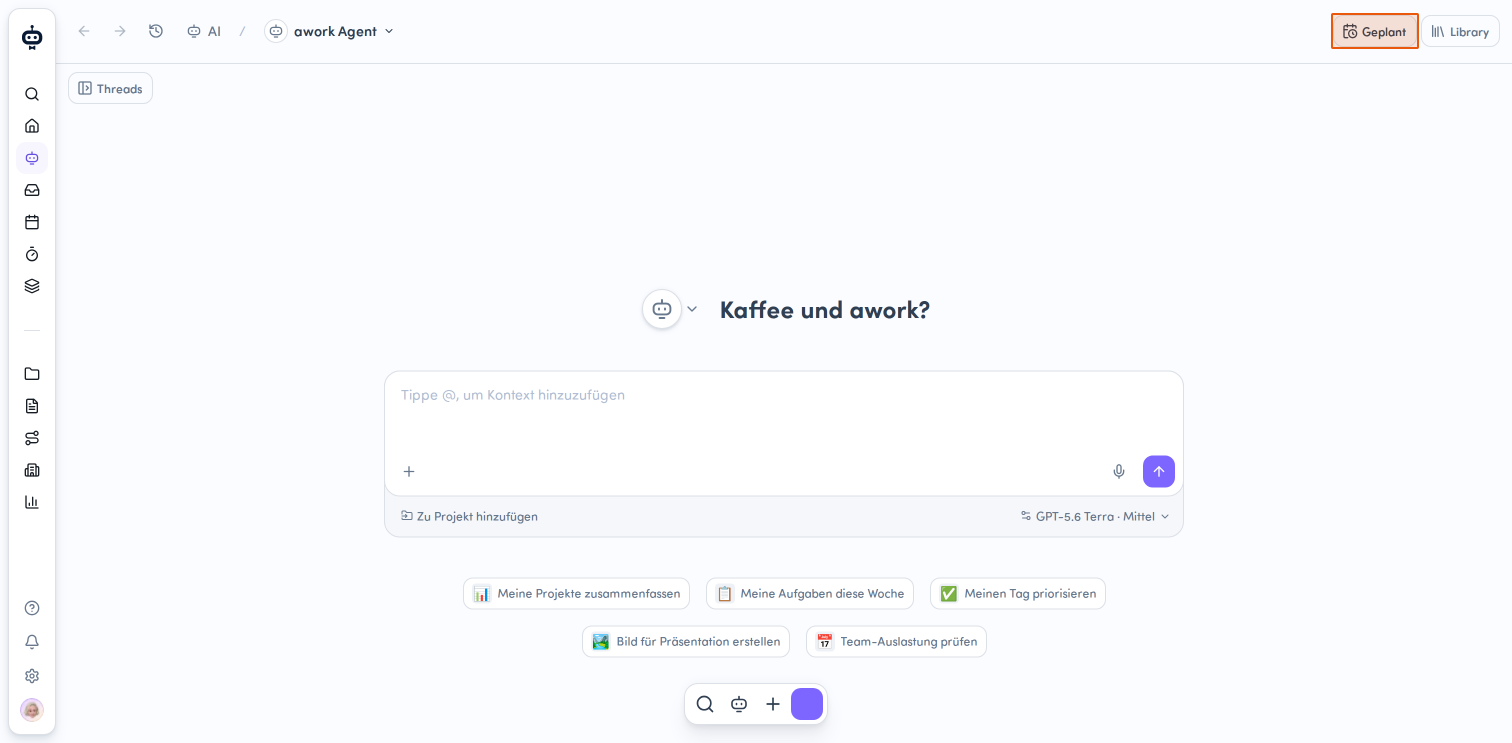
- Select AI in the Main Menu and click the Scheduled button in the top right.
- In the Scheduled Runs modal that opens, navigate between All, Mine, or Project, or use the Search
- Click the + Add button in the top left to create a new scheduled run.
- Optionally select a project and a task.
Important: Personal scheduled runs can currently only be started with a specialized agent. The generic awork agent cannot be used for this yet.
Set Up Automations with Agents
Agents can also run automatically when events occur in your project. You do this using a project automation.
-
Open your project Settings
-
Scroll to the Automations section and click + Add
-
Select the Trigger you want
-
Then click + Action to add an action
-
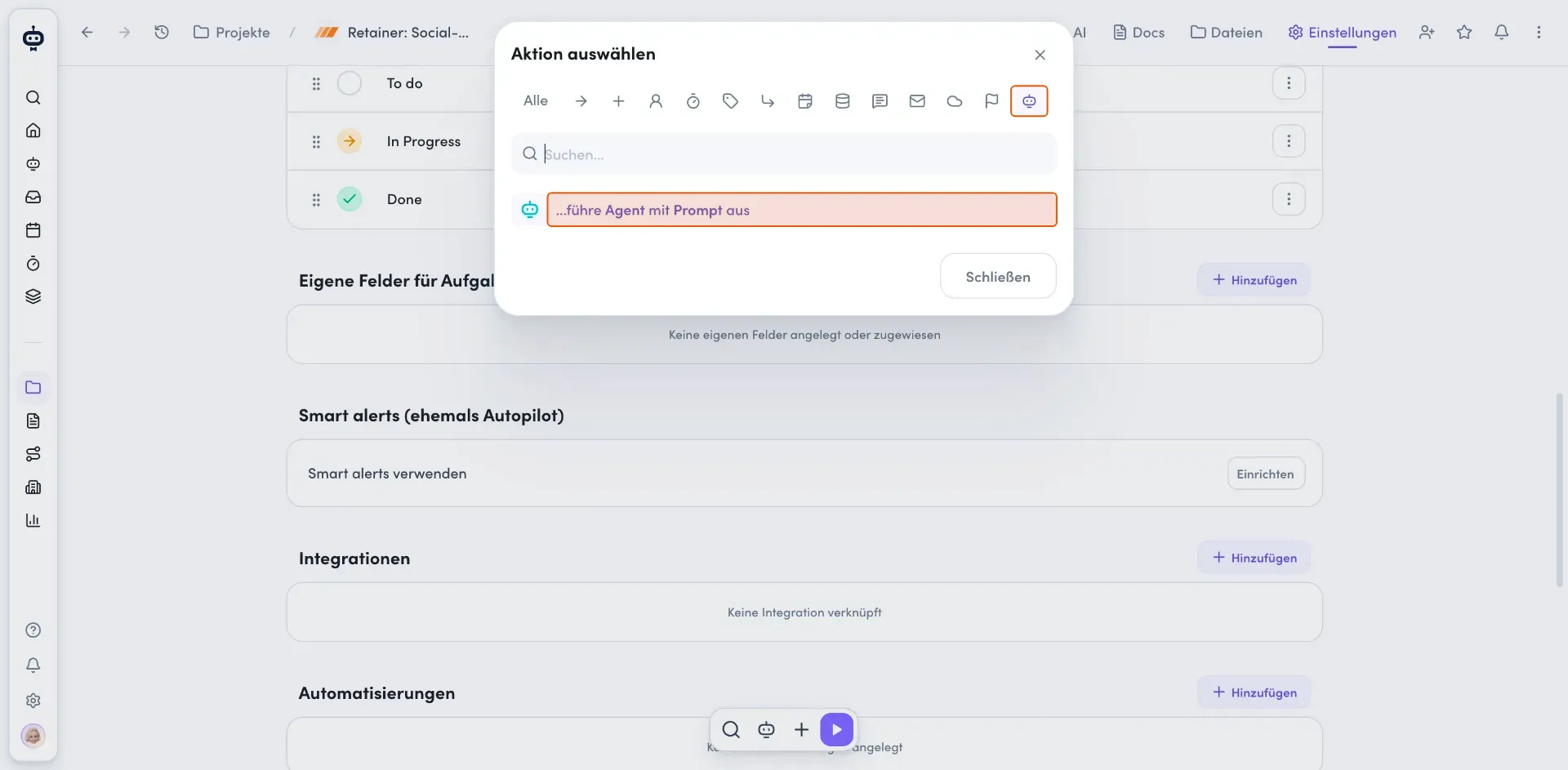
For agent-related actions, select the category with the robot icon
-
Choose ...execute agent with prompt
-
Select the appropriate Agent
-
Configure the Prompt for additional instructions
-
Click Save to activate the automation.
The automation determines when the agent run is triggered.
Permissions and Accountability
Agents always work with the permissions of the user under whose responsibility the run operates.
For a scheduled agent run, this is the user who created the schedule. For an automation, it's the user who set up the automation.
A schedule or automation does not give the agent any additional permissions.
Always check the permissions of the user who set up the schedule or automation. If that user can't perform a specific action, the agent can't do it either.
Who Can Edit a Scheduled Run?
The user who created the schedule is responsible for editing it.
Other users can access or delete the run depending on their permissions. However, they cannot edit the schedule configuration.
Scheduled Run vs. Automation
| Scheduled Run | Automation |
|---|---|
| Agent starts regularly on schedule | Agent starts as part of a workflow |
| Simple time-based start | Time- or event-driven workflow |
| Focus on a single agent run | Focus on a workflow |
FAQ
Can an agent automatically perform recurring tasks?
Yes. Agents can run on a defined schedule.
What permissions does a scheduled agent run with?
With the permissions of the user who created the schedule.
What happens if a scheduled run fails multiple times?
Scheduled runs are automatically disabled after three consecutive failed runs. This prevents a faulty schedule from continuing to run unnoticed. Once a scheduled run is automatically disabled, you can review it and then activate it again.
Can agents be part of an automation?
Yes. Agents can be used as an action in automations.
Does an agent get additional rights through an automation?
No. The agent continues to work with the permissions of the user who configured the automation.
 Powered by happysupport.ai