
Product Update: March
here's your monthly awork update – what's new, how to get the most out of it, and what's coming next.
TL;DR
- Highlights: awork Forms (with practical example), Project and Task Keys, manual automation triggers & calendar updates
- On the Roadmap: Workflows, custom task lists, and design update
- Reading tip about the new UI design from CPO Lucas
Feature Highlights at a Glance
awork Forms: Receive customer tasks in a structured way
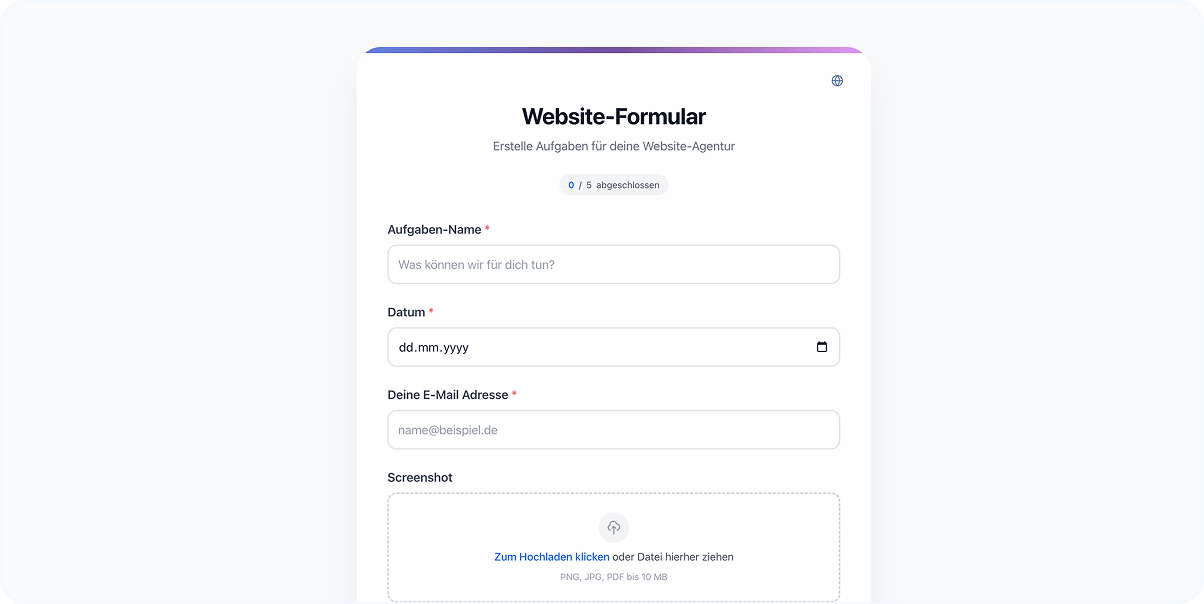
Know the feeling? Customer tasks often come in unstructured form and through various channels. Before actual work can begin, someone has to gather all the info and create the task properly.
To solve this problem, we've introduced awork Forms: a tool that lets you build forms for task creation in awork. awork Forms is open source, completely free, and you can even self-host it.
Here's an example: Your customer wants changes to their website. Instead of sending an email saying "Can you take a look at this?", they use the form link you created for them. The customer fills out the (required) fields, provides the URL, adds a screenshot, and describes the desired change right there. They submit and the task lands automatically in the right project, in the right list, with all the info your team needs - optionally assigned to a specific person and prioritized.
That's the end of back-and-forth or missing information (hopefully).
Try awork Forms
Learn more about awork Forms
Project and Task Keys
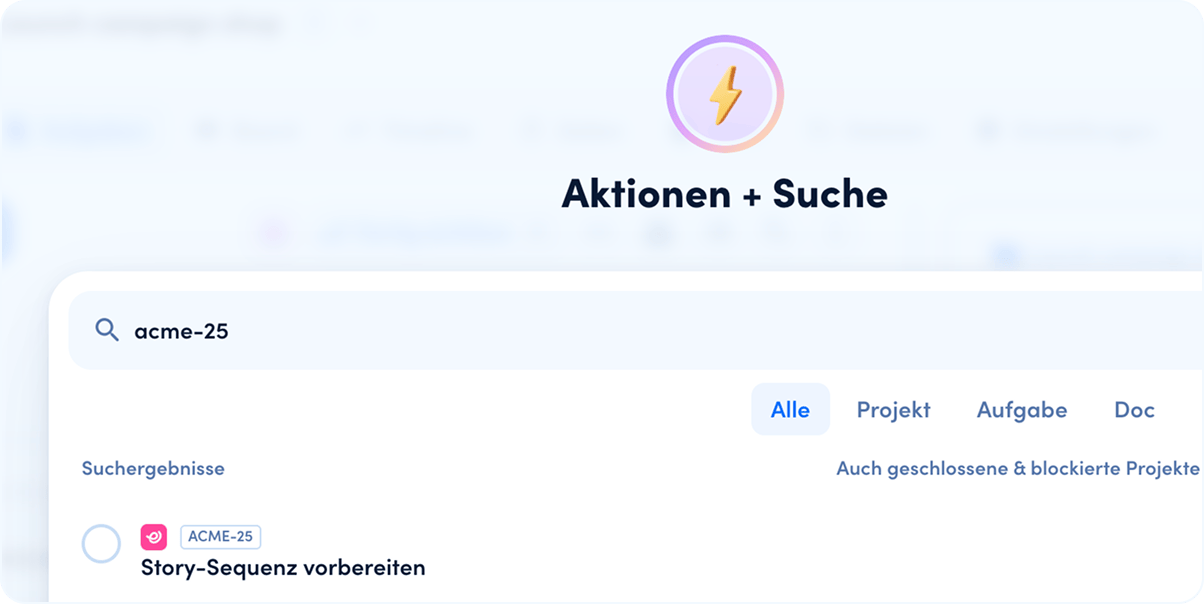
Every project now has a unique key (e.g., ACME), which you can also customize. Each task gets a permanent number (ACME-42). From now on, you have clear references in awork that you can use in Slack, emails, or calls. This means you spend less time searching or asking follow-up questions.
You can control the visibility of these keys at both workspace and project level:
Admins can enable keys in the workspace settings for all projects (General > Task Settings > Show Project & Task Keys for all projects).
Project managers can override key visibility per project in their project settings (General > Task and Project Key).
Learn more about Project & Task Keys
Manual Automation Triggers
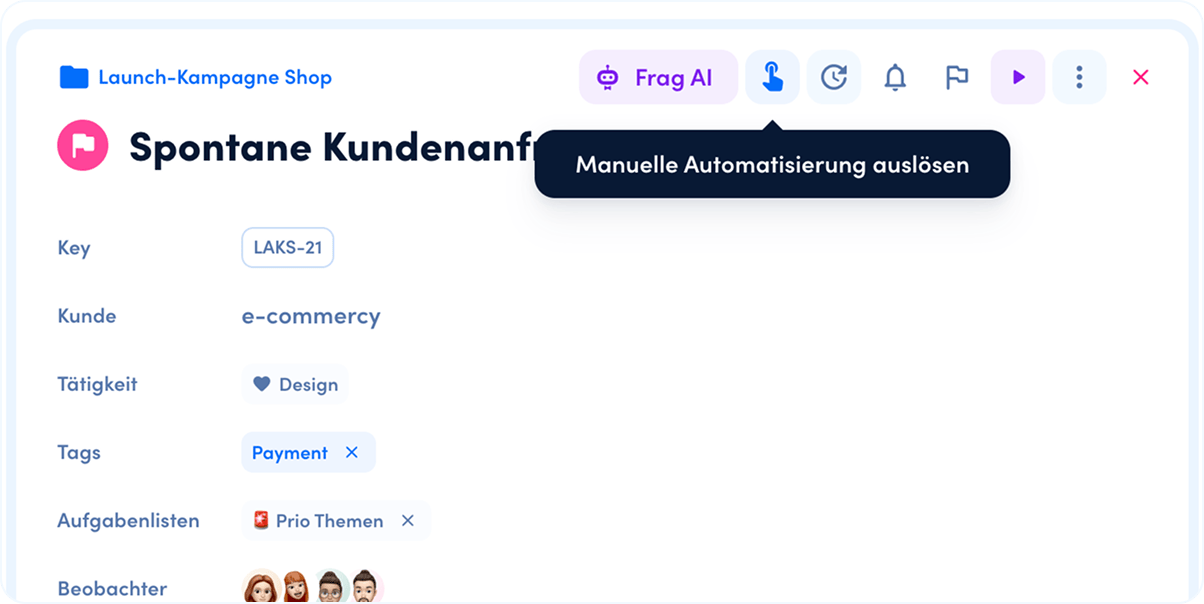
Not every workflow should run automatically. That's why you can now start automations manually whenever you need them.
For example: kick off your QA checklist before the customer review or start the "prepare invoice" flow when a project phase is completed.
When creating an automation, select the new "Manual" trigger type, give it a name (e.g., "Prepare Invoice"), add the corresponding actions, and save. You can then start the automation with a single click using a new button in the top right of the project task details.
Learn more about manual automation triggers
Trusted Workspaces for awork Connect
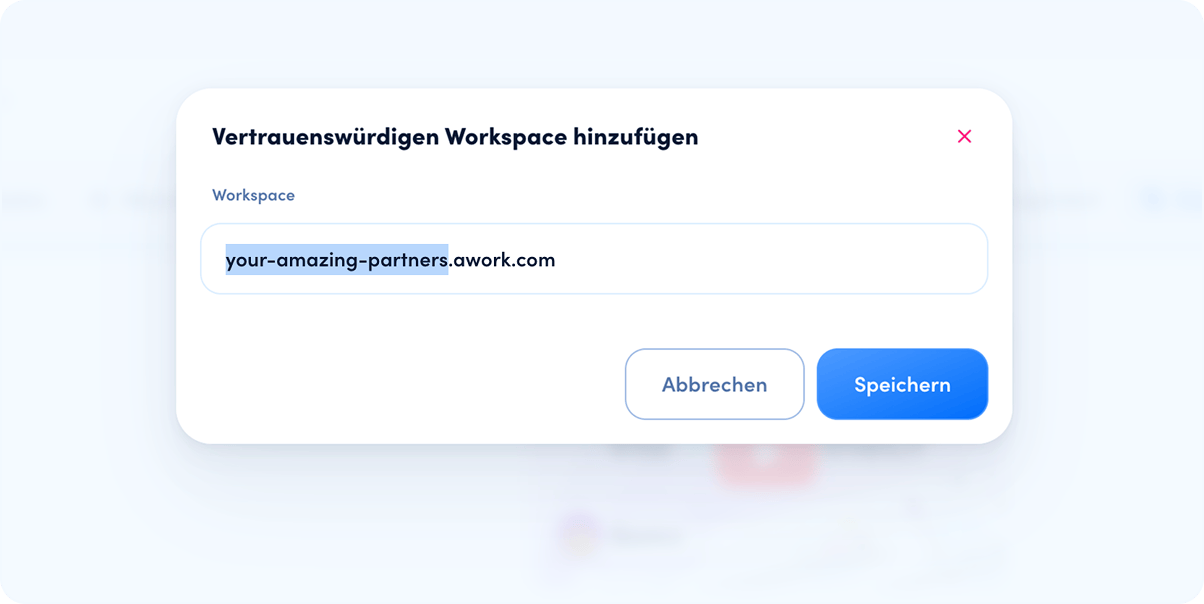
If you regularly collaborate with the same partner workspace via awork Connect, you don't need to manually approve each project invitation anymore. Workspace admins can now mark partner workspaces as "trusted", which automatically accepts invitations. Your external partners can be assigned directly to projects and get started right away.
Here's how to set up trusted workspaces:
Workspace Settings > Connect > Trusted Workspaces
Learn more about trusted workspaces
Calendar Integration: Tasks, Bookings, and OOO Capacity
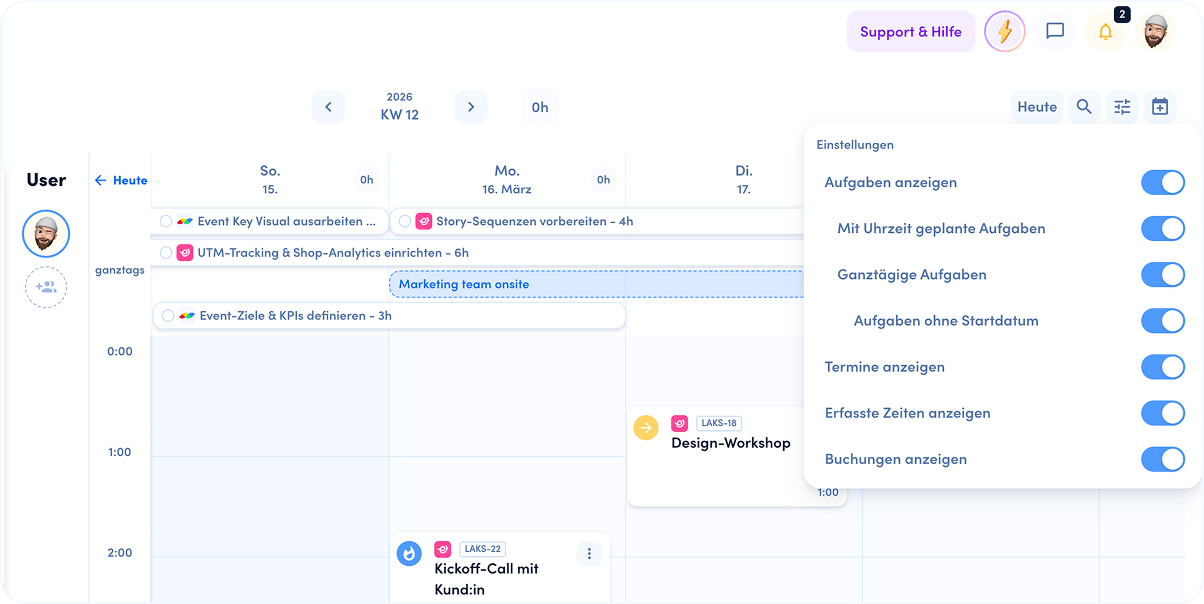
Your awork calendar now reflects your actual workday and your available capacity even better.
On one hand, you'll see assigned tasks and bookings in the all-day row, giving you a better overview of your week. You can enable both features in your calendar settings.
On the other hand, "out of office" events can now impact your capacity in the planner as well - for example, when you have a doctor's appointment or need to leave early. Your team will see when you're unavailable and no one will assign you tasks when you're already away.
Enable this under:
Calendar > Manage Connected Calendars (next to Settings on the right) > Edit > Load "out of office" events and treat as absence
Learn more about all-day entries
Learn more about "out of office" events
Bonus for Developers: awork CLI
With the awork CLI, you can manage projects, users, time entries, and more directly from your terminal. Built for automated workflows and AI agents. Everything is open source on GitHub.
Learn more about awork CLI on GitHub
What's Coming Next
Workflows: Instead of setting up status sets, automations, and custom fields individually for each project, you define them once as a workflow and assign it to multiple projects. When you change the workflow (e.g., add a new status), all projects update automatically. Perfect for agencies that want to run a proven process consistently across many client projects.
Custom Task Lists: You need a curated task list that can't be created with filters alone - for example, 8 handpicked tasks from different projects for tomorrow's stakeholder meeting? Soon you'll be able to create your own lists, add tasks from any projects via drag and drop, and sort them by your priority without changing your project structure.
We're also continuing to work on advanced filters, cross-project task lists, and the new UI design - read more about it in the reading tip.
Reading Tip
Our CPO Lucas has presented the upcoming design update in his LinkedIn newsletter. If you want to know where the visual journey with awork is heading, this is your article.
Do you have questions or feedback? Just reply to me - we love hearing your suggestions!
 Powered by happysupport.ai