
Invoicing Tools Integration
Connect your awork account to sevDesk, Lexware, HQ, Easybill, MOCO, bexio, or Xero to automatically sync tracked time into invoices
Transfer tracked time from awork directly to invoices in sevDesk, Lexware Office, HQ, Easybill, MOCO, bexio, or Xero.
Invoicing Tools help you bill time tracked in awork directly in the integrated tool.
🔐 Available from the Professional Plan onwards.
Main Benefits and Use Cases
When you integrate an invoicing tool, you can:
-
Forward tracked time directly and transfer it to invoices in your invoicing tool
-
Start billing from awork and get from time tracking to invoice faster
Setting Up a New Integration
Via the Integration Library
-
Navigate in awork to Settings (gear icon in the bottom left of the main menu) > Integrations
-
Open the Integration Library
-
Select the right tool in the Invoicing Tools section
-
Follow the tool-specific steps
Via the Time Reports Menu
You can also start the setup directly from Time Reports if no invoicing tool is integrated yet.
-
Open Time Reports
-
Click the Dollar Icon in the top right
-
Select Create Invoice
-
Choose the right tool in the selection window
-
Follow the tool-specific steps
How to bill time from awork (creating invoices)
Available Invoicing Tools
The following integrations are supported by awork:
-
sevDesk
-
Lexware Office
-
HQ
-
Easybill
-
MOCO
-
bexio
-
Xero
sevDesk
awork users get 60% off the first 12 months at sevDesk - click here to redeem it.
-
Start the sevDesk integration in awork
-
Enter the API Key from sevDesk
-
Click Save
You can find the API Token in sevDesk under Extensions / Integrations. You can copy it from there and paste it into awork.
Lexware Office
-
Start the Lexware Office integration in awork
-
You'll be redirected to Lexware Office
-
Log in with your Lexware username and password
-
You'll then be redirected back to awork and can use the integration right away
Note: The integration remains valid until the permission is removed or revoked in Lexware Office.
HQ
-
Start the HQ integration in awork
-
Enter the API Key from HQ
-
Click Save
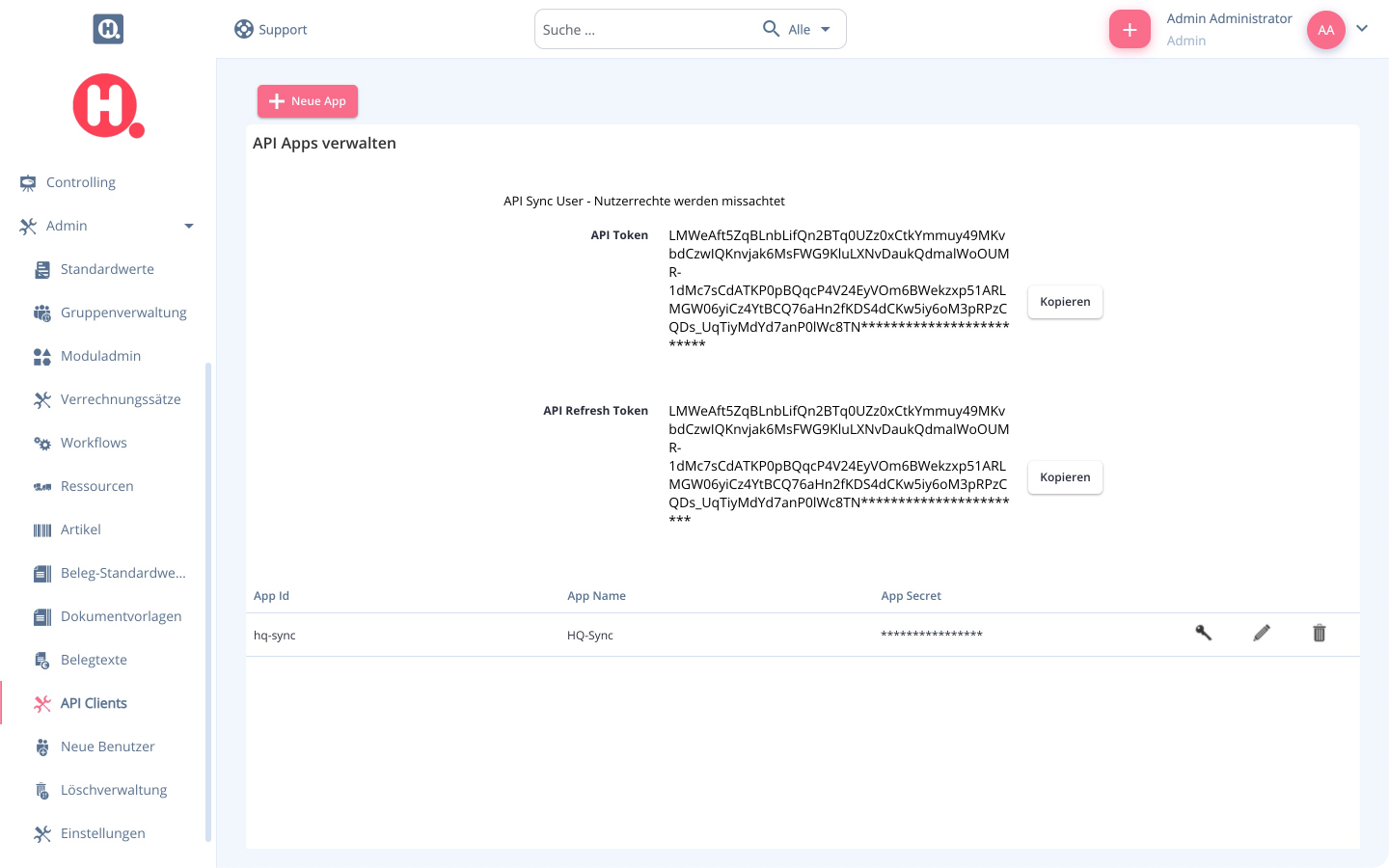
You can find the API Token in HQ under Admin > API Clients. You can copy it from there and paste it into awork.
Easybill
-
Start the Easybill integration in awork
-
Enter the API Key from Easybill
-
Click Save
You can find the API Token in Easybill under Profile > Profile & Settings > Api Key. You can copy it from there and paste it into awork.
MOCO
-
Start the MOCO integration in awork
-
Enter your MOCO Subdomain (e.g. your-subdomain.mocoapp.com)
-
Enter the API Key from MOCO
-
Click Save
You can find the API Key in MOCO under Profile > Integrations > Personal API Key.
bexio
awork users get 40% off their first year at bexio. Use the promo code awork40 when signing up for bexio.
-
Start the bexio integration in awork
-
You'll be redirected to bexio
-
Log in with your bexio username and password
-
You'll then be redirected back to awork and can use the integration right away
Xero
-
Start the Xero integration in awork
-
Click Connect with Xero
-
You'll be redirected to the Xero website
-
Log in and allow awork access to your Xero account
-
After successful authorization, you'll be redirected back to awork and the integration is set up
Important: Xero uses OAuth 2.0 for authentication. You'll be redirected to Xero's login/authorization page for this.
FAQ
Which invoicing tools does awork support?
awork supports integrations with sevDesk, Lexware Office, HQ, Easybill, MOCO, bexio, and Xero.
Where do I set up an invoicing tool integration?
In awork under Settings > Integrations. Open the Integration Library and select the tool under Invoicing Tools.
Or click the Dollar Icon in Time Reports, select Create Invoice, and start setting up a tool.
 Powered by happysupport.ai