
MOCO Integration for Transferring Projects, Time Entries, and Absences
Connect your awork and MOCO accounts to automatically sync projects, time entries, and absences between platforms using the paid integration module
💡 This interface is a paid add-on. If you'd like to use our MOCO integration, just reach out to us at sales@awork.com. We'd love to hear from you!
MOCO is agency software that lets you handle your accounting and much more without stress or paperwork.
For MOCO, we have several integrations available:
- Free MOCO integration for invoices
- Paid MOCO integration for transferring projects and time entries
- Free MOCO browser extension for Chrome and Firefox to log time directly in MOCO while working in awork
General Information
The MOCO integration is a paid add-on module that enables seamless transfer of projects, time entries, and absences between awork and MOCO. This keeps all your relevant data centrally available and supports your workflow efficiently. In this article, you'll learn how to set up the integration and what features it offers.
What features does the integration offer?
Projects
- Sync new projects from MOCO to awork
- Use project templates from awork
- Transfer existing projects from awork to MOCO
Time Entries
- Automatic transfer of all time entries, no manual work needed
- Option to start the transfer only from a specific point in time
- Ability to differentiate between billable and non-billable time
Absences
- Only new or changed absences are synced from MOCO to awork
- No sync in the other direction (awork → MOCO)
How does the integration work technically?
1. Project Creation:
- The project is created in MOCO and tagged with "Sync to awork".
- The interface automatically creates the project in awork. The following data is transferred:
- Project number
- Project name
- Start and end date
- Client (will be created or selected and assigned to the project)
- Project manager and project members are synced to awork by default.
2. Tasks from Service Positions:
For each service position from the MOCO project, a task is created in the "MOCO" list in awork.
3. Time Entry:
- A time entry is created in awork on the linked project.
- If the time was logged on a task that originated from a MOCO service position, the time is assigned directly.
- If no direct assignment is possible, the time entry is matched based on the activity name and the MOCO position name.
- If no match is found, a new service position called "Unassigned time entry" is created in MOCO and the time is assigned there.
- Subtasks are assigned to the same MOCO service position as the main task.
- The user from MOCO and awork is matched via email address.
Important: The email address in awork must be saved as a business email under Account settings (click on your profile picture in the top right) > Edit user > Contact. Admins can also adjust the email for other users under Users in the left navigation bar. - Information about whether the time is billable or non-billable is transferred.
- Time entries can be modified or deleted in awork after they're created. These changes are also transferred to MOCO.
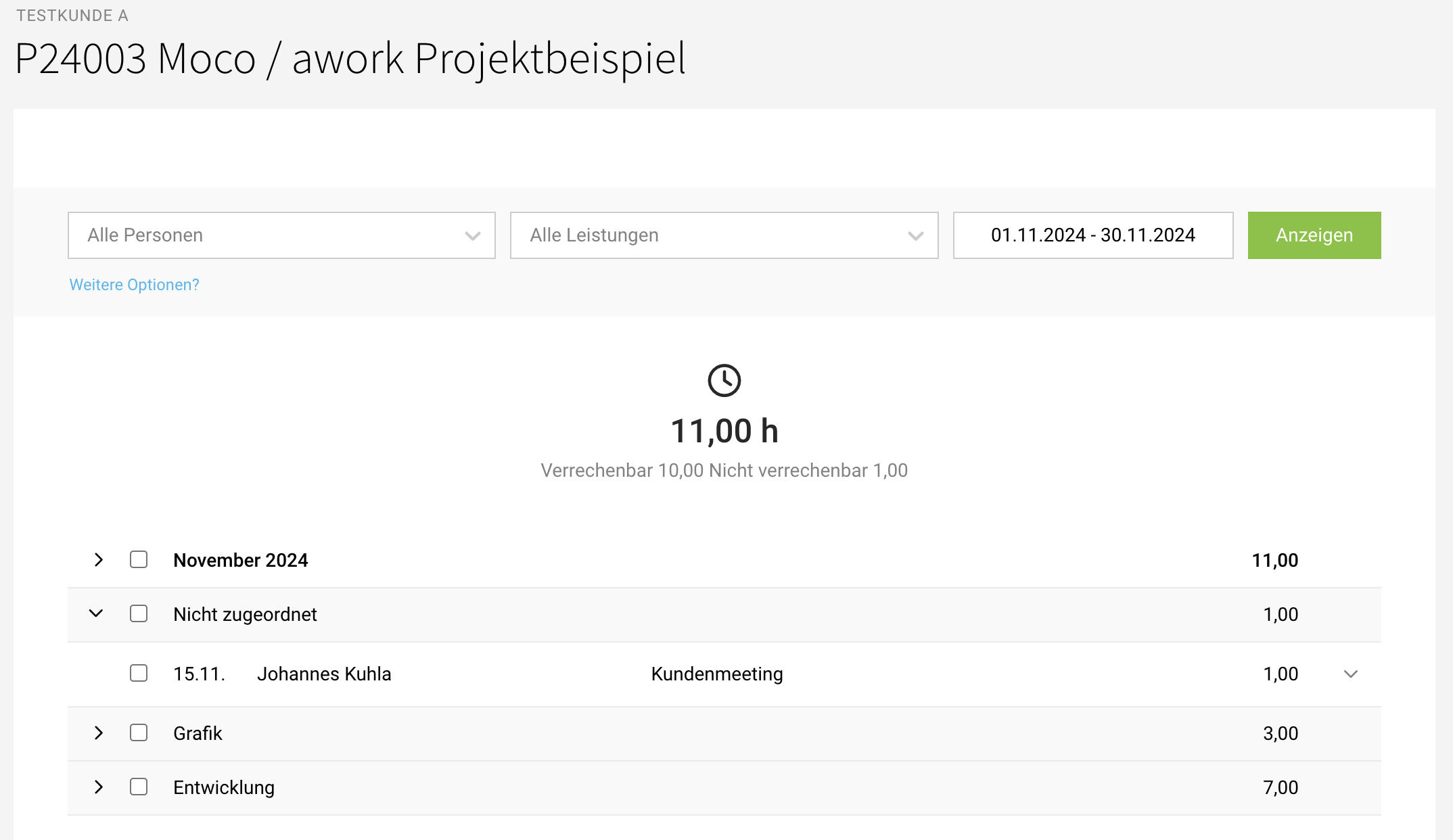
Time Entry Modes: Task Lists vs. Tasks
There are two supported modes for syncing time entries between MOCO and awork:
- Time entry via task lists (recommended)
- Time entry via tasks
Each mode determines how service positions and logged time are matched between the systems.
1. Time Entry via Task Lists (Recommended)
A separate task list is created in awork for each service position. Tasks are not created automatically. Users can manually create tasks or subtasks within the generated task lists.
- Reusing existing task lists: If the project template already contains task lists with identical names, these existing task lists are reused and tasks are assigned to the matching lists, instead of creating duplicates.
- Time entry assignment: All time entries logged within the corresponding task list are assigned to the linked service position, including time on tasks and time on subtasks.
- Assignment logic: MOCO service position = Task list in awork. Logged time on tasks/subtasks = Assignment to the corresponding service position.
This mode is recommended because it offers:
- More flexibility in task organization
- Better compatibility with project templates
- Clearer project structures
- Easier manual task management
2. Time Entry via Tasks
A list named "MOCO" is automatically created in awork. Within this list, a separate task is created for each MOCO service position.
- Time entry assignment: Time logged directly on these created tasks is synced back to the corresponding service position. The assignment happens directly through the task created from the service position or through the linked awork activity.
- Assignment logic: MOCO service position = Task within the "MOCO" list in awork. Logged time on task or activity = Transfer to the corresponding service position.
How do I set up the integration?
Step 1: Create an API Key in MOCO
- In your MOCO account: Settings (gear icon in the top right) → Extensions → API and Webhooks
- Create a new API key with:
- Name (e.g., "awork")
- Full access, valid without limit
- Copy the key and keep it safe

2. Create Custom Fields in MOCO
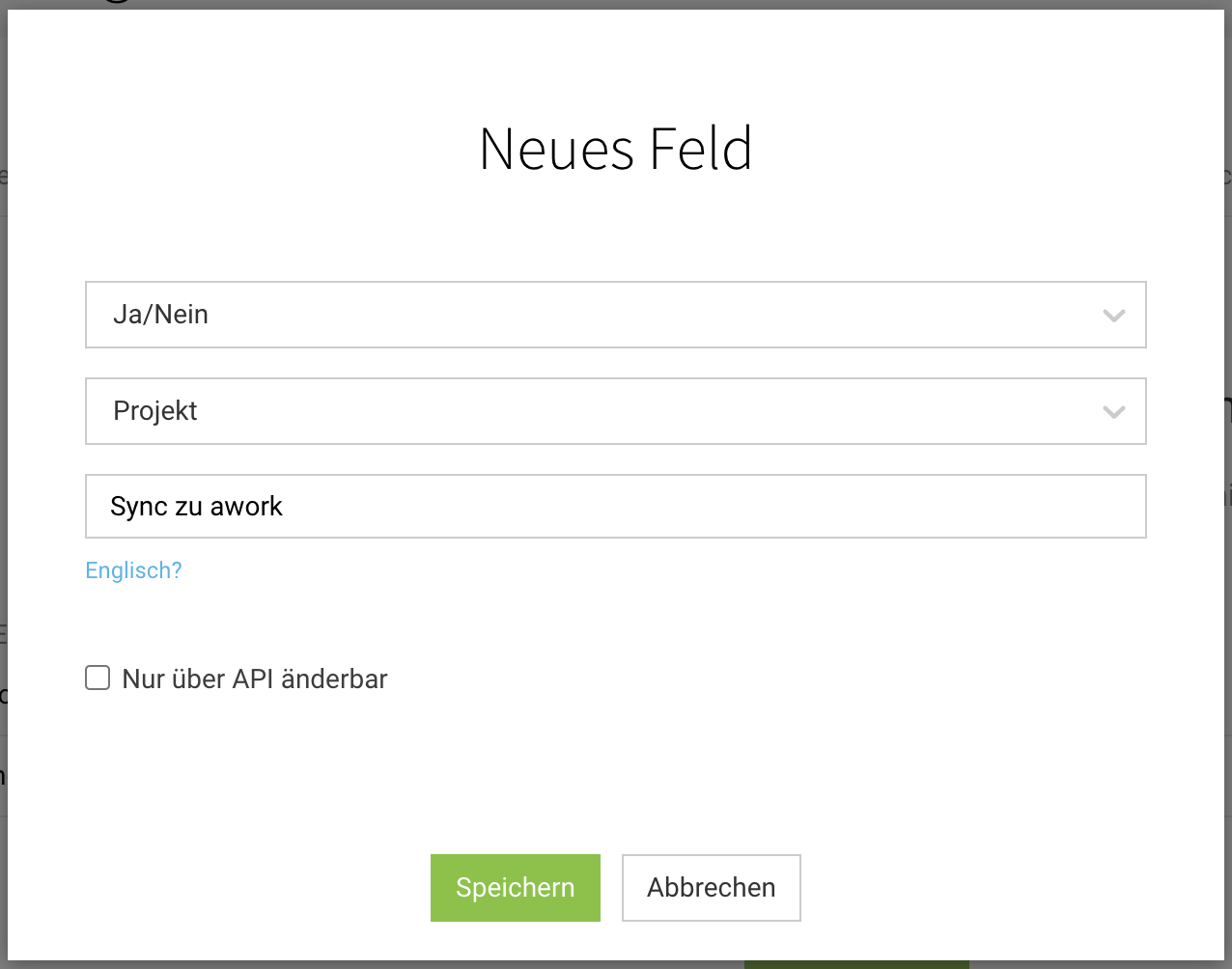
For the transfer to work correctly, you need to set up custom fields in MOCO:
- Go to Settings (gear icon in the top right) → Custom fields.
- Create the following fields:
- awork Project (Type: Link)
- Sync to awork (Type: Yes/No)
- awork Project Template (Type: Single select). Add template names as described above.
- When creating each field, select Project in the second row.
- Pay attention to uppercase and lowercase letters.
- Save the fields.
3. Activate the Integration in awork
Now contact our support team and ask them to activate the MOCO interface in awork for you.
Send them the API key you just created and your MOCO subdomain. We'll need both to configure the interface.
Please let the team know how you'd like the following details configured:
- Syncing absences from MOCO to awork: Yes/No
- Time entry via task lists or via tasks
- Time entries from a specific point in time
4. First Test
- Create a project:
- Create a new project in MOCO and enable the Sync to awork field.
- Save the project.
- Check the transfer:
- Check in awork to see if the project was transferred correctly.
Additional Optional Integration Settings
The following optional settings can be configured:
- Ignore non-plannable absences: Decide whether non-plannable MOCO absences should be excluded from syncing
- Disable MOCO-controlled updates of awork project data: Prevents changes from MOCO from overwriting existing project data in awork (including project budget and project description)
- Or just disable updates to awork project descriptions: allows project data to continue syncing while preserving existing awork project descriptions to avoid text overwrites
- Remove MOCO ID prefix from awork project names: Creates more consistent naming in your workspace ("Project name" instead of "P1234 - Project name")
- Update project budget from planned durations: Calculates the awork project budget based on the total planned durations of tasks and task lists
- Disable updating project members during project updates
- Or never transfer project members: completely disables syncing of project members between MOCO and awork
Please let us know which options you'd like us to enable for your workspace.
Creating Projects in awork with Templates
- Create a custom field: Go to Settings (gear icon in the top right) in MOCO and create a custom field named "awork Project Template" as type "Single select".
- Add templates: Add the templates you'd like to use in MOCO/awork to the single select options. Important: Make sure there are no spaces before or after commas.
- Use the template: The selected template will automatically be used for project creation in awork.
If you want no template to be pre-selected by default, or if users should be able to create a project completely without a template, then add a comma at the beginning right before the project template names in the awork Project Template field.
Important Notes
- User permissions in both systems:
Check that user permissions are set correctly in both systems and that the user is assigned to the respective projects. This must be identical in awork and MOCO. In MOCO, the user needs full access to projects and must be added as "Person for time tracking" in the project. - Transfer existing MOCO projects to awork: If you want to create existing MOCO projects in awork, just activate Sync to awork afterwards. The project will then be created in awork.
- Custom subdomain: If you change the awork domain after activating the MOCO integration, please contact support so we can update the domain for the integration.
- Transfer existing awork projects to MOCO:
If you want to transfer existing awork projects to MOCO afterwards, create a MOCO project, add the corresponding link of the awork project, and then activate Sync to awork.
Linking projects is only possible once. Already used awork project links cannot be added to another MOCO project. This will cause sync errors.
Canceling the MOCO Integration
You cannot cancel the MOCO integration yourself in awork. Please contact our support team at support@awork.com.
Frequently Asked Questions (FAQ)
What does the integration cost?
We charge a flat rate of 50 euros per month for the integration. The minimum contract duration and cancellation period for this add-on follow the terms of your current plan.
Is the task title in awork transferred to the description of the time entry in MOCO?
Yes, the task name can be transferred to the notes field of the time entry in MOCO. Just let our support team know when you activate the integration that you'd like to use this feature. The feature can also be activated later.
Can a task in awork be renamed or will time entries no longer be assigned?
Time entry assignment continues to work even if a task is renamed.
Are changes to time entries in awork also updated in MOCO?
Yes, duration and notes of a time entry are transferred to MOCO when you make changes in awork.
Will time entries be synced again from awork to MOCO if the times were already manually transferred to MOCO and then the integration is activated?
Yes, the time entries would be transferred again, but you can define a point in time from which the time entries should be transferred. Inform our support team about this point in time when the interface is activated.
Is it possible for changes to projects in MOCO to be synced to awork after the initial project creation?
A new transfer only happens for newly created service positions and the project members specified in MOCO. To trigger syncing, you need to edit the project name (for example by adding a space at the end).
If times are edited or deleted in MOCO, are they also edited or deleted in awork?
If a time entry is edited or deleted in MOCO, it is not synced to awork. Conversely, if you change or delete a time entry in awork, it will be updated or deleted in MOCO.
If a project is deleted in MOCO, is the project also deleted in awork?
No, deleting a project in MOCO has no impact on the project in awork. The project in awork will not be deleted.
Can time entries be synced from MOCO to awork?
Time entries are only transferred from awork to MOCO, not the other way around.
Is the budget from tasks created in MOCO also transferred to awork?
Budget is not transferred directly from MOCO to awork. MOCO uses a monetary budget, while awork uses a time-based budget. The planned effort of a task in awork is based on the budget of a MOCO service position and the hourly rate stored in MOCO. (Formula: MOCO budget / MOCO hourly rate = awork planned effort)
If no budget is set for the service position, the integration uses the budget from the MOCO project.
Is the description of the service position from MOCO transferred to the description field in awork?
Yes, that's possible. The description should be transferred here.
Can the transfer of project members from MOCO to awork be disabled?
Yes, the transfer of project members can be disabled either only for existing projects or completely when creating new projects. Please contact support so we can configure the interface accordingly.
I've already created a project in MOCO that was transferred to awork. Can I create a new awork project from this project?
The projects are automatically linked. If you want to remove the link, you can disable the sync checkbox in MOCO.
If you want to create a new awork project from the MOCO project, follow these steps:
- Edit the project in MOCO and delete the awork link
- In the link field, enter the following text: https://recreate
- Once you save the project in MOCO, a new project will be created in awork
Can I change the link later and link an awork project with a different MOCO project?
No, an awork project can only be linked with one MOCO project. If, for example, a MOCO project is archived, the awork project cannot be linked with another MOCO project. The original link remains.
Who is responsible for the MOCO integration?
awork is responsible for the integration. If you have any questions, contact the awork support team.
 Powered by happysupport.ai