
Integration with Microsoft Teams
Post awork project updates to Microsoft Teams channels and create tasks, comments, and time entries in awork—without leaving Teams.
The Microsoft Teams integration lets you keep your project communication where it happens, while staying connected to awork.
Key benefits and use cases
- Publish project updates in Microsoft Teams channels
- Create tasks in awork directly from Teams using @-commands
- Add comments to tasks straight from Teams
- Start and stop time tracking for tasks or projects
Setting up the Microsoft Teams integration
You'll install the awork app in Microsoft Teams, connect your tenant to your awork workspace, and then link a project to a channel.
Installing awork in Microsoft Teams
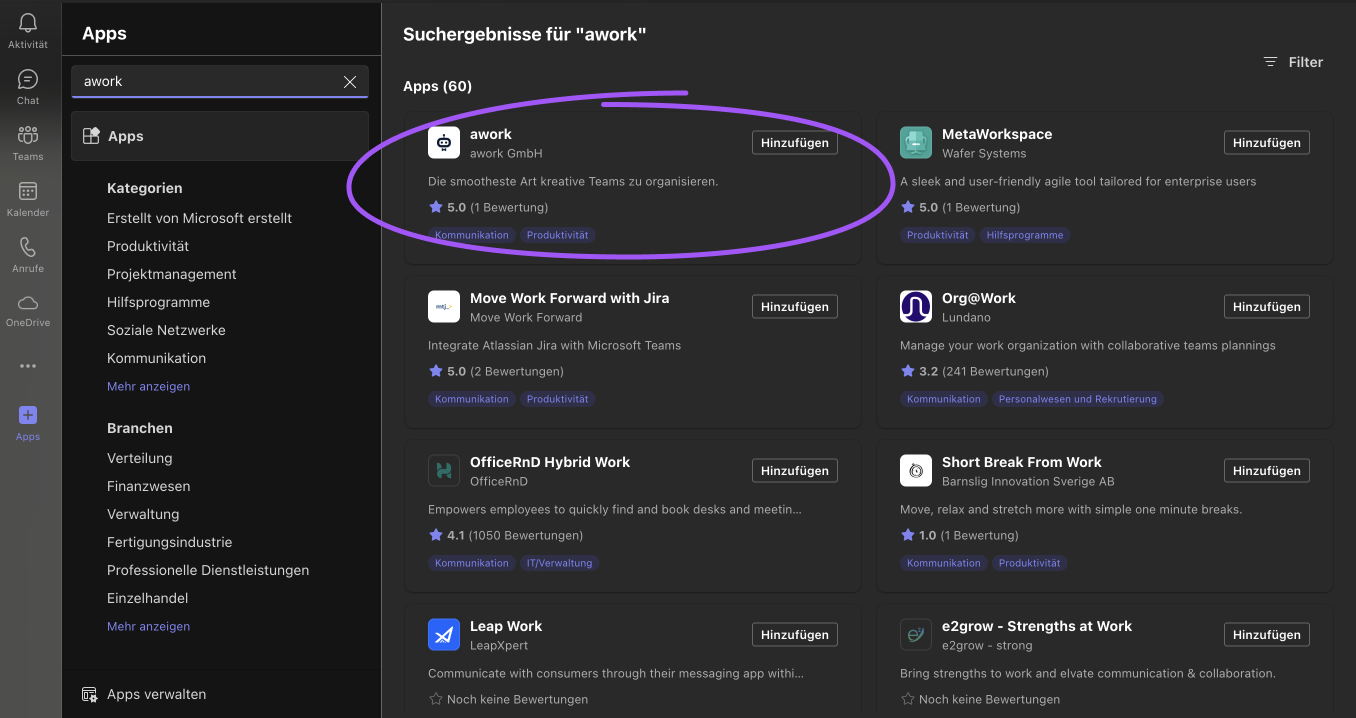
- Go to Apps in Microsoft Teams (left menu)
- Search for awork
- Click Add
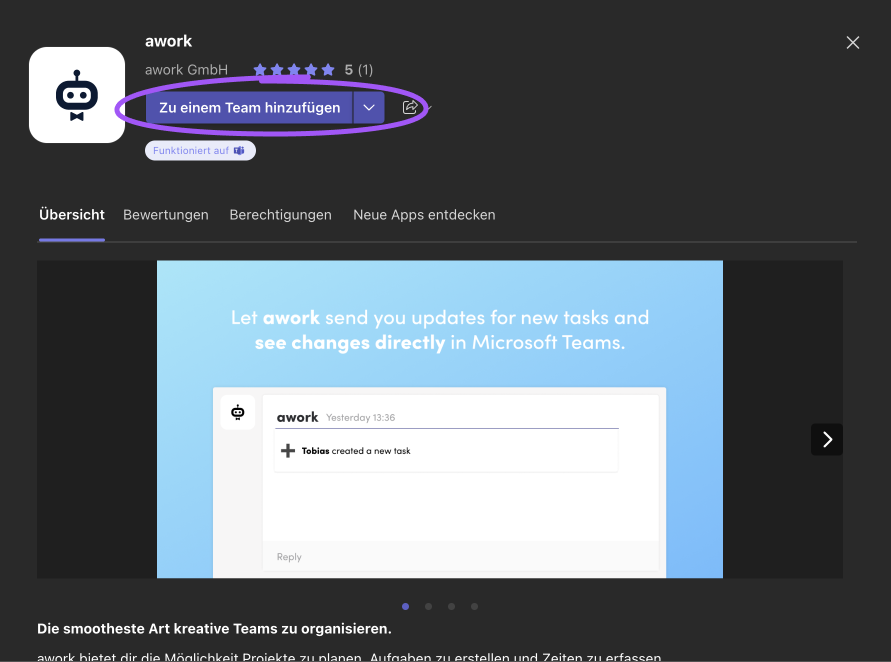
- Click Add to a team in the pop-up
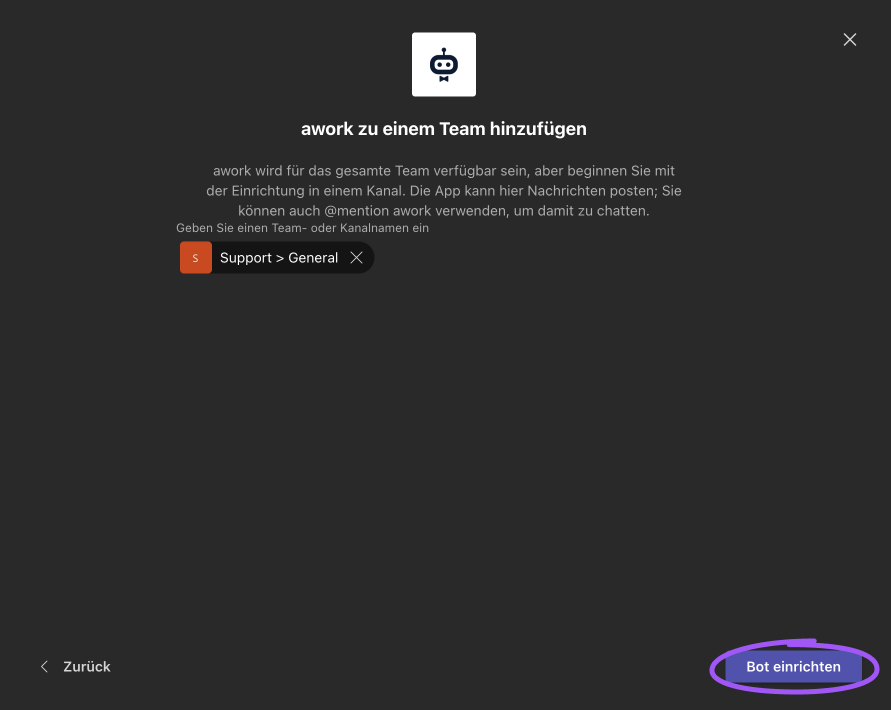
- Select your team and then click Set up bot
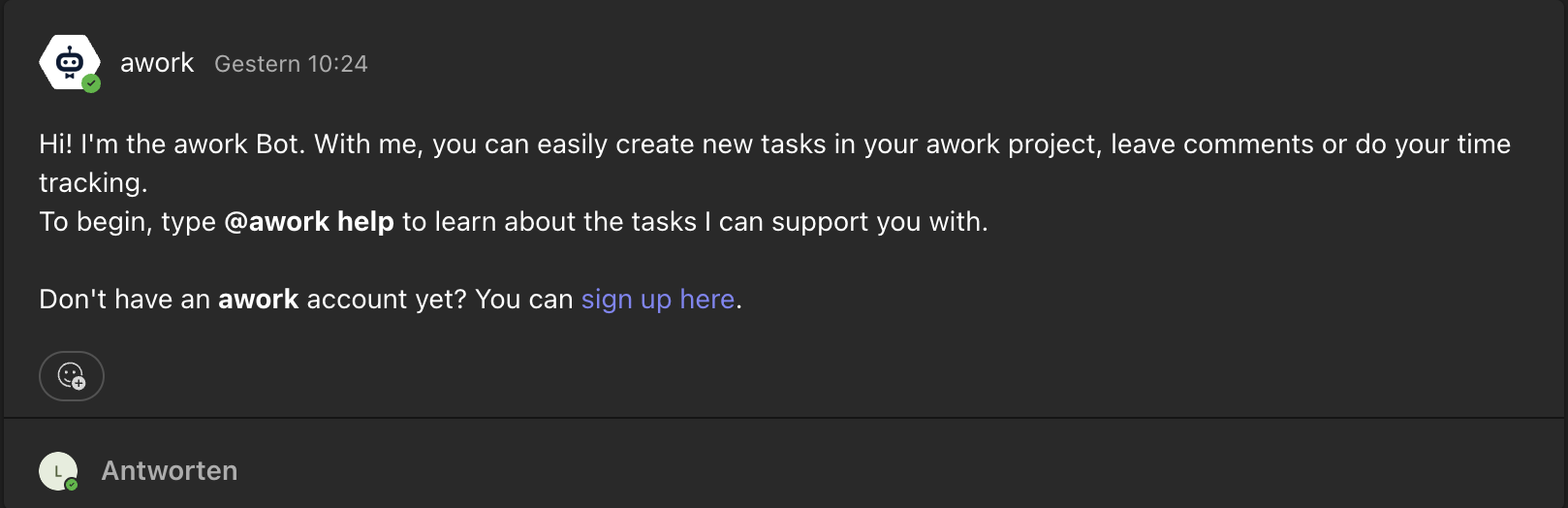
After setup, you'll get a welcome message from the awork bot in the team you selected.
Connecting your Teams tenant to your awork workspace
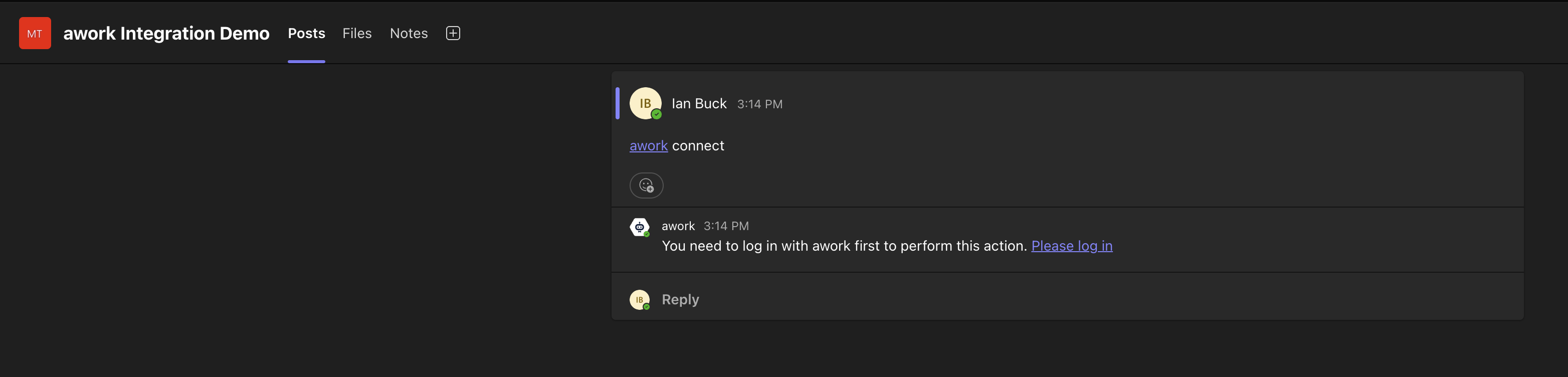
To connect your Microsoft Teams tenant to your awork workspace, run any awork bot command in Teams.
When the awork bot gets a command from a tenant that isn't connected yet, it'll respond with a link to connect your workspace.
-
Run any awork bot command in Teams
-
Open the link from the bot's response
-
Sign in on the login page
-
After you've signed in successfully, close the tab and go back to Microsoft Teams
Linking an awork project to a Teams channel
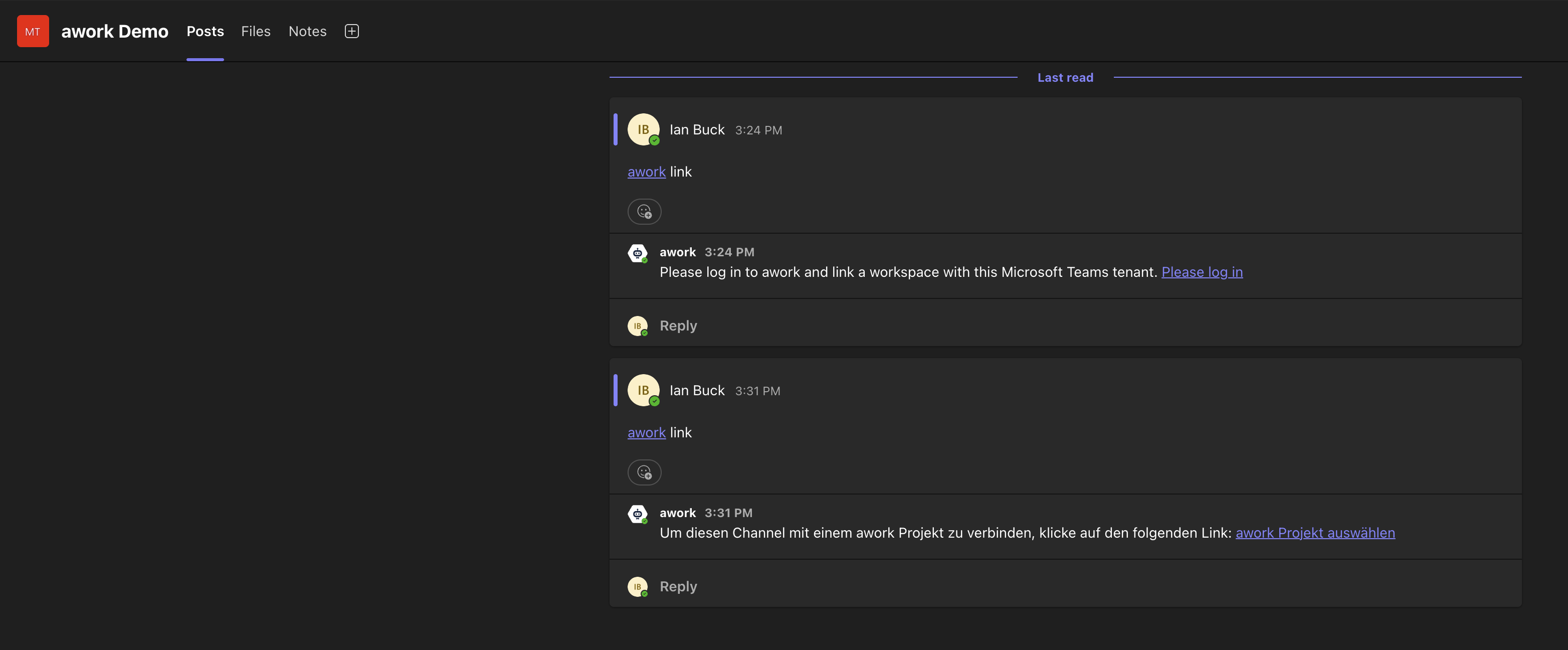
To get notifications from a project or assign tasks and time entries to a project directly, you need to link a project with the channel.
-
Run @awork link in the Teams channel
-
Open the link from the bot's response
-
Select an awork project from your workspace
-
Click Save
-
Close the tab and go back to Teams
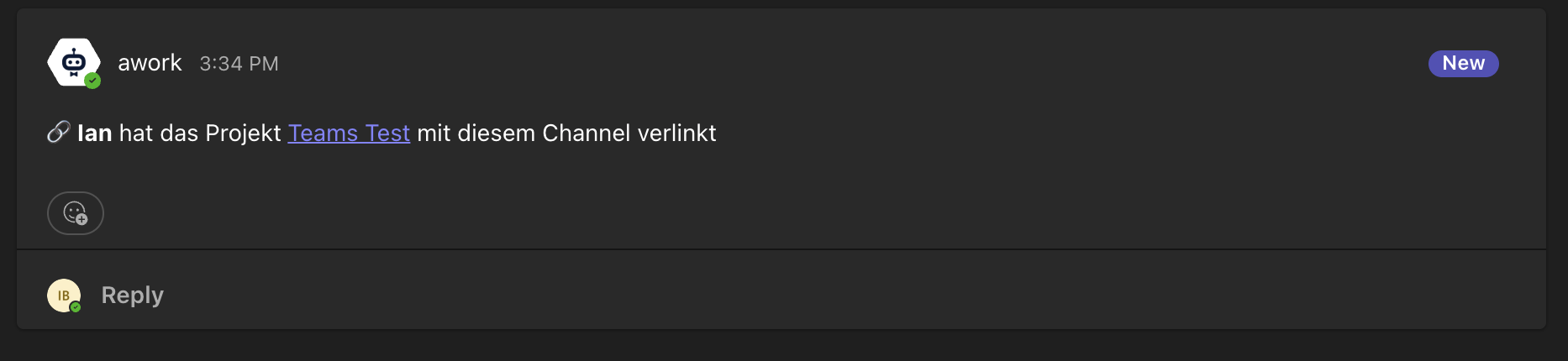
After saving, you should get a notification in Teams confirming the connection was successful.
Creating tasks and tracking time in Microsoft Teams
Once your channel is linked to a project, you can use awork directly in Teams through @-commands.
awork bot @-commands for Microsoft Teams
- Create a task with @awork add [task]
- Add a comment to a task with @awork comment [task]:[text]
- Start time tracking with @awork start [task/project]
- Stop time tracking with @awork stop
- See all available options with @awork help
- Link a project to the channel with @awork link
- Get a link to project settings with @awork settings
Example: Type @awork add Create logo design in Teams to create the task Create logo design in the linked project, or as a private task if no project is linked.
Tip: To remove the link between an awork project and a Teams channel, use @awork unlink.
Best practices and settings
Adjusting a project's notification settings
You can adjust the notification settings directly in your awork project under Settings > Integrations.
To get a link to the project settings for the project linked to a channel, run @awork settings in Teams.
FAQ
What can the Microsoft Teams integration do?
It can publish updates from your awork projects in Microsoft Teams channels and lets you create tasks, comments, and time entries in awork straight from Teams.
How do I install awork in Microsoft Teams?
Go to Apps in Teams, search for awork, click Add, then select Add to a team and click Set up bot.
How do I connect my Teams tenant to my awork workspace?
Run any awork bot command. If your tenant isn't connected yet, the bot will respond with a link. Sign in, close the tab, and go back to Teams.
How do I link an awork project to a Teams channel?
Run @awork link in the channel, open the link from the bot's response, select the project in the new tab, and click Save.
What happens if I create a task when no project is linked?
The task will be created as a private task if no project is linked.
 Powered by happysupport.ai