
Skills for AI Agents
Create reusable Skills in the Library to standardize agent workflows and attach supporting materials like PDFs for consistent execution
With Skills, you give your agents reusable abilities or instructions. These expand your agents' capabilities and enable them to perform specific tasks. Skills can be used by multiple agents or assigned directly to a single agent.
Key Benefits and Use Cases
A Skill is a collection of instructions and additional information that describes how a specific task should be completed. This way, you can standardize recurring workflows.
Skills can, for example:
- Set writing style: Specify certain formulations or a communication style
- Define workflows and describe a fixed sequence of work steps
- Standardize ratings: Establish criteria and rating systems
- Define templates and procedures: Create results according to a predefined structure
- Provide knowledge, for example via PDFs or other files
- Connect external systems, such as through scripts, code, routines, or APIs
Example: Determine Bug Severity
A Skill can define a standardized process for evaluating bugs. It can specify: how the severity is determined, which criteria are used, what information is entered in the task, which icon or label is used.
Creating Skills in the Library
-
Open the Library
- via Settings (gear icon in the bottom left of the main menu) > Library
- or open the AI section in the left main menu and click the Library button in the top right
-
Select the Skills section
In the left navigation of the Library, select Skills. Here you can see all existing Skills and create new ones.
Create a new Skill
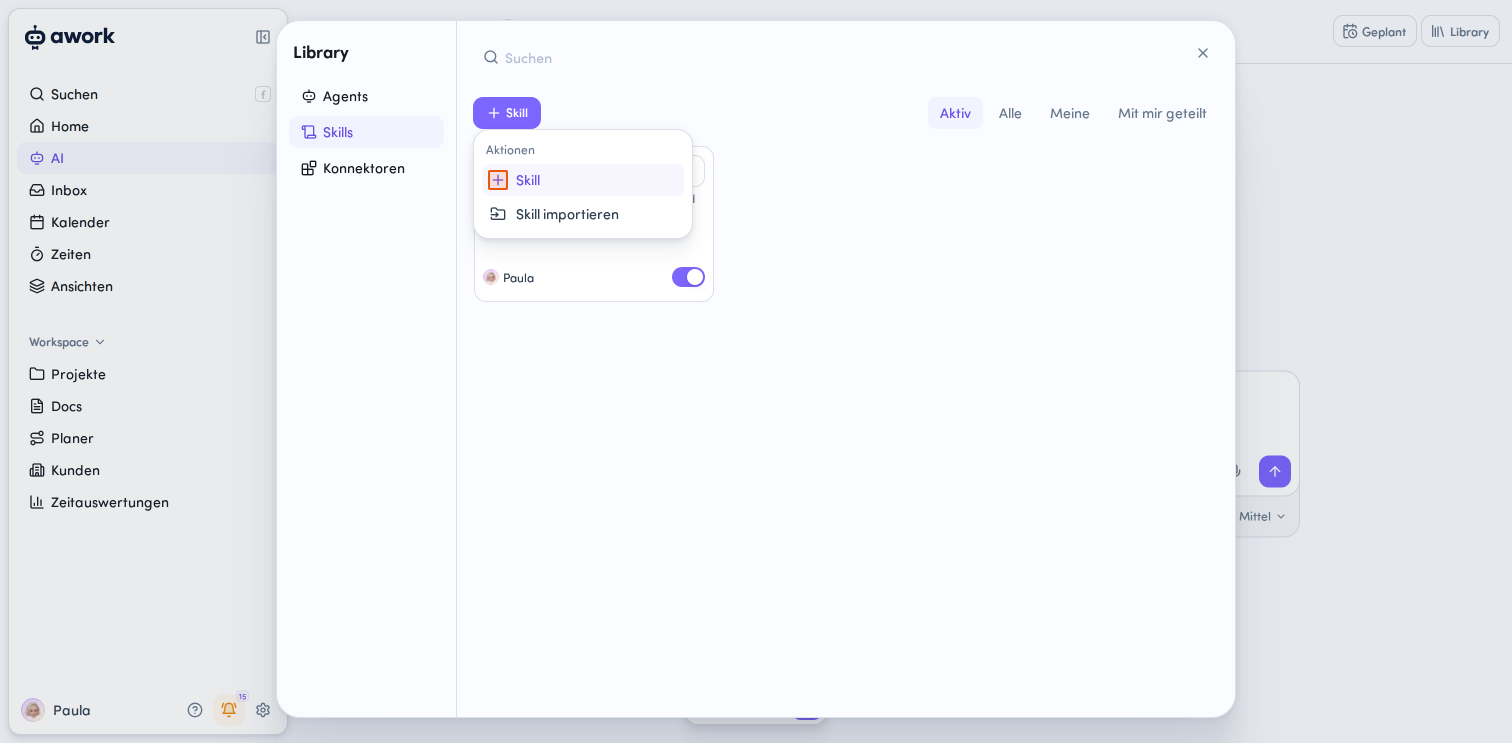
-
Click the + Skill button
-
Select the action + Skill
-
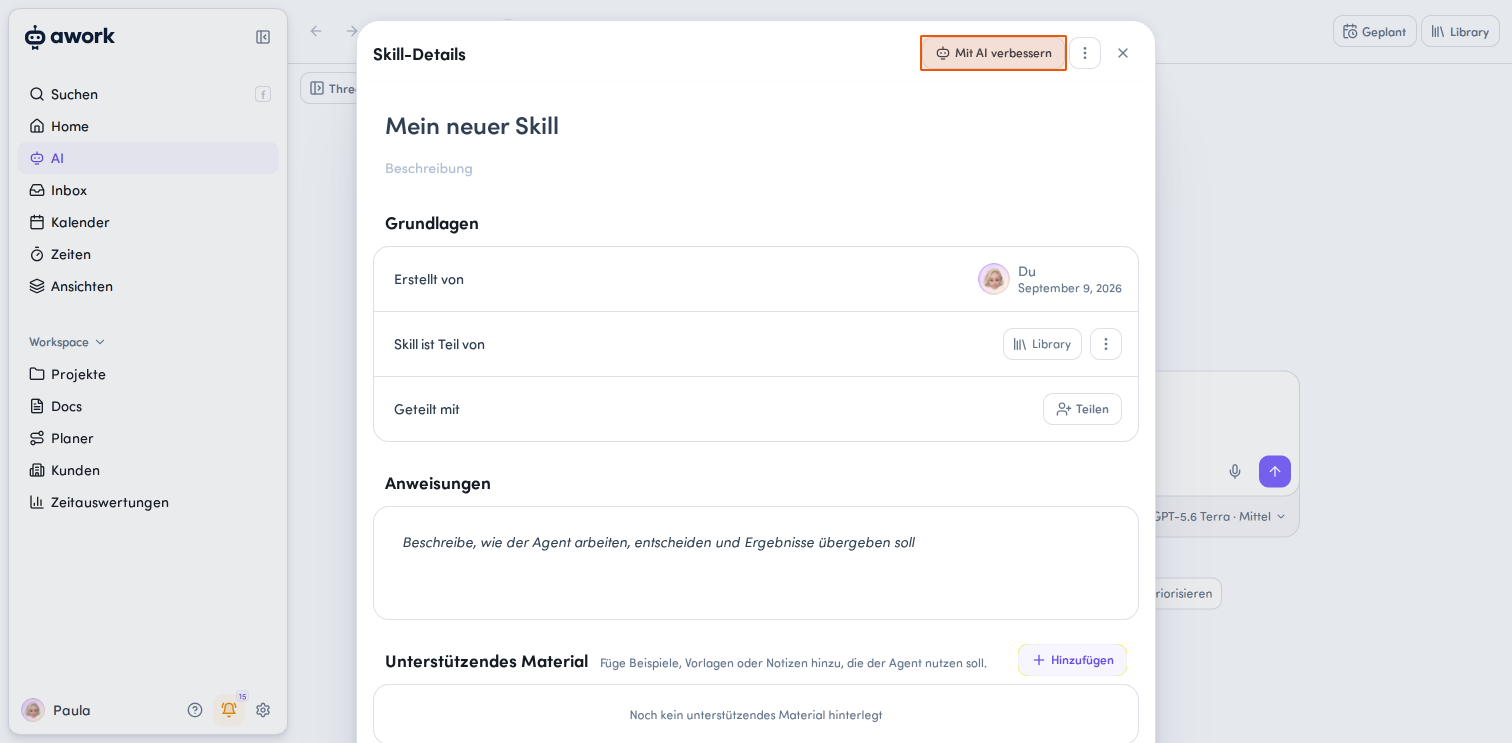
Create and edit the Skill. Changes to Skill details are saved automatically. There's no classic Save button.
In the Skill Details window, you can enter the following content, among other things:
-
Instructions: Describe how the agent should work on the task, make decisions, and hand over results.
-
Supporting Material: Using the + Add button, you can attach additional examples, templates, notes, PDFs, and knowledge sources. These contents can serve the agent as a knowledge base for executing the Skill.
-
Access Credentials: Give agents access to external systems or APIs. Click + Add to configure credentials that the Skill needs for external systems or APIs - without exposing them.
Tip: Improve Skills with AI
You can get support from awork AI when creating and optimizing a Skill. To do this, click Improve with AI in the top right corner of the Skill Details. The awork Agent will help you optimize the instructions and structure of your Skill.
Import a Skill
You can also import existing Skills:
-
Click + Skill.
-
Select the option Import Skill.
-
Import the data as a ZIP package with all information including description and files.
A newly created Skill is private by default.
Add Credentials for API or External Tool
A Skill can receive external credentials, for example for API access. To do this, click the + Add button in the Access Details section in the Skill Details. Then configure the access in the Add Credentials dialog.
- Name of Access: Enter the API or tool name
- Credentials required to use the Skill: Specify whether users need to authenticate to use the Skill.
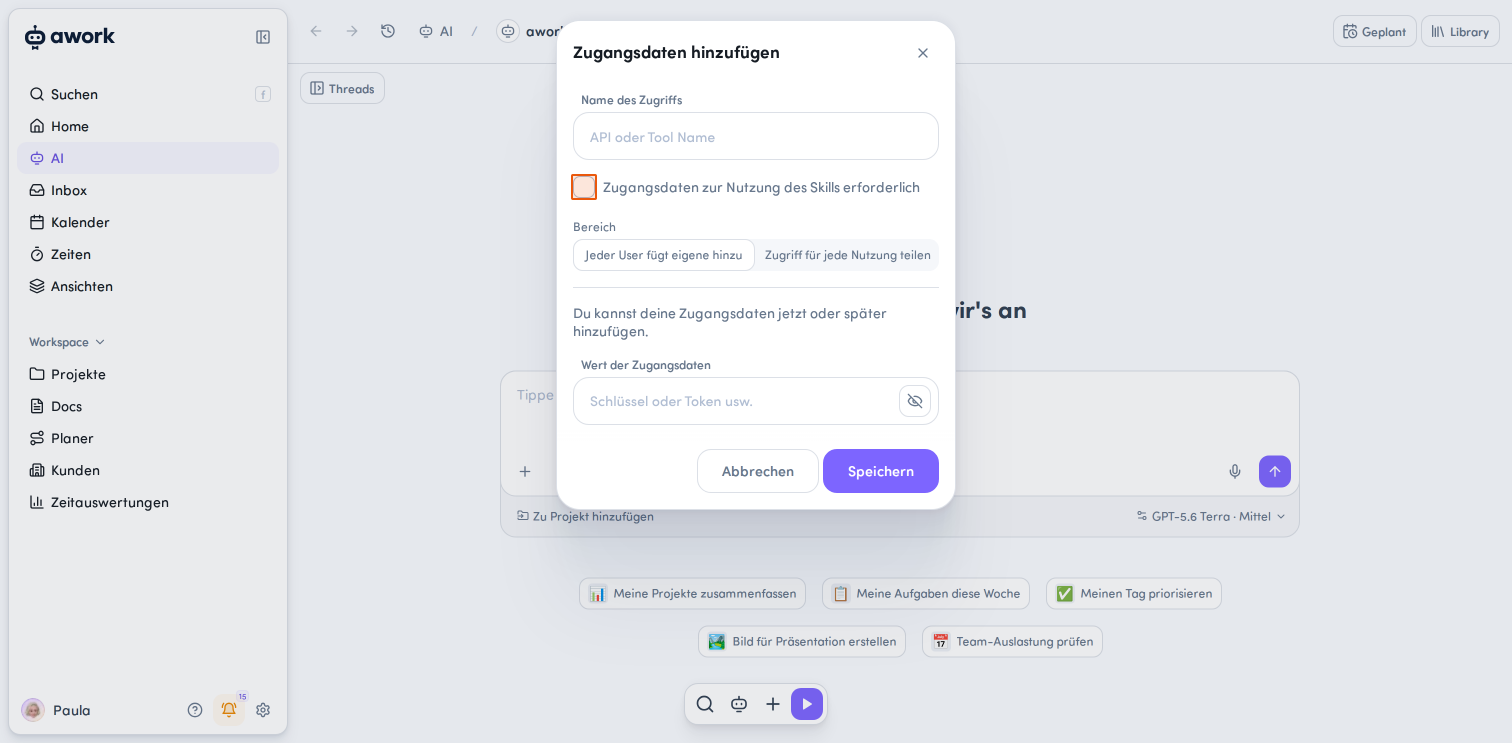
- Scope: Choose between two options:
- Each user adds their own: Each user must provide their own authentication. The credentials remain private for the respective user.
- Share access for every use: The configured access option is available to multiple users. The actual secret is not visible to other users.
- Credential Value: Enter the key, token, or other secret.
Click Save to save the credentials, or Cancel to abort the process.
Important: Saved credentials cannot be displayed again later. You can delete a saved secret and potentially add a new one.
Manage Skills in the Library
Filter View
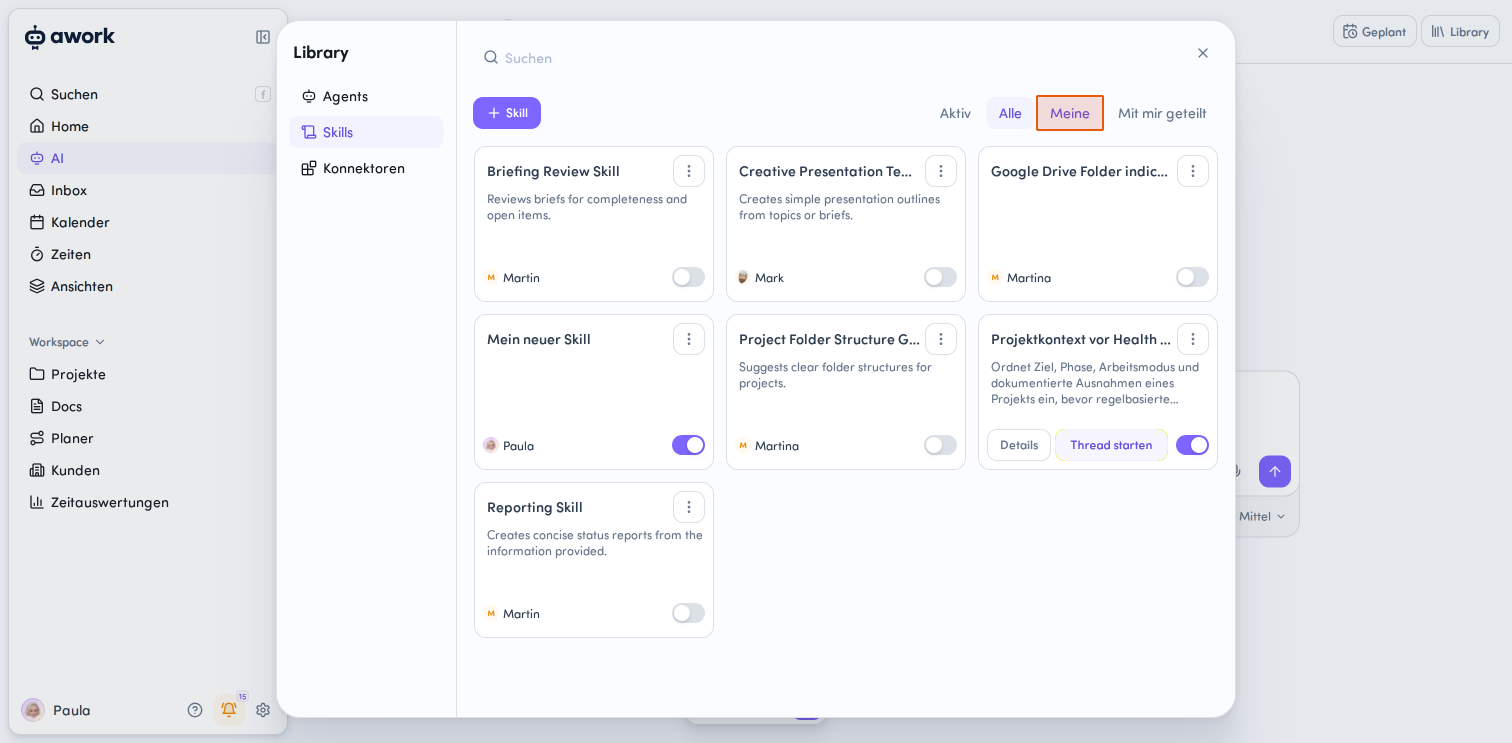
Use the tabs above the Skill cards to filter the view:
- Active: Shows your enabled Skills
- All: Shows all available Skills
- Mine: Shows the Skills you created
- Shared with me: Shows Skills that other users have shared with you
You can also access Skills directly from an active agent chat. Click the + button in the input area > Skills > Manage in Library. The Skills of the respective agent are marked with a badge: e.g. Project Planner configuration applied
Edit a Skill
Hover over a Skill card and click the Details button in the bottom left, or click Edit via the action button in the top right. The full Skill Details open for editing.
Available Actions per Skill
Click the action button in the top right corner of a Skill card or in the open Skill Details at the top right to access more actions:
- Copy Skill Link: Share the Skill with others
- Export: Export the Skill Details
- Duplicate: Create a copy of the Skill
- Share: Configure access rights for the Skill
- Delete: Delete the Skill
Share a Skill
In the Share dialog, you can specify who can access the Skill:
- General Access: Specify whether and how your organization can access the Skill
- Individual Access: Click Add User or Team to add individual users or teams
- Access Rights: Choose between None, Read and Use, or Manage
Start a Thread
Hover over a Skill card and click the Start Thread button. A new AI thread is started with this Skill.
Enable and Disable Skills
You can change the status of a Skill directly on its Skill card in the Library. Use the toggle switch for this:
-
Active: The Skill can be considered and used by agents.
-
Disabled: The Skill cannot be used by agents.
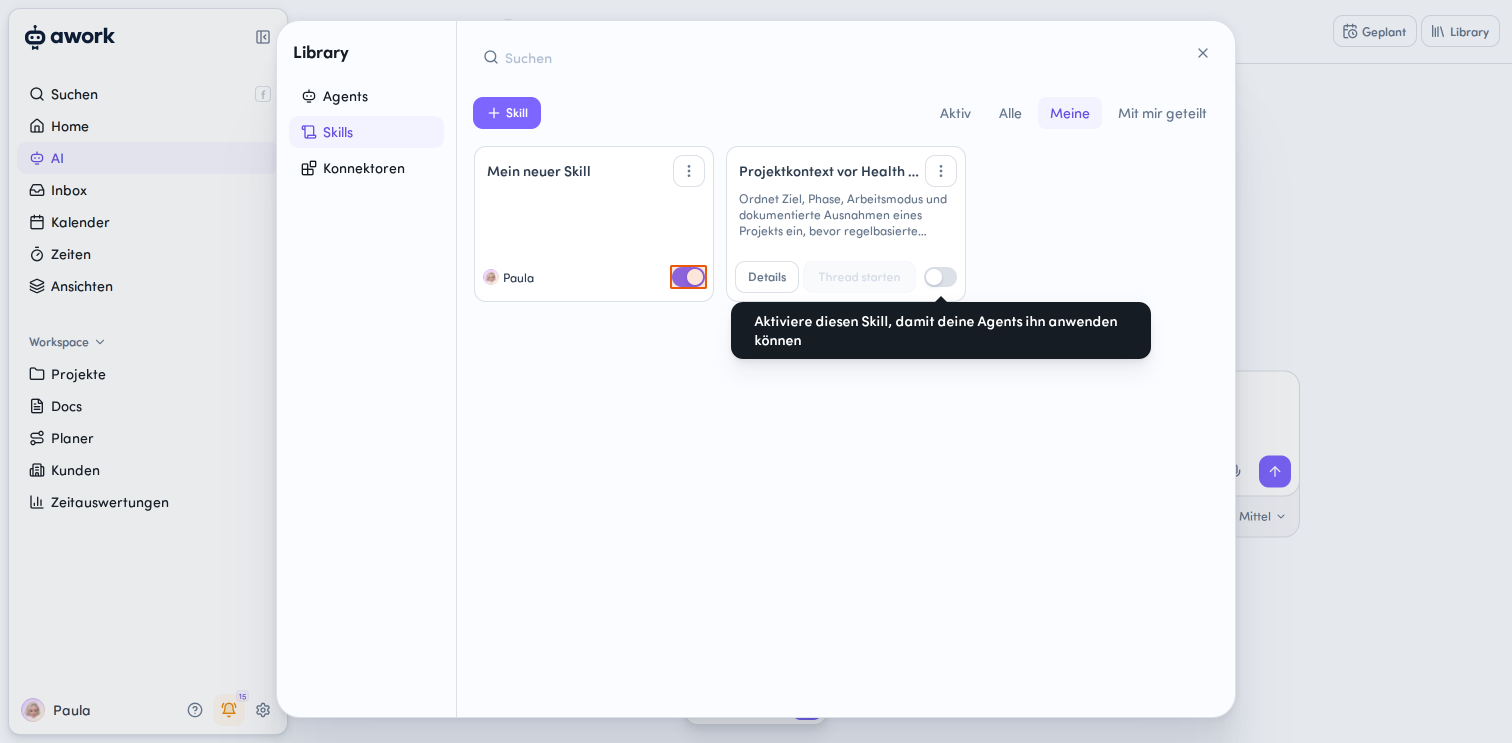
The Active Skill Pool
So that an agent doesn't have to consider all available Skills with every request, there's an active Skill pool.
The Skills enabled in it are automatically considered during execution. The agent checks them against your request and uses a matching Skill if it's relevant.
You can also mention a Skill directly in an AI thread. This allows the agent to consider it specifically for your request, even if the Skill is not part of the active Skill pool.
For a single run, you can enable additional Skills. This enhancement only applies to this run.
A Skill is not automatically executed just because it's present as context. The agent checks your request to determine whether a Skill is relevant and should be used.
Library Skills vs. Agent-Specific Skills
There are two types of Skills:
Library Skills are reusable and can be shared in the workspace and used by multiple agents.
Agent Skills belong to a specific agent. An Agent Skill can later be extracted from the agent and converted into a regular Library Skill.
Skills in the Library
A Library Skill is independent of a specific agent and can be linked with one or multiple agents. It can also be shared and reused independently.
Agent-Specific Skills
Skills that are embedded directly in an agent apply only to that agent. It doesn't appear in the general Library and is only available for that agent.
Users with editing rights for the agent can also edit the Skill.
An Agent Skill can later be extracted from the agent and converted into a regular Library Skill.
Manage an Agent's Skills
-
Open the Agents section in the Library.
-
Click Details for the desired agent.
-
Open the Skills section there.
Here you can see all Skills assigned to the agent.
By clicking Open, you can view the details of a Skill. Via the action menu, you can Edit or Delete a Skill.
Assign Skills to an Agent
An agent can use multiple Skills. Both Library Skills and agent-specific Skills are available.
- Open the Agent Details
- Click the + Add button in the Skills section.
- Choose Add Existing Skill (= Library Skill) or Create New Agent Skill (= Agent-specific Skill)
Embed a Library Skill in an Agent
- Open the Skill Details.
- In the Basics > Skill is part of section, select Embed in Agent via the action menu.
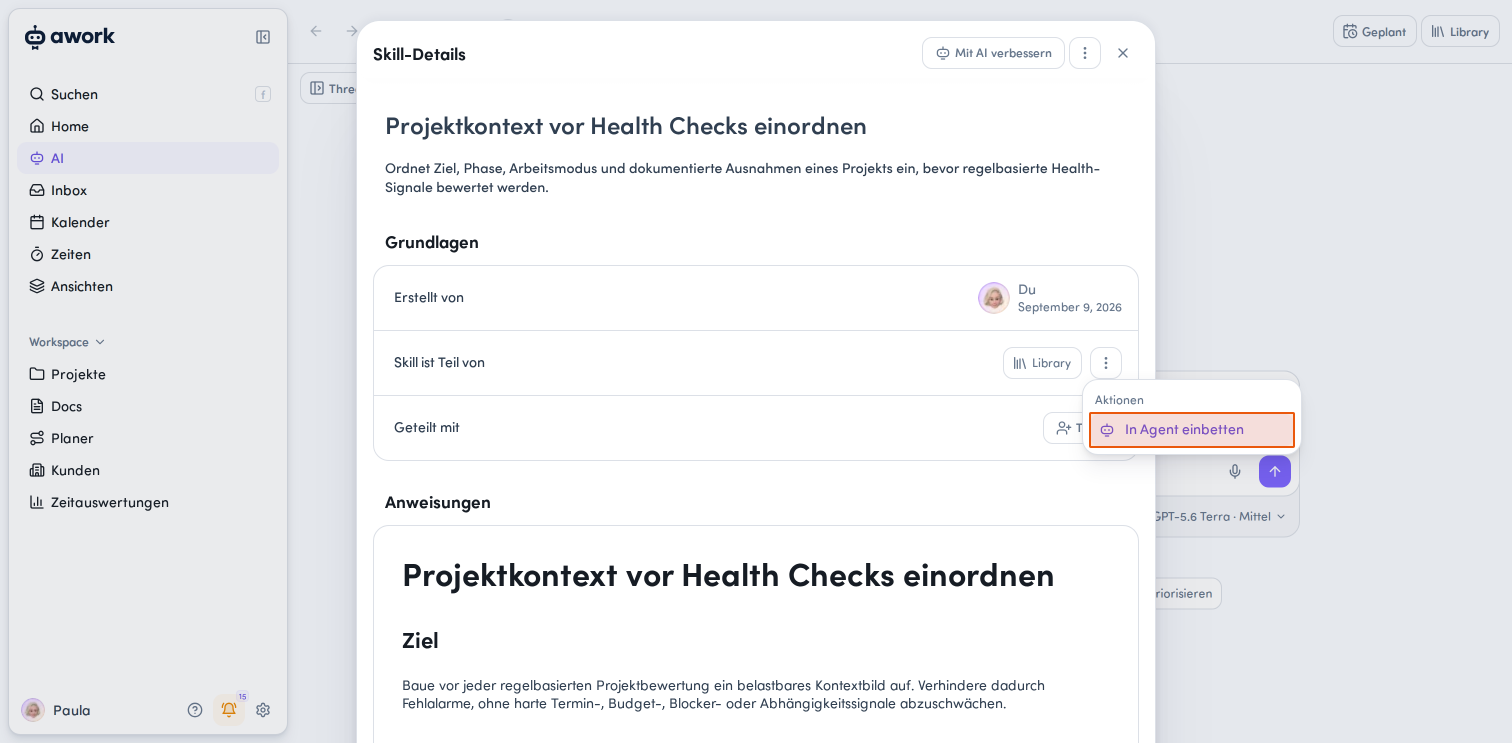
- Select the appropriate agent and confirm by clicking the Save button.
This converts the Skill into an agent-owned ability.
- It is no longer available in the Library afterward.
- Existing shares remain saved and become active again if you move the Skill back to the Library.
- You can only access this Skill in the agent configuration and edit it there.
Note: If a Skill is already linked with an agent, it can only be embedded in that agent.
Tips:
If a Skill should only be available for a specific agent, create it directly on the agent. The agent-specific Skill will not appear in the general Library.
If a Skill should be used by multiple agents, add it to the agent instead of embedding it exclusively.
Make a Skill Available in the Library
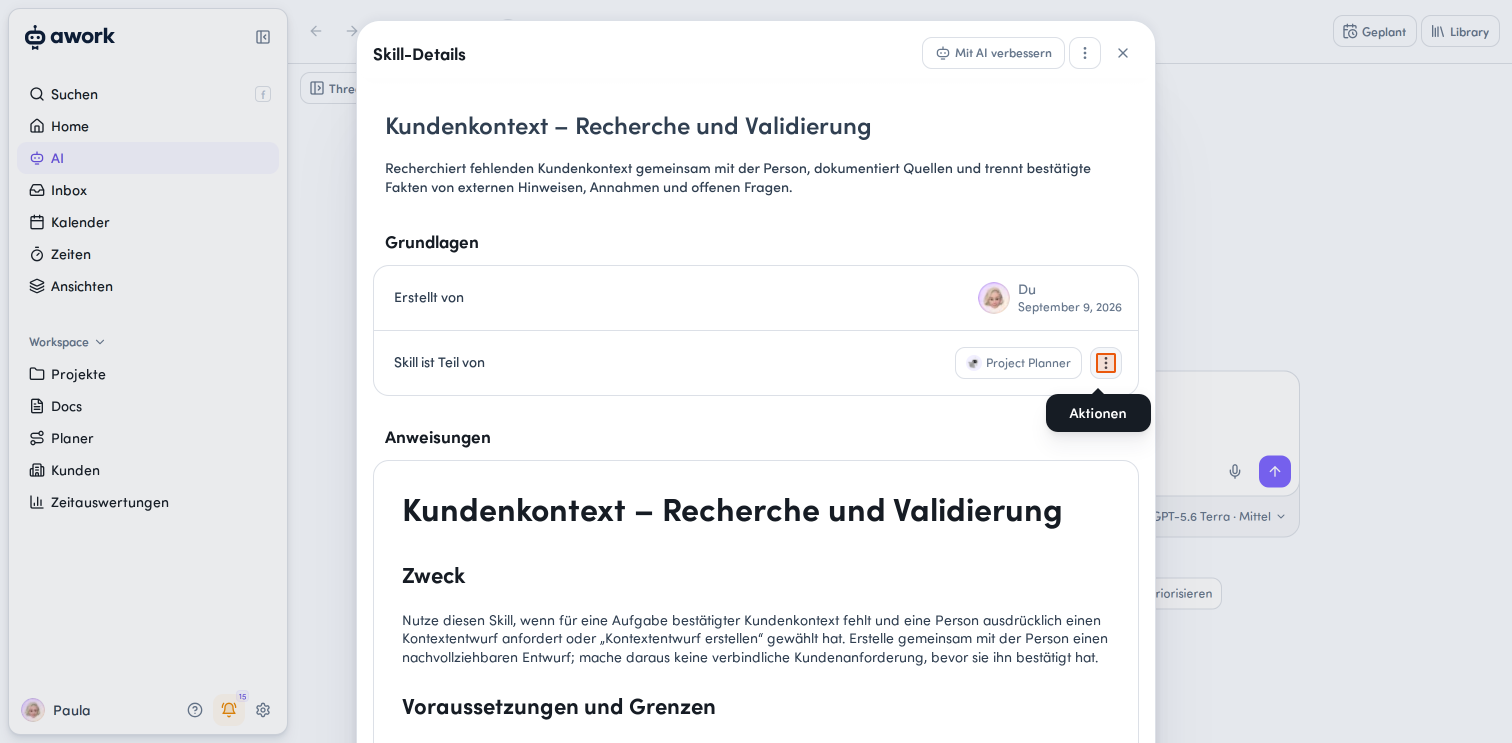
- Open the Skill Details.
- In the Basics > Skill is part of section, select Move to Library via the action menu.
- Confirm by clicking the Save button.
This converts the Skill into a Library Skill. You can access, share, and edit the Skill in the Library.
The Skill remains linked to the agent.
Best Practices and Troubleshooting
- A Skill is not being used automatically: First check whether the Skill is considered in the active Skill pool of the agent. You can also mention the Skill directly in the AI thread. This allows the agent to consider it specifically for your request, even if it's not in the active Skill pool.
- The Skill should only be available for one agent: Create the Skill directly on the desired agent. This keeps it limited to that agent and prevents it from appearing in the general Library.
- You want to use a Skill with multiple agents: Place the Skill in the Library and link it with the desired agents.
FAQ
What is a Skill?
A Skill is a collection of instructions that describes how a specific task, procedure, or routine should be executed.
Will a Skill be automatically executed if I mention it?
No. When you explicitly mention a Skill, the agent checks whether it's relevant for your request and can use it accordingly.
What is the active Skill pool?
The active Skill pool contains the Skills that an agent considers by default during execution.
Can an agent use multiple Skills?
Yes. An agent can use multiple Skills from the Library and agent-specific Skills.
Can Skills contain files?
Yes. Files like PDFs can be stored as a knowledge base for a Skill.
What is the difference between a Library Skill and an Agent Skill?
A Library Skill is independent of a specific agent and can be used for multiple agents. An Agent Skill belongs directly to a single agent and is only available there.
Can I link a Skill with multiple agents?
Yes. Library Skills can be linked with multiple agents.
Can saved secrets be viewed later?
No. Saved API keys and other secrets cannot be displayed again. They can be deleted and added again if needed.
Is there versioning for Skills?
No. There is currently no versioning for Skills.
 Powered by happysupport.ai