
AI models at a glance
Control which AI models your team accesses by managing predefined categories like Fast, Balanced, and Deep Thinking, or selecting specific providers.
awork AI supports various models from different providers. You're not tied to a single provider, so you can choose the model that best suits your task or use the models predefined by awork.
Control which models your team can use.
Key benefits
-
Provider independence: awork supports models from different providers
-
Model selection: Use different available AI models for different tasks
-
Centralized control: Users with the appropriate permissions decide which models are available in the workspace
Available AI models
awork supports various large language models (LLMs) from providers in different regions. You can choose from models by Anthropic, Google, OpenAI and TensorX.
Models differ in areas such as hosting and credit usage. Not every model supports all features. Depending on the model, certain tools or agent features may not be available, for example.
Important: awork doesn't offer every available model. One factor in deciding which models to offer is whether they can be provided in the EU in a GDPR-compliant way.
Manage AI models in your workspace
Only users with access to the workspace settings and AI permissions can manage AI models and enable or disable the models available for use in the workspace.
-
Go to Einstellungen (the gear icon at the bottom left of the main menu).
-
Under the AI category, select Modelle.
Configure predefined models
You can choose from three predefined model categories: Fast, Balanced and Deep Thinking.
- Fast for quick answers and simple tasks
- Balanced for everyday work and most conversations
- Deep Thinking for complex analyses and multi-step reasoning
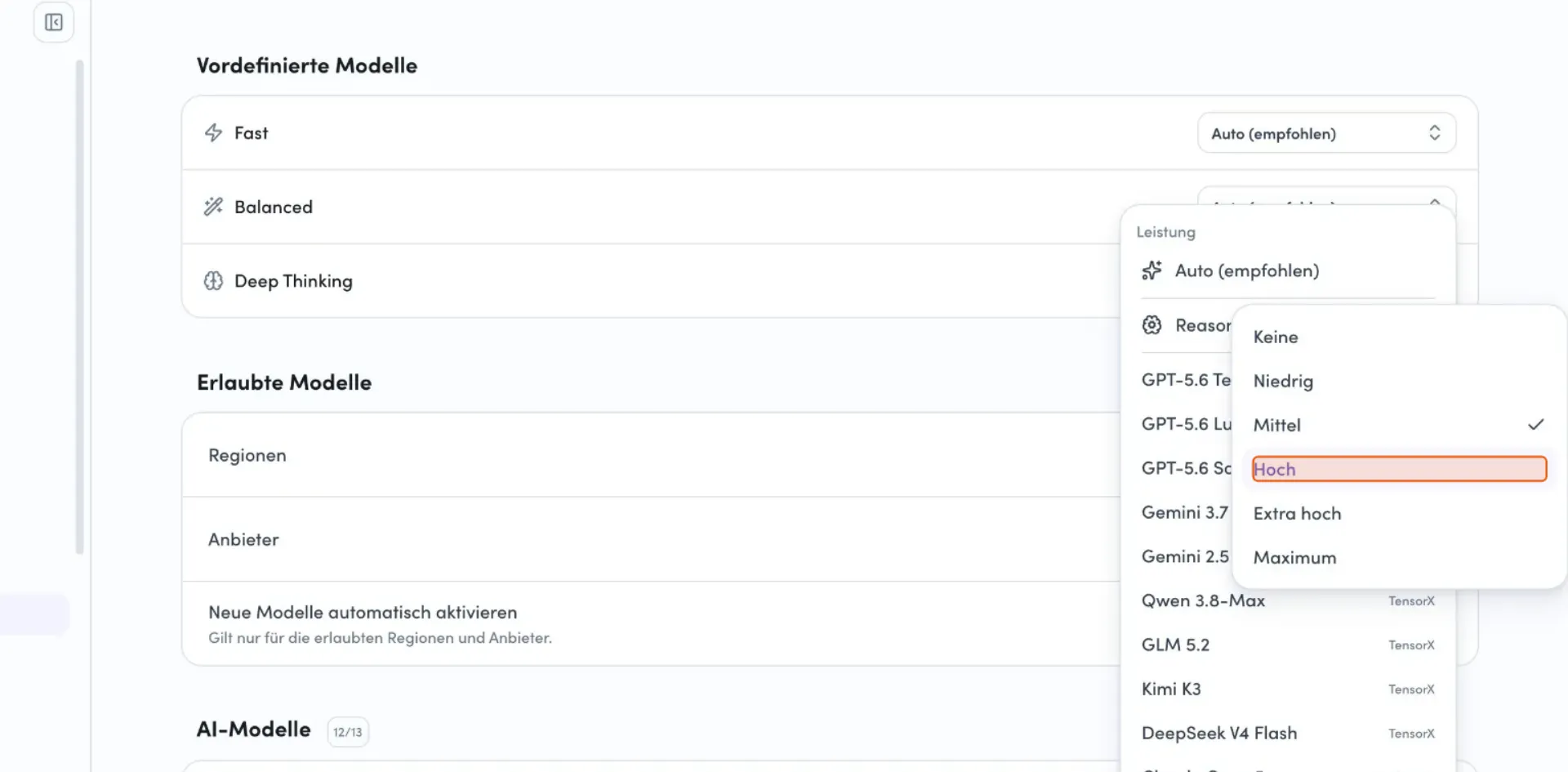
Each category has a dropdown menu for selecting a model.
Auto is selected by default. With this option, awork chooses the underlying model and the appropriate reasoning level. The model used may change when models are updated or replaced. This ensures the selection automatically stays on the model designated for that category. We therefore recommend using Auto for everyday tasks.
You can also select a specific available model.
-
Click the dropdown menu to the right of the category you want (Fast, Balanced or Deep Thinking).
-
Choose between Auto and one of the available models.
-
Once you've selected a model, you can optionally adjust the Reasoning-Stufe.
Restrict which models are allowed
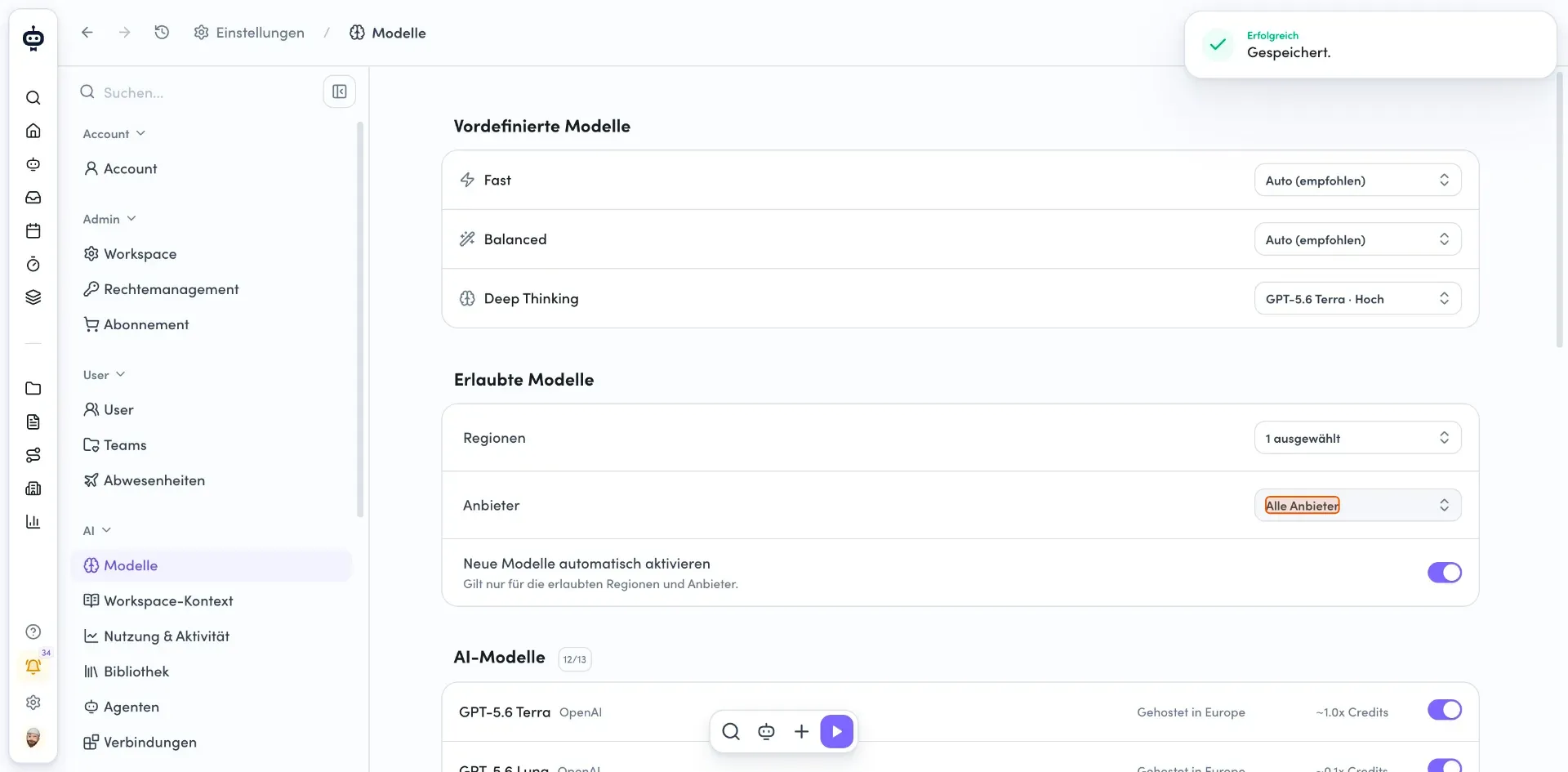
In the Erlaubte Modelle section, you can choose which regions and providers are available in your workspace.
Select regions
Click the Regionen dropdown menu. Select the hosting regions you want from the list (Europe or US). Selected regions are marked with a purple checkmark. After you make your selection, the field shows how many regions you've selected (for example, "1 ausgewählt").
Choose providers
Click the Anbieter dropdown field. The available LLM providers are:
- Anthropic
- OpenAI
- TensorX
Select the providers you want by clicking the corresponding checkboxes. The field then shows how many providers you've selected (for example, "3 ausgewählt").
Once a region or provider has been disabled, you can't enable that provider's models individually.
Automatically activate new models
Use the Neue Modelle automatisch aktivieren toggle to choose whether new models are automatically enabled for your workspace. This setting applies only to the regions and providers you've allowed above.
Tip: If you want to control which models are available in your workspace, you can turn off automatic activation of new models. You'll then need to activate new models manually. This is particularly useful if you've intentionally excluded certain expensive models because of their higher credit usage.
Manage individual AI models
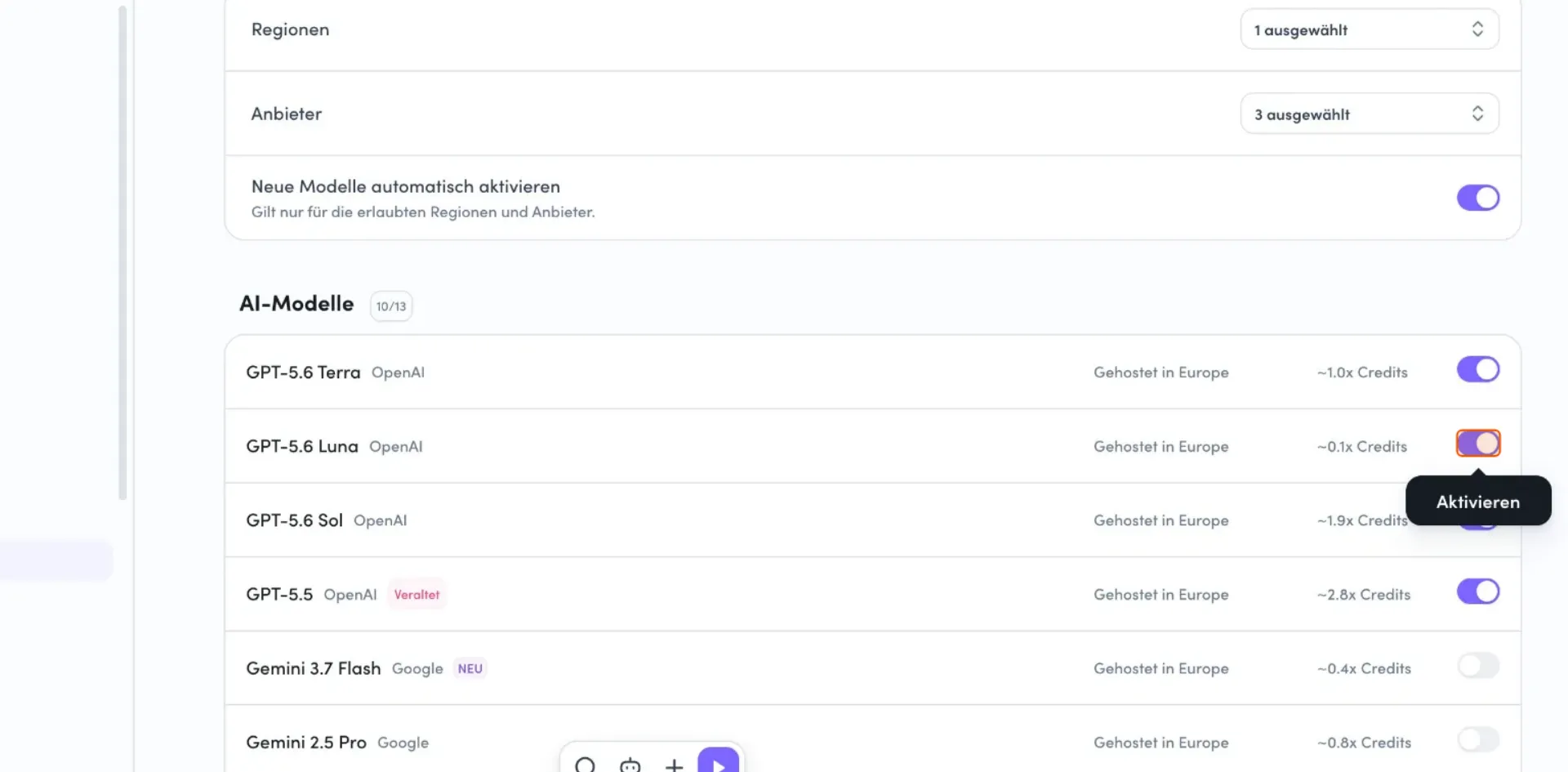
In the AI-Modelle section, you'll see a list of all available models and a counter showing how many are activated.
Activate or deactivate a model
Each model in the list displays the following information:
- Model name and provider (for example, "GPT-6.1 Sol OpenAI")
- Hosting region (for example, "Hosted in Europe")
- Approximate credit usage (for example, "~1.0x Credits")
The hosting region refers to the region from which a model is provided, not the provider's country of origin.
Click the toggle to the right of the model you want to activate or deactivate.
A deactivated model can no longer be used for AI operations in the workspace.
Choose a replacement model when deactivating a model
If a model is still being used by an agent or an AI thread, you can't deactivate it without first making some additional changes.
awork identifies the affected uses and asks you to select a replacement model.
The migration may affect:
- Predefined model categories
- Agents
- AI threads
You'll need to select a replacement model for each affected use.
- Click the Ersatz dropdown menu next to the affected preset.
- Select an alternative model from the list.
- Confirm by clicking Übernehmen und deaktivieren, or cancel the process by clicking Abbrechen.
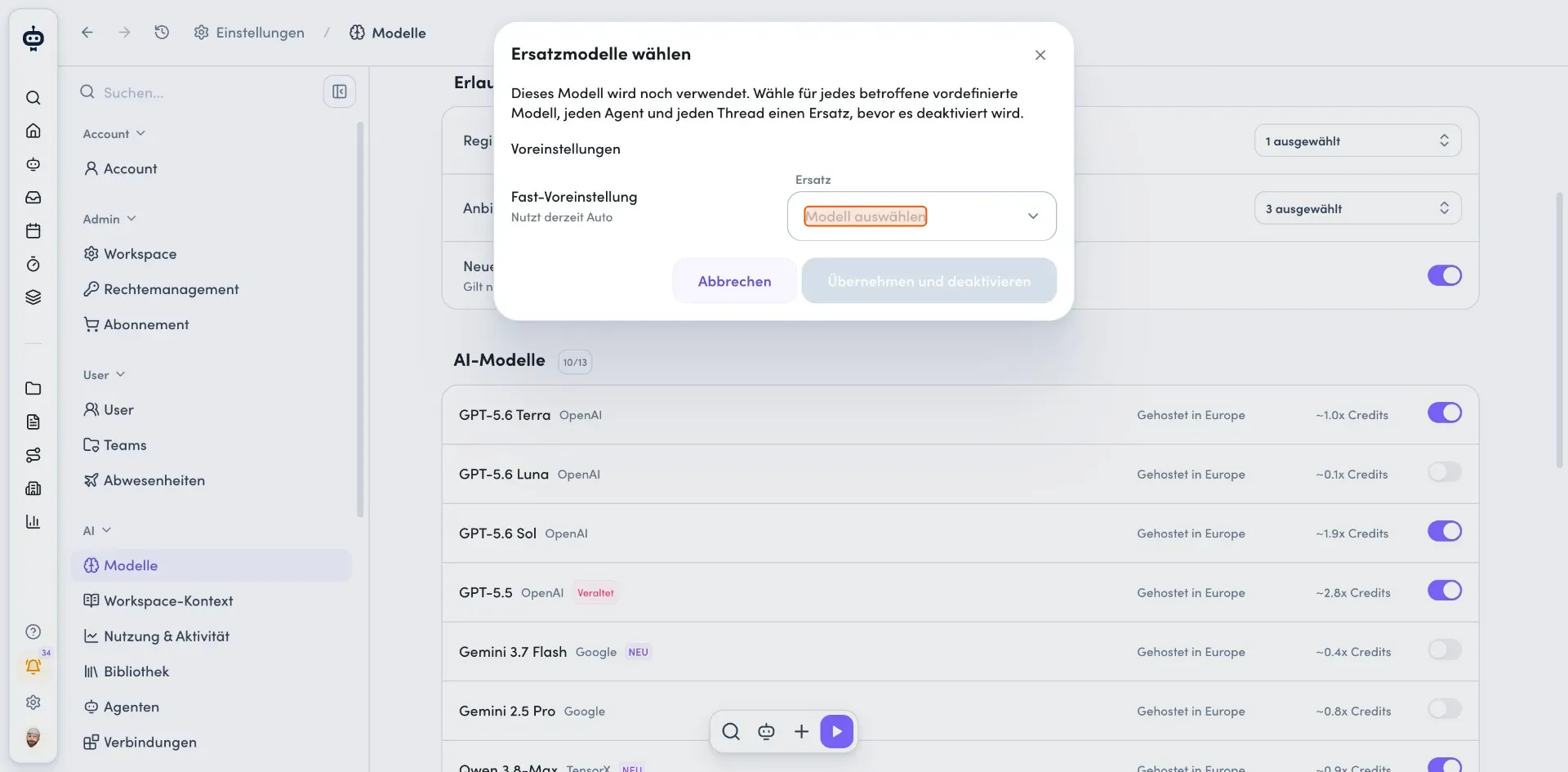
After the migration is complete, the affected agents and AI threads will use the selected replacement model.
If you cancel the process, the current model remains activated.
Manage image models
You can activate and deactivate image models separately from general AI models.
Deactivate models if you want to use only a specific image model.
If all image models are deactivated, image generation will no longer be available in awork.
Credit usage by model
AI credits are used based on the model you use.
This means that not all models cost the same number of credits. Usage is calculated relative to OpenAI's GPT-6.1 Sol baseline model. The baseline model uses 1.0× credits. Other models are rated in relation to this value.
Some models use significantly fewer credits, while more powerful or expensive models may use several times as many.
Hover over the estimated usage for more details.
For example, ~0.1x Credits means that for a comparable request, the model uses 0.1 times as many credits as OpenAI's GPT-6.1 Sol.
Actual usage may vary.
Keeping available models up to date
awork generally keeps the available models up to date and replaces outdated models with newer ones. An outdated model that has already been selected and activated can still be used by existing agents and AI threads, but it won't be available to select when you create a new agent or AI thread.
Note: There's no guarantee that a specific model or provider will remain available indefinitely.
New and outdated models are listed in Was ist neu?:
- Click the Fragezeichen-Icon at the bottom left of the main menu.
- Select Was ist neu?.
- Open the AI-Modelle tab.
- Alternatively, click the Modell-Updates button below the title in the Modelle menu.
This section is available to all users on a paid AI plan.
Switch AI models during a thread
You can switch the predefined model (Fast, Balanced and Deep Thinking) or a selected model, even while a thread is in progress.
Keep in mind that this may use additional credits because switching models resets the prompt cache.
FAQ
Which AI providers does awork support?
awork is provider-independent and can use models from different providers, including OpenAI, Google and Anthropic.
Does awork offer all available AI models?
No. awork decides which models and providers to support. Factors include the availability of GDPR-compliant solutions and the hosting region.
How up to date are the AI models in awork?
New models are generally integrated promptly. It may take a few days after a new model is released before it becomes available in awork.
Who decides which models the team can use?
Users with access to the workspace settings and AI permissions can manage AI models and decide which models are available. They can also disable hosting regions, providers or individual models.
Can specific models be blocked?
Yes. You can disable individual models, providers or regions.
Why do credit costs vary by model?
Models have different usage rates. awork uses GPT-6.1 Sol as the baseline for credit calculations, with a factor of 1.0.
Can I switch models during an active thread?
Yes. Keep in mind that this may use additional credits because switching models resets the prompt cache.
Is customer data used to train AI models?
No. Your data is not used to train awork AI or any model behind it.
 Powered by happysupport.ai