
Make Integration
Connect awork to Make by setting up API access and creating scenarios to automate projects, companies, and time entries across your workflow
With the awork modules in Make, actions in awork can trigger actions in other apps, or be triggered by them. This lets you build workflows that suit your needs.
Key benefits and use cases
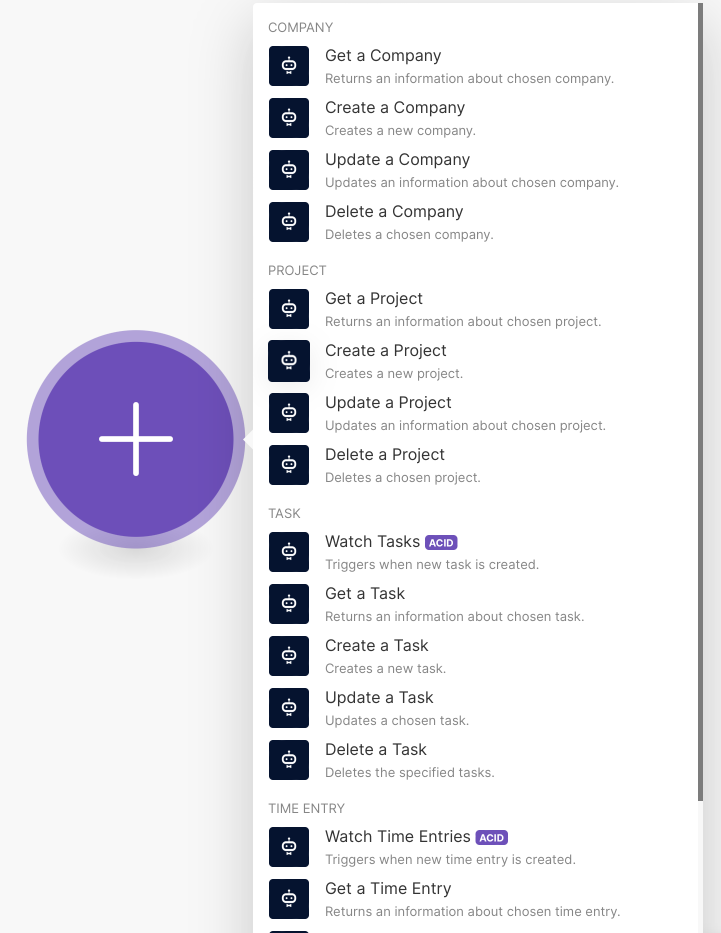
Use Make to create workflow automations with the following awork modules:
- Projects: Create, update, retrieve, and delete
- Companies: Watch, create, update, retrieve, and delete
- Time entries: Watch, create, update, retrieve, and delete
How to connect awork to Make
First, set up API access in awork, then create a connection in Make.
Set up API access in awork
- Make sure you have both an awork account and a Make account.
- In your awork workspace, go to Einstellungen (the gear icon in the bottom-left corner of the main menu) and select Integrationen.
- In the API clients section, click + API Client to create a new client.
Enter the following information and click Speichern:
- Name: Any name with at least 6 characters
- Client ID: Enter the Client ID in the format my-app (for example,
make-app) - Redirect URI: Add
https://www.make.com/oauth/cb/aworkandhttps://www.integromat.com/oauth/cb/awork, clicking + Hinzufügen for each one - Enable Vertraulicher Client
Important: After you save, a pop-up will appear with your new Client Secret. Copy it and keep it somewhere safe.
Set up a scenario and module in Make
- Open the Make web app and sign in.
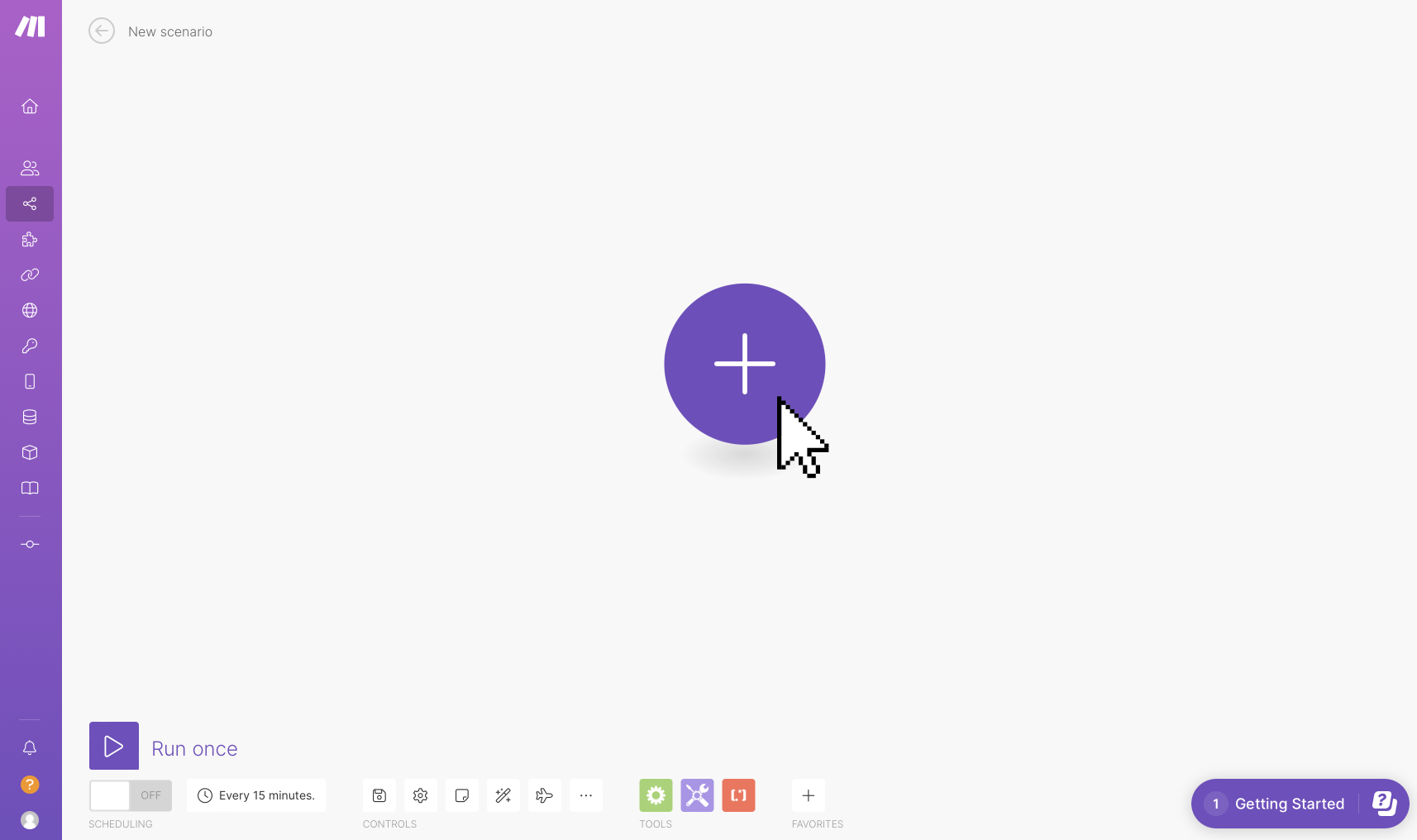
- Open Scenarios and click + Create a new scenario.
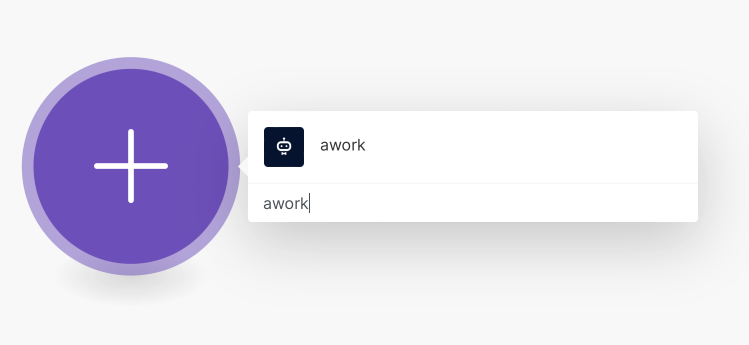
- Click the plus icon to add an awork module to your scenario.

Create a connection to your awork workspace
In the module, click Add next to the Connection field.
Enter the following information and save the connection:
- Connection name: Any name (it doesn't need to match the name of the API client in awork)
- Client ID: The Client ID from awork
- Client Secret: The Client Secret you copied from awork
Authorize the connection
Authorize the Make app to access your awork account.
- In the new make.com window, grant permission for permanent, unrestricted access.
- Select your awork workspace to continue.
Once the connection has been successfully verified, you can create workflows across apps.
Best practices and next steps
- Keep your Client Secret safe: Copy it from the pop-up and store it somewhere secure.
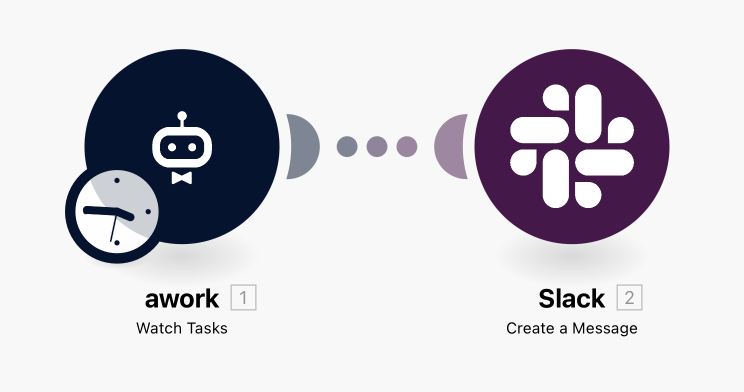
- Start with a simple scenario: For example, send a message to a specific Slack channel when certain tasks change.
Tip: For more help and examples, visit the Make Help Center.
FAQ
What is Make?
Make is a no-code workflow automation platform that lets you visually create, manage, and automate workflows between different apps.
Where do I set up API access in awork?
In your awork workspace, go to Einstellungen > Integrationen and click + API Client in the API clients section to create a new client.
Which Redirect URIs do I need to connect to Make?
Add the following Redirect URIs in awork: https://www.make.com/oauth/cb/awork and https://www.integromat.com/oauth/cb/awork
Where can I find the Client Secret?
After you click Speichern when creating the API client in awork, a pop-up will appear with your new Client Secret. Copy it and keep it somewhere safe.
Where can I find more examples of awork modules in Make?
For more help and examples, visit the Make Help Center.
 Powered by happysupport.ai