
AI and Agent Permissions
Configure AI and Agent permissions using global user roles to control access to AI Chat, agent creation, library sharing, and management features.
AI permissions are part of global user roles. They determine which features a user can use in the AI area.
For agents, there's an additional distinction between agent access and context access. To run an agent in a task or project, you need both permissions.
Important: An agent is not a user. It has no separate awork role and no own permissions. Every run is executed on behalf of a responsible user.
What AI permissions are there?
No Access
If No Access is enabled for a general permission role, users cannot use the AI Chat and Agents. The AI menu item will not be displayed in the main menu, and the AI Chat sidebar cannot be opened via Cmd/Ctrl + I.
These users can still be part of the AI subscription. The setting affects access, not billing.
Use AI & Agents - without Sharing
This is the default setting.
Users can:
- Use AI
- Use Agents
- Create their own Agents
- Create their own Skills
Your own Agents and Skills cannot be shared with the Workspace Library.
Use AI & Agents - Share in Library
In addition to the default setting, users can share Agents and Skills with the Workspace Library.
Access Rights for Agents
For agents, there are the following permissions: None, Read and Use, and Manage.
None
Users cannot find, open, configure, or run the agent.
Historical agent activity and context-related threads can still be visible if the user has read access to the respective task or project context.
Read and Use
With Read and Use, the user can:
- Open the agent and view details
- Run the agent, if you also have write access to the specific task or project context
- Use linked skills, including private agent skills
- Use linked connectors, as long as the responsible user's connection is available
Read permissions do not allow changes to the agent configuration.
Manage
Manage includes all read permissions and additionally allows you to edit the agent and change its settings or sharing.
This includes configuration, versions, avatar, sharing, memory, skills, connectors, workflows, schedules, and archive status.
How are agent permissions assigned?
An agent can be shared with the entire workspace, teams, or individual users.
- Creator and Workspace Administrators: Always have permission to Manage the agent
- Multiple Shares: The highest permission applies
- New Agents: Are initially only accessible to the creator and workspace administrators
- No Additional Permission: Read access allows using the agent
What permission do I need?
| Action | Required Permission |
|---|---|
| Create agent | Authorized internal workspace user with agent access |
| Open agent | Agent Read and Use |
| Edit or share agent | Agent Manage |
| Start standalone thread | Agent Read and Use |
| Run agent in task or project | Agent Read and Use + write access to the specific context |
| Mention agent in comment | Agent Read and Use + write access to the commented context |
| Read existing task/project thread | Read access to the specific context |
| Continue task/project thread | Agent Read and Use + write access to the specific context |
| Cancel context-related run | Write access to the specific context |
| Cancel standalone run | Creator only |
| See agent activity and run history | Read access to the task/project context |
| Create, edit, delete, or manually start schedule | Agent Manage + required access to the selected context |
AI Thread Permissions at Project Level and Agent Activity
AI Threads are private to their creator, unless they are connected to a project. Even workspace administrators don't get access to other people's AI Threads this way.
For projects, there's an additional permission for AI Threads.
It determines whether users can see AI Threads connected to a project.
There are two levels:
- Read access
- No access
There is no separate edit permission for AI Threads.
Agent Activity shows agent involvement in tasks and projects. It doesn't grant any permissions itself and doesn't make an agent a task member or project member.
When a thread is deleted, participation and run history remain. A later run creates a new thread if no available thread exists anymore.
Adjust Permission Levels for AI & Agents
Admin permissions are required.
Set AI Permissions in the General Permission Role
-
Open Settings (gear icon in the bottom left of the main menu).
-
Navigate to the Admin category and select Rights Management.
-
Open the General Permission Role.
-
Scroll to the AI Permissions section. You'll find the permission for awork Agent & Custom Agents with a dropdown selection field on the right side of the row.
-
Open the Permissions Dropdown
Click on the dropdown field next to awork Agent & Custom Agents. The field shows the currently selected permission level and contains a small arrow icon indicating additional options. -
Select Permission Level
In the opened dropdown menu with the heading Permission Level, you have three options:- No Access: Users have no access to AI features and cannot use the awork Agent or Custom Agents.
- Use AI & Agents - without Sharing: Users can use the awork Agent and Custom Agents but cannot share them with others.
- Use AI & Agents - Share in Library: Users can use the awork Agent and Custom Agents and additionally share them in the Library with others.
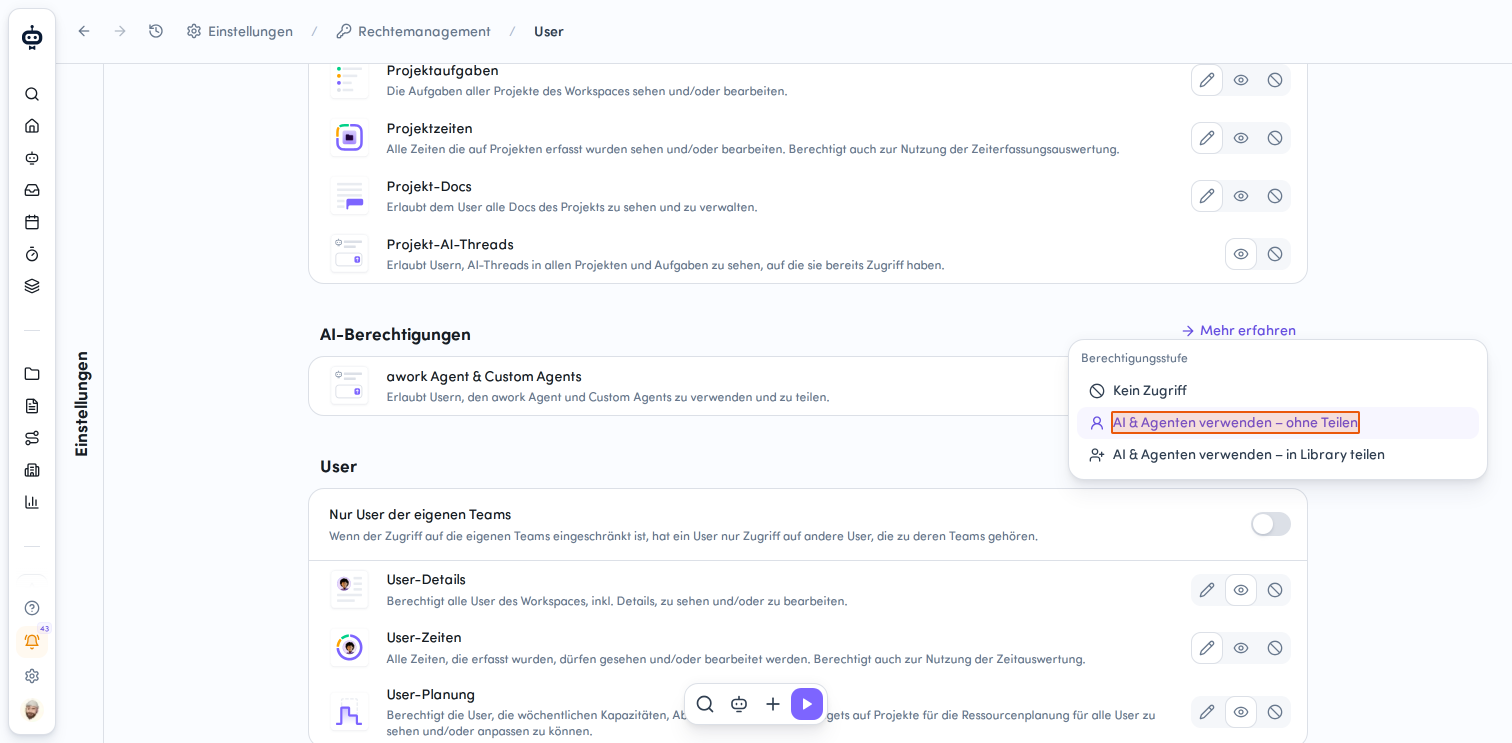
-
Select Your Desired Option
Click on the permission level you want to set for your users. The selected option is applied immediately and displayed in the dropdown field.
The AI permissions are now configured for the user role. The changes take effect immediately for all users with this role.
Set Permissions for Project AI Threads in the Project-Specific Permission Role
-
Open Settings (gear icon in the bottom left of the main menu).
-
Navigate to the Admin category and select Rights Management.
-
Open the Project-Specific Permission Role.
-
Choose one of the 2 available options for Project AI Threads:
- Read
- None
Who is the Responsible User?
Every agent run has a responsible user. Their awork permissions, personal skills, and personal connector connections are used for the run.
- Direct Run or Follow-up: The user who selects Run agent or sends the message is responsible.
- Agent Mention in Comment: The user who adds the agent mention is responsible.
- Automatic Schedule: The responsible user of the schedule remains responsible.
- Run Schedule Now: The schedule owner remains responsible. The user who selects Run Now is additionally recorded as the triggering user.
- Delegated or Sub-Agent Run: The run adopts the responsible and triggering user of the parent run.
When a user saves or edits a schedule, they become responsible for future runs.
Important: If the required permissions are missing, the user is inactive, or the permission cannot be verified, the run is rejected or stops at the next protected boundary.
Permissions During an Agent Run
A central principle is: An agent does not get more permissions than the user on whose behalf it works.
An agent has no separate awork permissions. The agent always acts on behalf of the user. If a user is not allowed to perform a certain action in awork, their agent cannot either.
Every run is executed on behalf of a responsible user who starts it. The agent can therefore only perform actions that this user is authorized to do.
This means: If you don't have permission to edit a task or project, the agent also cannot make changes there. In this case, the agent is limited to read access.
This applies to:
-
Agent runs in projects
-
Agent runs in tasks
-
Scheduled agent runs
-
Agent runs via automations
For a scheduled run or automation, the agent uses the permissions of the user who set up the run.
Only this user can edit the schedule. Other users may be able to access or delete the run depending on their permissions, but cannot automatically change its instructions.
Important: Existing sharing and approval rules continue to apply. Agents do not bypass any permissions or approvals.
In Short: If you have access to a task or project, you can also start an agent run for it. Changes are only possible if you have the appropriate edit rights.
Even without edit rights, an agent run can be helpful, for example for a Health Check, a Summary, or a quick translation.
The same principle applies to connectors. If a user, for example, connects their Google account, an agent can only perform actions with that connection that are also possible through that Google account.
When an agent is shared with another user, the agent uses their own connected accounts and permissions.
An exception exists if you deliberately embed a specific account or credentials into an agent.
Permissions for General AI Settings
Different permissions are needed to manage workspace-wide AI settings:
- Models and Workspace Context:
Access to Workspace Settings and at least the Use AI & Agents - without Sharing permission level in AI Permissions of the General Permission Role - Usage & Activity: Admin rights
- Library: At least the Use AI & Agents - without Sharing permission level in AI Permissions of the General Permission Role
What Permissions Apply to External Users?
External users have no access to the AI Thread list of a project.
In such a project, they can:
- Not see the AI tab of the project
- Not assign agents in the project
- Not mention an agent in a comment
- Not link their own AI Thread to the project
They can continue to use AI in their own workspace and use a project as context if they have the corresponding rights.
An AI Thread that an external user creates in their own workspace stays there and is charged to their own quota. It cannot be transferred to a project in another workspace.
FAQ
Is Agent Read permission enough to start an agent in a task?
No. You also need write access to the specific task or project context.
Does an agent have its own awork permissions?
No. An agent has no separate awork role. Every run uses the permissions of the responsible human user.
Can workspace administrators read other people's standalone threads?
No. Admin rights don't override the privacy of a standalone thread.
What happens if the responsible user no longer has permission?
The run is rejected or stops at the next protected boundary.
 Powered by happysupport.ai